> ## Documentation Index
> Fetch the complete documentation index at: https://www.referly.so/docs/llms.txt
> Use this file to discover all available pages before exploring further.
# Conditional rules
> Learn how conditional rules in a Referly commission plan work. Pay a different rate based on order amount, product, coupon used, landing page, or statement description, with examples for each scenario.
Conditional rules let one commission plan pay different rewards for different sales. Instead of a single flat rate, you add **conditions** that describe when a higher or lower reward should apply, for example "pay more when the order is above a certain amount" or "pay a special rate only for one product."
You set these up while creating or editing a commission plan, under **Settings → Program details → Commission plans**. This article explains how Referly decides which reward to use, and walks through every type of condition with an example.
## How Referly decides which reward applies
A commission plan is made up of one or more **commissions**, shown as tabs across the top of the editor. Every plan has a **Default** commission plus any extra commissions you add.
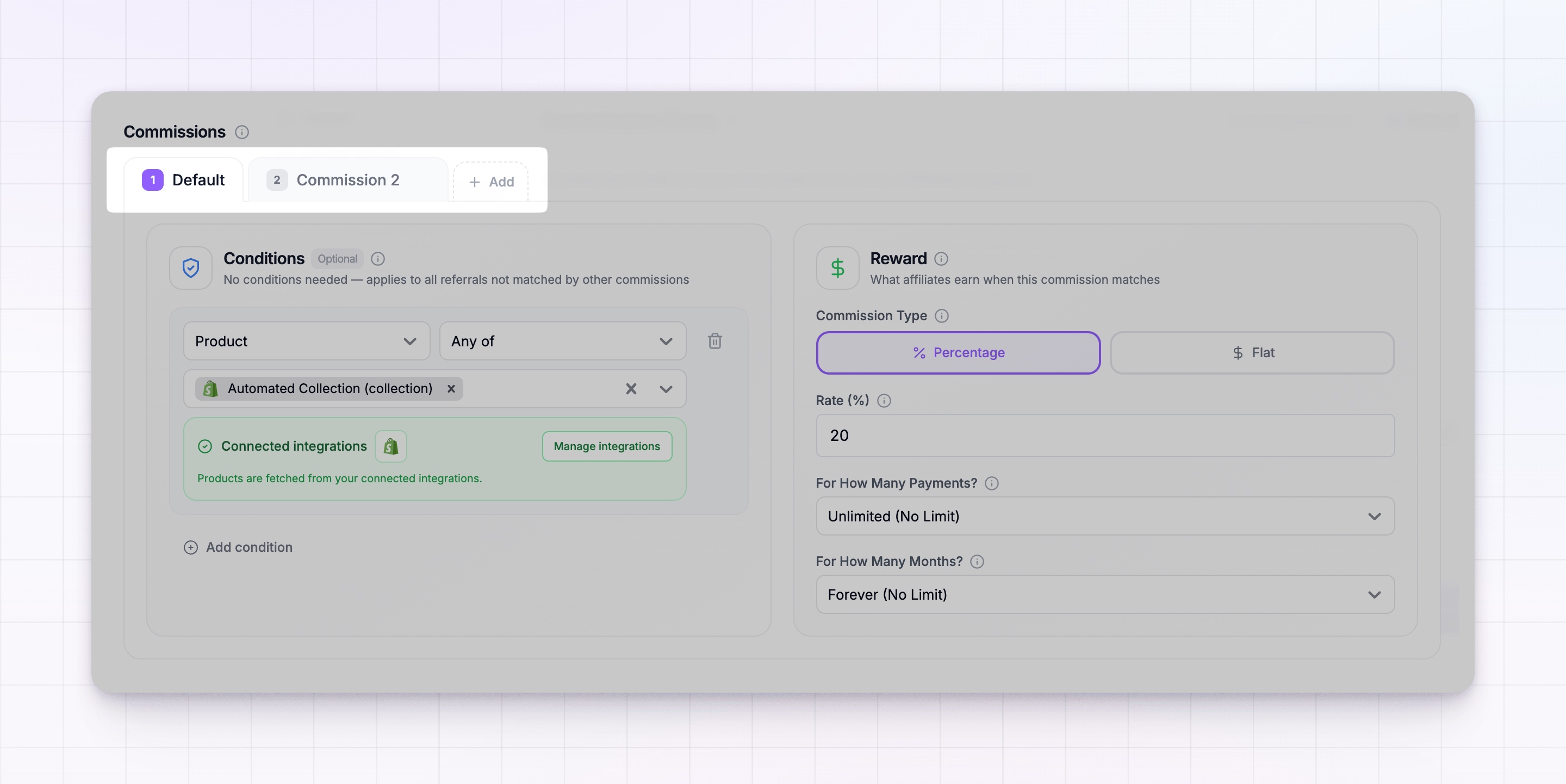
When a referred sale comes in, Referly checks your commissions in priority order and uses the **first one whose conditions match**. The **Default** commission is the catch-all: it applies to any sale that doesn't match the conditions on your other commissions, so it never needs conditions of its own.
A few things to keep in mind:
* Every commission other than the Default **must have at least one condition** so Referly knows when to use it.
* Each commission has its own reward. To learn how rewards themselves are set, see [Commission plans overview](/docs/help-center/getting-started/commissions/overview).
* Once a sale matches a commission, checking stops, so the order of your commissions matters. See [Set the priority between commissions](#set-the-priority-between-commissions) below.
### Add a condition
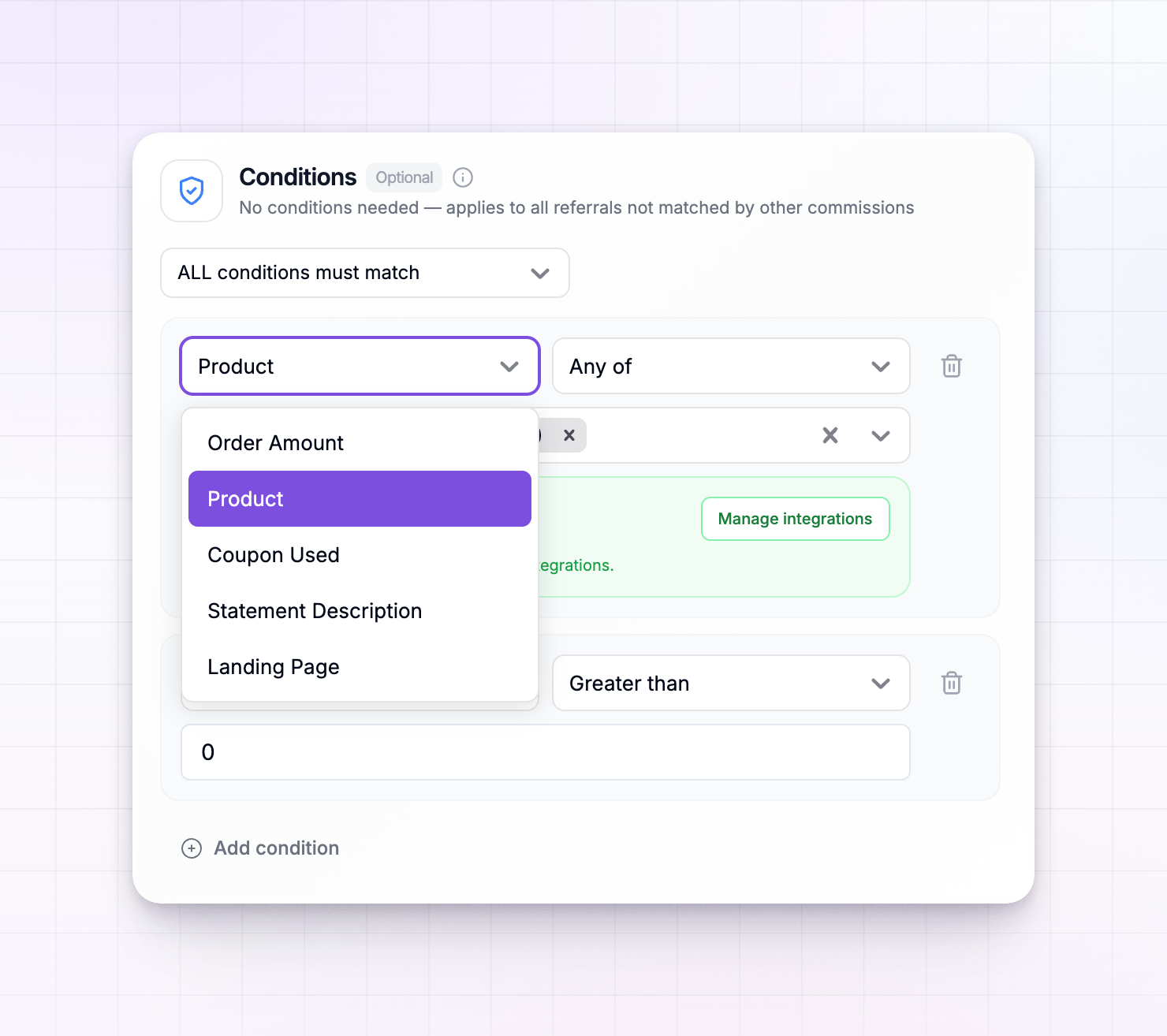
Open a commission other than the Default, then choose **Add condition**. Each condition has three parts:
The first dropdown is the rule type, for example **Order Amount** or **Product**.
The second dropdown changes based on the rule type, for example **Greater than** or **Any of**.
The field below is where you type the amount, or choose the products, coupons, or pages to match against.
### Match all or any of your conditions
When a commission has two or more conditions, a dropdown appears with two choices:
* **ALL conditions must match** — the sale must meet every condition for this commission to apply.
* **ANY condition can match** — the sale only needs to meet one of the conditions.
Use **ALL** to narrow a reward down (for example, a specific product *and* a large order), and **ANY** to widen it (for example, either of two landing pages).
## Condition types
### Order amount
Pay a different reward based on how large the sale is. Choose **Greater than** or **Less than**, then enter an amount in your store's currency.
**Example:** To reward affiliates more for big orders, add a commission with the condition **Order Amount → Greater than → 200** and give it a higher rate. Any sale above 200 uses this reward; everything else falls through to your Default.
### Product
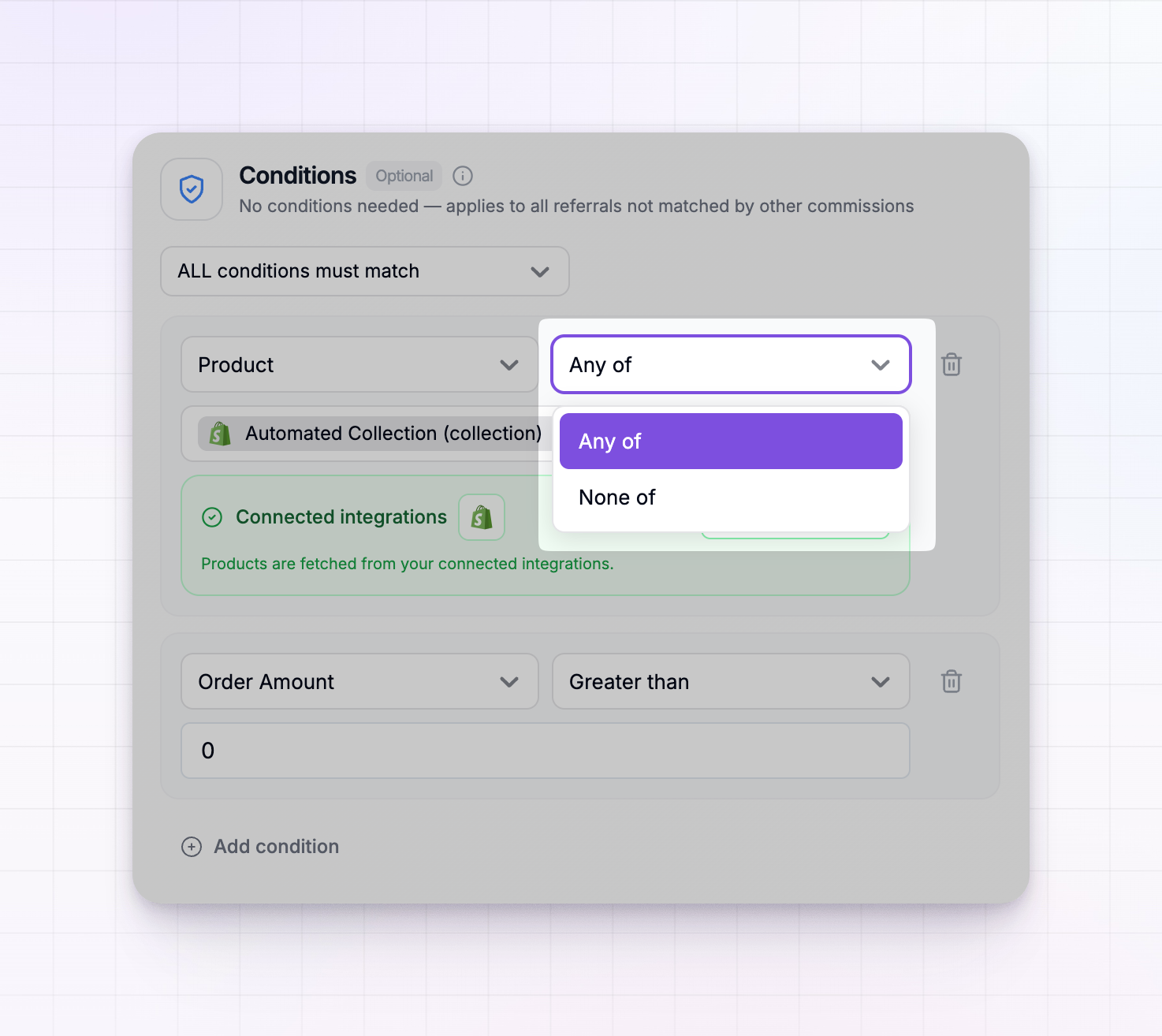
Pay a different reward based on which product the customer bought. Choose **Any of** or **None of**, then select one or more products. If you've connected Shopify, you can also select collections. Leave the selection blank to apply the reward to all products.
**Example:** To pay a premium rate only on your annual plan, add a commission with **Product → Any of → Annual plan**. For a deeper look at paying per product, see [Product-based commissions](/docs/help-center/getting-started/commissions/product-based).
### Coupon used
Pay a different reward based on which discount code the customer used at checkout. Choose **Any of** or **None of**, then pick from the coupons in your program.
**Example:** If a few affiliates promote with a special launch code, add a commission with **Coupon Used → Any of → LAUNCH25** to give those sales their own rate. You'll need the coupon set up first, see [Coupons and promo codes](/docs/help-center/engage/coupons/overview).
### Landing page
Pay a different reward based on the page the customer first landed on. Choose **Is**, **Is not**, **Contains**, or **Does not contain**, then type one or more page addresses. Press enter after each one to add it.
**Example:** To reward traffic sent to a specific campaign page, add a commission with **Landing Page → Contains → /black-friday**. Sales that started on any page containing that text use this reward.
Landing page is the only condition available when a plan rewards affiliates at sign-up rather than on a purchase, because there's no order to check yet.
### Statement description
Pay a different reward based on the description that appears on the customer's card statement for the purchase. This condition offers **Contains**, then you type the text to look for.
**Example:** If your billing shows different descriptors for different products or brands, add a commission with **Statement Description → Contains → PRO** to route those sales to their own reward. This is an advanced option, most programs use order amount, product, or coupon instead.
## Set the priority between commissions
Because Referly stops at the first commission that matches, put your most specific commissions before broader ones. Commissions are checked in the order they appear across the tabs, and the Default is always applied last.
If two commissions could both match the same sale, the earlier one wins. For example, if you have one commission for orders over 100 and another for orders over 500, list the "over 500" commission first so large orders get the higher reward instead of stopping at "over 100."
Give overlapping commissions a clear order. If a broad condition sits before a narrow one, sales may match the broad reward before they ever reach the reward you intended.
## Related
How Referly calculates what an affiliate earns.
Pay a different rate depending on which product was bought.
Reward affiliates with coupons or credits instead of cash.
Move an affiliate onto a different commission plan.