> ## Documentation Index
> Fetch the complete documentation index at: https://www.referly.so/docs/llms.txt
> Use this file to discover all available pages before exploring further.
# Migration overview
> Move your affiliates, referred customers, and sales into Referly from a CSV file or another affiliate platform like Rewardful, FirstPromoter, PartnerStack, Tapfiliate, Tolt, Partnero, Trackdesk, or Dub.
Switching from another affiliate platform — or from a spreadsheet you've been keeping by hand — doesn't mean starting over. Referly can bring your existing **affiliates**, their **referred customers**, and past **sales** in with you, so your program picks up where it left off instead of from zero.
This page is the map for that move. It covers the two ways to get data in, what you can bring across, the order to do it in, and how to follow each import while it runs. When you're ready to migrate from a specific tool, jump to its guide at the bottom.
## Two ways to bring your data in
Every migration starts by choosing where the data comes from. You have two options:
* **Upload a CSV file.** Export your affiliates, customers, or sales from your old tool (or your own spreadsheet) as a CSV, then upload it and match up the columns. This works no matter what you're coming from. See [Migrate from CSV](/docs/help-center/getting-started/migrate/csv).
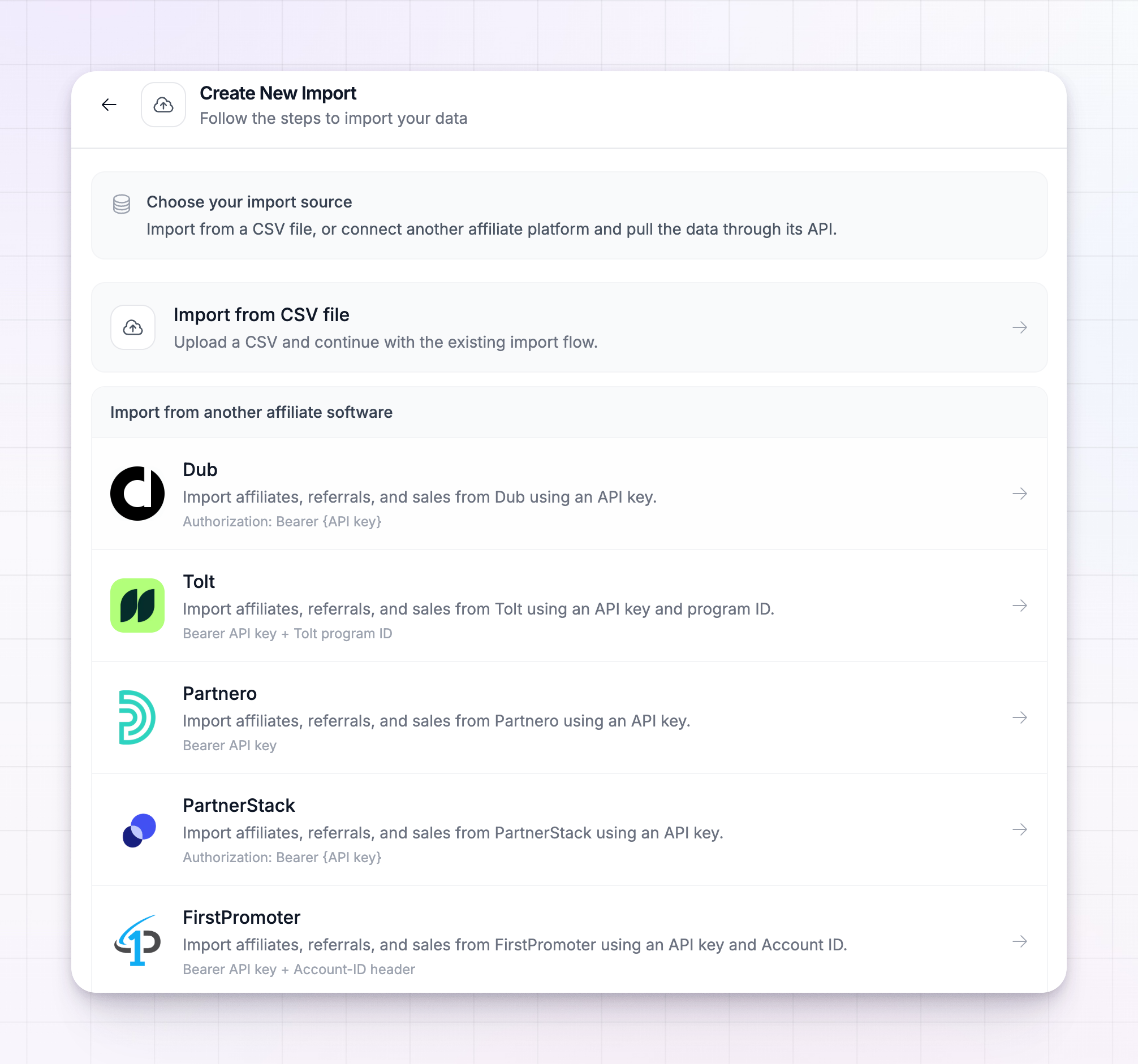
* **Connect another affiliate platform.** If you're leaving one of the platforms Referly supports directly, you can connect it and pull your data across through its own connection — no exporting or file wrangling. You provide a key (and, for some platforms, an extra ID) from your old account, and Referly reads the data for you.
Referly can connect directly to these platforms today:
Connect with your Rewardful API secret.
Connect with your API key and Account ID.
Connect with your PartnerStack API key.
Connect with your Tapfiliate API key.
Connect with your API key and program ID.
Connect with your Partnero API key.
Connect with your tenant ID and API key.
Connect with your Dub API key.
Not on the list? Export from your current tool and use the [CSV import](/docs/help-center/getting-started/migrate/csv) instead — it handles any source.
## What you can bring across
A migration is made up of three kinds of data, and you import them one at a time:
* **Affiliates** — your partners, with their names, emails, and referral links or codes.
* **Customers** — the people your affiliates referred, each linked back to the affiliate who referred them.
* **Sales** — past transactions and the commissions attached to them, credited to the right affiliate.
You don't have to import all three. If you only want your affiliate list to come across, import affiliates and stop there. But if you want your program's history intact — who referred whom, and what they earned — you'll want all three.
## Import in the right order
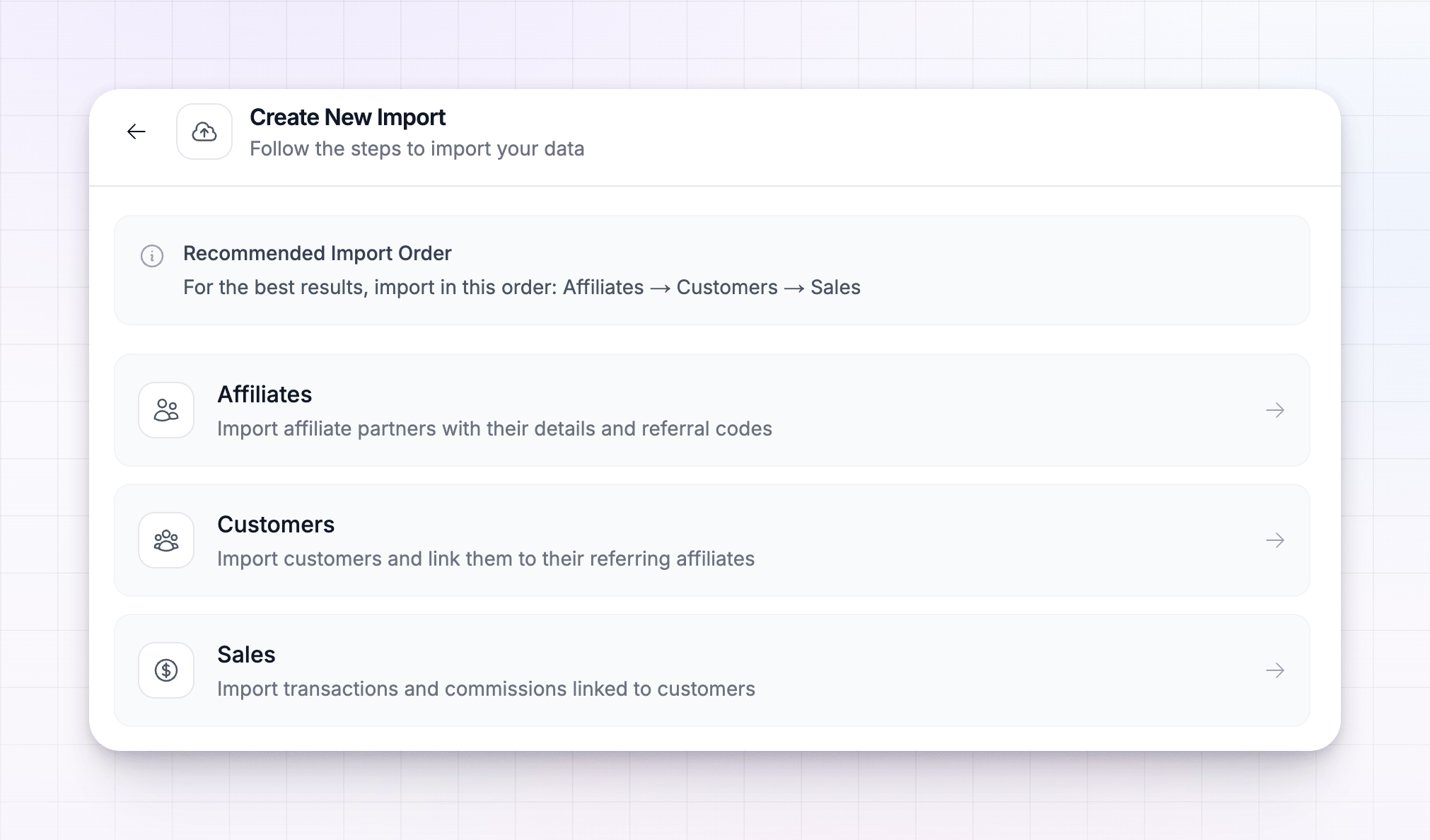
Order matters, because each layer builds on the one before it. Customers are linked to their affiliates, and sales are linked to their customers, so those affiliates and customers need to exist in Referly first.
Always migrate in this order:
Bring your partners in so there's someone for every customer and sale to attach to.
Import the referred customers. Each one links to the affiliate who referred them.
Import the transactions and commissions, credited to the affiliates and matched to their customers.
Referly reminds you of this order as you go, and it won't let you start a customer or sales import while the affiliate import it depends on is still running — so wait for each step to finish before starting the next.
## Start an import
You can begin a migration from anywhere in your dashboard:
Select the **plus (+)** button in the top bar, then choose **Import Data**. You can also select **Import** from the top of your **Affiliates**, **Customers**, or **Sales** pages.
Pick **Import from CSV file**, or select the platform you're migrating from.
Pick affiliates, customers, or sales — starting with affiliates, following the order above.
For a CSV, upload the file. For a connected platform, enter your key and save the connection. Referly then shows your data and lines its columns up with the right fields, so you can check the matches before importing.
Confirm, and Referly begins bringing your data in. Repeat for the next type of data.
The exact fields and options differ slightly by source — each platform's guide walks through its own screen in detail.
## Track an import while it runs
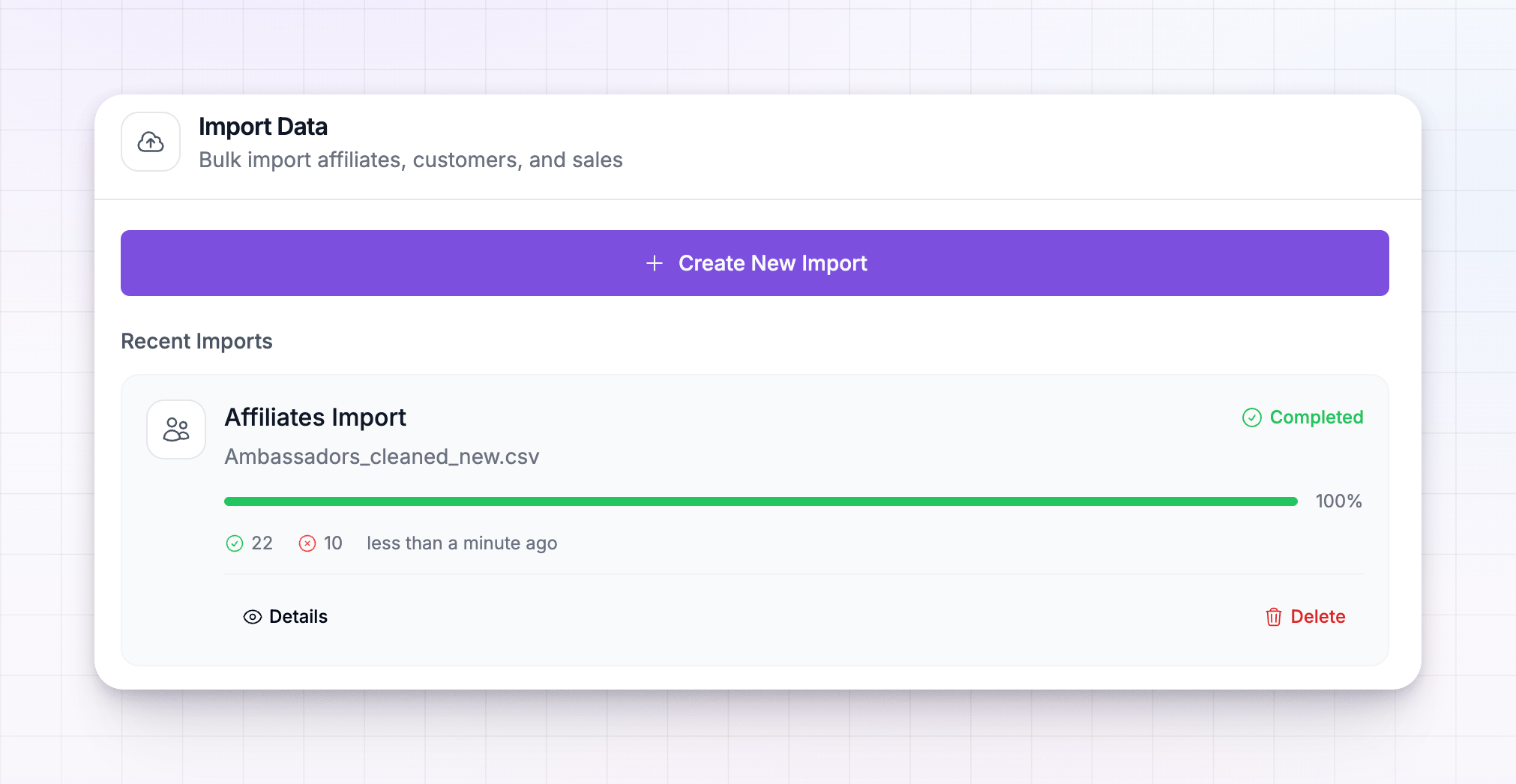
Imports run in the background, so you don't have to sit and watch. Every import you start appears in the **Recent Imports** list inside the import tool, each showing its own progress.
An import moves through these states:
| Status | What it means |
| -------------- | ------------------------------------------ |
| **Pending** | Queued and about to start. |
| **Processing** | Bringing your records in right now. |
| **Paused** | You've paused it; resume it any time. |
| **Completed** | Finished — all records handled. |
| **Failed** | The import stopped before finishing. |
| **Cancelled** | The import was stopped and won't continue. |
Each card also shows a progress bar and a running count of how many records came in successfully and how many were skipped, so you can spot problems early. You can **pause** an import that's running and **resume** it later, open **Details** to see the full breakdown, or **delete** an import you no longer need.
Take your time and check each import's results before moving to the next type. Getting affiliates in cleanly first means your customers and sales attach to the right partners automatically.
## Related
Import affiliates, customers, or sales from a spreadsheet.
Bring new partners into your program by email.
Set the terms your migrated affiliates earn on.
Record a one-off sale by hand after you've migrated.