

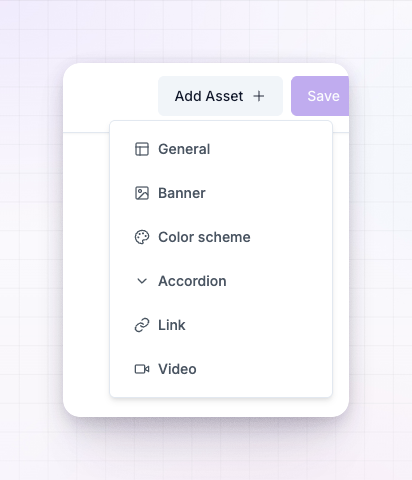
General
A flexible, catch-all asset for anything that doesn’t fit the other types — a media kit, a set of product images, a one-pager, or mixed materials you want in one place. For each content item inside it you add a title and description, then upload an image, attach a downloadable ZIP or PDF, or both. Turn on Downloadable if you want affiliates to save the image file itself rather than only view it. Use General when you just need to hand affiliates a file or an image and the more specific types don’t apply.Banner
Promotional images sized for social media and websites. A banner asset works like the General type — each content item has a title, a description, and an uploaded image — but it’s labelled as a banner so affiliates know it’s ready-made creative to drop into their site or posts. Add several content items to offer the same banner in different sizes or styles, and turn on Downloadable so affiliates can grab the file.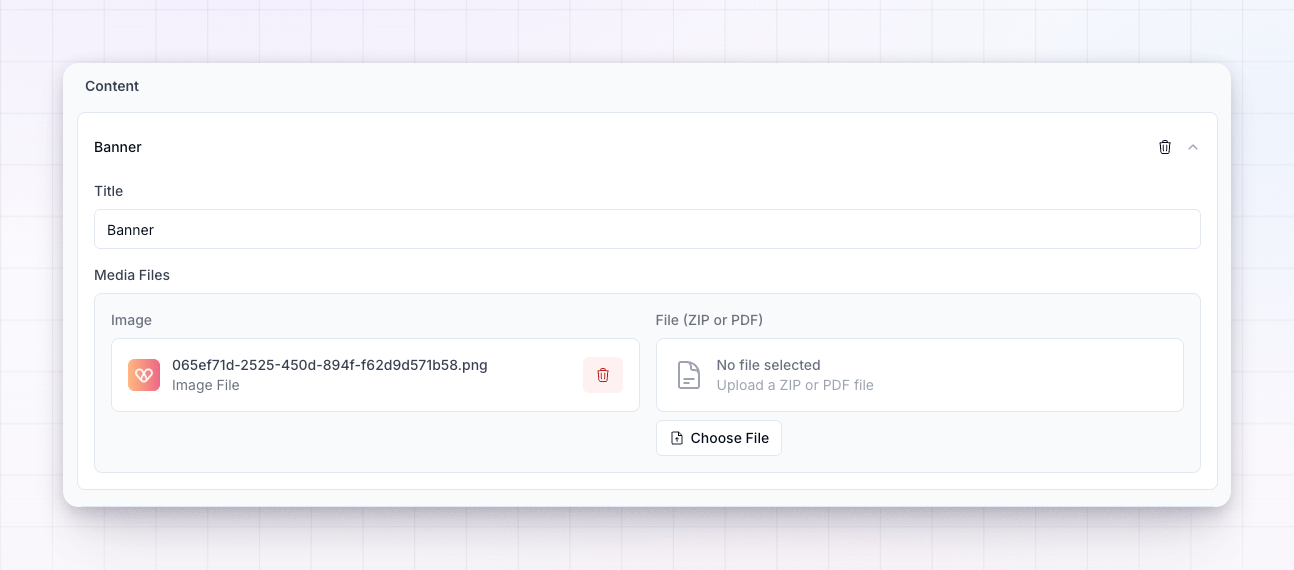
Colour scheme
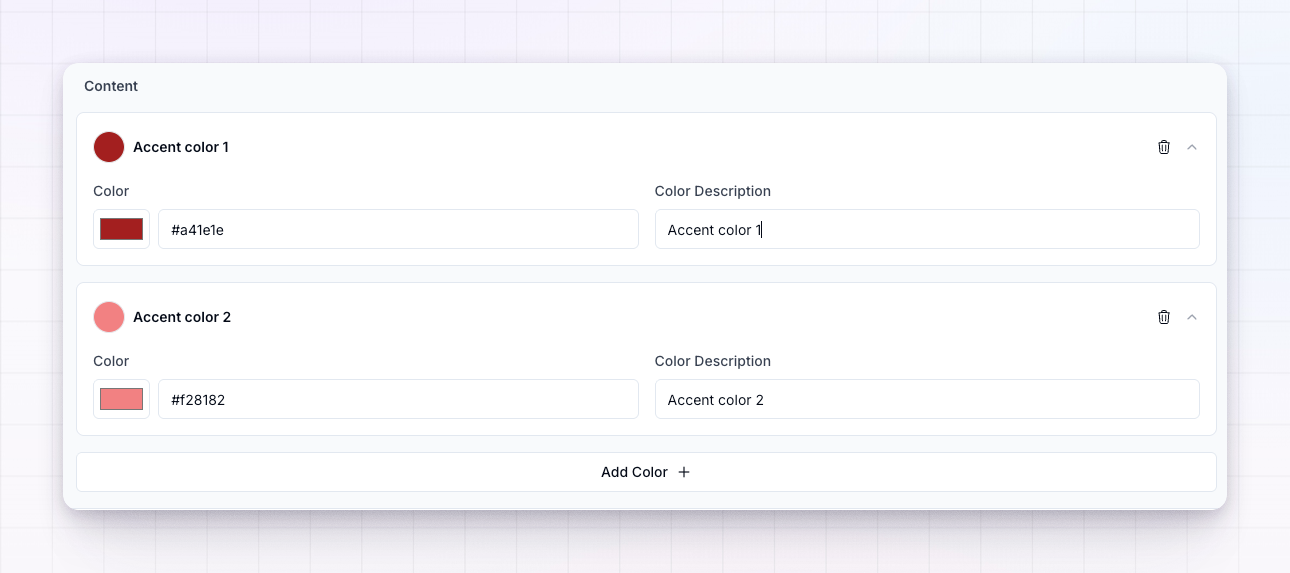
Your official brand colours, so affiliates stay on-brand when they design their own material. Add one or more colours, and for each give a Colour name, its value (as a hex code like#000000), and an optional description of where to use it. Affiliates can copy a colour value straight from their portal.
Use this to share a palette alongside your banners so everything an affiliate makes matches your brand.
Accordion
Expandable sections for organising longer content in a compact way — think brand guidelines, dos and don’ts, or a set of frequently asked questions. Each content item becomes its own titled section with a description that affiliates expand to read. It keeps a lot of guidance tidy instead of one long wall of text.Link
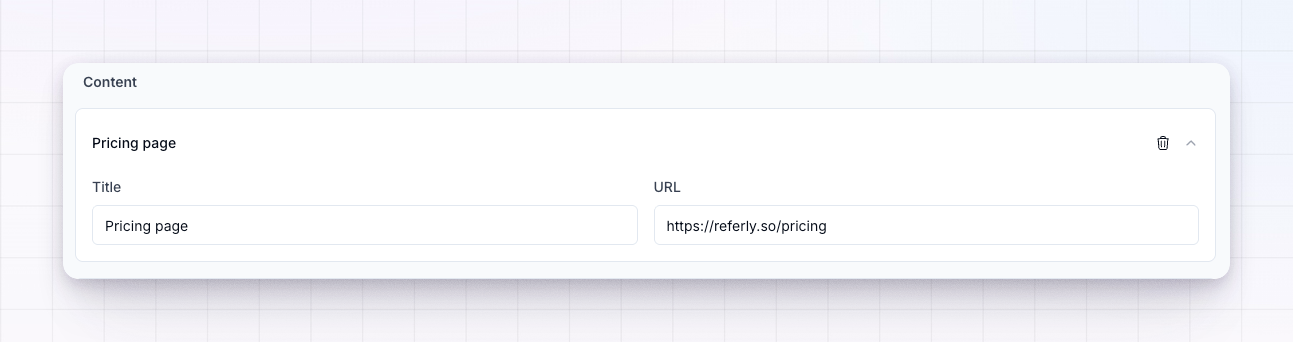
A URL you want affiliates to share or reference — a landing page, a sign-up form, or a resource. For each link you set a Link title (the label affiliates see, for example “Learn More”) and the destination URL. Affiliates can copy the link from their portal to use in their content.Video
A YouTube video for tutorials, demos, or promos. Give the video a title and description, then paste its YouTube URL (for examplehttps://youtube.com/watch?v=...). The video plays right inside the affiliate portal, so affiliates can watch it or share it without leaving Referly.
Choosing a type
There’s no single right answer — match the type to the material:- Ready-made creative to post → Banner
- A file or image to download → General
- Your palette → Colour scheme
- Guidelines or FAQs → Accordion
- A page or form to share → Link
- A demo or tutorial clip → Video
Related
Marketing assets overview
How the asset library works and where each setting lives.
Organise assets in folders
Structure your library so affiliates find the right material fast.