

Check whether you already have it
If you’ve set up affiliate link tracking for this program, the script is almost certainly already installed, and you can skip straight to creating a pop-up or banner. Pop-ups and banners reuse that same tracking, so no second snippet is needed. Not sure? Adding the script a second time does no harm, so when in doubt, follow the steps below.Get your embed code
On the Pop-ups & Banners page, select How to Embed in the top right. The same button is available inside the editor. A window opens with a code snippet made specifically for your program. Select the copy icon to copy it. It looks like this, with your own program details already filled in: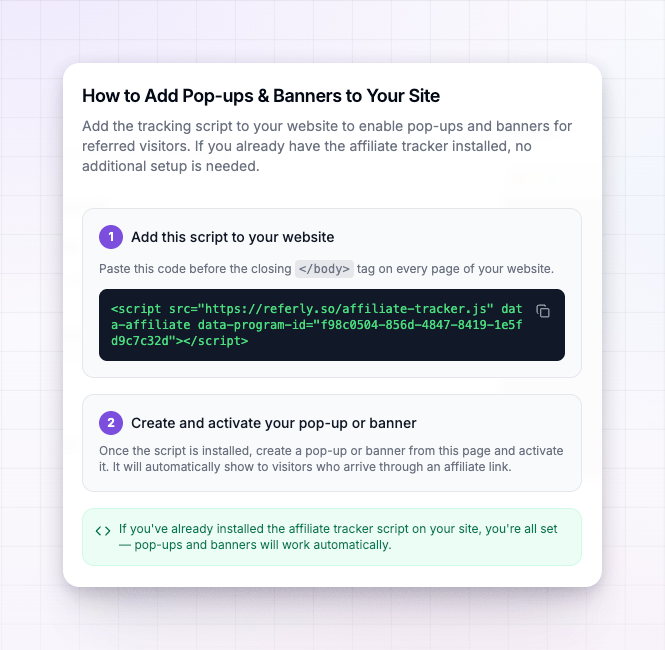
Add it to your website
Paste the snippet just before the closing</body> tag on your site, and make sure it’s on every page where you want pop-ups and banners to be able to appear. Most site builders and content platforms have a place to add custom code to the site footer or header — putting it there adds it to every page at once.
Once the script is live, save and publish your site as you normally would.
Turn on a pop-up or banner
With the script in place, create a pop-up or banner and select Publish so its status becomes Active. From then on it shows automatically to visitors who arrive through an affiliate link and match its settings. You don’t need to touch your website code again — build, publish, and edit everything from the Pop-ups & Banners page.Pop-ups and banners only appear for visitors who came to your site through an affiliate link, so they won’t show up when you visit your own pages directly. To preview the design while you build, use the live Preview in the editor.
Related
Pop-ups and banners overview
See how the whole feature fits together, from create to publish.
Triggers and position
Set when the message fires, which pages it shows on, and its position.
Target an audience
Show a pop-up only to visitors referred by certain affiliates or groups.