

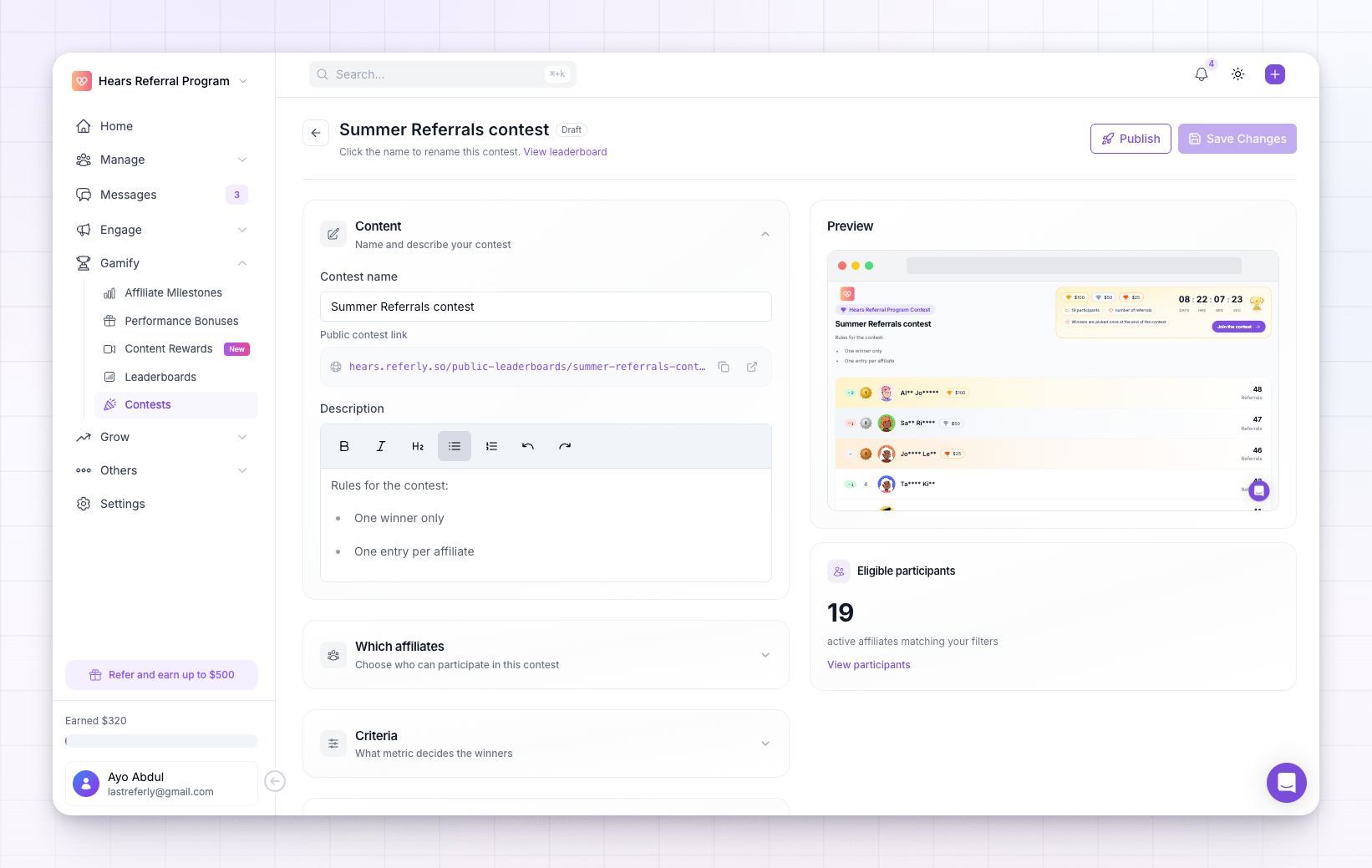
Name and describe your contest
At the top of the editor, give your contest a name — this is what affiliates see, so make it motivating (for example, “Summer Sales Sprint”). Add an optional description to explain the rules or the prize in your own words. You can format the description with headings, links, and lists.Choose who competes
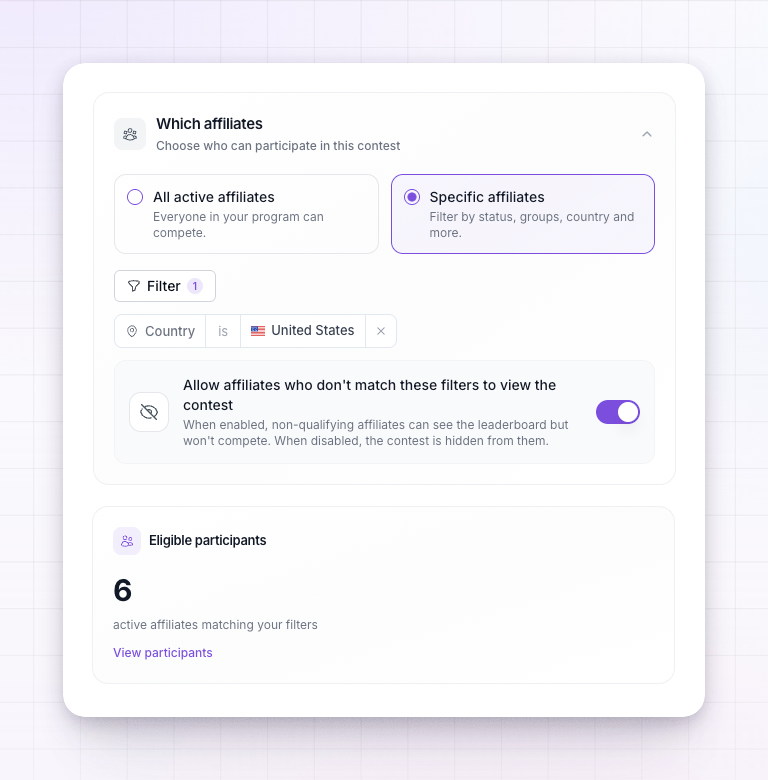
Under Which affiliates, decide who’s in the running:- All affiliates — everyone in your program competes.
- A filtered set — build a filter to limit the contest to specific groups, countries, or other conditions. When you use more than one condition, you choose whether affiliates must match all of them or any of them.
Pick the ranking metric
Under Criteria, choose the metric that decides the winners — number of referrals, revenue, sales, earnings, or conversion rate. These are the same options as the default leaderboard, explained in Choose ranking criteria. Each affiliate’s standing in the contest is measured only over the contest’s own time period.Set the prizes
Under Prizes, add a reward for each finishing position. A new contest starts with three cash prizes — 1st, 2nd, and 3rd — that you can change, remove, or add to. For each rank, pick the prize type:- Cash — enter an amount in your program’s currency. Cash prizes are awarded automatically as a bonus when the contest is finalized, so you don’t have to pay winners by hand.
- Non-cash — describe the reward (for example, “Branded hoodie + swag pack”) and, optionally, a deliverable note for yourself (for example, “Ship within 14 days”). You fulfill non-cash prizes yourself.
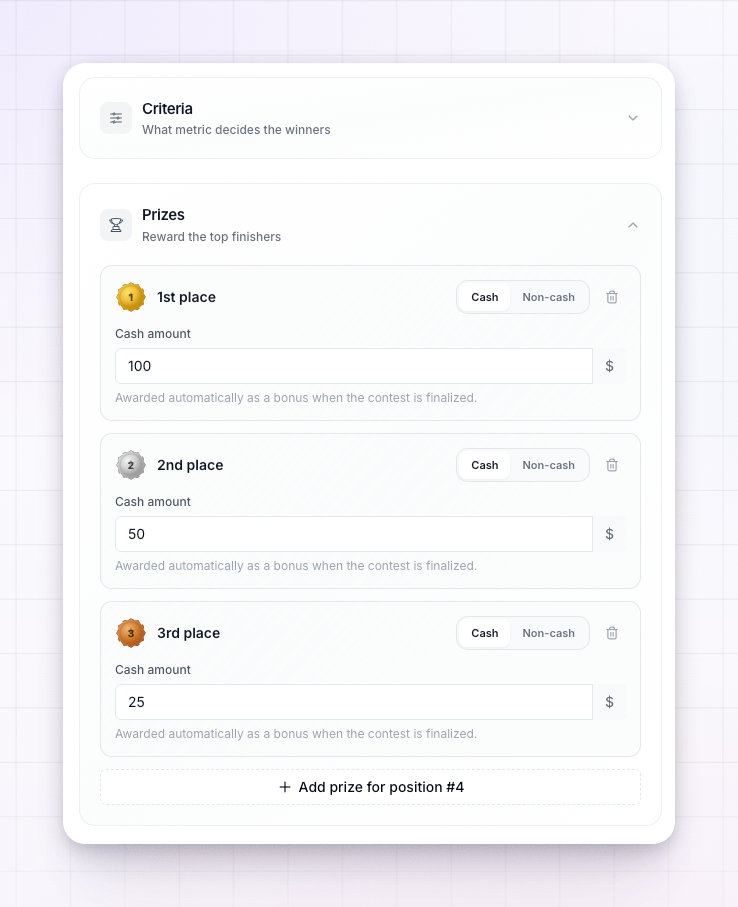
Only ranks that have a prize can win. If you set prizes for 1st, 2nd, and 3rd, the top three finishers win — everyone else simply competes.
Schedule it and choose winner frequency
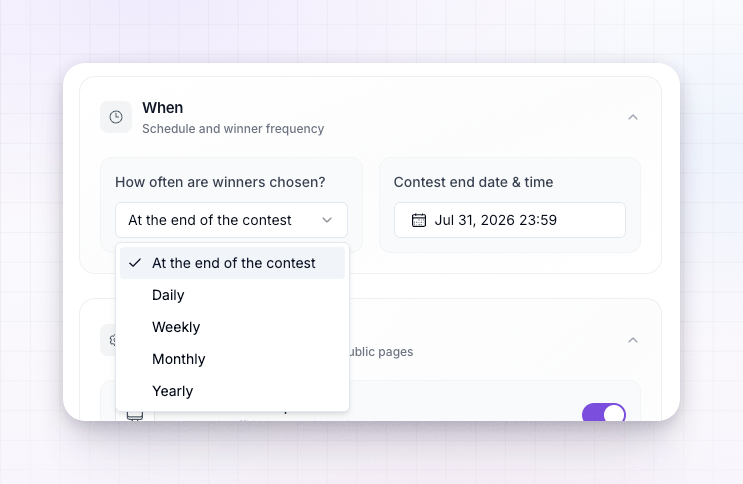
Under When, set the end date and how often winners are picked:- At the end of the contest — a single set of winners is chosen once, when the contest ends.
- Daily, Weekly, Monthly, or Yearly — winners are picked at the end of every period, so the same contest can crown fresh winners on a repeating cycle.
Control where it shows up
Under Settings, choose the contest’s visibility:- Show on affiliate portal — logged-in affiliates can view the contest’s leaderboard.
- Hide participant details on portal — mask other affiliates’ names and emails inside the portal.
- Show publicly — anyone can view the contest’s public leaderboard page.
- Hide participant details publicly — mask names and emails on the public page.
- Show on affiliate dashboard home — feature a compact version on the portal homepage.
- Keep contest visible after it ends — leave the results up once it’s finished.
Publish it
When everything looks right, select Publish. The contest goes live, its status changes to Active, and it starts counting immediately. If you’re not ready, save it and it stays a Draft you can return to. Once a contest is active, you can pause and resume it at any time using the Live/Paused toggle, and you can still edit its details.Publishing a contest requires the Gamification add-on or an Enterprise plan. You can build and save a draft on any plan. See Add-ons.
Related
Contests overview
How contests work and where to find them.
Pick winners
How winners are chosen and prizes awarded.
Choose ranking criteria
What each ranking metric measures.
Affiliate groups
Build the groups you can target a contest to.