

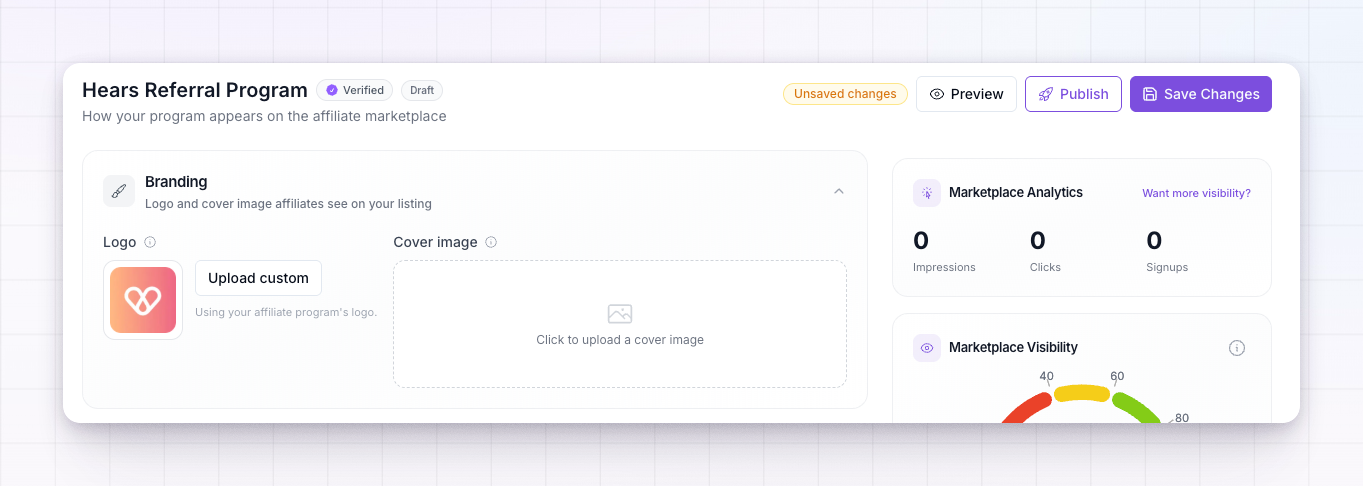
Add your branding
The Branding section is the first thing affiliates notice.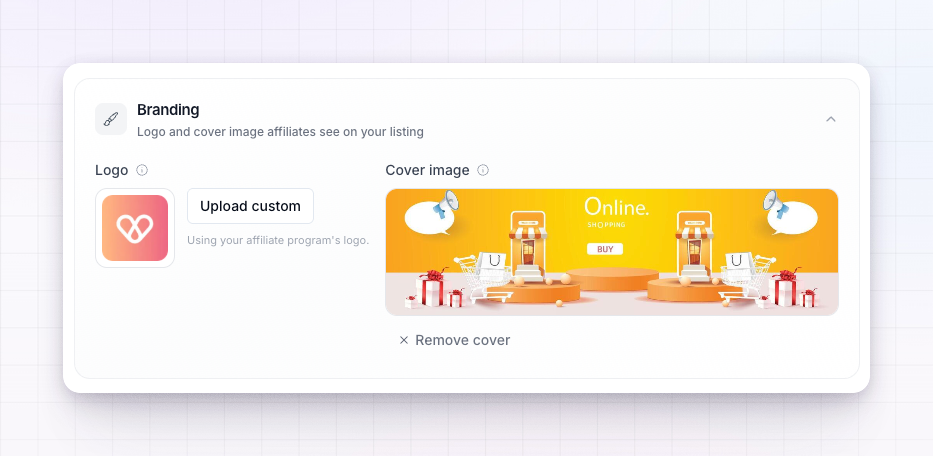
- Logo — your product or company logo. It appears on your listing card and page.
- Cover image — a wider banner shown at the top of your listing page. Use it to show your product or brand in its best light.
Fill in the details
The Details section is the core information about your program.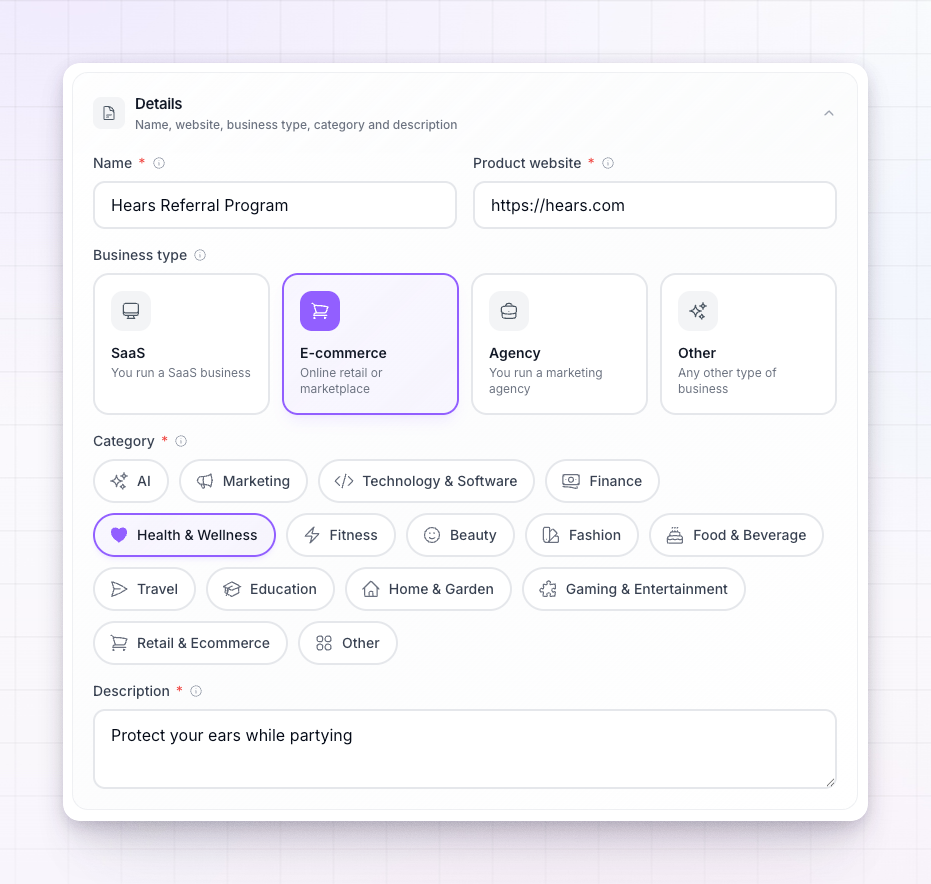
- Name — your program or product name, as affiliates will see it.
- Product website — the public website of your product. Affiliates use it to check out what they’d be promoting. It defaults to your program’s landing page.
- Business type — the kind of business you run, chosen from the options shown. It helps affiliates and the marketplace categorize you.
- Category — the single niche your program belongs to. This is how affiliates browsing a category find you, so pick the one that fits best.
- Description — a short pitch shown on your listing card and at the top of your page. Keep it tight and compelling; it’s often the deciding line for whether someone clicks in.
Changing your business type or category here also updates your affiliate program itself, since your listing and program share this information.
Set the reward
The Reward section decides two things at once: what affiliates earn, and where they land when they join.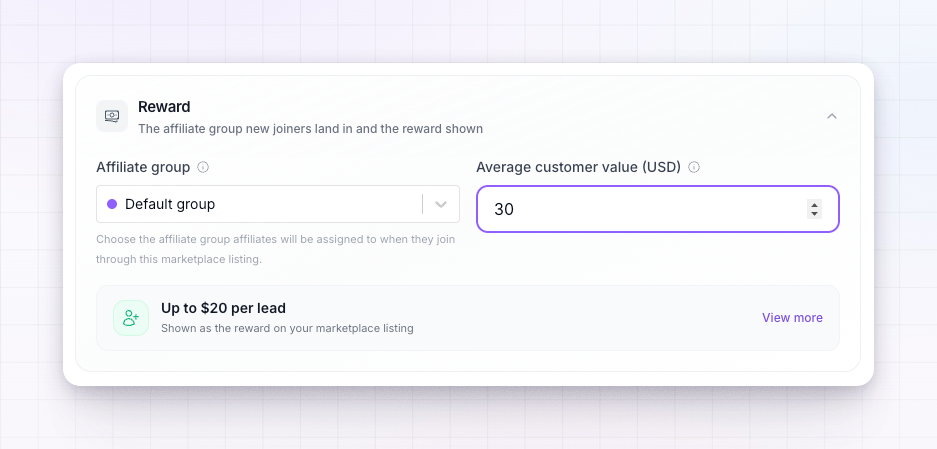 You choose an affiliate group, and affiliates who join through your listing are placed into it. That group’s commission plan sets the reward they get — and that same reward is what your listing advertises. So the group you pick here is both the offer on the page and the terms new joiners start on.
Choose a group whose commission plan represents the deal you want to make to the open market.
You choose an affiliate group, and affiliates who join through your listing are placed into it. That group’s commission plan sets the reward they get — and that same reward is what your listing advertises. So the group you pick here is both the offer on the page and the terms new joiners start on.
Choose a group whose commission plan represents the deal you want to make to the open market.
Write the listing body and FAQs
The Listing body is the main content of your listing page, and it’s required — you can’t publish without it.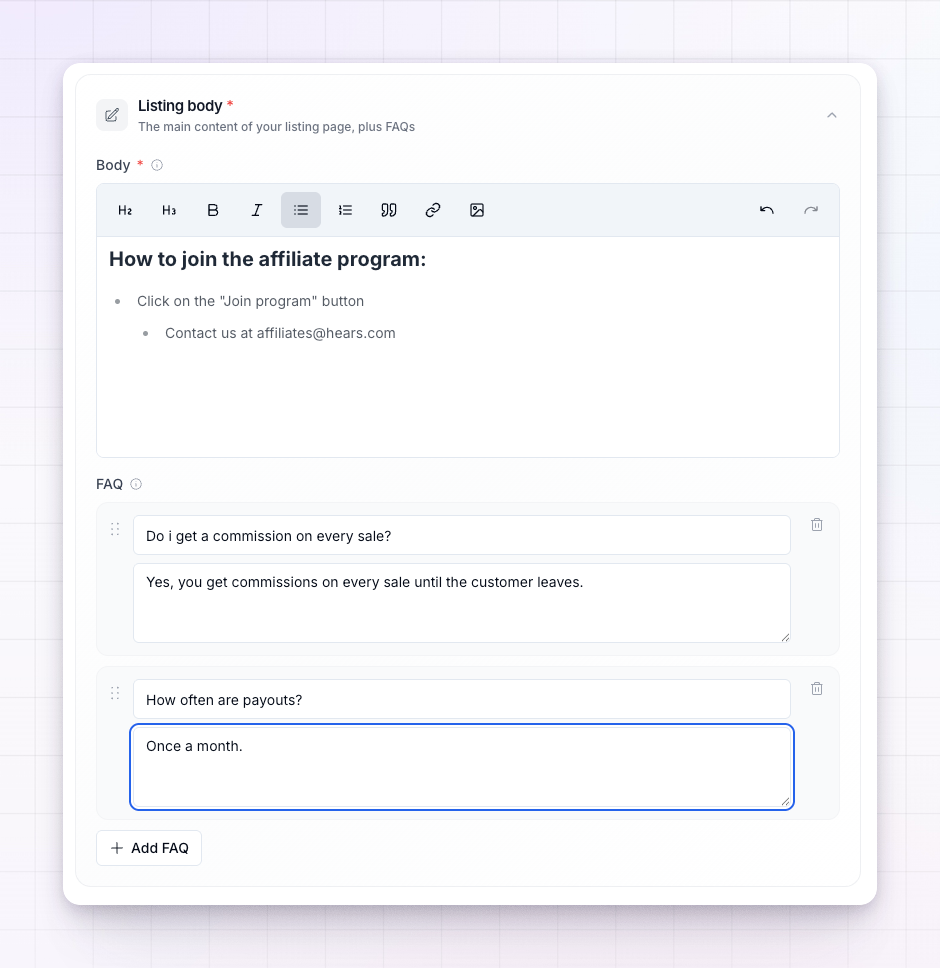
- Body — the full write-up of your program. Explain your product, who your ideal affiliate is, what makes your offer worth promoting, and anything that helps an affiliate decide. This is your space to sell.
- FAQs — add the questions affiliates commonly ask, like “How often are payouts?” Each becomes an expandable question-and-answer on your listing page. Add as many as you need and drag them into the order you want.
Preview your listing
Before you publish, select Preview to see your listing exactly as an affiliate will. It’s the quickest way to catch a missing image, a thin description, or a section you meant to finish. Make your edits, then preview again until it reads the way you want.Save and publish
You have two controls in the top bar:1
Save Changes
Saves your work as a Draft. Nothing is public yet — this is safe to do as often as you like while you build.
2
Publish
Makes your listing live in the marketplace. To publish, your listing needs a filled-in body and an active marketplace license. Once live, the button becomes Unpublish if you ever need to take it down.
If you publish without an active marketplace license, your work is saved as a draft and you’re prompted to get one. See Marketplace licenses.
Related
Visibility and boosts
How a complete listing ranks higher — and how to boost it.
Marketplace licenses
What you need to publish your listing.
Marketplace overview
How the marketplace works and where your listing shows up.
Commission plans overview
Set the reward your listing advertises.