

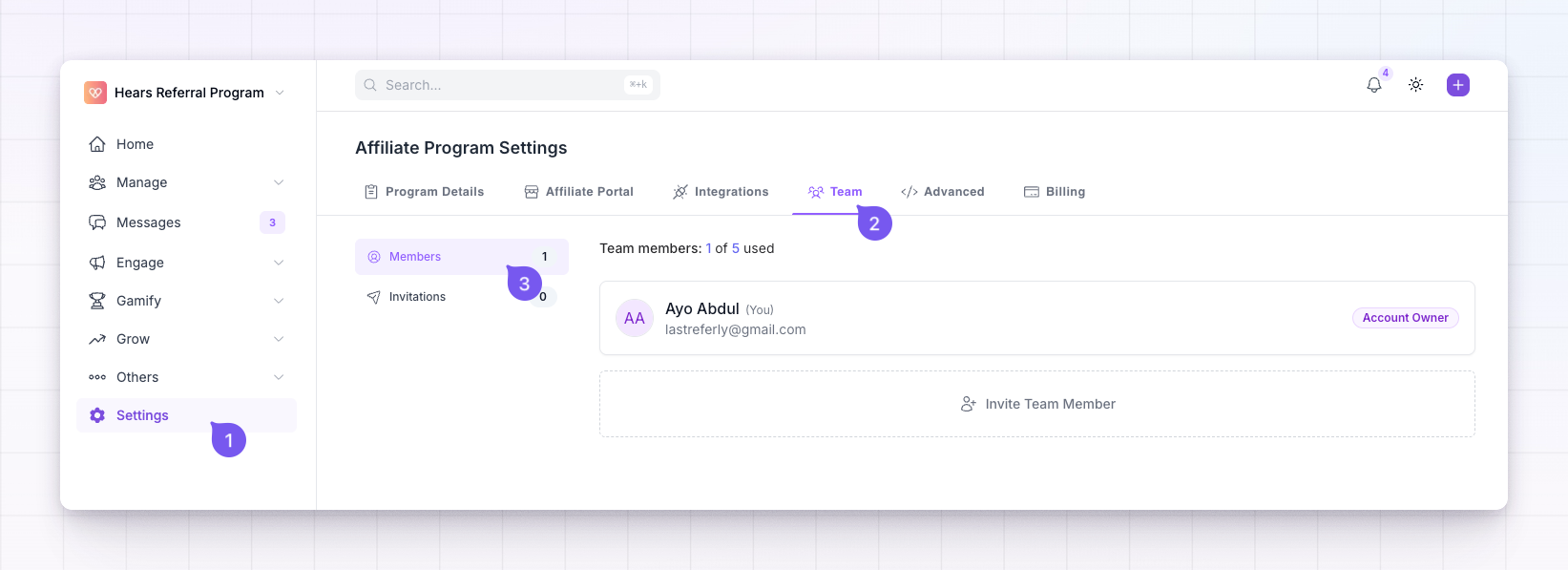
Only the account owner and admins can invite people, change roles, or remove members. If you’re a member, this screen shows your own card and the admins on the account, and the management controls are hidden. How many people you can add depends on your plan — see plans and features.
Understand the three roles
Everyone on your account holds one of three roles. Picking the right one matters, because the role decides both what a person can do and how much of your account they can see.- Account Owner — the person who created the account. The owner has full access to everything and appears at the top of the list with an Account Owner badge. This role can’t be changed or removed from this screen.
- Admin — can open every affiliate program on the account and manage the team, including inviting new people, changing roles, and removing members. Choose this for someone you trust with the whole account.
- Member — can only open the affiliate programs you pick for them, and can’t manage the team. Choose this for a specialist, a contractor, or a client who should stay inside one program.
Admins get access to every affiliate program automatically, including programs you create later. If you want someone limited to a fixed set of programs, make them a member instead.
Check how many seats you have left
At the top of the screen you’ll see a count like “Team members: 3 of 5 used”. The first number is everyone who currently has access, including the account owner. The second is the limit that comes with your plan, or Unlimited on plans that don’t cap it. When every seat is taken, a Limit reached badge appears next to the count and the invite button changes to Maximum team size reached. You’ll need to remove someone or move to a bigger plan before you can add anyone new.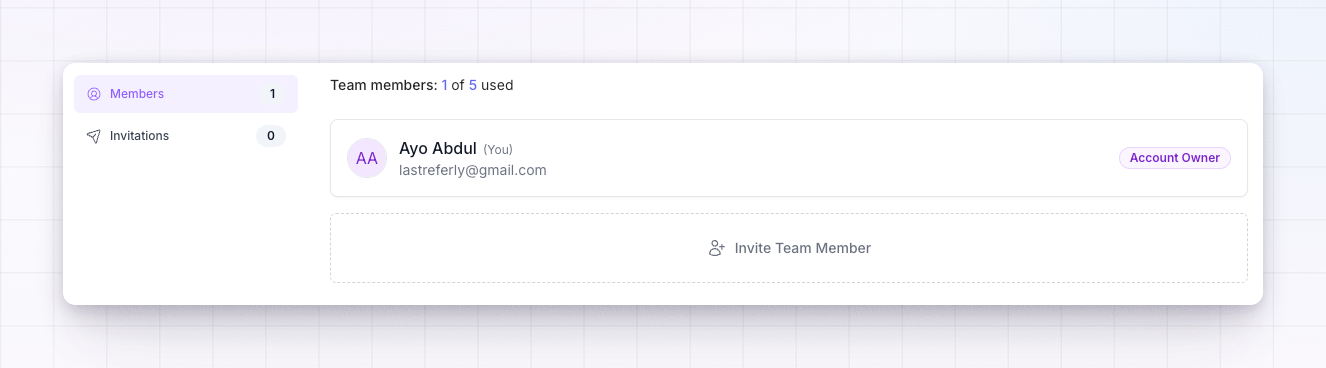
Invite a team member
Select Invite Team Member at the bottom of the list to open the invite window. You can invite several people at once, as long as they should all have the same role.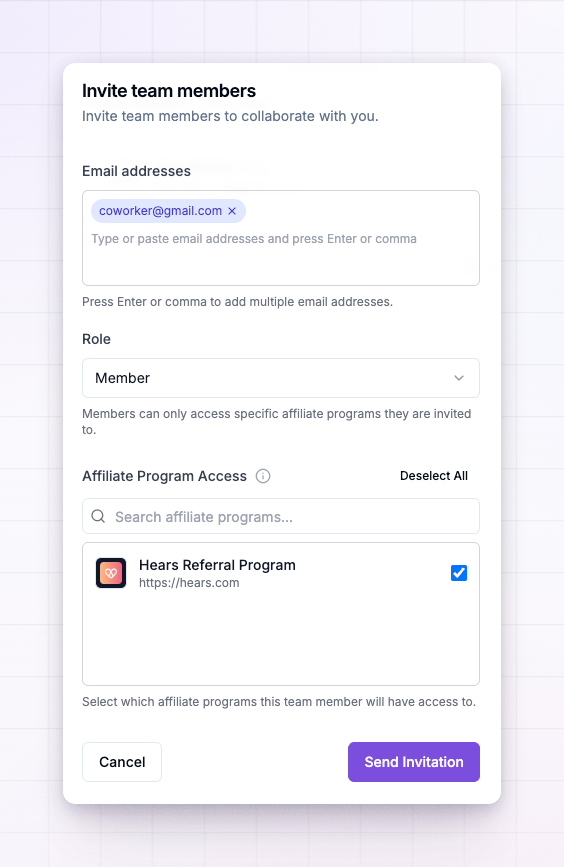
1
Add the email addresses
Type an email address into the Email addresses box and press Enter or comma to add it. Each address you add turns into a tag, and you can remove one with the x on the tag. You can also paste a whole list of addresses separated by commas or spaces and they’ll all be added at once.
2
Choose the role
Under Role, pick Admin or Member. The line underneath reminds you what the choice means. Everyone in this invite gets the same role, so send a second invite if someone needs a different one.
3
Pick which programs they can access
If you chose Member, the Affiliate Program Access list shows your affiliate programs with a checkbox each. Tick the ones this person should be able to open. Use the search box to find a program by name or web address, or Select All to give access to everything. You have to pick at least one program before you can send the invite. If you chose Admin, this list shows a note instead, because admins already have access to every program.
4
Send it
Select Send Invitation. Everyone you added gets an email invitation to join your account.
When the “Invitations sent successfully” message appears, the invites are on their way. Until each person accepts, they show up on the Invitations screen, where you can resend or cancel them.
Change someone’s role
Each person’s card has a role dropdown next to their name. Open it and choose Admin or Member to change what they can do. The change takes effect right away — there’s nothing extra to save.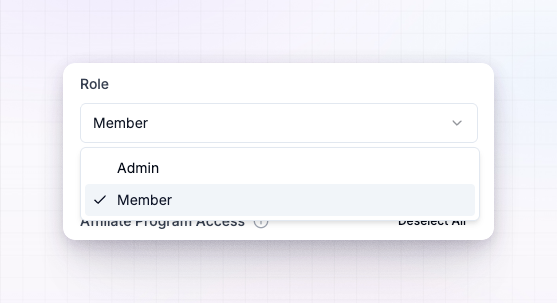 Moving someone from member to admin gives them every affiliate program plus the ability to manage the team. Moving an admin down to member takes those abilities away, so set their program access afterwards using the steps below.
Control which programs a member can see
Every person with the Member role has an Affiliate Program Access section on their card. It shows the programs they can currently open — as small program logos, with the program names listed underneath. If they haven’t been given any yet, it says “No affiliate programs assigned”. To change it, select Edit Access on their card. Tick or untick programs to set exactly what they can open, search by name or web address to find one quickly, or use Select All to hand over everything. Select Save Changes when you’re done, or Cancel to leave it as it was.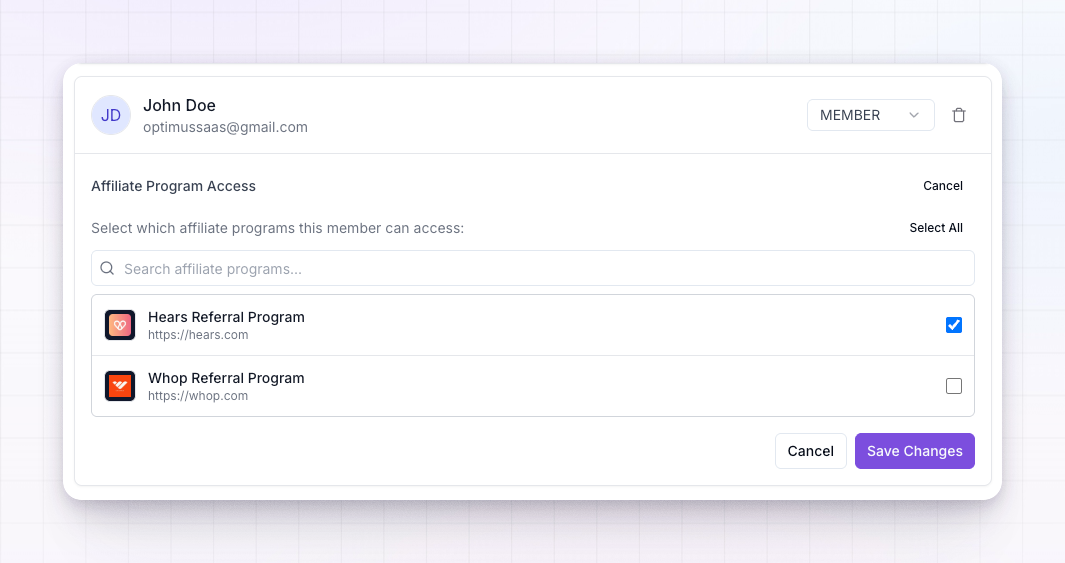 Admin cards don’t have this section, because an admin always has access to every program.
Remove someone from your team
Select the trash icon on the right of a person’s card, then confirm with Remove Member. They lose access to your account straight away and their seat frees up for someone else.Related
Invitations
See who you’ve invited and resend or cancel a pending invite.
Plans and features
Check how many team members your plan includes.
Affiliate managers
Give a manager their own view of the affiliates they look after.
API keys
Connect other tools to your account without adding a person.