

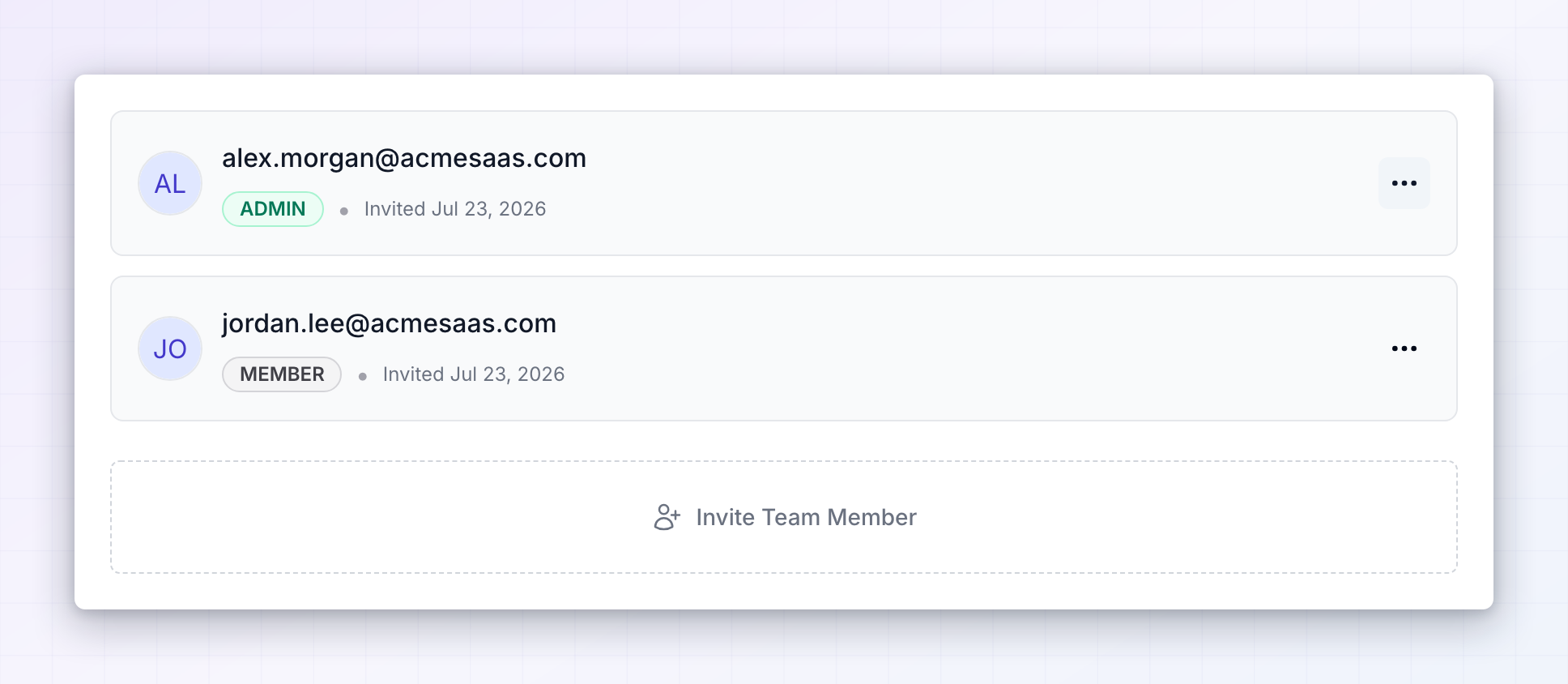
This screen only lists invitations that are still waiting. As soon as someone accepts, their invitation disappears from here and they show up on the Members screen instead. If nobody is waiting, you’ll see “No pending invitations”.
Read a pending invitation
Each row stands for one person you’ve invited and shows you three things:- The email address you sent the invitation to.
- The role they’ll get when they accept, shown as a badge: ADMIN or MEMBER. An admin can open every affiliate program and manage the team, while a member is limited to the programs you picked for them. See team members for what each role can do.
- The date you invited them, shown as “Invited” followed by the date.
Invitations are good for 7 days. After that the link in the email stops working, and the person will get an “Invitation has expired” message if they try to use it. Resend the invitation to give them a fresh link.
Send a new invitation
Select Invite Team Member at the bottom of the list to open the invite window. Type or paste the email addresses, choose whether they should be an Admin or a Member, and — for members — tick the affiliate programs they should be able to open. Select Send Invitation to send it. The new invitation appears in the list straight away. For a full walkthrough of the roles and the program access list, see team members.The Invite Team Member button is hidden when every seat on your plan is taken. The Members screen shows how many seats you’ve used and lets you free one up by removing someone.
Resend an invitation
If someone can’t find the email or their link has expired, select the … button on the right of their row and choose Resend Invitation.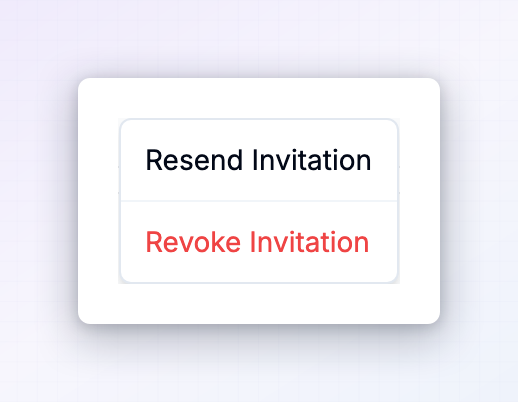 This sends the email again with a brand new link and gives them another 7 days to accept. Their role and program access stay exactly as you set them, so there’s nothing to choose again. Any older link for that person stops working once you resend.
When the “Invitation has been resent” message appears, the new email is on its way.
Cancel an invitation
To take back an invitation before it’s accepted, select the … button on their row and choose Revoke Invitation. The invitation is removed from the list and the link in their email stops working, so they can no longer join your account with it.What happens when someone accepts
The person selects the link in their email and signs in or creates their Referly account. They’re added to your team with the role and program access you chose, their invitation disappears from this screen, and they take up one of the seats included with your plan. From that point on you manage them from the Members screen, where you can change their role, adjust which affiliate programs they can open, or remove them.Related
Team members
Manage roles, program access, and who’s on your team.
Plans and features
Check how many team members your plan includes.
Affiliate managers
Give a manager their own view of the affiliates they look after.
API keys
Connect other tools to your account without adding a person.