

You won’t see every method listed here. Each program decides which ones it offers, so your options depend on the program you’re looking at. If you promote several programs, you may be paid a different way in each one.
Choose a payout method
The Cash Payout Method panel shows the methods this program supports as cards. Select one, and the Payout Details panel underneath changes to ask for what that method needs. A pill in the top right of the panel tells you where you stand: Required means something is still missing, and Complete means the program has everything it needs to pay you.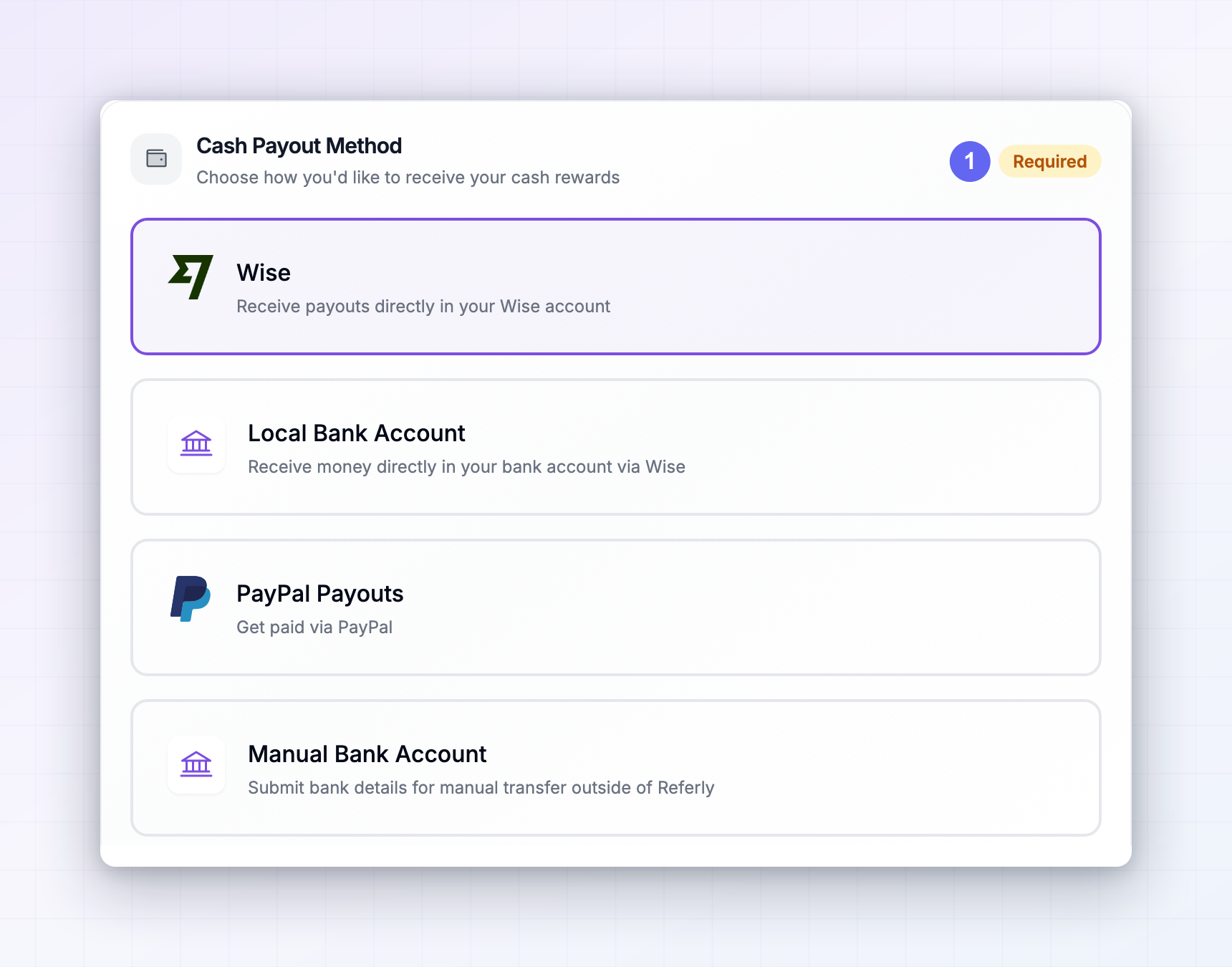
Wise
Money arrives directly in your Wise account. You’ll be asked for your Cash Rewards Payout Email — the email address on your Wise account — and a Wise payout currency. The currency defaults to the program’s own currency, so change it only if you’d rather be paid in something else.Local Bank Account
Money reaches your normal bank account, sent through Wise. Start by picking your Payout Currency. Wise then asks for the exact details a bank in that currency needs, so the form looks different for a US dollar account than for a euro or Indian rupee one. You may also be asked to pick an Account type first, and to add the address the money is being sent to. This method doesn’t ask for a payout email, since the money goes straight to the account you describe here.PayPal Payouts
Money is sent to your PayPal account. All you need to add is your Cash Rewards Payout Email, which has to be the email address your PayPal account uses.Manual Bank Account
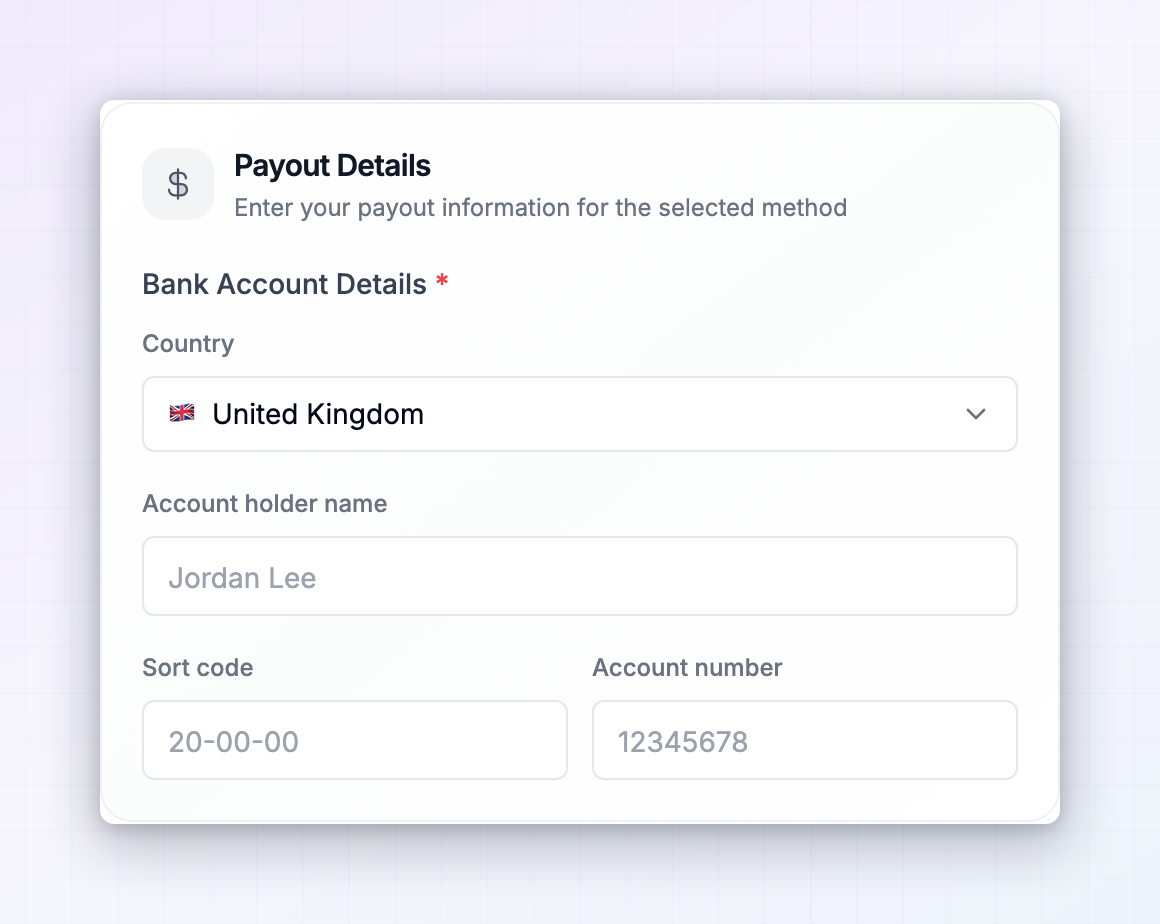
The program collects your bank details and sends the transfer outside of Referly, using their own banking. Choose your Country first. The fields below it change to match how banks work there:- In the United States, an ACH Routing Number and Account Number.
- In Canada, a Transit Number, Institution Number, and Account Number.
- In the United Kingdom, a Sort Code and Account Number.
- Across most of Europe, and anywhere without its own format, an IBAN.
Save your details
Select Save Changes at the bottom of the page. The button stays inactive until you’ve actually changed something, so if you can’t select it, your details are already saved.Connect a bank account for Referly payouts
Some programs let Referly send the money for them. In that case you won’t see any method cards at all. Instead there’s a single Bank Account card with a Connect button, and no Save Changes button, because your bank details are entered on a secure page rather than on this one.Connect your account
Select Connect to open Connect your bank account, then work through two short steps:1
Country and profile type
Pick the Country your bank account is in, and whether your Profile Type is Individual or Company. Select Next.
2
Check the requirements
Read the Bank account requirements, tick the box confirming your account meets all of them, and select Continue. You’re taken to a secure page to enter your bank details.
After you’re connected
Once it’s set up, the card shows a green Connected badge and Ready to receive payouts, along with your country, profile type, payout currency, and the last four digits of the account. You’re paid in your local currency, with a 1% currency conversion fee if your bank isn’t in the US, EU, or UK.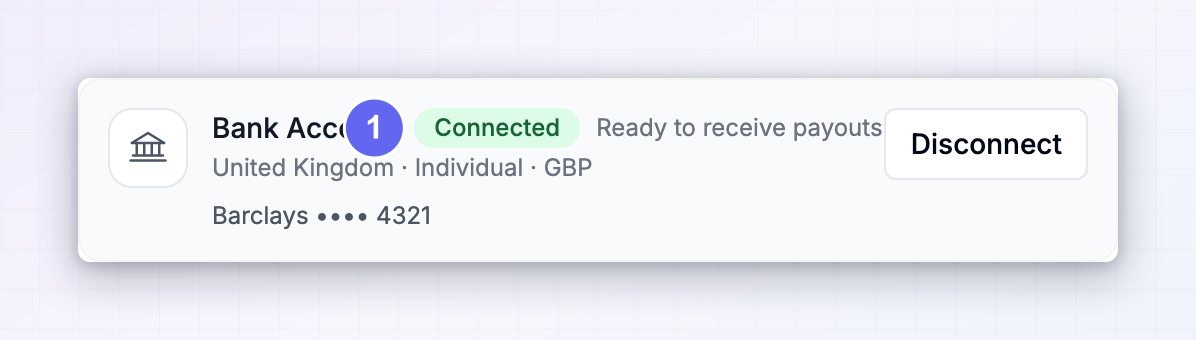 If you need to move to a different account, select Disconnect and connect the new one. You can’t receive payouts while nothing is connected, so reconnect before your program’s next payout date. See How you get paid for when that is.
If a payout fails
A payout showing Failed on your Payouts page almost always means something in your details is off — a mistyped account number, an account that has since closed, or a name that doesn’t match. Come back to this page, check every field carefully, save, and message the program through Messages in the left sidebar so they can send it again.Use the same details across every program
If you promote several programs, you don’t have to type your bank details into each portal. Sign in to the Influencer dashboard atinfluencers.referly.so, open Settings, and set your payout details there once.
When you save, you’re asked whether to Apply to all your programs or keep the change to Just this account. Choosing to apply it copies your payout method, bank details, and invoice details to every program you’ve joined.
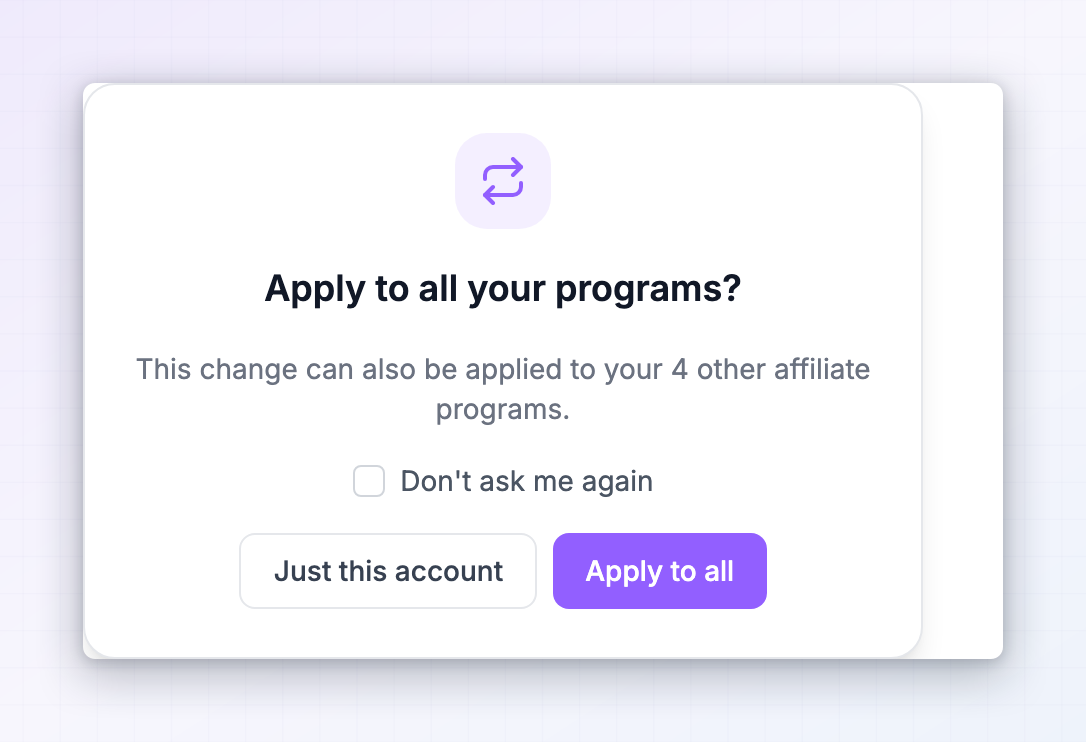 If you’d rather not be asked each time, tick Don’t ask me again, or set your preference under Settings on the Influencer dashboard to always apply changes everywhere, or never apply them.
Related
How you get paid
Follow a reward from referral to payout and see what each status means.
Non-cash payouts
See how coupons and store credits reach you instead of money.
Invoice details
Add the details that appear on the invoices for your payouts.
My programs
Manage every affiliate program you’ve joined from one place.