

Some programs require these details before they’ll pay you at all. Others don’t. Filling them in is worth doing either way, since the invoice is your own record of what you earned.
Choose your entity type
The first panel, Entity Type, asks whether you’re operating as an Individual or a Business. Pick the one that matches how you actually invoice. This isn’t only a label on the invoice. It changes how tax is applied to your payouts, so choose it before you fill in anything else.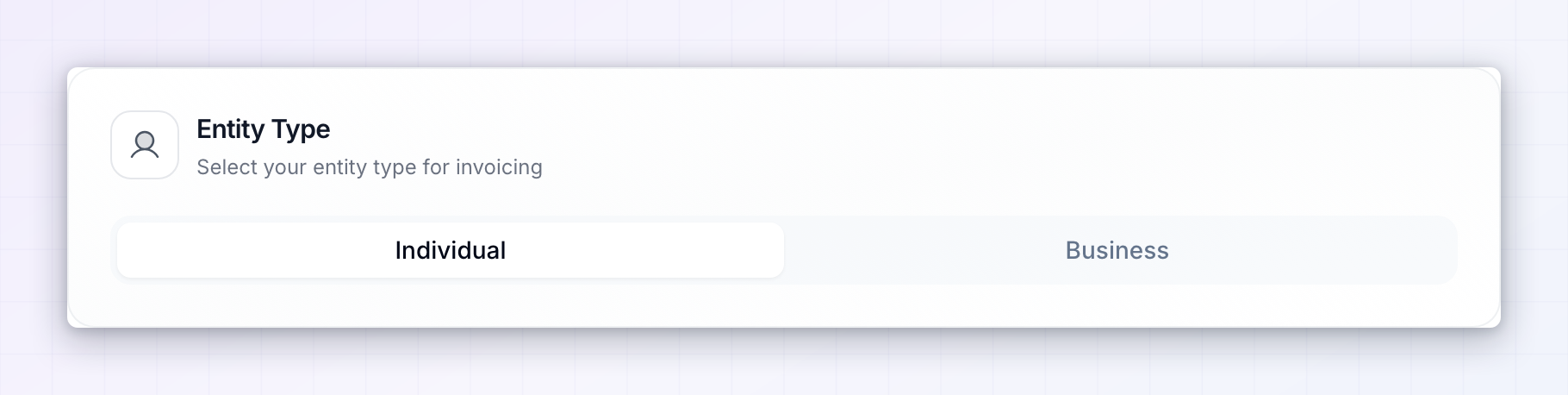
Fill in your billing information
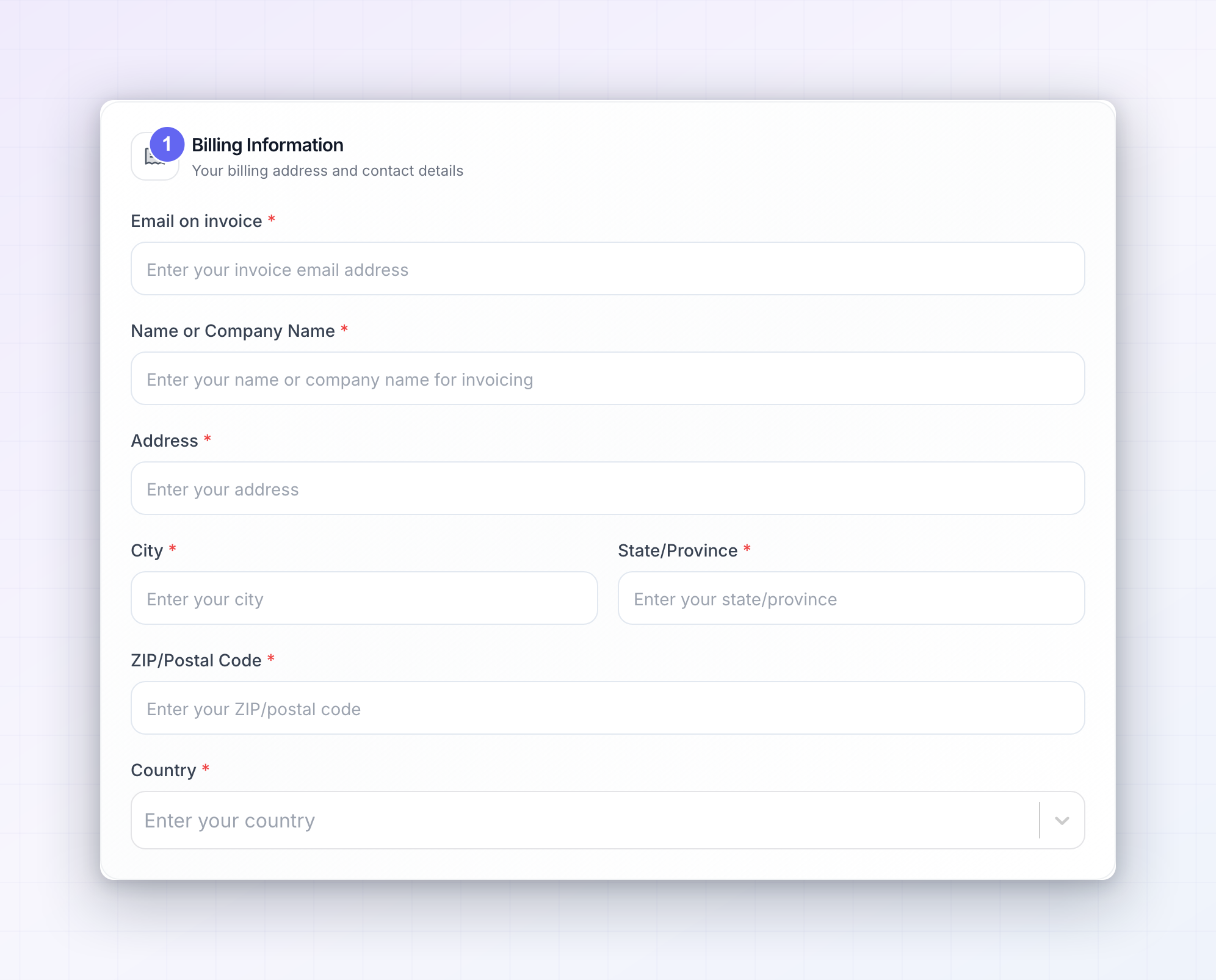
The Billing Information panel is your address and contact details as they should appear on an invoice. Every field marked with a red asterisk has to be filled in before you can save:- Email on invoice — where invoices and billing messages are sent. It can be different from the email you sign in with.
- Name or Company Name — your own name if you chose Individual, or your registered company name if you chose Business.
- Address, City, State/Province, and ZIP/Postal Code — your billing address.
- Country — pick from the list. This decides your tax treatment, so make sure it’s the country you’re actually based in.
 Select Save Changes at the bottom. If anything required is still empty, you’ll be told to fill in all required fields rather than the page saving quietly.
Add your tax number
What you see next depends on where you and the program are based.VAT Number
If you or the program are in the EU, a VAT Number panel appears. Enter your number starting with the two-letter country code, for exampleNL123456789B01.
As you type, the number is checked against the EU VIES registry:
- A green tick means it was found and verified.
- An amber warning means the format doesn’t look right, the number isn’t in the registry, or the registry couldn’t be reached. Hover the warning to see which, and use the retry button next to it to check again.
Tax ID
If neither you nor the program are in the EU, you’ll see a Tax ID panel instead. It’s optional, and adding your tax identification number here puts it on your invoices.How tax is worked out
You don’t calculate anything yourself. The treatment comes from three things: the program’s country, your country, and whether you’re an Individual or a Business. When the program is based in the EU:
When the program is based outside the EU, no EU VAT is worked out on your commission.
This makes invoicing easier — it isn’t tax advice. Check with your accountant that the treatment matches your own obligations.
Download an invoice for a payout
Open Payouts in the left sidebar and select a cash payout, then the Payout Details tab. Under Payout breakdown you’ll see the commission, any VAT, any fees, and the total, followed by Download Invoice to save it as a PDF. The details on that invoice are the ones from this page, exactly as they were when the payout was made — so fill them in before your first payout rather than after.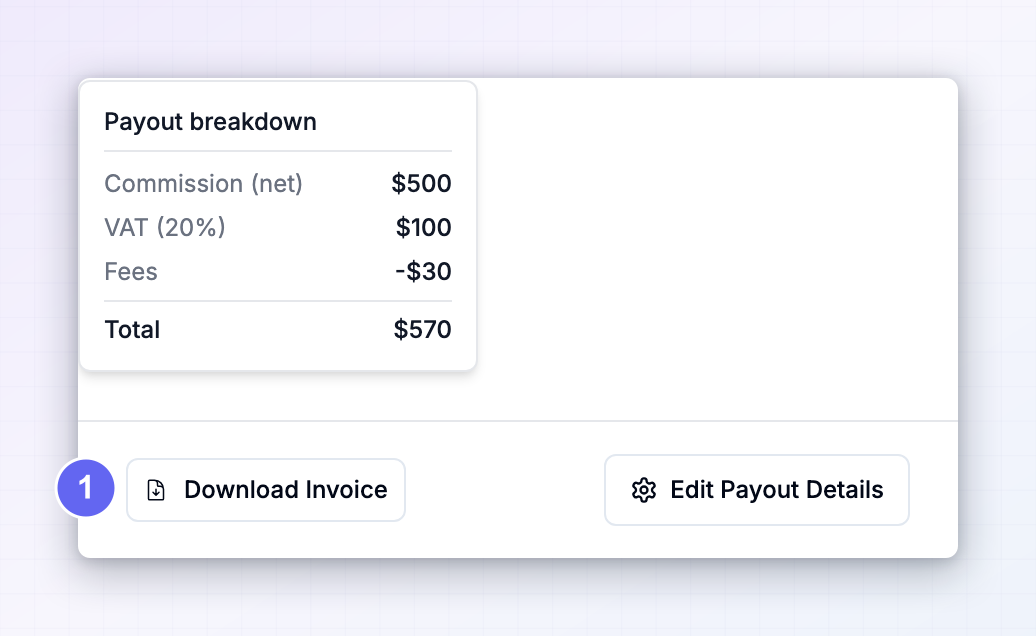 Invoices are produced for cash payouts. Coupons and store credits don’t generate one. See Non-cash payouts.
If your details are missing
When a program requires invoice information and yours is incomplete, you’ll be prompted to finish it, and your payouts wait until you do. Your earnings aren’t lost while you sort it out — they keep building up and are picked up by a later payout once your details are saved. The two things most often missing are a State/Province in countries that don’t normally use one (put your region or city there rather than leaving it empty) and a VAT Number for an EU business.Use the same details in every program
If you promote several programs, you don’t have to retype all of this in each portal. Sign in to the Influencer dashboard atinfluencers.referly.so, open Settings, and fill your invoice details in once.
When you save, you’re asked whether to Apply to all your programs or keep the change to Just this account. Applying it copies your entity type, billing information, and tax number to every program you’ve joined. See Cash payouts for more on how that prompt works.
Related
How you get paid
Follow a reward from referral to payout and see what each status means.
Cash payouts
Choose how you receive money and add your payment details.
Non-cash payouts
See how coupons and store credits reach you instead of money.
My programs
Manage every affiliate program you’ve joined from one place.