

Switch between programs from the sidebar
Every affiliate portal has a switcher at the very top of the left sidebar, showing the logo and name of the program you’re in right now. Select it and a list drops down.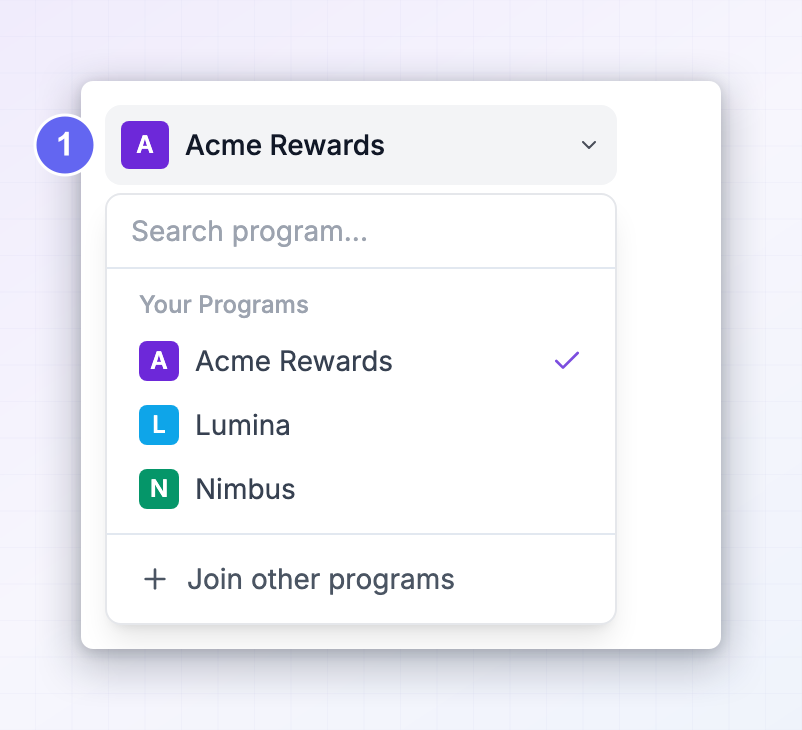 Under Your Programs you’ll see every program you’ve joined, with a checkmark next to the one you’re currently viewing. Select any other one and Referly takes you straight to that program’s portal, already logged in. If you promote a lot of brands, there’s a search box at the top of the list — start typing a program name to narrow it down.
At the bottom, below the separator, is Join other programs. That’s your route into the Influencer dashboard.
Under Your Programs you’ll see every program you’ve joined, with a checkmark next to the one you’re currently viewing. Select any other one and Referly takes you straight to that program’s portal, already logged in. If you promote a lot of brands, there’s a search box at the top of the list — start typing a program name to narrow it down.
At the bottom, below the separator, is Join other programs. That’s your route into the Influencer dashboard.
Open the Influencer dashboard
The Influencer dashboard lives atinfluencers.referly.so. It’s the one place that shows every program you’re part of side by side, with your earnings in each.
There are two ways in:
1
From a program you're already in
Open the switcher at the top of the sidebar and select Join other programs. Because you’re already signed in, Referly carries your details across — no second email verification, and no new password to pick. If you don’t have an influencer account yet, one is created for you as you arrive.
2
Directly
Go to
influencers.referly.so and sign in with the same email address you use for your affiliate programs. The email is what ties everything together.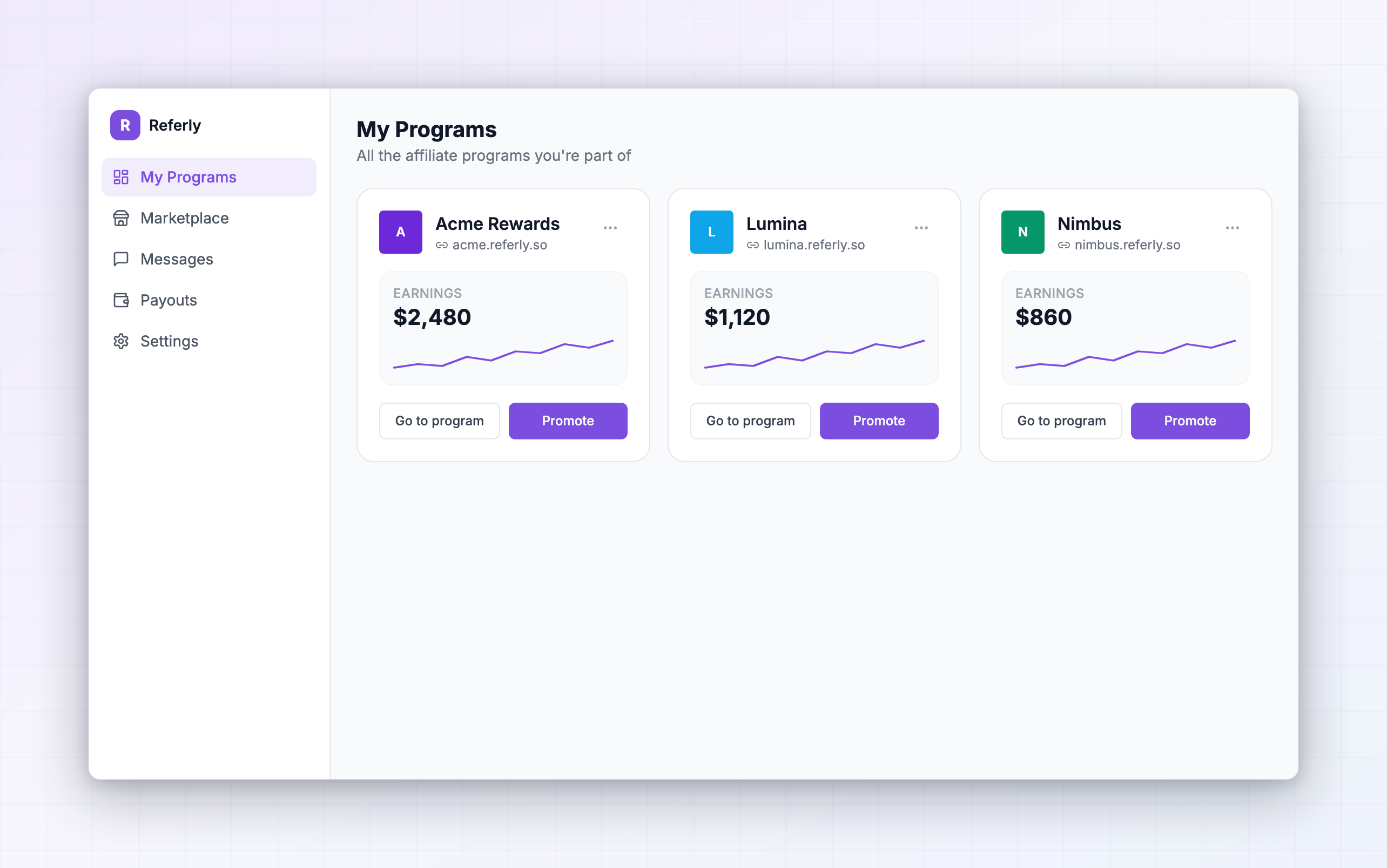 The heading reads My Programs, with All the affiliate programs you’re part of underneath. Below that is a card for each one.
Only programs you joined with this exact email address show up here. If you signed up to one brand with a personal address and another with a work address, they’re two separate accounts and won’t appear together. See the troubleshooting section at the end of this page.
Read a program card
Each card packs the essentials for one program into one tile.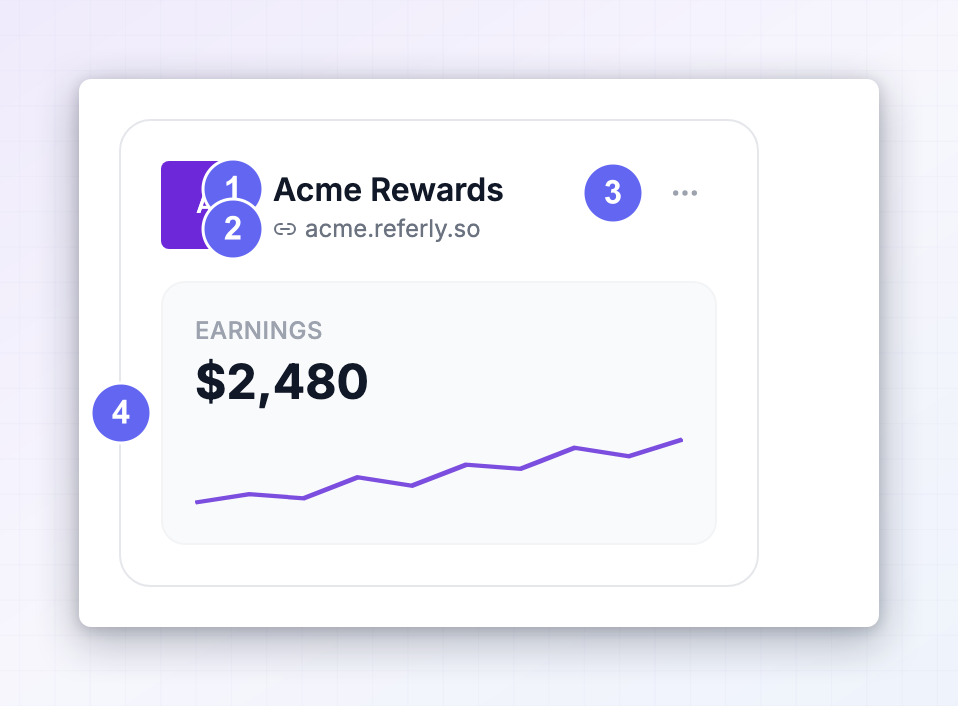
- Logo and name at the top, so you can find a brand at a glance. If a program hasn’t uploaded a logo, you’ll see its initial on a coloured square instead.
- The portal address underneath the name, next to a small link icon — this is the web address of that program’s affiliate portal. Selecting it opens the portal in a new tab.
- The three-dot button in the top right corner, which holds the actions for that program.
- Earnings, showing everything you’ve earned in that program since you joined, followed by a chart of your earnings month by month.
Take action on a program
Select the three-dot button on any card to open its menu.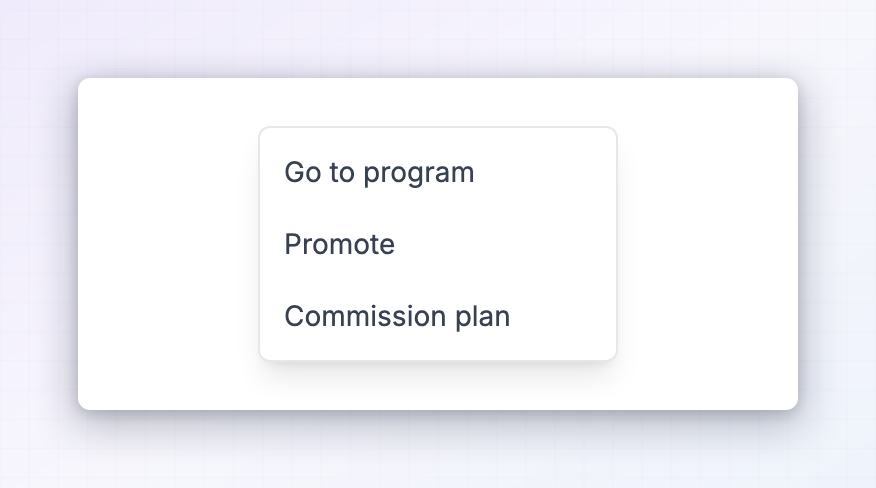
Go to program
Opens that program’s affiliate portal in a new tab, already signed in. Use this when you need something that only lives inside the program itself — your referred customers, individual sales, marketing assets, or that program’s messages from the brand.Promote
Opens Your Affiliate Details for that program without leaving the Influencer dashboard. This is the fastest way to grab a link when you’re about to post.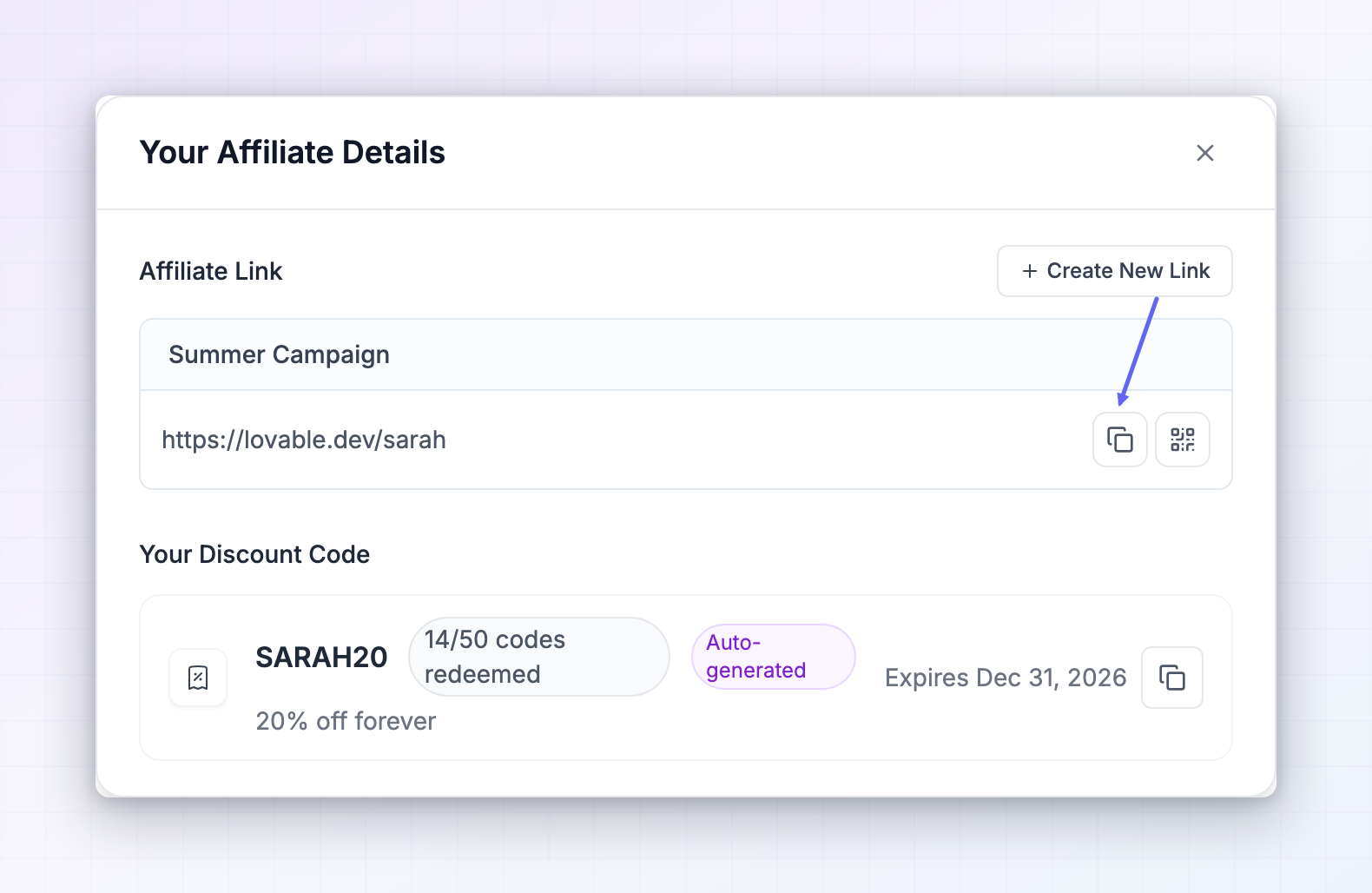 You’ll find your referral link ready to copy, along with any promo codes the brand has given you. If you need to create a new link or a new code, do that inside the program’s own portal — see Referral links and Promo codes.
Commission plan
Opens Commission Plan Details — what this brand actually pays you.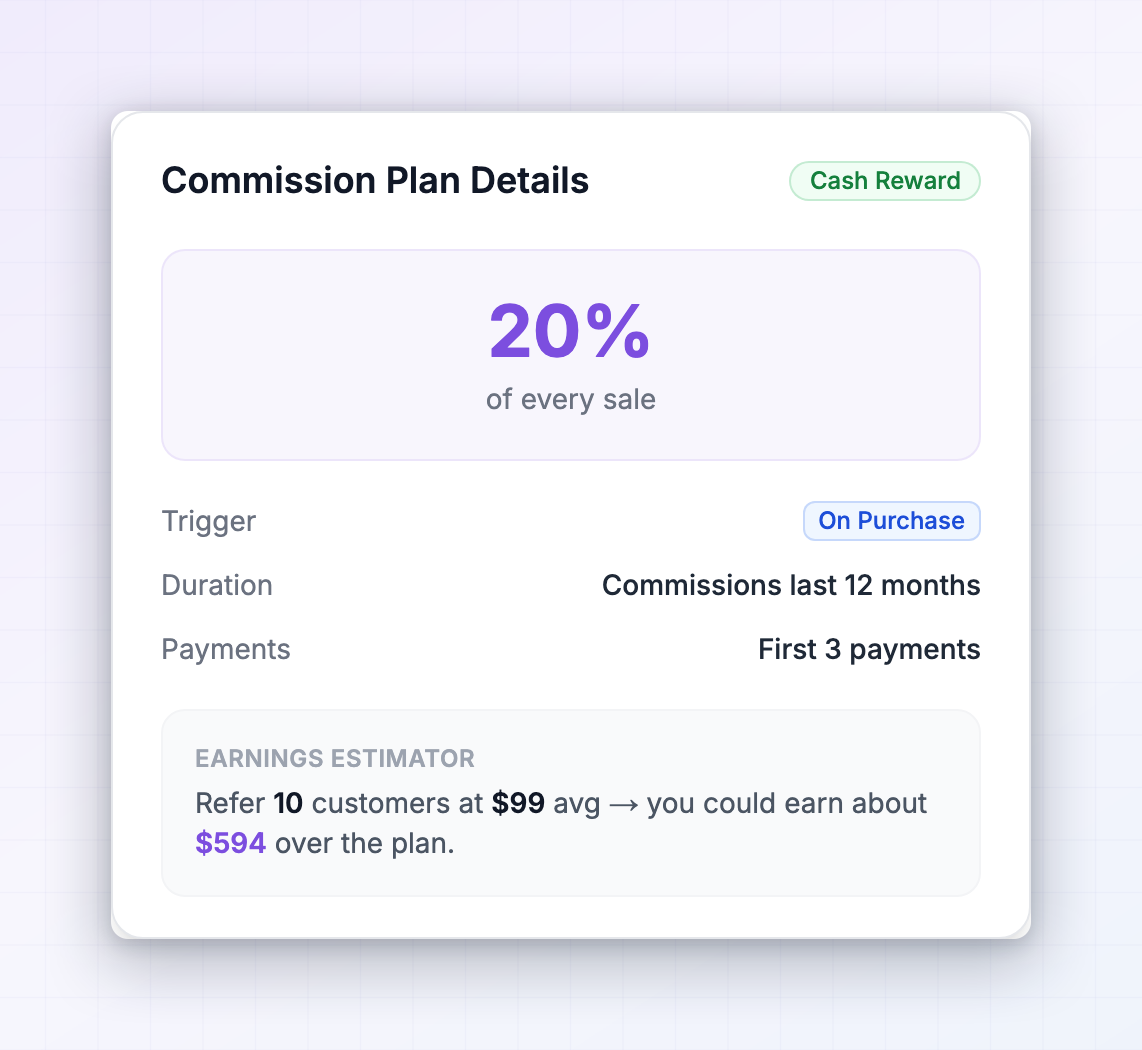 It shows your rate, whether commissions are a percentage or a fixed amount, how long you keep earning on a customer you referred, and how many payments you’re paid on. Where a brand pays in something other than cash — store credit, a coupon, a free month — that’s shown here too. There’s also an estimator, so you can put in a sale amount and see what you’d earn.
This is the detail worth checking before you decide where to spend your promotion time. Two programs paying 20% can be very different if one pays on the first payment only and the other pays for the life of the customer.
It shows your rate, whether commissions are a percentage or a fixed amount, how long you keep earning on a customer you referred, and how many payments you’re paid on. Where a brand pays in something other than cash — store credit, a coupon, a free month — that’s shown here too. There’s also an estimator, so you can put in a sale amount and see what you’d earn.
This is the detail worth checking before you decide where to spend your promotion time. Two programs paying 20% can be very different if one pays on the first payment only and the other pays for the life of the customer.
Join more programs
Marketplace in the sidebar is the directory of programs on the Referly network that are open to new affiliates.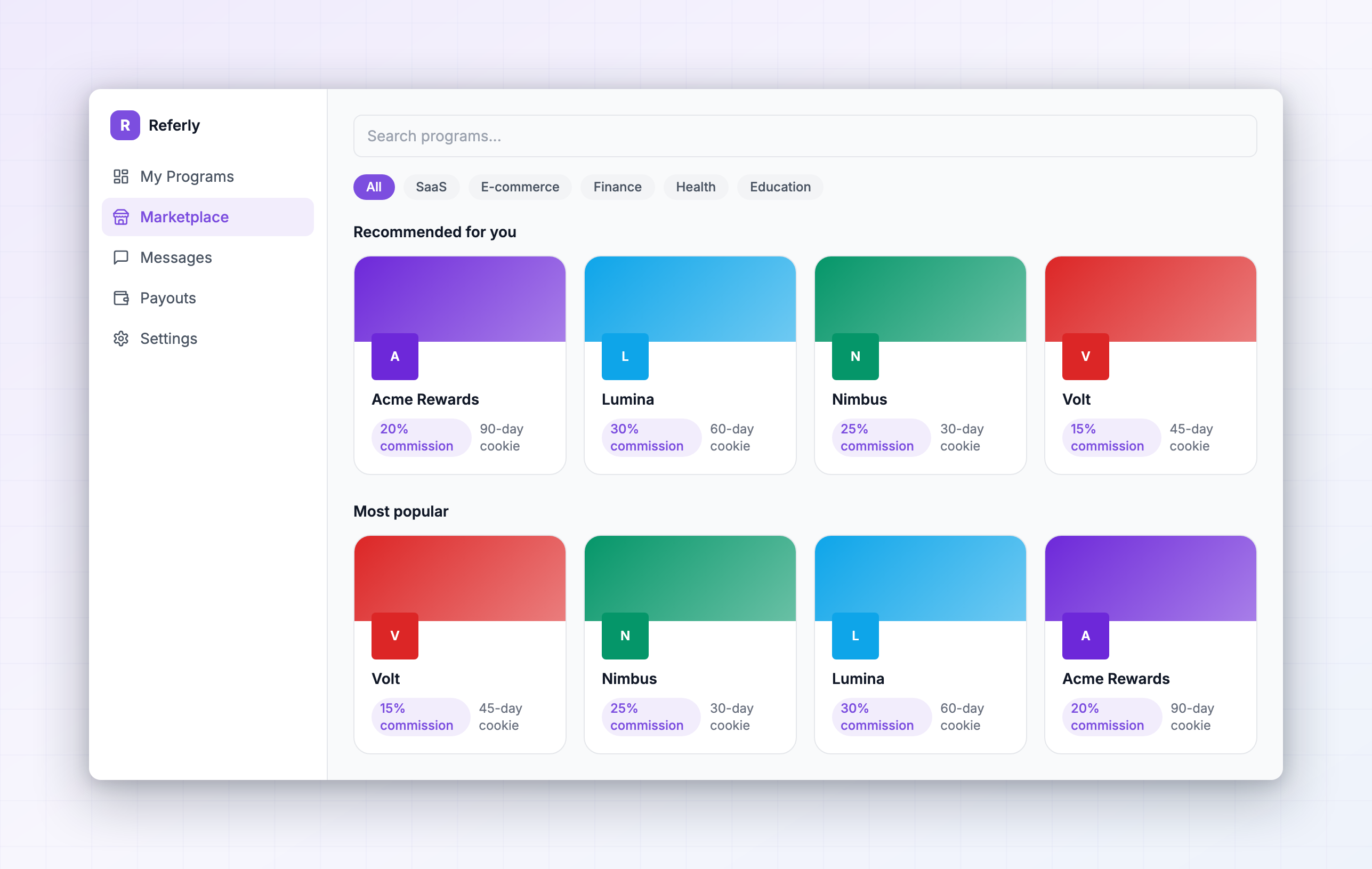 Each listing shows the commission rate and the cookie window — the number of days a brand keeps crediting you after someone clicks your link. Search by name or filter by category to find brands that fit what you actually post about.
When you select Join program, Referly asks you to confirm and explains that your profile information will be used to apply. Select Accept and continue and your application goes in — you don’t fill in a signup form again, because your details come from the profile you already have.
What happens next depends on the brand. Some approve every applicant automatically, and you’ll see You’ve joined the program! with a Go to my affiliate portal button that drops you straight into your new portal. Others review applications by hand, so you’ll be waiting on their approval before your links start working. Either way the program appears on your My Programs page.
Each listing shows the commission rate and the cookie window — the number of days a brand keeps crediting you after someone clicks your link. Search by name or filter by category to find brands that fit what you actually post about.
When you select Join program, Referly asks you to confirm and explains that your profile information will be used to apply. Select Accept and continue and your application goes in — you don’t fill in a signup form again, because your details come from the profile you already have.
What happens next depends on the brand. Some approve every applicant automatically, and you’ll see You’ve joined the program! with a Go to my affiliate portal button that drops you straight into your new portal. Others review applications by hand, so you’ll be waiting on their approval before your links start working. Either way the program appears on your My Programs page.
Change a detail everywhere at once
When you update something personal — your name, your payout details, your address — in one program, Referly notices that the same detail probably applies to the others.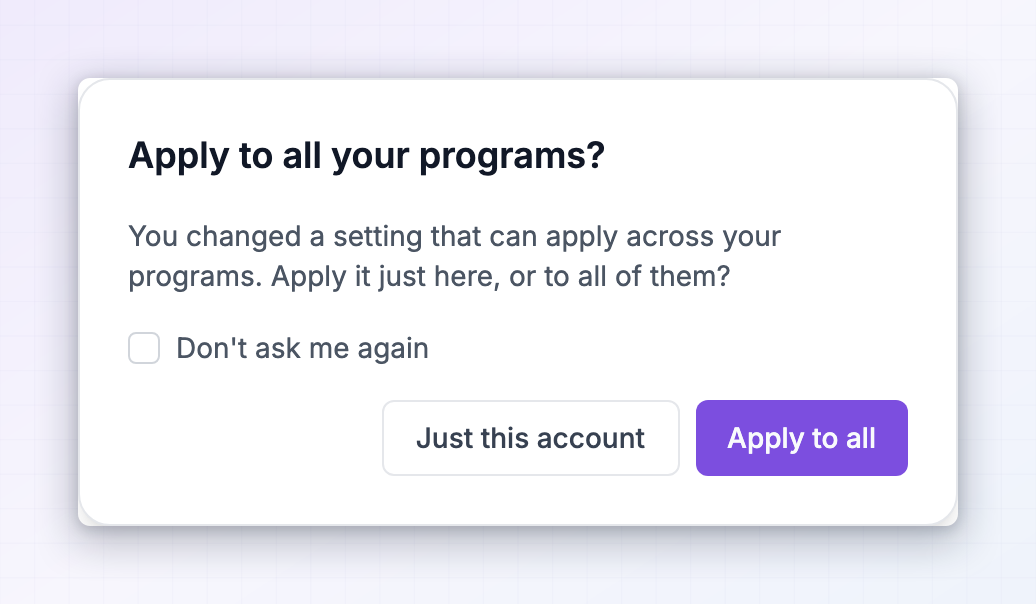 After you save, you’ll see Apply to all your programs? with a note about how many other programs the change could apply to. Choose Apply to all to push it everywhere, or Just this account to keep the change where you made it. There’s a Don’t ask me again checkbox if you’d rather decide once and stop seeing the prompt.
This saves real work once you’re in five or ten programs. It’s especially worth using when your bank details change, because a stale payout detail in a program you’d forgotten about is how payouts go missing.
After you save, you’ll see Apply to all your programs? with a note about how many other programs the change could apply to. Choose Apply to all to push it everywhere, or Just this account to keep the change where you made it. There’s a Don’t ask me again checkbox if you’d rather decide once and stop seeing the prompt.
This saves real work once you’re in five or ten programs. It’s especially worth using when your bank details change, because a stale payout detail in a program you’d forgotten about is how payouts go missing.
A program is missing from the list
Work through these in order.You joined it with a different email address
You joined it with a different email address
This is the usual cause. Referly groups your programs by email address, so a program you signed up to with a different address is a genuinely separate account. Sign in with that address to reach it. To bring everything together, ask that brand’s affiliate manager to change your email to the one you use everywhere else.
You applied but haven't been approved
You applied but haven't been approved
If the brand reviews applications by hand, you’re waiting on them. Open the program from your My Programs page to see where your application stands — a portal that won’t show you links and assets yet is usually one that hasn’t approved you. Approval times are up to the brand, not Referly.
You were removed from the program
You were removed from the program
A brand can deactivate or remove an affiliate from their program. If a program you were promoting has disappeared entirely, contact that brand’s affiliate manager — Referly can’t reinstate you on their behalf.
Related
The affiliate portal
What each section of a single program’s portal does.
Referral links
Create and track links inside a program.
Getting paid
How and when your earnings reach you.
My team
Earn from affiliates you bring into a program.