

Catch up with the bell
The bell sits in the top right of every affiliate portal. A coloured badge on it counts what you haven’t read yet, and stops at 9+ rather than showing a bigger number.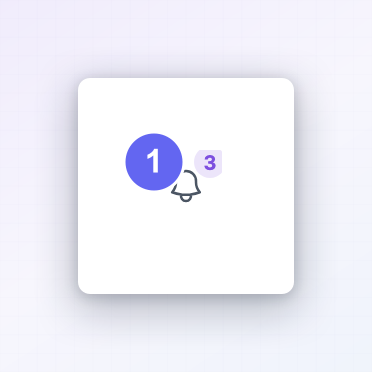 Select it to open the panel.
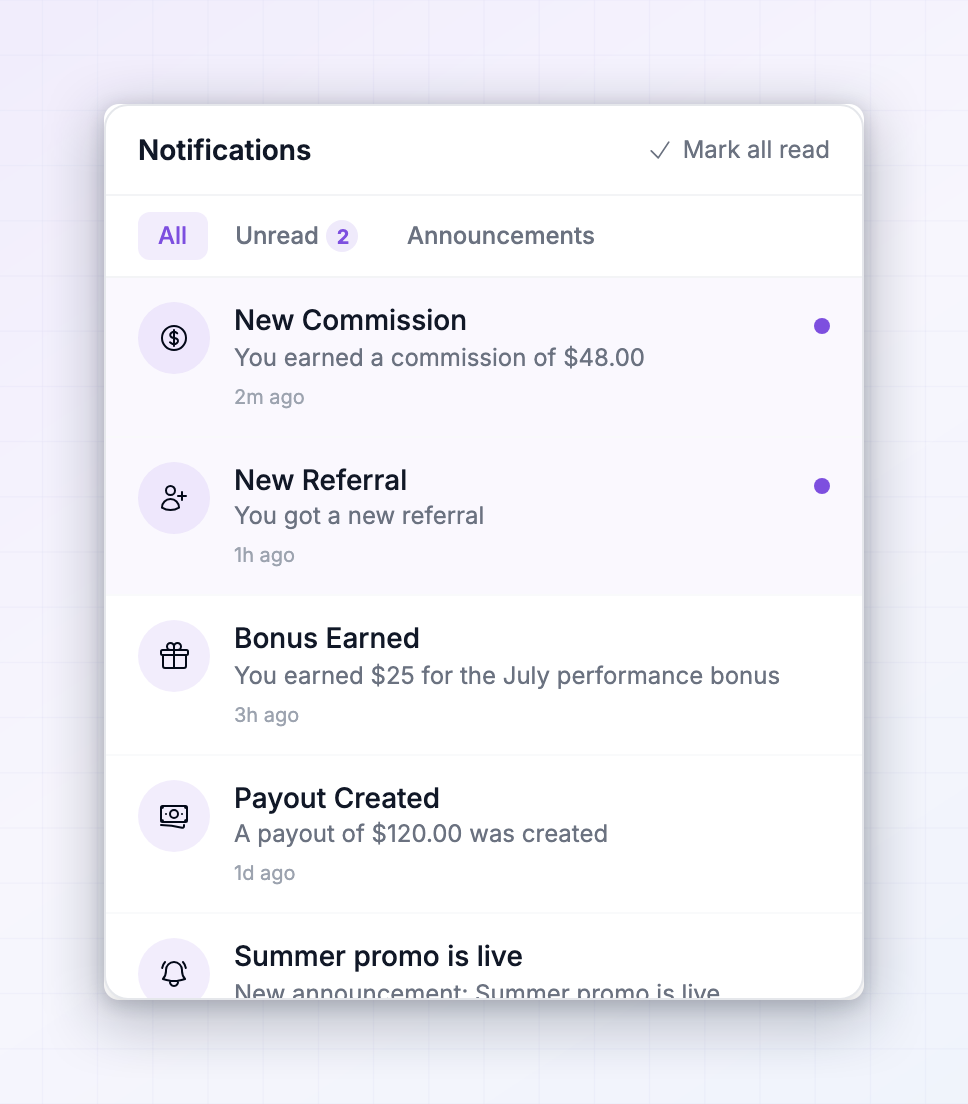 Three tabs sort what’s in there:
- All — everything, newest first.
- Unread — only what you haven’t opened. Its own count sits in the tab. If you have anything unread when you open the bell, Referly starts you on this tab so you’re not hunting.
- Announcements — messages the brand has broadcast to their affiliates, kept apart from your activity so a run of commission notifications doesn’t bury them.
See every program’s notifications at once
The Influencer dashboard has the same bell, but it pulls in notifications from every program you’re part of rather than just one.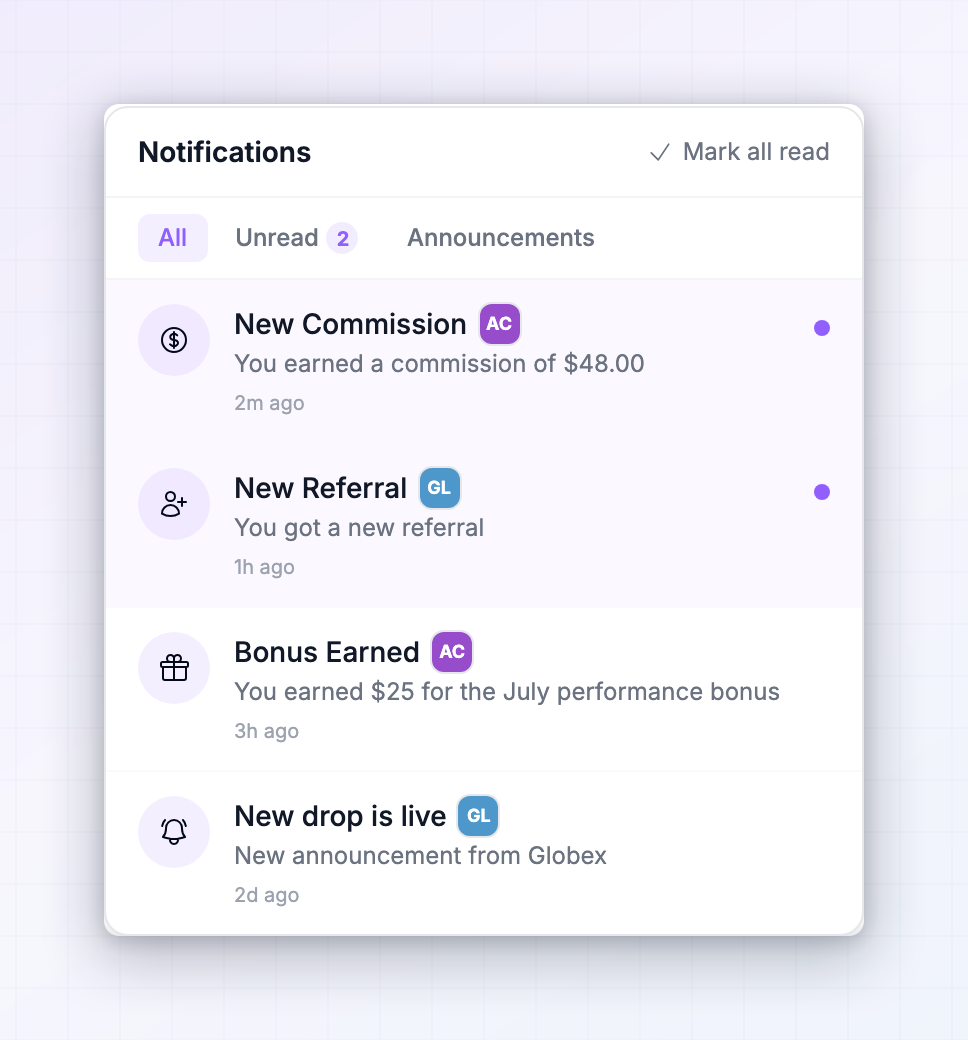 Each row carries a small logo badge showing which brand it came from. Select one and Referly switches you into that program and drops you on the right page — you don’t have to work out which portal to open first.
This is the fastest way to keep up once you’re promoting several brands. Rather than checking five portals, you check one bell.
Each row carries a small logo badge showing which brand it came from. Select one and Referly switches you into that program and drops you on the right page — you don’t have to work out which portal to open first.
This is the fastest way to keep up once you’re promoting several brands. Rather than checking five portals, you check one bell.
Choose which emails you get
Go to Settings, open the Preferences tab, and select Email Notifications.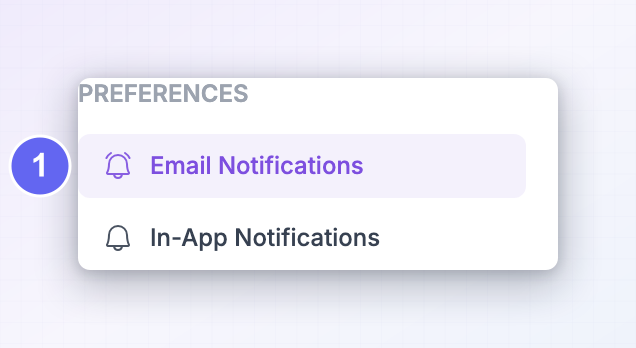
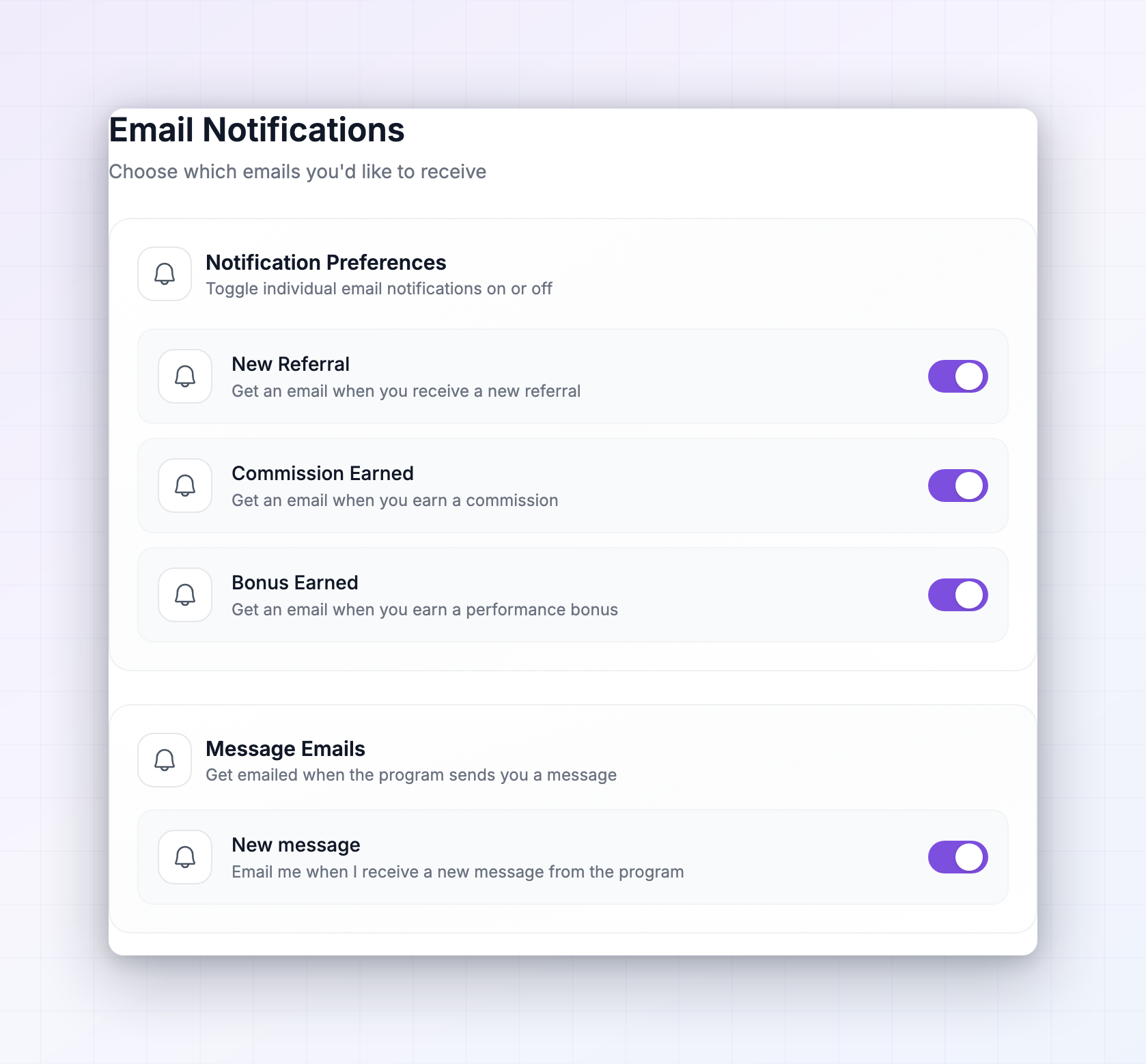 Each row is one kind of email, with a switch on the right. Turn a switch off and those emails stop; turn it back on and they resume. Changes save as you make them — there’s no save button to remember.
Depending on the brand, you may see options like:
Each row is one kind of email, with a switch on the right. Turn a switch off and those emails stop; turn it back on and they resume. Changes save as you make them — there’s no save button to remember.
Depending on the brand, you may see options like:
Below those is a separate Message Emails panel with a single switch, New Chat Message. That one sends you a digest when you’ve missed chat messages from the brand — so a message doesn’t sit unread for days because you weren’t in your portal.
Choose which pop-ups you get
In the same Preferences tab, select In-App Notifications.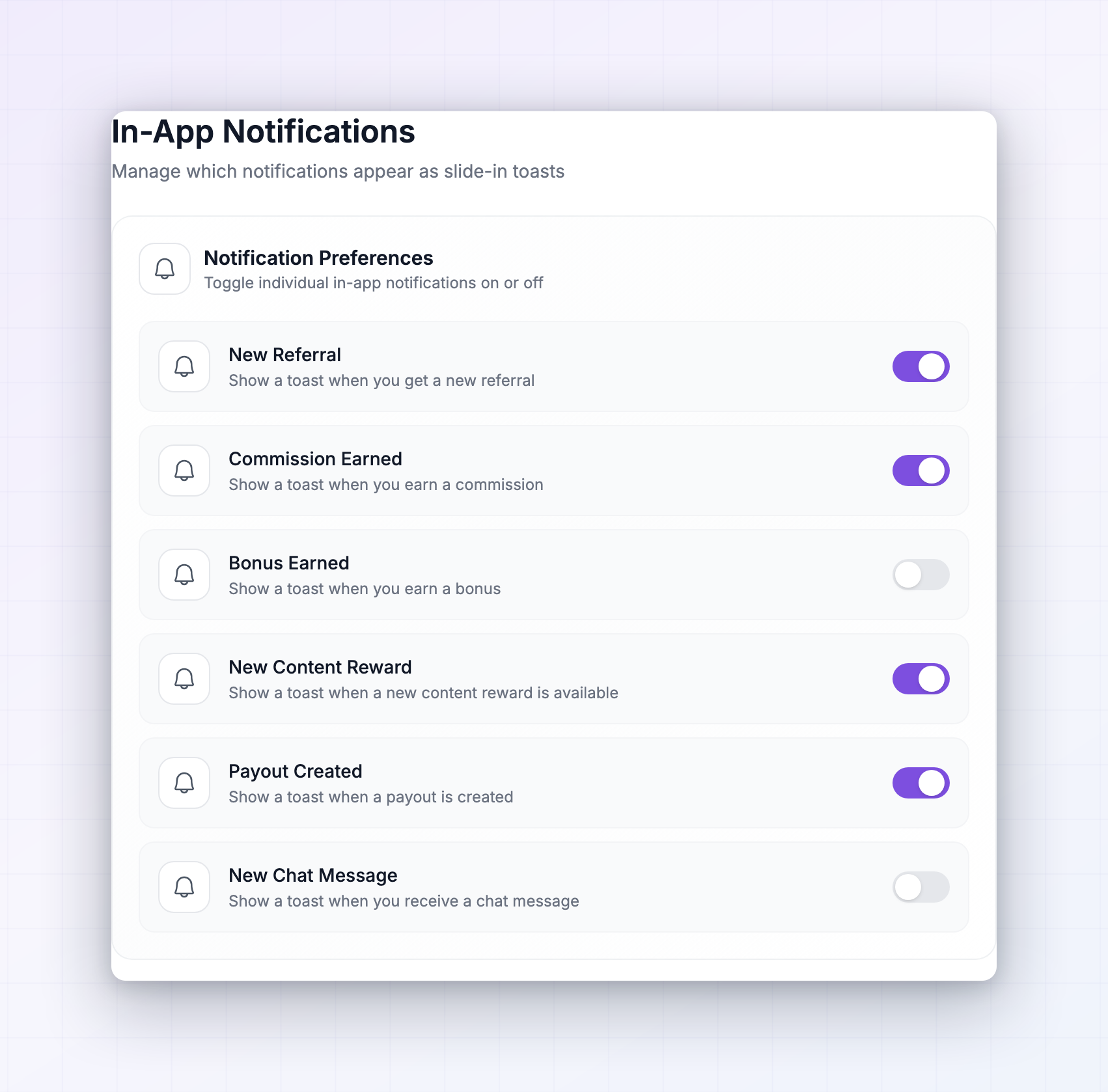 These control the small slide-in messages that appear in the corner of your portal while you’re using it. They’re separate from the emails, so you can have one without the other — many affiliates turn most emails off and leave the in-app ones on.
The list is usually longer than the email list, and can include a new referral, a commission earned, a bonus earned, a new performance bonus or content reward becoming available, a content reward being approved or turned down, a payout being created for you, your commission plan changing, your tier being upgraded, a new chat message, and being added to a group chat.
Turning one off only stops the pop-up. The notification still arrives in your bell, so nothing is lost — you just find it when you go looking instead of it interrupting you.
These control the small slide-in messages that appear in the corner of your portal while you’re using it. They’re separate from the emails, so you can have one without the other — many affiliates turn most emails off and leave the in-app ones on.
The list is usually longer than the email list, and can include a new referral, a commission earned, a bonus earned, a new performance bonus or content reward becoming available, a content reward being approved or turned down, a payout being created for you, your commission plan changing, your tier being upgraded, a new chat message, and being added to a group chat.
Turning one off only stops the pop-up. The notification still arrives in your bell, so nothing is lost — you just find it when you go looking instead of it interrupting you.
When a notification type is missing
Each brand decides which notifications their program sends. You only see switches for the ones they’ve enabled, which is why the list looks different from one program to the next. If a brand hasn’t enabled any, you’ll see this: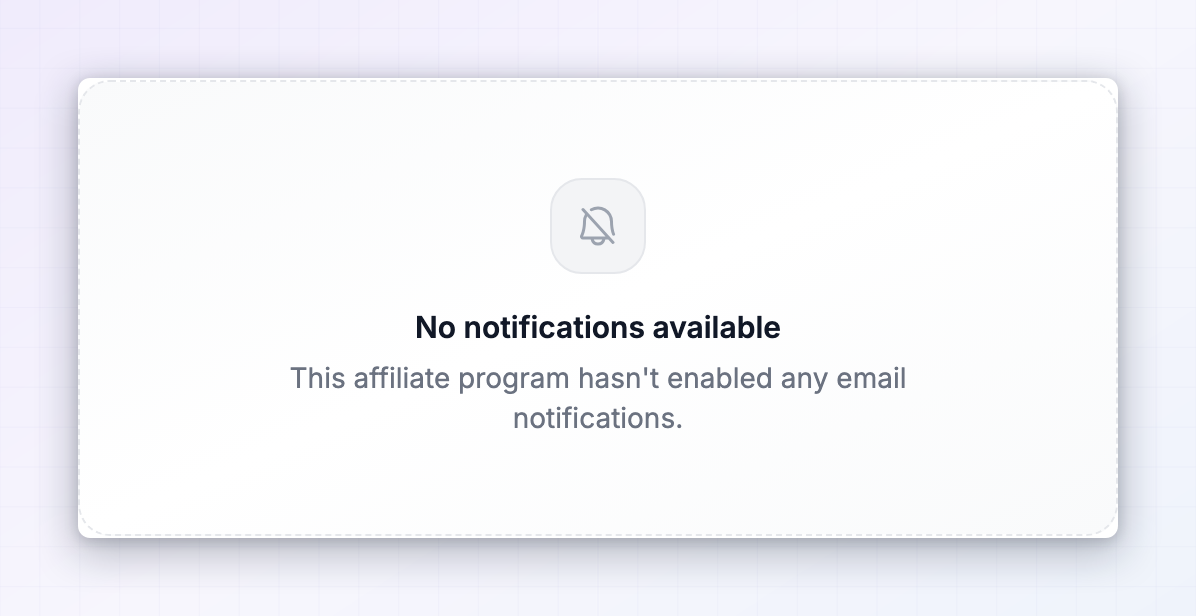 No notifications available isn’t a fault, and there’s nothing to fix on your end. Your bell still works. If there’s an email you’d genuinely find useful, it’s worth asking that brand’s affiliate manager to switch it on.
Your preferences are also per program. Turning commission emails off for one brand leaves every other brand exactly as it was.
No notifications available isn’t a fault, and there’s nothing to fix on your end. Your bell still works. If there’s an email you’d genuinely find useful, it’s worth asking that brand’s affiliate manager to switch it on.
Your preferences are also per program. Turning commission emails off for one brand leaves every other brand exactly as it was.
Emails have stopped arriving
Work through these in order.Check the switch for that program
Check the switch for that program
Open Settings, then Preferences, then Email Notifications in that brand’s portal and confirm the switch is on. If you once used an Apply to all prompt, a change you made in one program may have been pushed to this one too.
Check your spam and promotions folders
Check your spam and promotions folders
Affiliate emails come from the brand’s own sending address, which your email provider may not recognise at first. Find one and mark it as not spam, then add the sender to your contacts so the rest arrive properly.
Check the email address on your account
Check the email address on your account
Emails go to the address on your affiliate profile, which may not be the one you check most. Confirm it under your profile.
Check the brand hasn't turned that notification off
Check the brand hasn't turned that notification off
If a switch you remember using has disappeared from the list entirely, the brand has disabled that notification for their whole program. Ask their affiliate manager.
Related
My programs
One bell for every brand you promote.
Your affiliate profile
The email address your notifications go to.
Performance bonuses
What those bonus announcements are pointing you at.
Portal access issues
When you can’t get in to check at all.