Create a performance bonus
1
Open Performance Bonuses
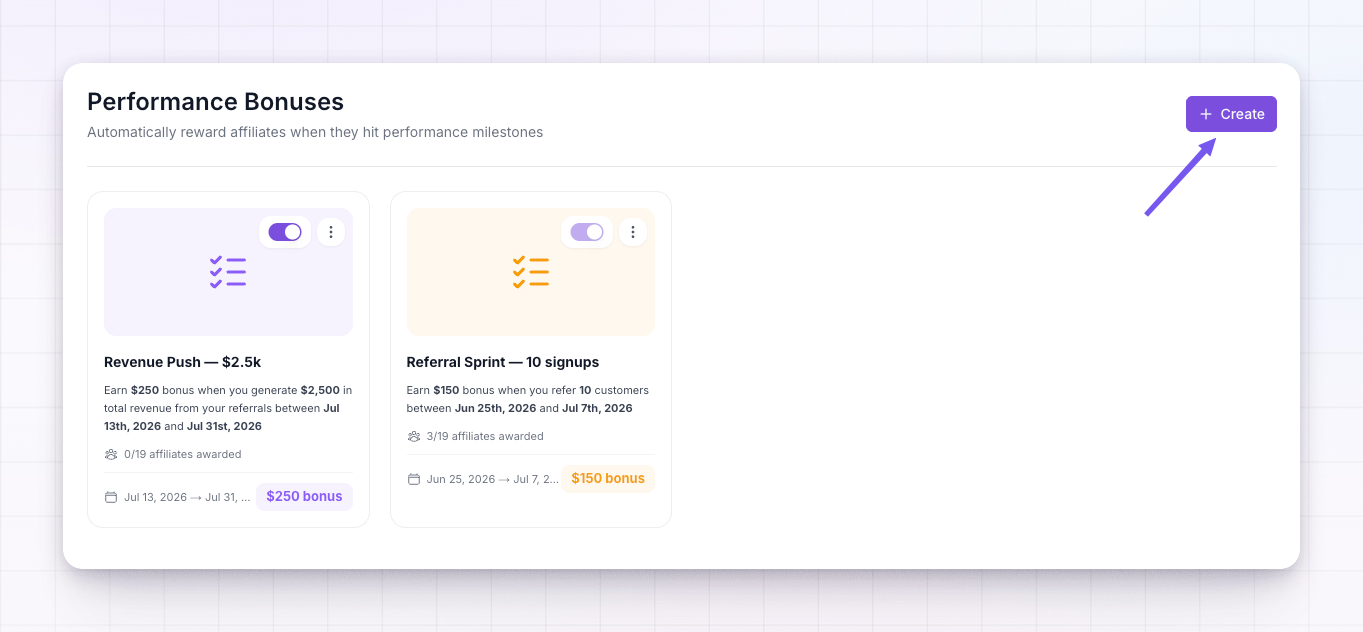
Select Performance Bonuses in the left sidebar, then choose Create at the top right. (If you don’t have any yet, use the Create Performance Bonus button in the middle of the page.)
2
Name it
In the Details section, give the bonus a Name your affiliates will understand, like Revenue Milestone Bonus. You can add an optional Description explaining the offer.
3
Set the criteria
In the Criteria section, build the goal as a sentence — when an affiliate’s activity reaches a target, pay a bonus. Choose the activity, the target, and the reward (covered just below).
4
Choose who can earn it
In the Affiliates section, pick the audience: All affiliates, Specific affiliates, or Affiliate groups. Only affiliates in your choice can earn this bonus.
5
Add a schedule (optional)
Still in Details, turn on Start date and End date if you want the bonus to run for a set period. Leave them off for a bonus with no time limit.
6
Style it (optional)
On the Style tab, give the bonus an icon and colour, or upload an image, so it stands out in your affiliates’ portal.
7
Publish
Select Publish. The bonus goes live and starts watching for affiliates who qualify.
Setting the criteria
The criteria section is where you define the goal. It has four parts:What counts toward the goal
Choose the activity you’re rewarding:- Referrals — the number of customers the affiliate refers.
- Conversions — the number of purchases those referred customers make.
- Revenue — the total revenue the affiliate generates.
Which activity counts
Choose the scope:- New — counts only activity from the bonus’s start date onward (or from when you create it, if there’s no start date). Use this for a fresh challenge.
- Lifetime — counts everything the affiliate has done since they joined your program. Use this to reward total achievement.
The target and the reward
Enter the target the activity has to reach, then the bonus amount — the fixed cash reward, in your program’s currency, the affiliate earns for reaching it.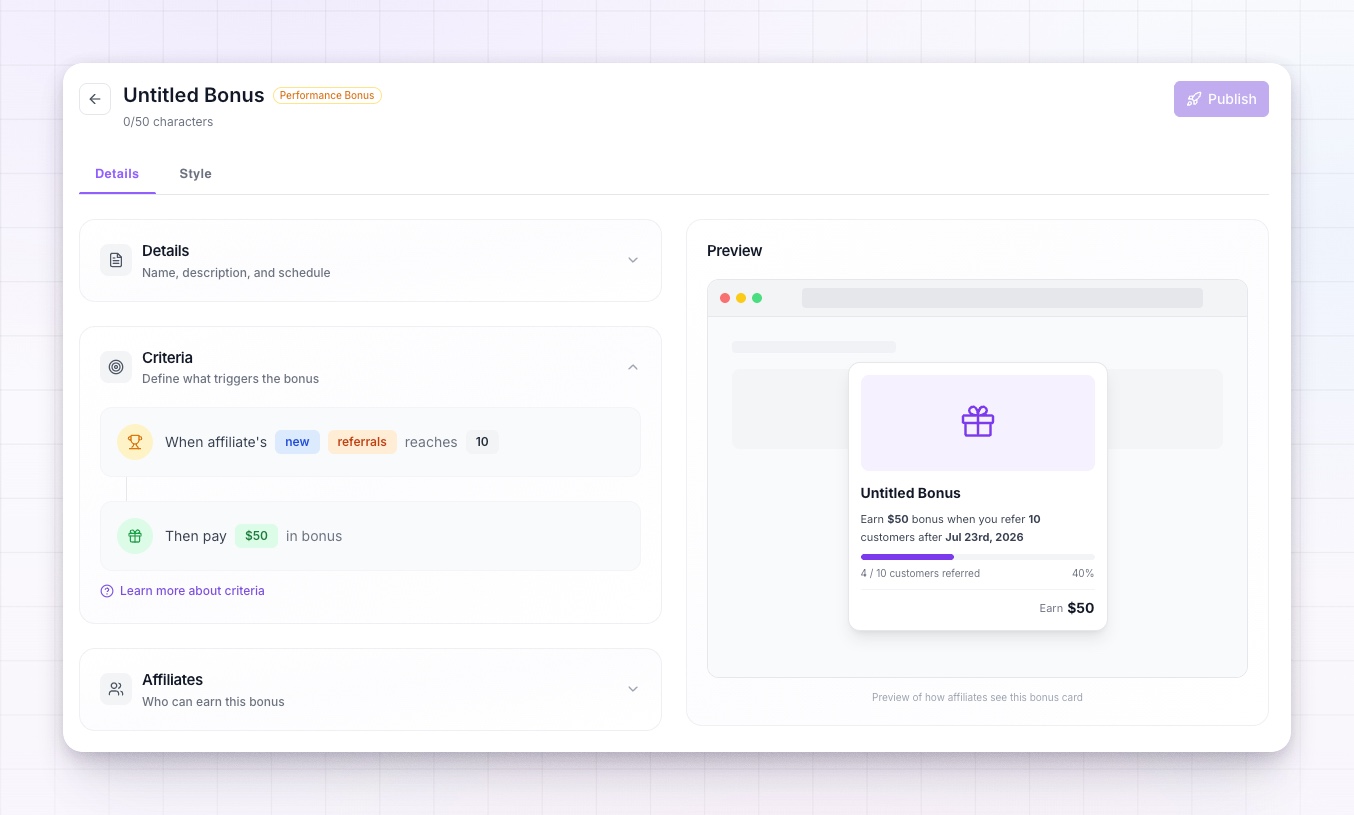
If some affiliates already meet the goal when you publish — common with a Lifetime bonus — Referly asks whether to pay them right away. See Award a bonus retroactively.
Choosing the audience
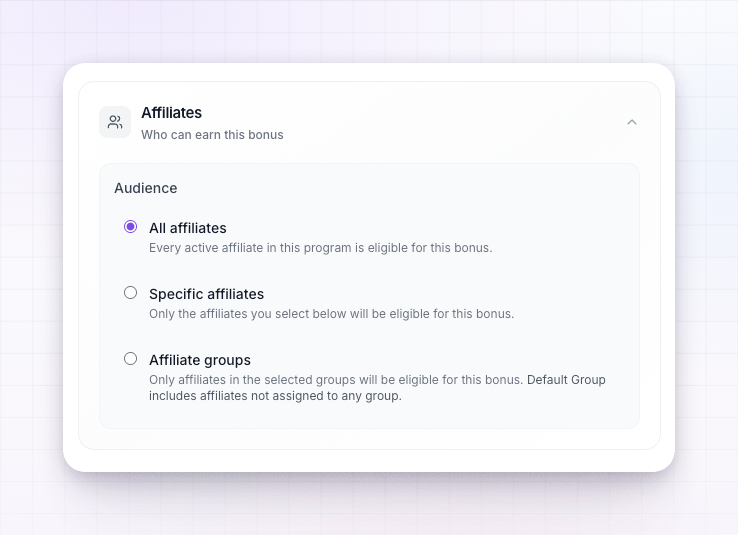
- All affiliates — everyone active in your program can earn it.
- Specific affiliates — search for and pick individual affiliates; only they can earn it.
- Affiliate groups — pick one or more groups; only affiliates in those groups can earn it.
Letting affiliates know
When you publish, Referly may offer to send an announcement email to the affiliates who can earn the bonus, so they hear about it straight away. Choose to send it or skip — either way the bonus is live. You can also count on it appearing on their portal’s Performance Bonuses page.Editing a bonus later
Open any bonus from the list to change its name, criteria, audience, or schedule. While editing, a Given Bonuses tab shows the affiliates who’ve already earned it. Changing the criteria can bring new affiliates into range — including ones who already qualify, which again triggers the retroactive prompt on save.Related
Performance bonuses overview
How performance bonuses work and what affiliates see.
Award a bonus retroactively
Pay affiliates who already met the goal when you set the bonus up.
Affiliate groups
Target a bonus at a specific group of affiliates.
Managing bonuses
See earned bonuses alongside your other rewards.