Open the share menu
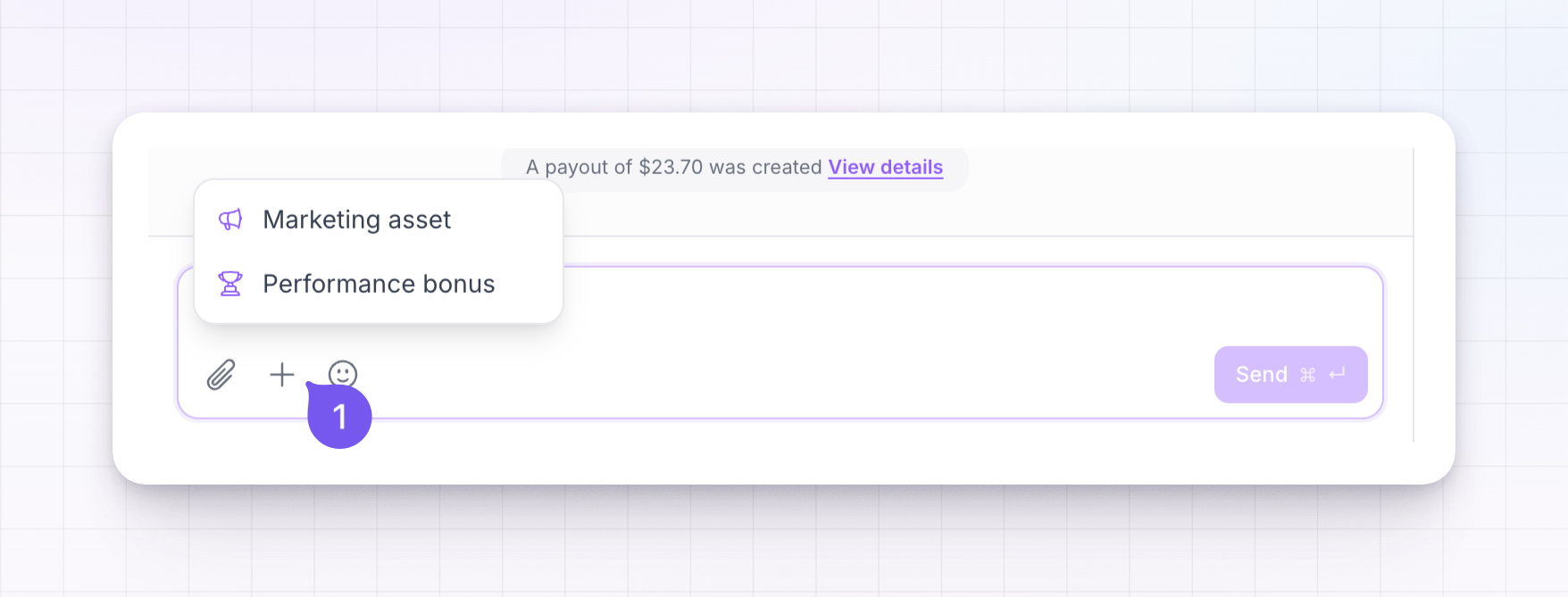
In a conversation, look at the row of buttons next to the message box and select the Share asset or bonus button. A small menu opens with two choices:- Marketing asset
- Performance bonus
Share a marketing asset
Select Marketing asset to open the Share a marketing asset window. It shows the marketing assets in your program — banners, links, videos, color schemes, and more — each tagged with its type. Use the search box to find one by name, then select it.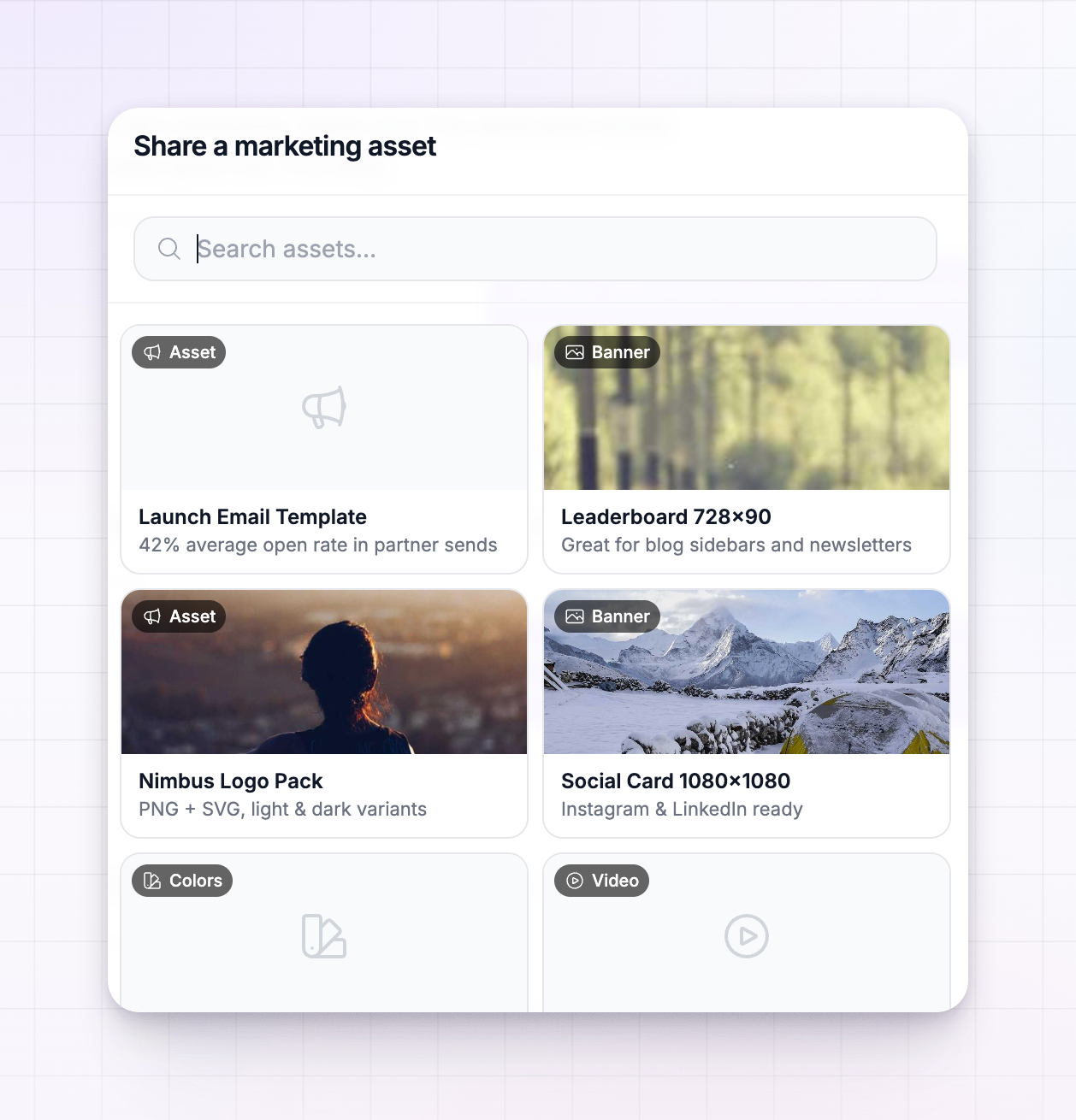 The asset attaches to your message. Add a note if you like, then send. It appears in the chat as a card the affiliate can act on without leaving the conversation.
Share a performance bonus
Select Performance bonus to open the Share a performance bonus window. It lists your active performance bonuses with the name and the reward amount for each. Search for one, then select it.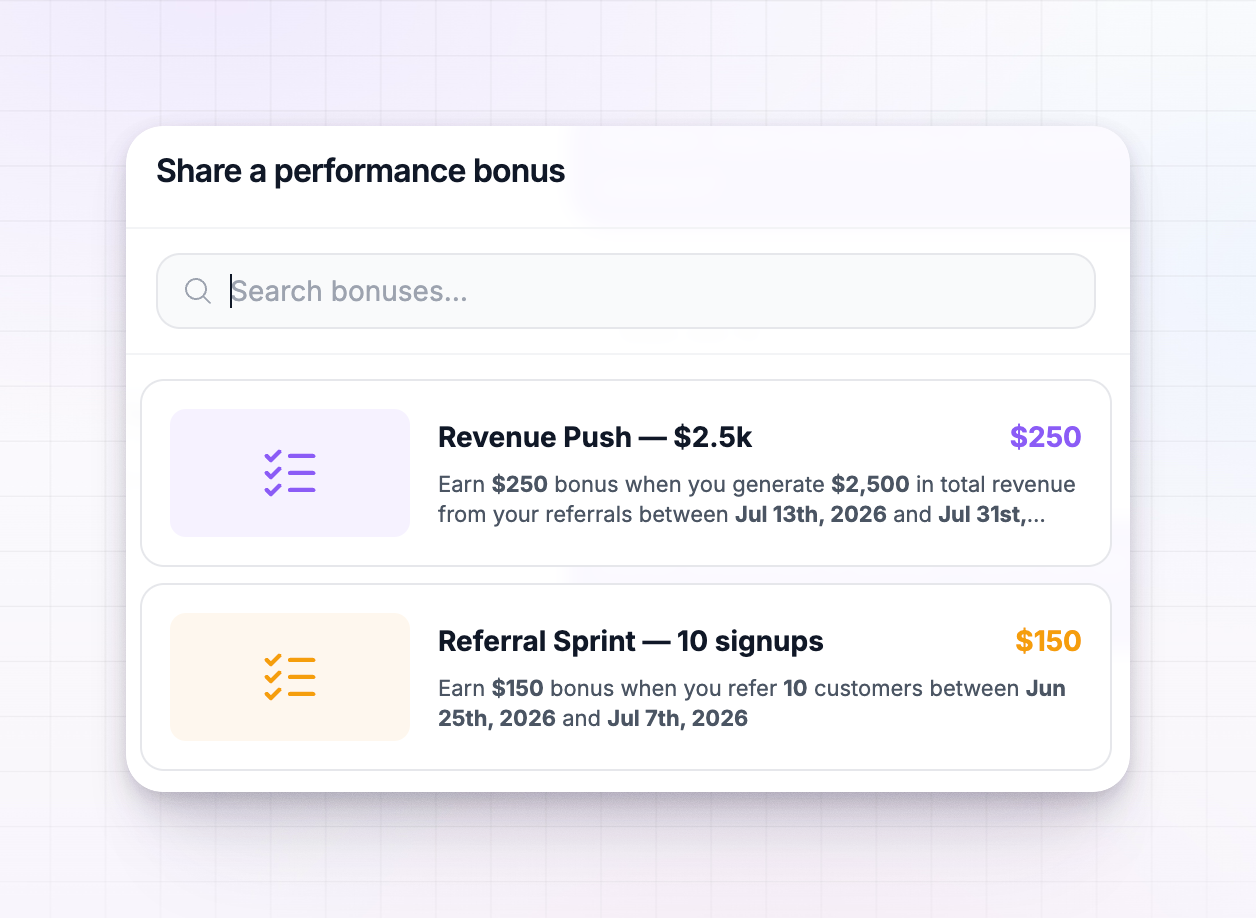 Sharing a bonus in chat is a natural way to nudge an affiliate toward it — for example, pointing a strong performer at a bonus they’re close to earning. The bonus attaches to your message the same way an asset does.
What the affiliate sees
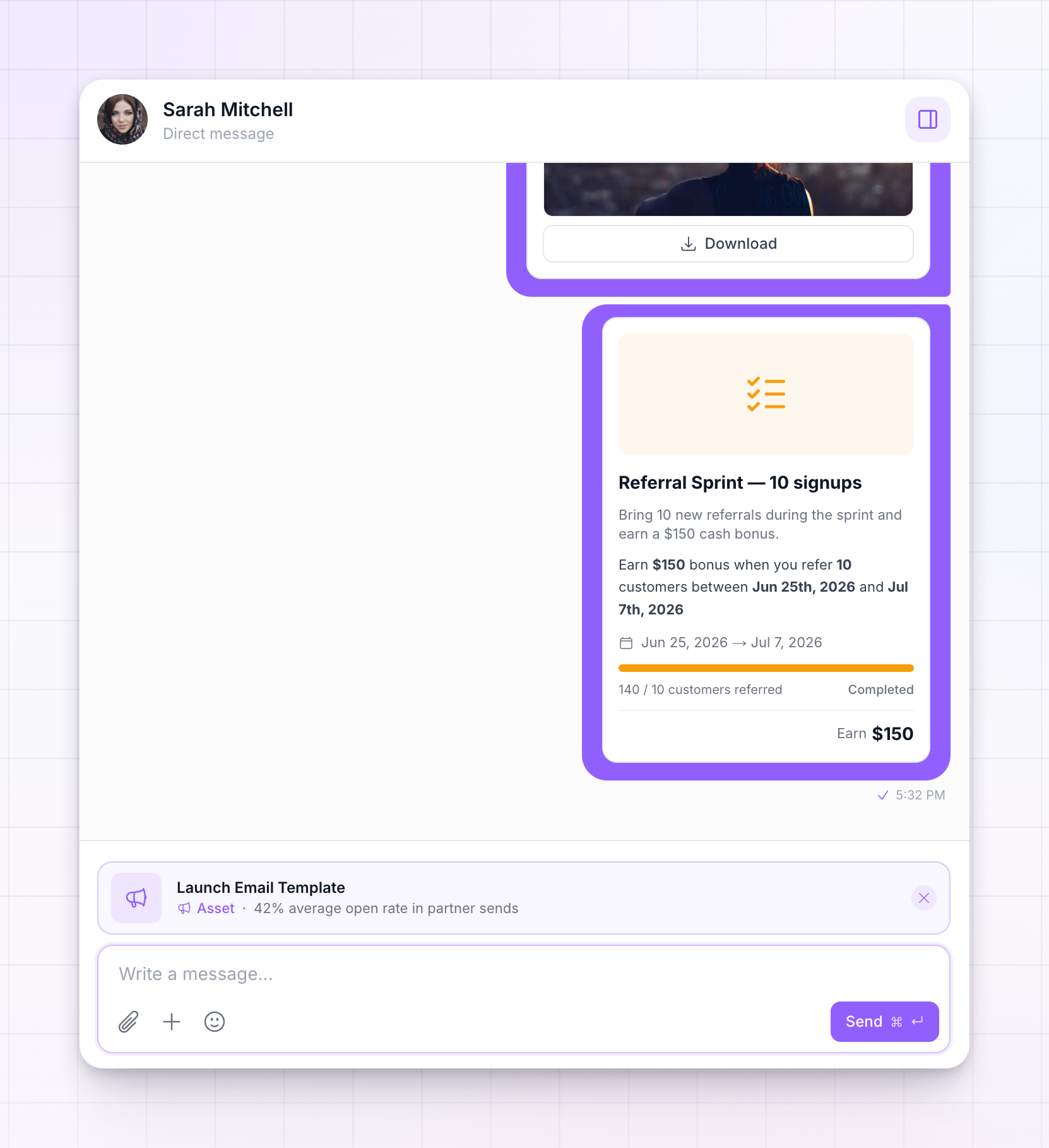
Whatever you share arrives as a tidy card inside the conversation, not just a plain link. From that card, in their portal, the affiliate can:- Open a marketing asset to view it, and copy its link or embed code or download it, depending on the asset type.
- See a performance bonus with how much they can earn and what it’s for, so they know exactly what’s on offer.
Sharing a file instead
Sharing an asset or bonus is different from attaching a plain file. If you just want to send an image or document that isn’t a saved marketing asset, use the Attach file button next to the message box instead. Attachments are covered in the Messages overview.Availability
Sharing assets and bonuses, and attaching files, are part of Referly’s engagement features. Depending on your plan, some of these may require the Engagement add-on. See Add-ons for what’s included, and note that a program can also choose not to allow file attachments.Related
Messages overview
See how the Messages area works from end to end.
Marketing assets
Create the banners, links, and videos you share in chat.
Performance bonuses
Set up the rewards you can share with affiliates.
Message groups
Share an asset or bonus with a whole group at once.