

Open Messages
In the left sidebar, select Messages. The page opens with your list of conversations on the left. If you haven’t started any chats yet, you’ll see a prompt to begin one.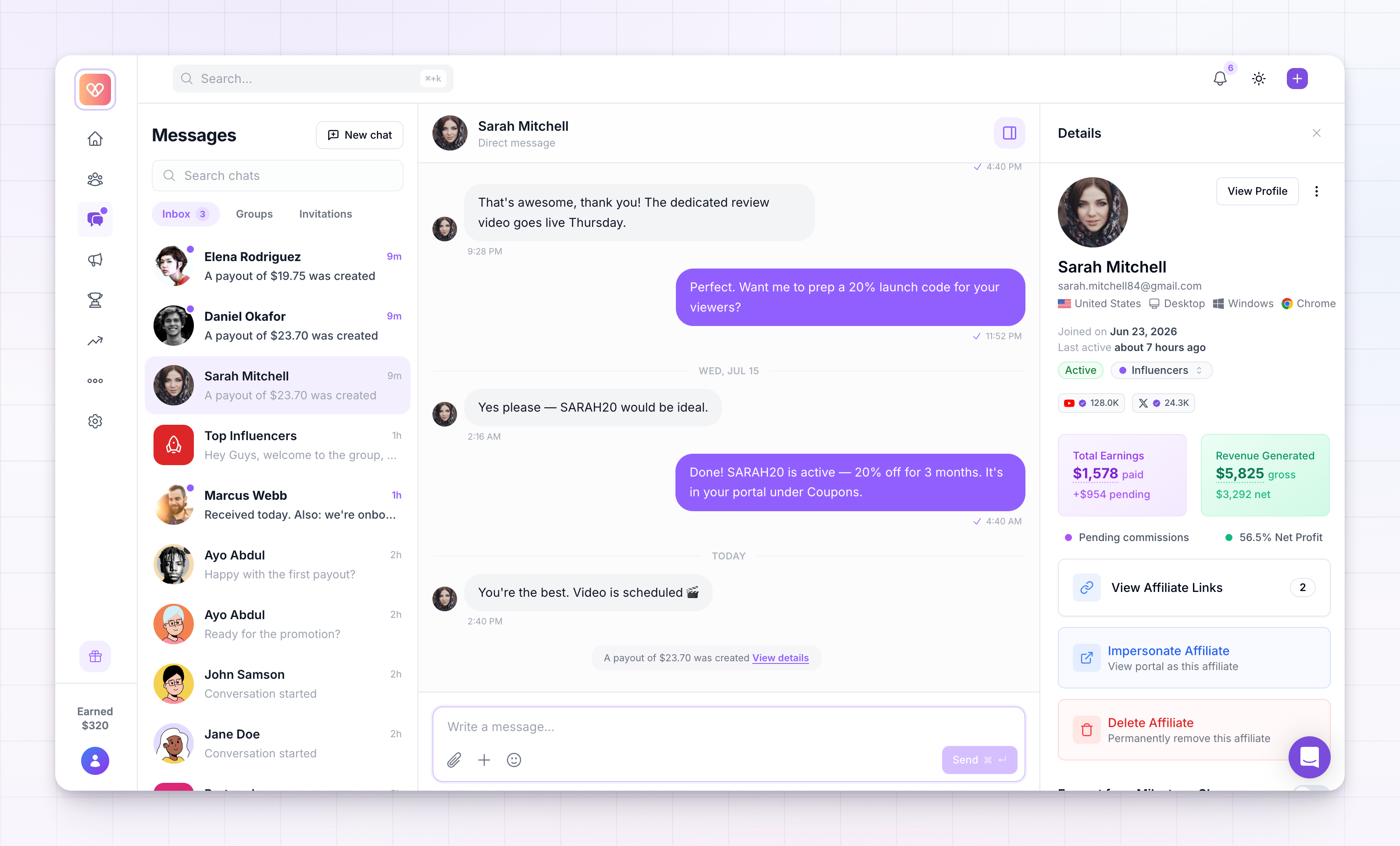
How the page is laid out
Messages has three parts, side by side:- The chat list on the left — every conversation you’re part of, with the most recent at the top. Unread chats are marked so you can see at a glance who’s waiting on a reply.
- The conversation in the middle — the messages in the chat you’ve selected, with the message box at the bottom.
- The details panel on the right — who you’re talking to and, for an affiliate, their performance at a glance: total clicks, referrals, revenue, and commissions. For a group, it shows the members. You can hide or show this panel with the Toggle details button at the top of the conversation.
Start a conversation
Select New chat at the top of the chat list. You’ll choose between two types:- Direct — a private one-to-one chat with a single affiliate. Search for them by name or email and select them to open the conversation. Only you and that affiliate can see it.
- Group — a chat with many affiliates at once, such as your top performers or everyone in a particular region. See Message groups for how to create and manage these.
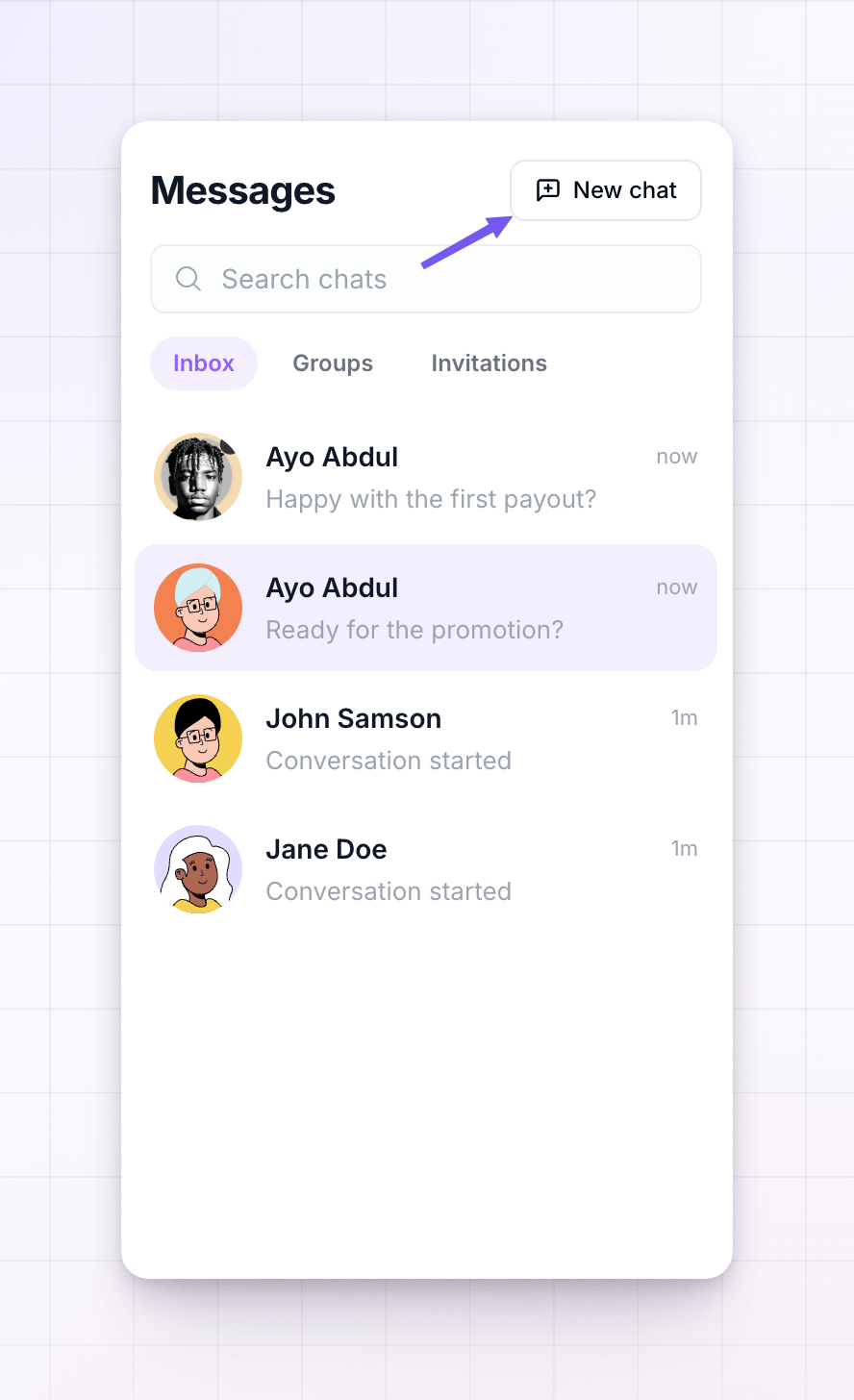 You can also start a chat straight from your affiliate list. On the Affiliates page, message a single affiliate from their profile, or select several and message them together using bulk actions.
Find the right conversation
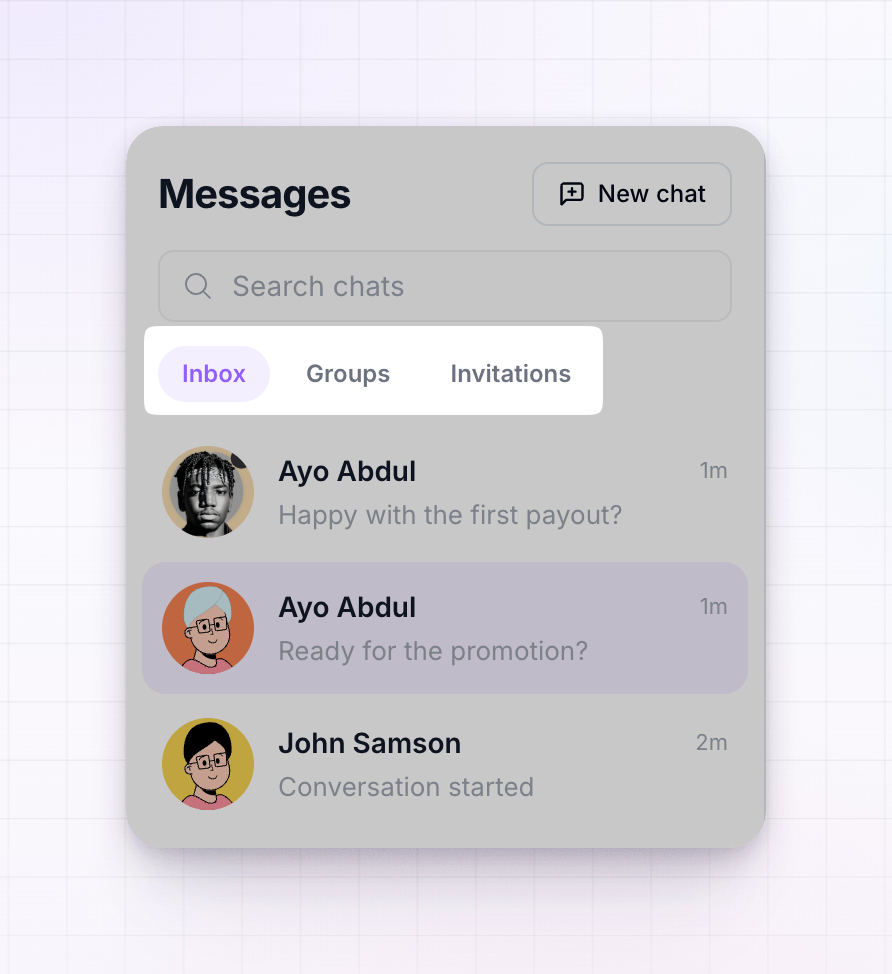
As your list of chats grows, two tools help you get to the right one:- Search — the Search chats box at the top filters your list as you type a name.
- Filters — the tabs above the list narrow it by type: All, Affiliates, DMs, and Groups. Use Groups when you only want your group chats, or DMs for your one-to-one conversations.
Send a message
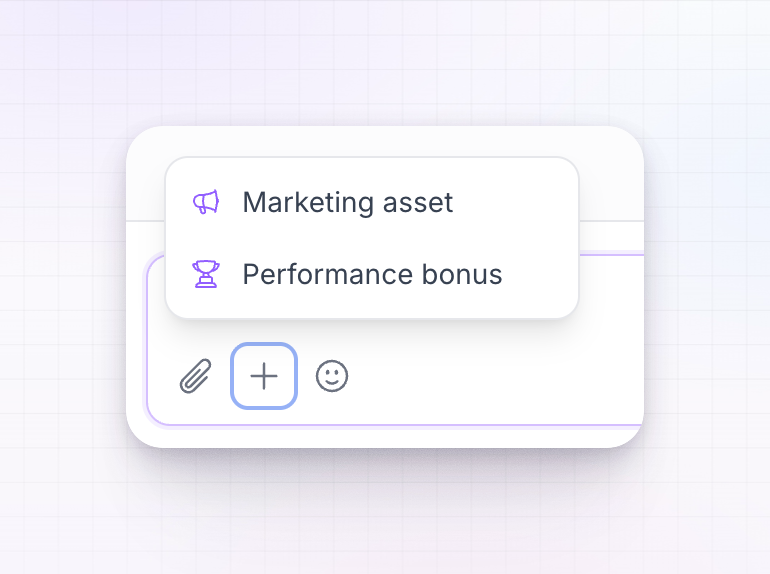
Type in the message box at the bottom of a conversation and press send. The toolbar next to the box lets you do more than plain text:- Attach a file to send an image or document along with your message.
- Share a marketing asset or a performance bonus so affiliates can grab a banner, link, or reward without leaving the chat. See Share assets and bonuses from chat.
- Add an emoji to your message.
Where affiliates reply
Affiliates read and answer your messages from their affiliate portal, in their own Messages area. When you send a message, they’re notified, and their replies land back in the same conversation here. Some events show up automatically as a note in the chat too — for example when a payout is created or a new marketing asset is uploaded — so the conversation doubles as a light activity feed.Group chats and announcements
Messages is for back-and-forth conversation. If instead you want to broadcast a one-way update to many affiliates at once — a program change, a new promotion — use Affiliate announcements, which post inside the affiliate portal. For a two-way group conversation, create a message group.Availability
Messages is part of Referly’s engagement features. Depending on your plan, group chats, file attachments, and full chat history may require the Engagement add-on or a higher plan. See Add-ons for what’s included.Related
Message groups
Create group chats and keep members in sync with your affiliate groups.
Share assets and bonuses from chat
Send marketing assets and performance bonuses right inside a conversation.
Affiliate announcements
Broadcast one-way updates to affiliates in their portal.
Affiliates overview
Start a chat with any affiliate from your list.