

The two places you log in
A program portal
One brand’s portal, on that brand’s own web address and branding. Everything here is about promoting and getting paid by that one brand.
Your Influencer dashboard
Your home base at
influencers.referly.so. Every program you’ve joined in one place, plus the marketplace for finding new ones.A program portal
Every brand running a program on Referly gets its own affiliate portal. The address looks likebrandname.referly.so, or the brand’s own web address if they’ve set up a custom domain — so it may not say “Referly” anywhere.
The brand controls the logo, the colors, and which languages are available, which is why no two portals look quite the same. What stays the same is the layout and where things live.
Everything inside a program portal is scoped to that one program: your referral link for that brand, the commissions you earned there, and the payouts that brand owes you.
Your Influencer dashboard
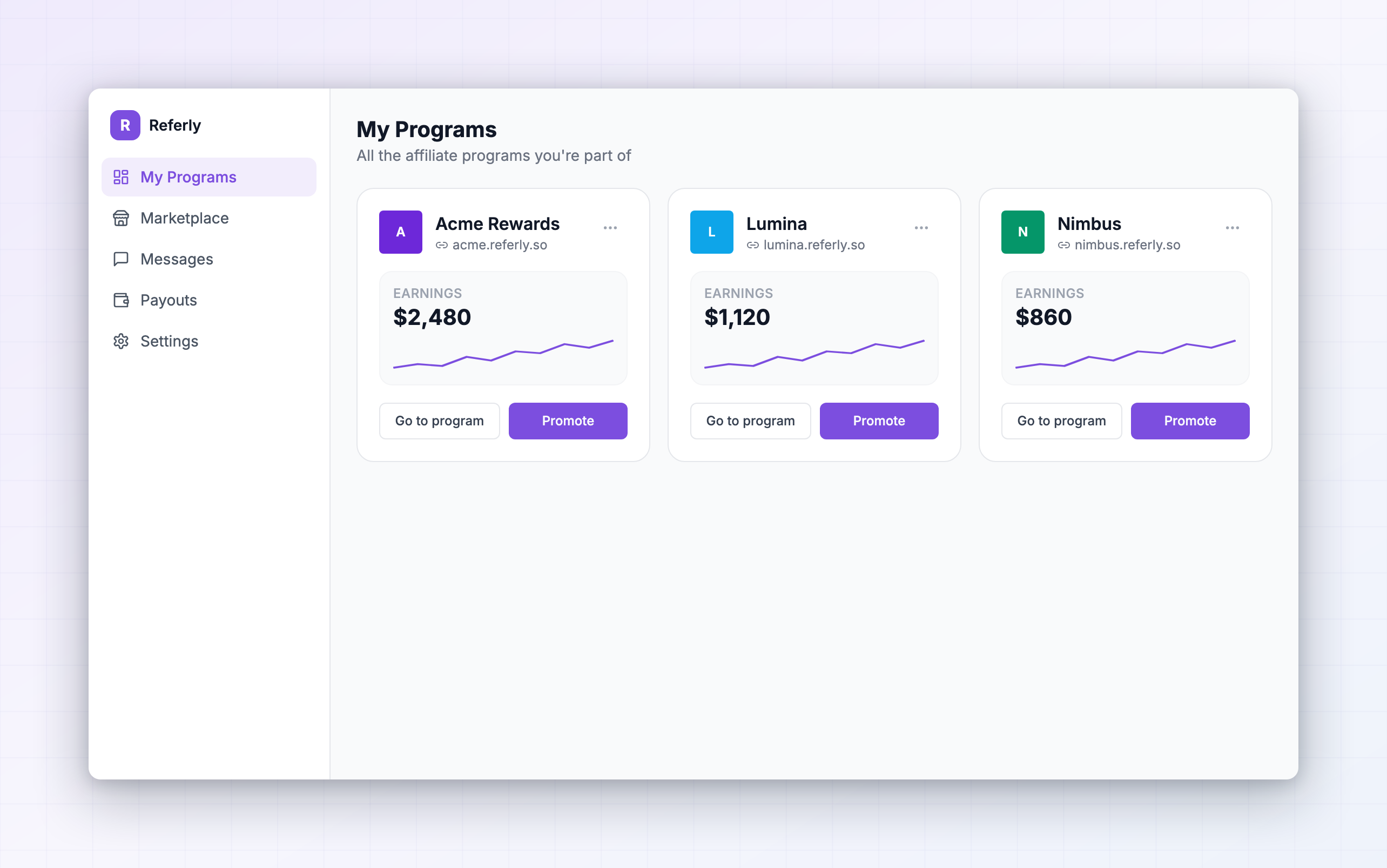
Go toinfluencers.referly.so and sign in with the same email you use for your programs. This is the cross-program view, and its sidebar is deliberately short:
- My Programs — a card for every program you’ve joined, with your total earnings and an earnings trend for each.
- Marketplace — browse and join new programs on the Referly network. See My programs.
- Messages — every conversation with every program team, in one inbox.
- Payouts — all your payouts across every program, with the program name on each row.
- Settings — your profile, payout details, and notification preferences.
Move between your programs
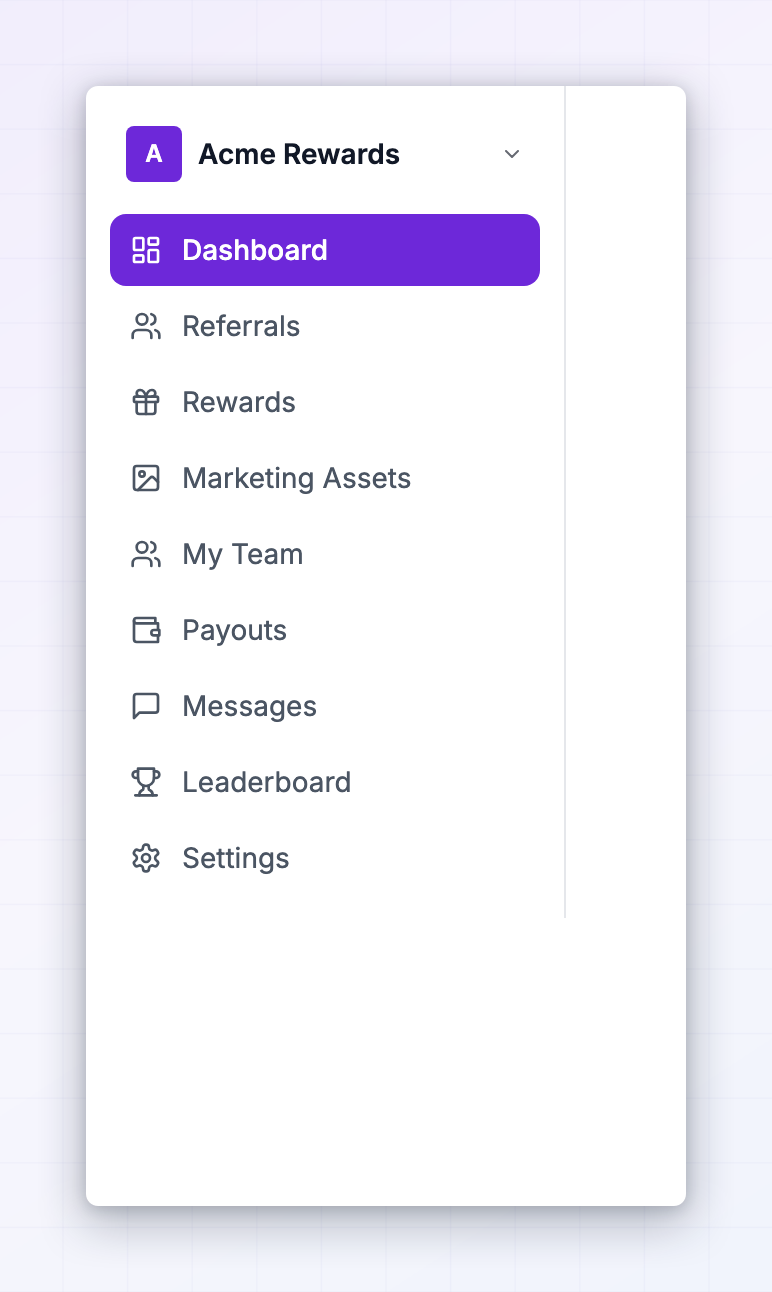
At the very top of the left sidebar there’s a button showing the current program’s logo and name. Select it to open the program switcher. Inside you’ll find a search box, a Your Programs list of everything you’ve joined with a checkmark next to the one you’re in, and Join other programs at the bottom, which takes you to the marketplace. Picking a program from the list takes you straight to that brand’s portal. From My Programs in your Influencer dashboard you can do the same thing from a program’s card. Select the … button in the card’s top-right corner for:- Go to program — opens that brand’s portal in a new tab, already signed in.
- Promote — opens your link and promo code for that program without leaving the page.
- Commission plan — shows exactly what that program pays you.
Find your way around a program portal
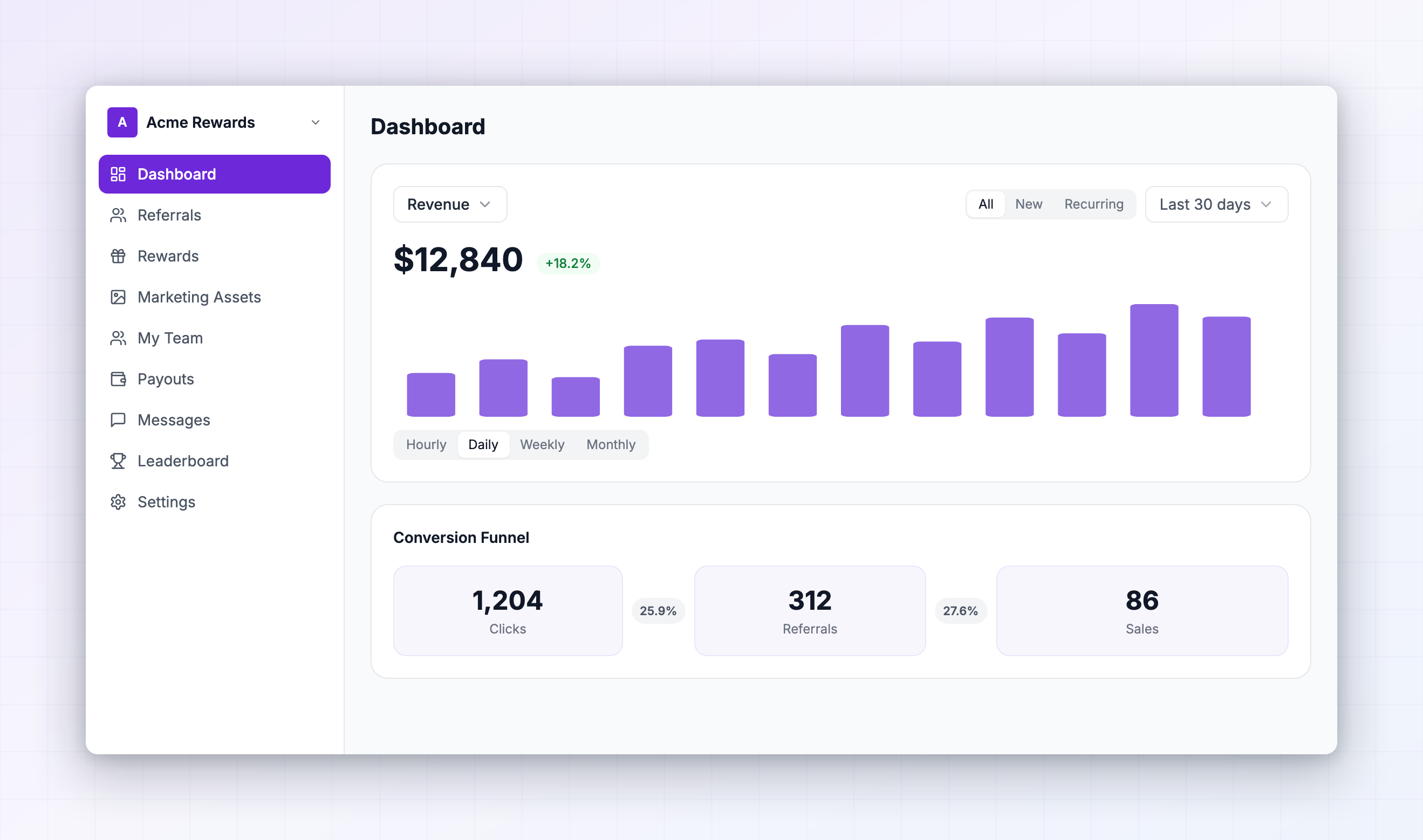
The left sidebar is the same set of sections in every program portal:- Dashboard — your performance at a glance. Covered in detail below.
- Referrals — every customer who signed up or bought through your link, with their revenue, your commission, and their status.
- Rewards — every individual commission you’ve earned, and whether it’s been approved and paid.
- Messages — your conversation with the program’s team. A pill shows unread messages.
- Leaderboard — where you rank against other affiliates. It’s labelled Contests instead when the brand is running one. See Leaderboards and contests.
- Performance Bonuses — extra rewards you can unlock by hitting targets. See Performance bonuses.
- Content Rewards — get paid for posting content. See Content rewards.
- Marketing Assets — the banners, images, and files the brand has shared with you. See Marketing assets.
- My Team — the affiliates you’ve recruited, when the program pays you on their sales. See My team.
- Payouts — what you’ve earned, what’s been paid, and what’s coming. See Getting paid.
- Settings — your profile, links, payout method, and notifications.
 Along the top bar you’ll find your current Commission Rate, a Promote button, a notification bell, a language picker, and a light/dark toggle.
The Promote button is the fastest route to your link. It opens Your Affiliate Details, where you can copy your full referral link, switch to a short version, generate or print a QR code, and see your discount code if the brand gave you one. See Your referral links.
Along the top bar you’ll find your current Commission Rate, a Promote button, a notification bell, a language picker, and a light/dark toggle.
The Promote button is the fastest route to your link. It opens Your Affiliate Details, where you can copy your full referral link, switch to a short version, generate or print a QR code, and see your discount code if the brand gave you one. See Your referral links.
Read the numbers on your dashboard
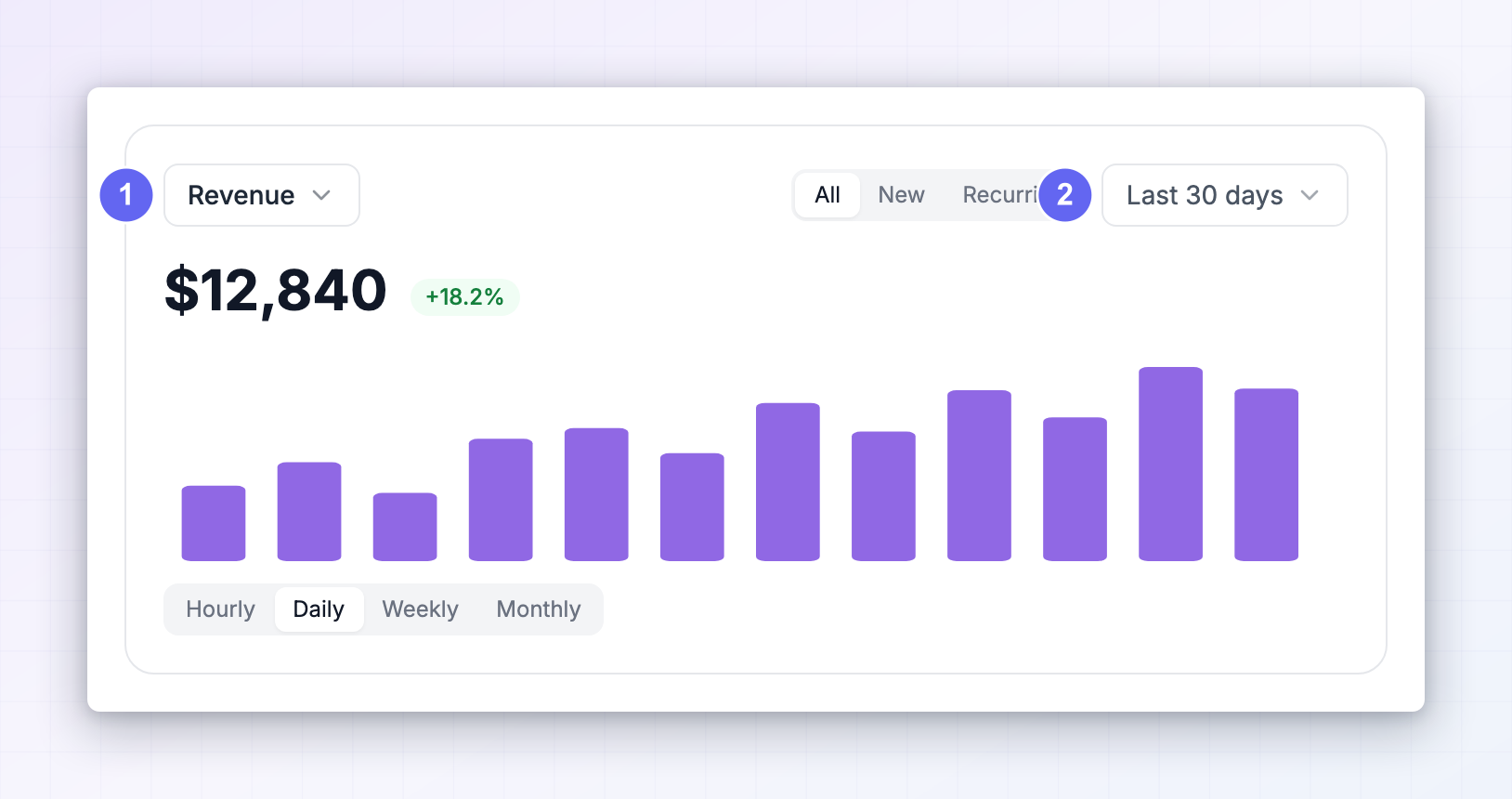
Start with the date range picker in the top right. Everything on the page follows it, so a number that looks wrong is usually just a date range that isn’t what you expected. Presets run from Today through This year, plus Maximum for everything since you joined and Custom Range for your own dates.The Overview card
The big card shows one metric at a time. Use the picker to switch between:- Clicks — how many times someone opened your referral link.
- Referrals — how many of those visitors became customers of the brand.
- Earnings — the commission those customers generated for you.
- On Clicks, choose All or Unique. Unique counts one click per person, so it’s the honest measure of how many individuals you reached.
- On Earnings, choose All, New, or Recurring. New is commission from a customer’s first purchase only. Recurring is everything they buy after that — the sign that your referrals are sticking around.
The Conversion Funnel
The funnel shows where people drop off on the way to becoming a sale: Clicks → Referrals → Conversions On some programs the middle step is Add to Carts instead of Referrals, depending on what the brand tracks. Between each step is a conversion rate, so you can see whether your problem is getting traffic, getting sign-ups, or getting purchases. The Conversion Type control filters the last step to All, New (first-time purchases only), or Recurring (repeat purchases).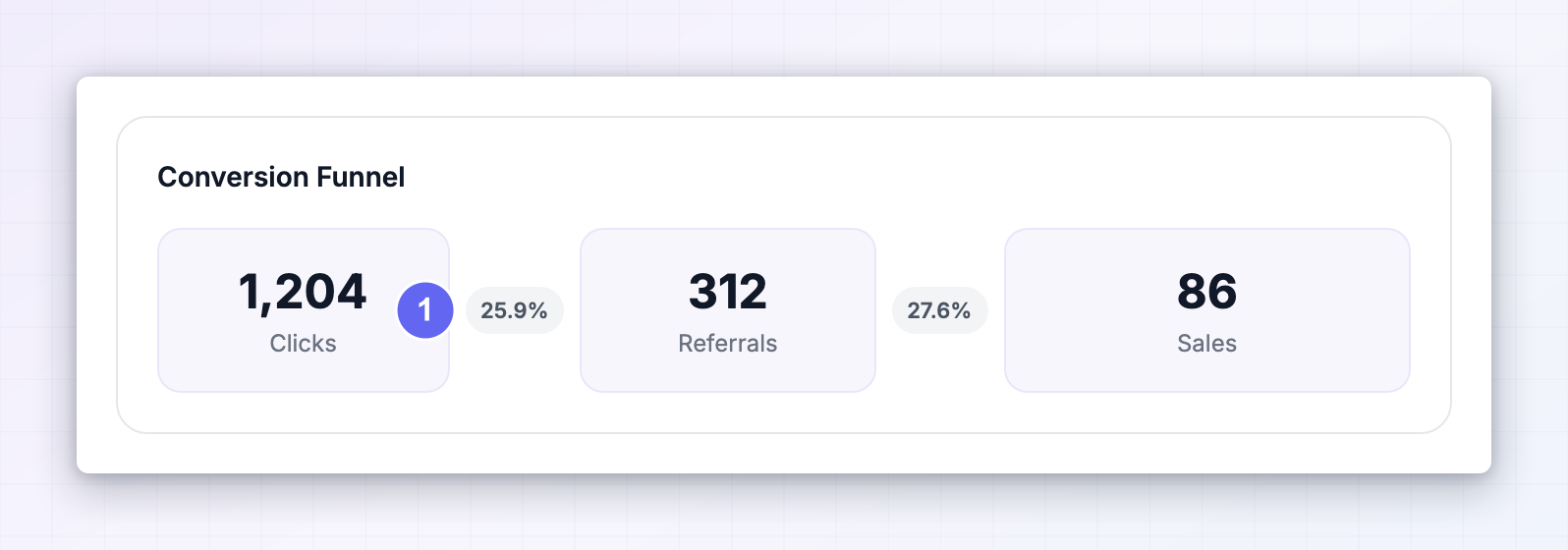
The supporting cards
- Recent Earnings — your latest commissions, with the customer and whether a promo code was involved.
- Top Traffic Sources — where your clicks are coming from, sortable by clicks, referrals, or earnings. Traffic with no identifiable source shows as Direct / None.
- Recent Payouts — the last payments sent to you.
- Action Items and Quick Links — shortcuts to your referrals, rewards, marketing assets, links and promo codes, and your commission plan.
Know where each reward stands
A commission doesn’t go straight to your bank. It passes through two separate states, and it’s worth knowing which one you’re looking at.On the Rewards page
Each row is one commission, with columns for Customer, Revenue, Reward, Type, Date, Payout, and Status. The status tells you whether the brand has cleared it:- Accepted — approved, and eligible to be included in a payout.
- On Hold — waiting on the brand’s review. It won’t be paid until it’s approved.
- Refunded — the customer got their money back, so this reward won’t be paid.
- Declined — the brand rejected this reward.
On the Payouts page
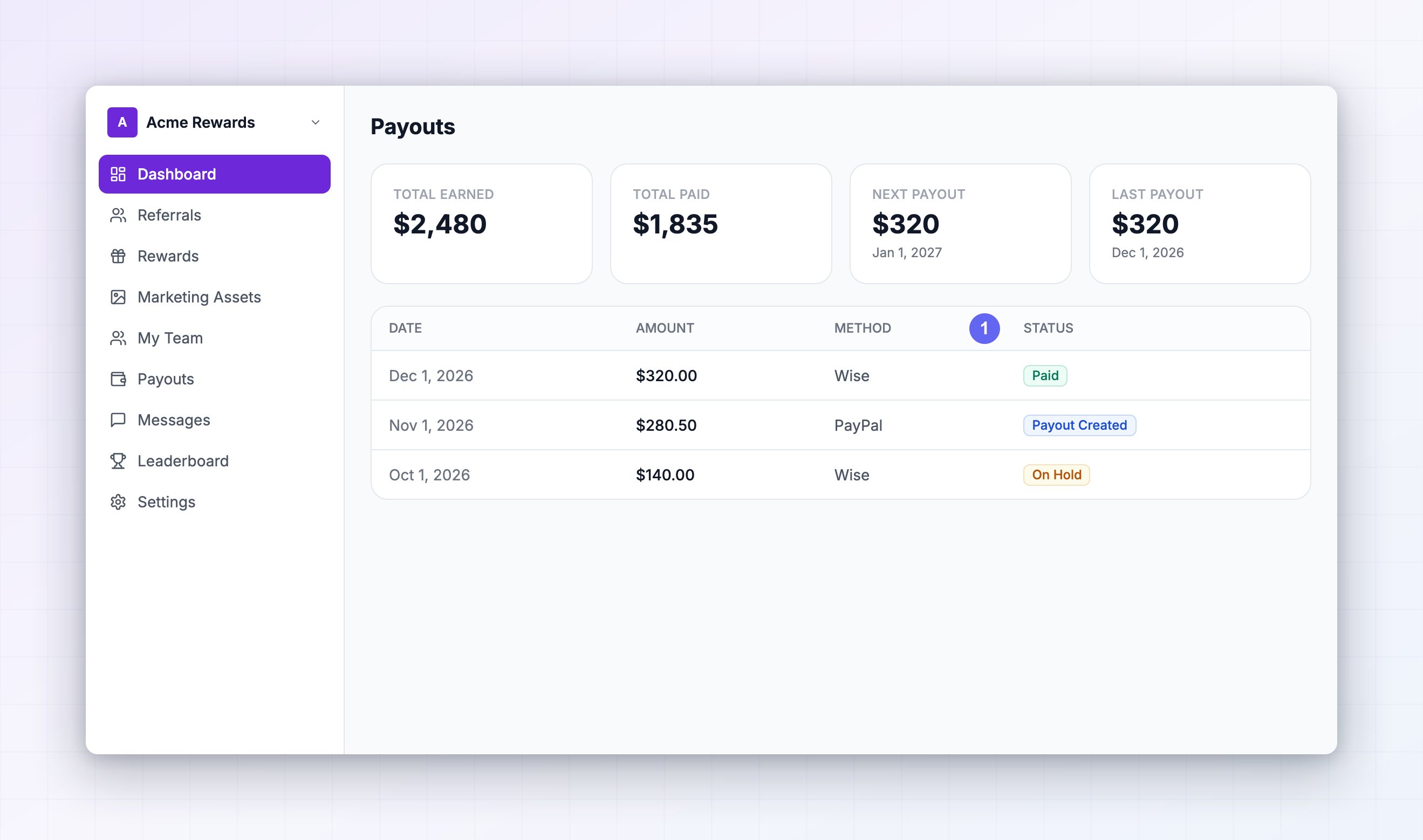
Four tiles across the top: Total Earned and Total Paid for all time, plus your Next Payout with an estimated pay date and your Last Payout. Below them, each payout carries a status:- Pending — created and queued.
- Processing — on its way to you.
- Paid — the money has been sent.
- Failed — something went wrong, usually with your payout details. Check them in Settings and contact the brand.
Why your portals don’t all look the same
Two things change what you see from one program to the next. Branding. The brand chooses the logo, the accent color, the web address, and the languages available in the picker. Some portals are fully white-labelled to the brand’s own domain. Features the brand turned on. Referly gives every program the same set of tools, but brands choose which to use:- My Team only appears when the program pays commission on affiliates you recruit.
- Content Rewards, Performance Bonuses, Leaderboard, and Marketing Assets are always in the sidebar, but the page tells you there’s nothing available yet if the brand hasn’t set anything up.
- Promo codes appear only when the brand has issued you one.
Manage your account in Settings
Settings is organized into four tabs:- Personal Information — your Profile, Affiliate Links, Promo Codes, and the Program Questions you answered when you applied.
- Payouts — Cash Payouts (your payment method and details), Non-Cash Payouts, and Invoice Details.
- Preferences — Email Notifications and In-App Notifications.
- Advanced — your Postback Url, for tracking conversions in your own tools.
Change a setting everywhere at once
When you update something in your Influencer dashboard that could apply to your other programs — your name, your photo, your payout details — you’ll be asked Apply to all your programs? Choose Apply to all to push the change everywhere, or Just this account to keep it local. To stop being asked, open Settings in your Influencer dashboard and set your preference to always apply changes, never apply them, or keep asking each time.This saves real time once you’re in a handful of programs. Change your payout email once instead of ten times.
If you can’t get in yet
Joining a program isn’t always instant. If you land on a screen saying your application is being reviewed, the brand hasn’t approved you yet — you’ll be notified when they do, and the full portal unlocks then. You may also see a message if your account was declined or deactivated by the brand. See Access issues for what each screen means and what to do next.Related
Sign up as an affiliate
Create your account and join your first program.
Complete onboarding
The setup steps that unlock your portal.
Your referral links
Find, customize, and share the link you promote.
Getting paid
How and when the money reaches you.