

Open the assets page
In the left sidebar of the affiliate portal, select Marketing Assets.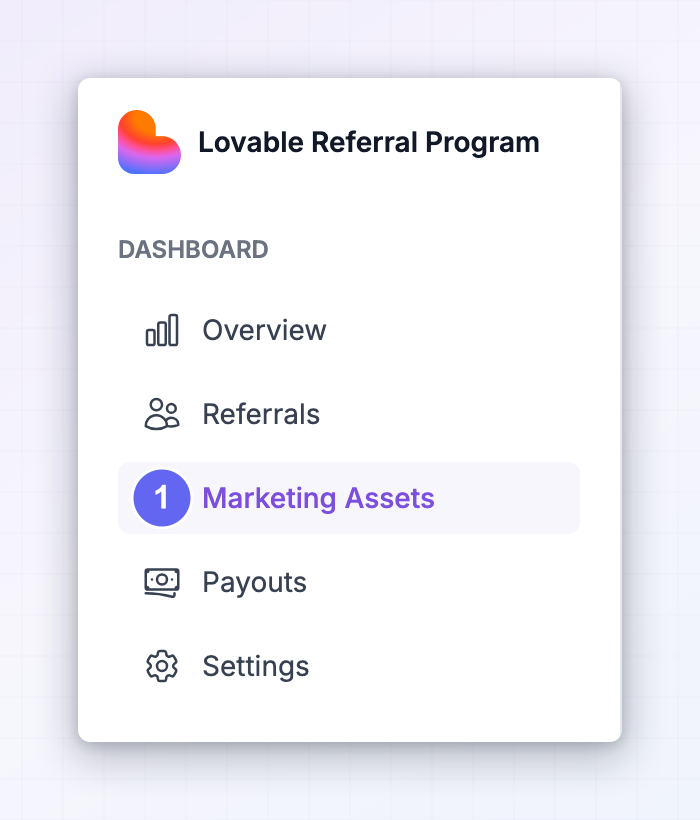 Everything the program has shared with you is listed here as a card. Each card has an icon showing what kind of material it holds, a title, and a short description telling you what it’s for.
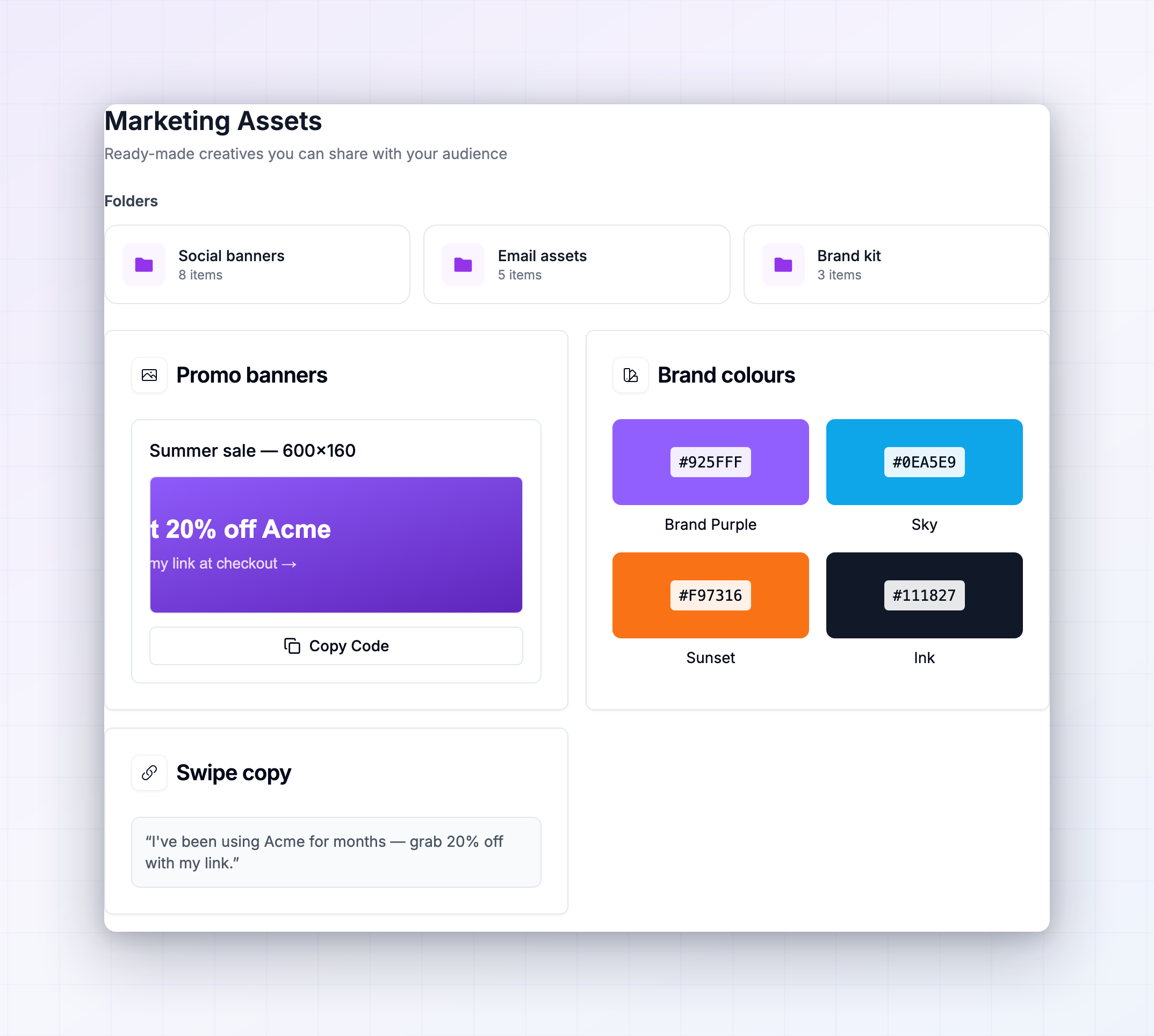 You’ll also find a Marketing Assets shortcut on your dashboard, with a count of how many are available to you.
Browse folders
If the program has a lot of material, it’s grouped into folders shown in a Folders section at the top of the page. Programs usually organise them by campaign, by channel or by season. Each folder card shows its name and either a description or a count of what’s inside, like2 folders · 8 assets. Select one to open it. Folders can hold other folders, so you can go several levels deep.
Once you’re inside, a trail appears at the top of the page showing where you are. Select Marketing Assets at the start of it to jump back to the top level, or any step in between to go partway back.
Use the arrow next to the Folders heading to collapse the folder list when you want more room for the assets themselves.
Use each kind of asset
What you can do with an asset depends on what the program put in it. The icon at the top left of each card tells you which kind you’re looking at.Images and files
Select any image preview to open it full size. Under it you’ll find a Download Image button when the program has allowed the file to be saved, and Download PDF or Download ZIP when they’ve attached a document or a bundle such as a media kit. If an image has no download button, the program means it to be viewed rather than reused. Ask them before taking it.Banners
Banner assets do something extra. Under the preview there’s a ready-made snippet you can drop straight into a website, a blog post or a newsletter, and your own referral link is already inside it. Select Copy Code, paste it into your page, and the banner shows up as a clickable image that credits you.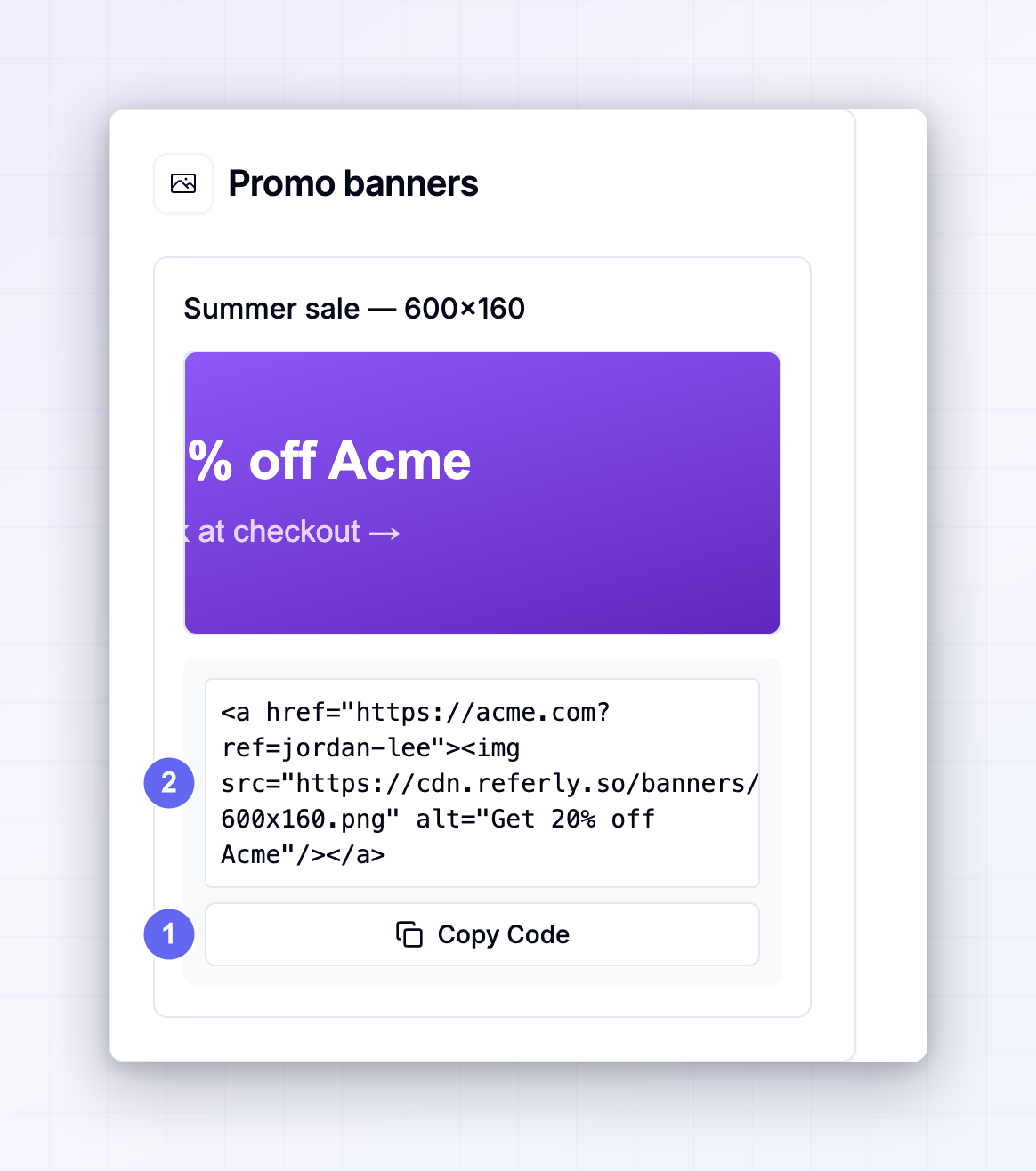 This is the fastest way to run a banner on a site you own. You don’t have to build the link yourself or worry about getting the tracking tag right.
The snippet uses your first link and the program’s main landing page. If you want a banner pointing somewhere else, copy the code, then swap the address for one of your other referral links.
Brand colours
Colour assets show the program’s official palette as a grid of swatches, each with its colour code and name. Select a swatch to copy the code, and you’ll see Copied! appear on it.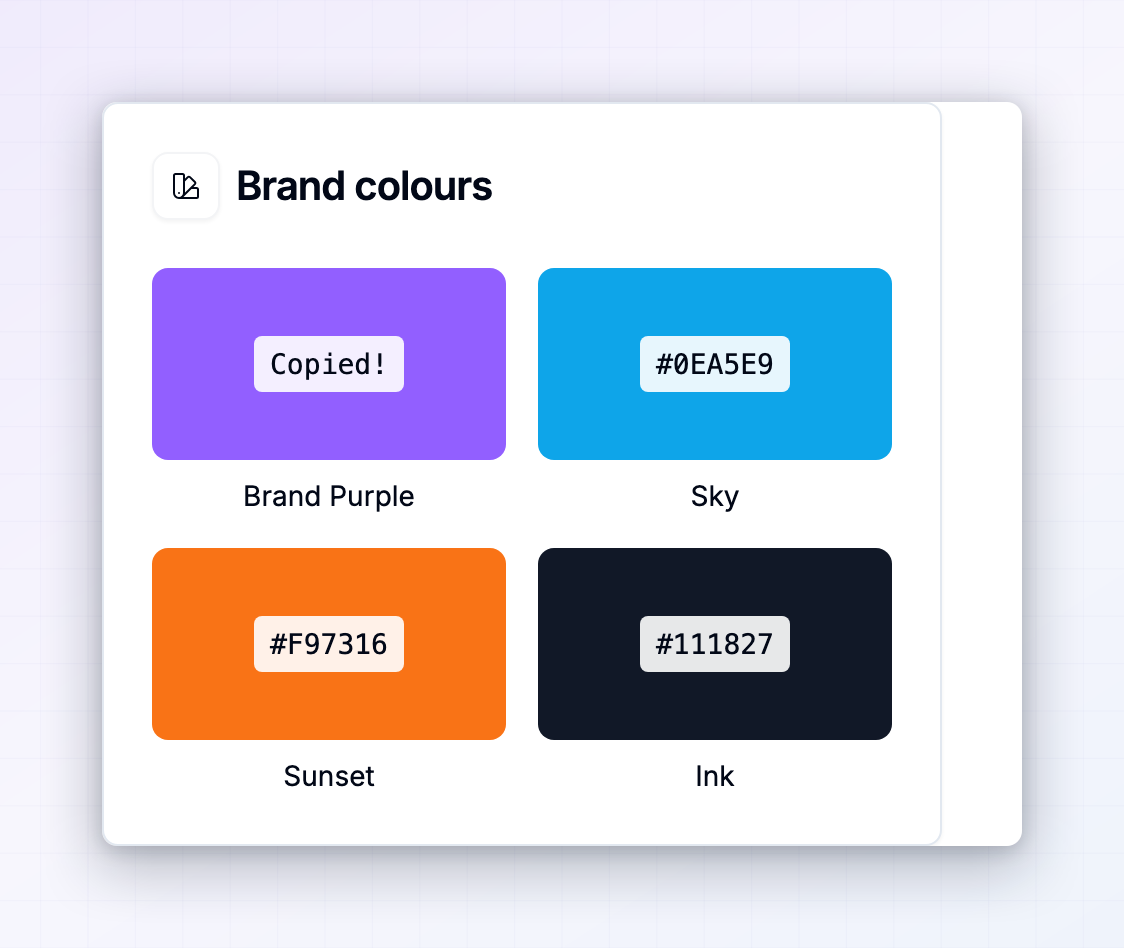 Use these when you’re making your own graphics, so what you post looks like it belongs to the brand.
Guidelines and swipe copy
Some assets are expandable sections holding longer text, such as brand guidelines, an FAQ or ready-written captions. Select a heading to open it, then use Copy Text to take the whole thing. Swipe copy is worth adapting rather than posting word for word. It’s written by the brand and your audience knows your voice.Links
Link assets point at something outside the portal, like a press page or a shared drive. Select the title to open it in a new tab, or use the copy icon on the right to grab the address.Videos
Video assets play straight in the page. Use them to learn the product before you promote it, or to see how the brand talks about itself.Preview and download images
Selecting any image opens a full-size gallery over the page. Use the arrows on the left and right to move between the images in that asset, and the dots at the bottom to see how many there are.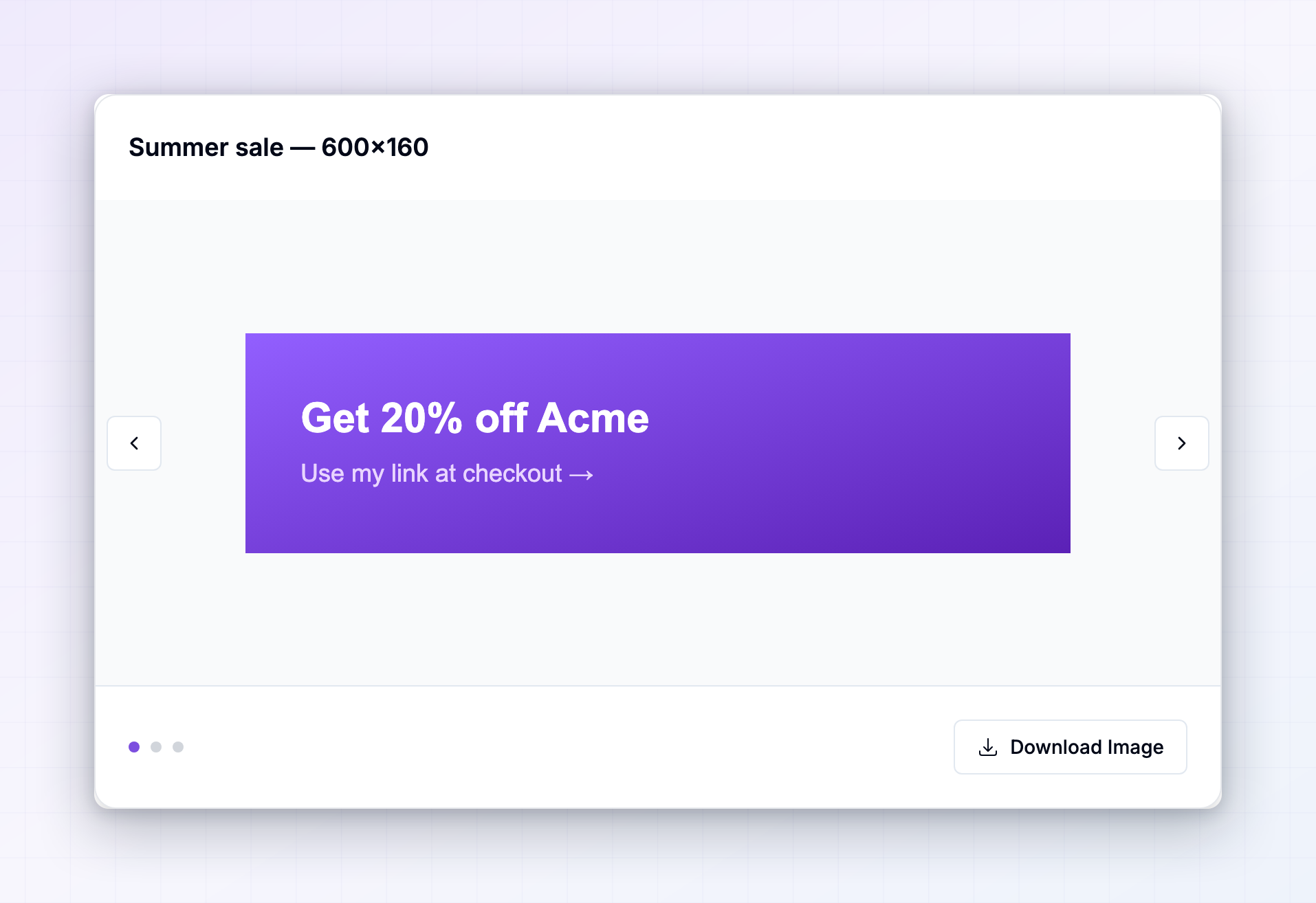 Download Image at the bottom right saves whichever image you’re looking at. This is the quickest way to grab a whole set: open the first one, download, arrow across, download again.
Why you might see different assets than another affiliate
Programs can share an asset with everyone, with specific affiliate groups, or with named individuals. So a top-tier partner may see an exclusive banner set that isn’t in your list, and material made for one person won’t show up for anyone else. If you were told about an asset you can’t find, that’s usually why. Message your program manager and ask them to share it with you. When the page says No assets available, the program hasn’t published anything yet. When a folder says This folder is empty, they’ve made the folder but haven’t filled it. Both are worth checking again after a launch.Assets sent to you in Messages
Your program manager can also send an asset straight to you in a conversation. Open Messages in the left sidebar and it appears in the thread as a full card, with the same download and copy buttons as on the assets page.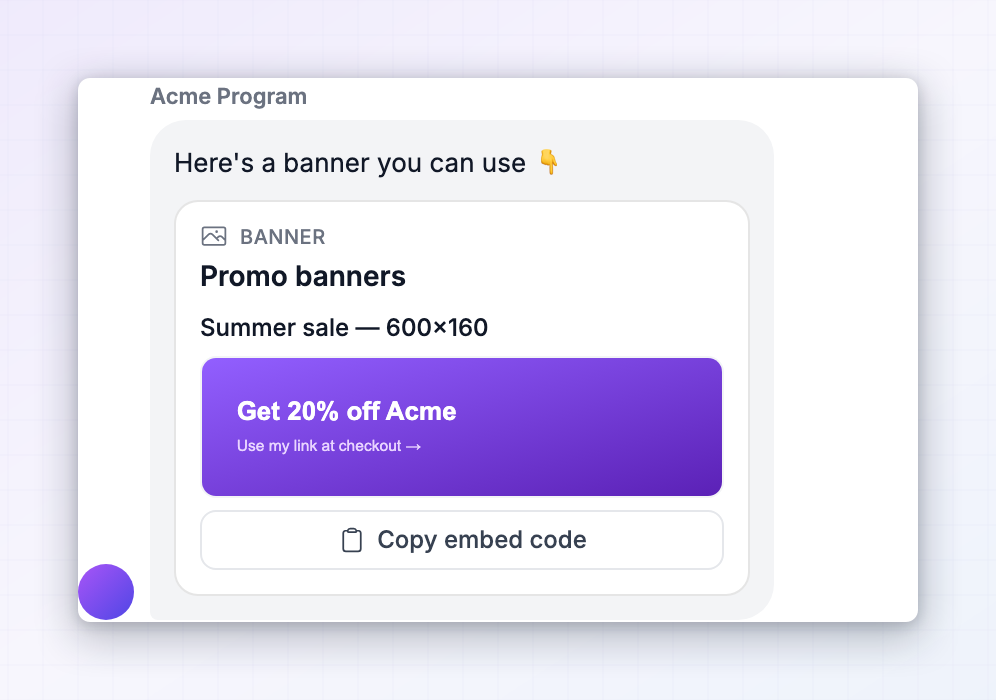 This is how brands usually hand over something time-sensitive, like the creative for a launch that goes live tomorrow. More in messages.
If you promote several programs
Assets belong to the program that made them, so each one keeps its own library and there’s no combined view. From the Influencer dashboard at influencers.referly.so, open My Programs and select Go to program on the brand you’re working on. That takes you into its portal, where Marketing Assets in the left sidebar shows that program’s library. See your programs for more on moving between them.Related
Your referral links
Pair an asset with the link that earns you commission.
Your promo codes
Share a discount code alongside the creative.
Content rewards
Get paid for the content you make with these materials.
The affiliate portal
A tour of everything you can do as an affiliate.