

Find your affiliates list
In the left sidebar, select Affiliates. The page is titled Affiliate Partners and opens on the All Affiliates tab, which is the list of everyone in your program. The second tab, Affiliate Activity, is a timeline of what your affiliates have been doing — clicks, referrals, sales, and portal logins.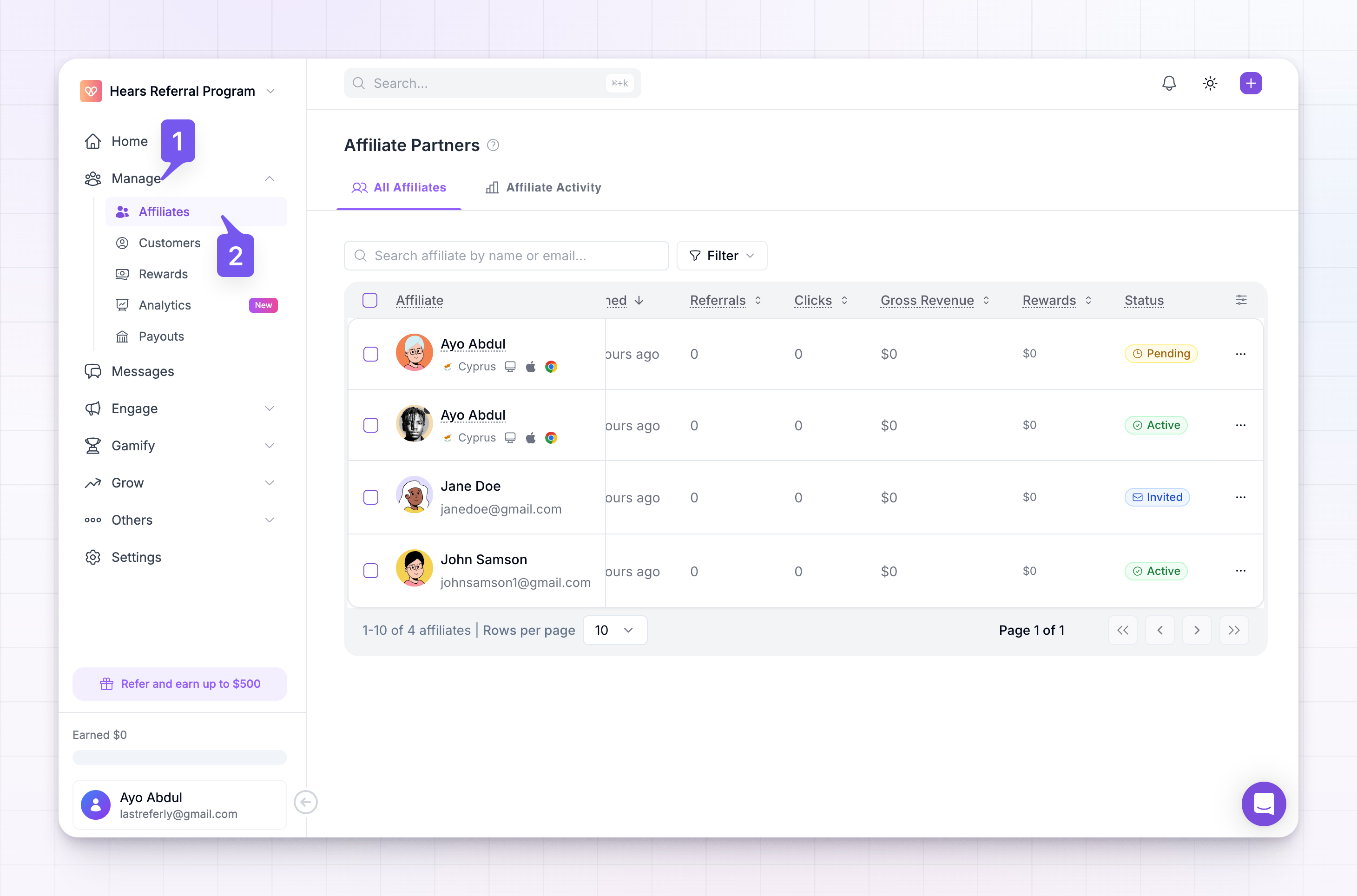
Read the affiliate list
Each row is one affiliate, and the columns tell you who they are and how they’re doing at a glance:- Affiliate — their name and email, with their profile picture. This is how you recognize who’s who.
- Group — the group they belong to, if you sort affiliates into groups.
- Source — how they joined your program, such as an invite, your sign-up page, or an import.
- Social Channels — the social accounts they’ve connected, so you can see where they have an audience.
- Joined — the date they came into your program.
- Referrals — how many customers they’ve referred.
- Clicks — how many times their referral link has been clicked.
- Gross Revenue — the total sales they’ve driven.
- Rewards — the commissions they’ve earned.
- Status — where they stand right now, such as active, pending, or banned. See Affiliate statuses for what each one means.
- Commission Plan — the commission plan that sets how much they earn.
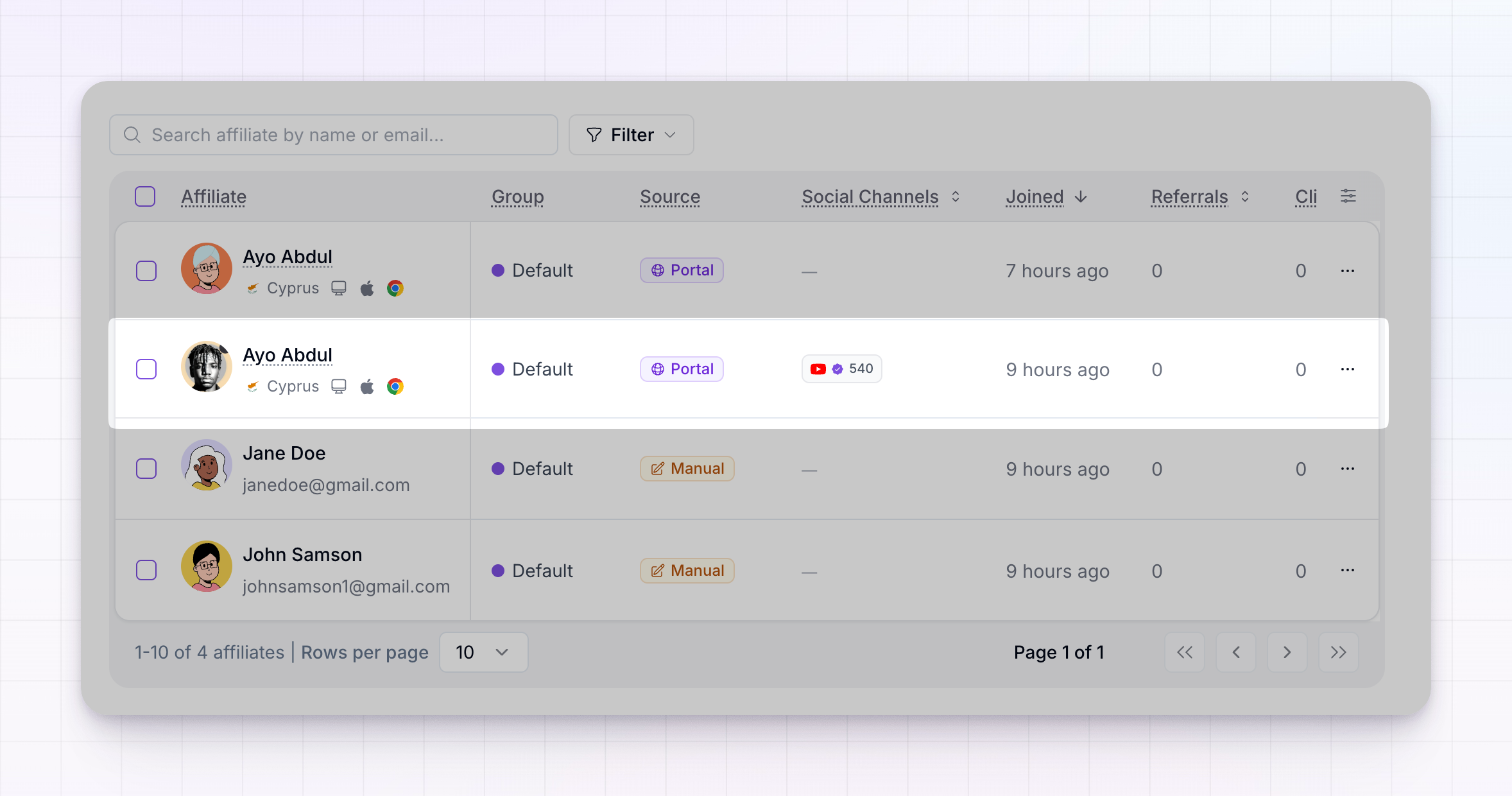 A few more columns — like affiliate milestone, net revenue, earnings per click, average customer lifetime value, and conversion rates — are hidden until you turn them on. You can choose which columns to show and rearrange them to suit how you work. See Filters and columns.
Find a specific affiliate
To jump straight to someone, use the Search affiliate by name or email box at the top of the list. Start typing a name or email address and the list narrows as you go. When you want to see a whole segment rather than one person — say, everyone who’s still pending, or your top earners in a particular country — use the Filter button next to the search box. You can filter by status, source, commission plan, group, country, social platform, and by ranges for referrals, clicks, revenue, and rewards. See Filters and columns for the full set.Open an affiliate’s profile
Select any affiliate to open their detail page. This is where you see everything about that one person — their performance over time, the customers they’ve referred, the commissions they’ve earned, the answers they gave when they applied, and the actions you can take on them. See The affiliate detail view.Act on many affiliates at once
Each row has a checkbox on the left. Tick a few — or select them all — and a set of actions appears that applies to everyone you’ve chosen at the same time. You can approve, deactivate, ban, move to a group, change the commission plan, export, or message the whole selection in one go. See Bulk actions.Manage individual affiliates
From the list or an affiliate’s detail page, you can also take action on one person at a time:- Change their commission plan to move them onto different earning terms.
- Give them a bonus to reward standout work.
- Ban or deactivate them if they need to be removed from your program.
- Sort them into groups to organize and target your affiliates.
Add and import affiliates
You can add a single affiliate by hand, or bring over a whole list at once. To add people in bulk — for example when moving from another platform — see Import affiliates. To recruit new ones from scratch, see Recruit your first affiliates.Related
Affiliate statuses
Understand what active, pending, declined, and banned mean.
Filters and columns
Narrow the list and choose what each column shows.
The affiliate detail view
See everything about a single affiliate.
Import affiliates
Bring a whole list of affiliates in at once.