

Deactivate, ban, or delete — which to use
The rule of thumb: deactivate when you might want them back, ban when they’ve done something serious and you want a record of why, and delete only when you genuinely want every trace of them gone. Both ban and delete can’t be undone, so reach for deactivate whenever you’re unsure.
Deactivate an affiliate
Deactivating is the gentle option — it pauses someone without losing anything.1
Open the affiliate
From your affiliates list, select the affiliate to open their detail page.
2
Choose Deactivate Affiliate
Open the three-dots actions menu and select Deactivate Affiliate.
3
Confirm
The dialog explains that this disables all their active links while their commissions and payouts remain intact. Select Deactivate affiliate to confirm.
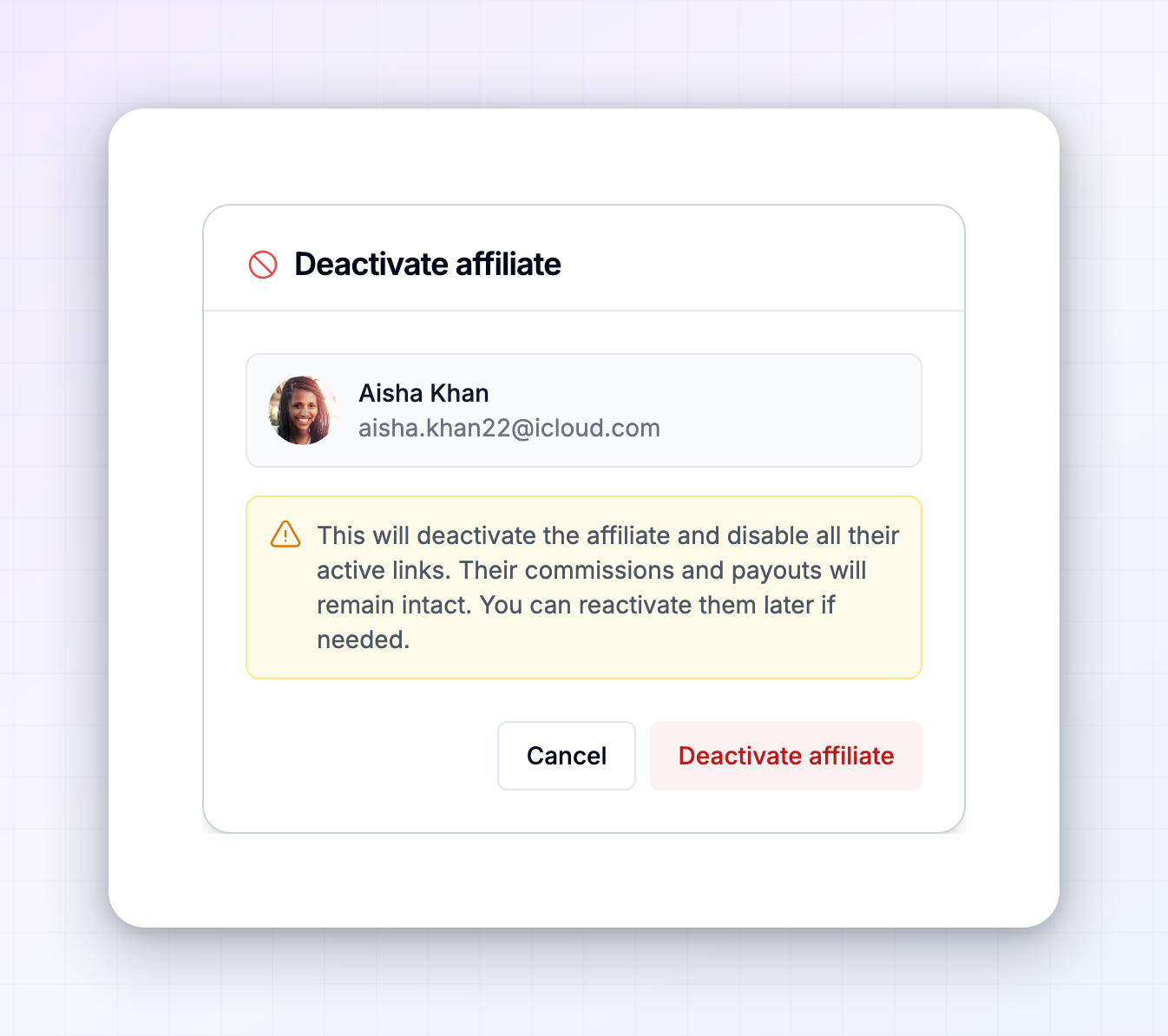 Once deactivated, the affiliate’s links stop working and they can’t log in or earn on new sales, but everything they’ve already earned stays exactly as it was. Their status changes to Deactivated.
Reactivate an affiliate
Changed your mind, or the affiliate is ready to come back? Open their detail page, choose Reactivate Affiliate from the actions menu, and confirm. Their referral links start working again and they can access their portal and earn commissions on new sales. Their status returns to Active.Ban an affiliate
Banning is for affiliates who’ve broken your rules — fraud, spam, brand abuse, and the like. It’s permanent, so Referly asks you to confirm carefully.1
Open the affiliate and choose Ban Affiliate
On the affiliate’s detail page, open the actions menu and select Ban Affiliate.
2
Choose a ban reason
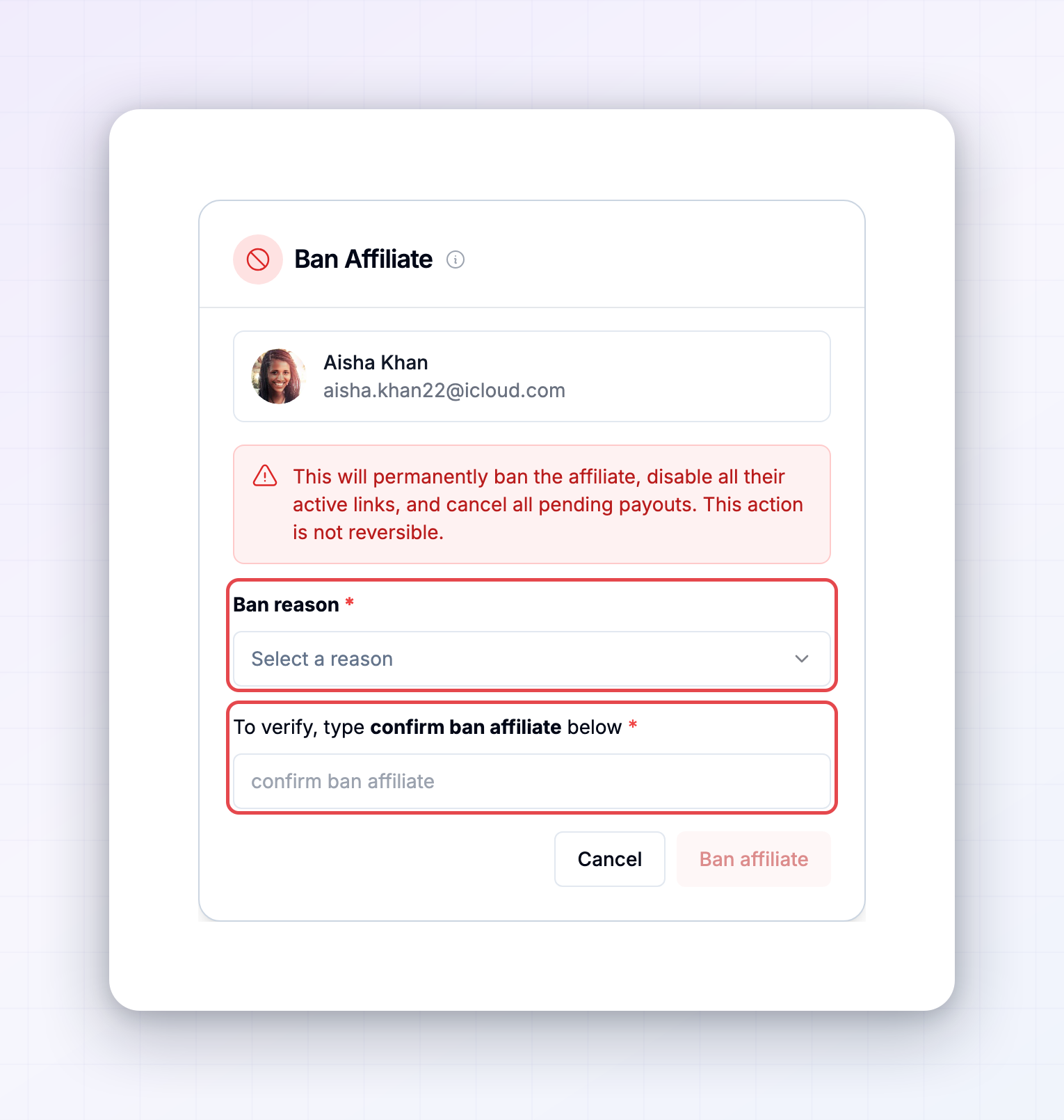
Pick a Ban reason from the list — Terms of Service Violation, Inappropriate or Offensive Content, Artificial Traffic, Fraudulent Activity, Spam, or Brand Abuse. The reason is saved and shows on their banned badge later, so you always know why they were removed.
3
Type the confirmation
Because a ban can’t be undone, you’ll be asked to type
confirm ban affiliate in the confirmation field. This stops an accidental ban.4
Ban
Select Ban affiliate. Their links are disabled, their pending payouts are cancelled, and their status changes to Banned.
Do it for many affiliates at once
All three actions are available in bulk. Select affiliates in your list with their checkboxes, then choose Deactivate, Reactivate, Ban, or Delete from the selection bar. A bulk ban asks for a single reason that applies to everyone selected. See Bulk actions.Related
Affiliate statuses
What Deactivated and Banned mean for an affiliate.
Bulk actions
Deactivate, ban, or delete many affiliates at once.
Fraud prevention
Catch bad actors before they cost you.
The affiliate detail view
Where the deactivate and ban actions live.