

Search by name or email
The fastest way to find one person is the Search affiliate by name or email box at the top of the list. Type any part of a name or email address and the list narrows as you type. Clear the box to see everyone again.Filter your list
Search finds an individual; filters find a group of people who share something in common — every pending affiliate, everyone in a country, your top earners, and so on. Select Filter next to the search box to open the filter panel. You can stack as many filters as you like, and the list updates to show only the affiliates that match all of them.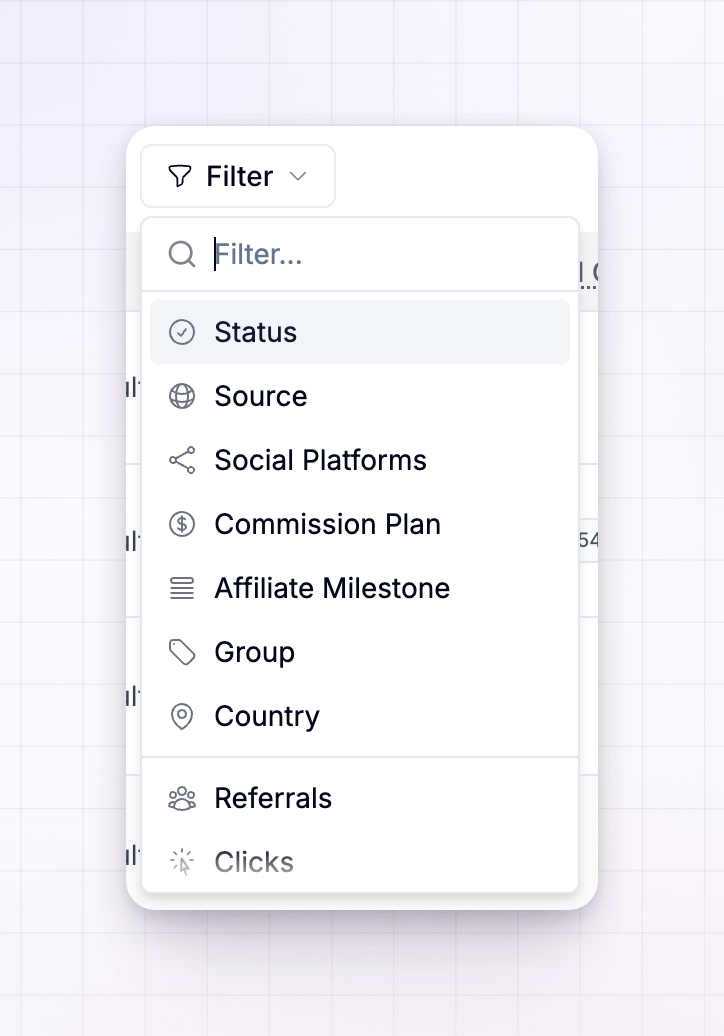 You can filter by:
- Status — active, pending, invited, declined, deactivated, or banned. See Affiliate statuses.
- Source — how they joined, such as your portal, the referral widget, an import, added by hand, or through the API.
- Commission plan — the plan they earn on.
- Affiliate milestone — the performance milestone they’ve reached, if you use milestones.
- Group — the group they belong to.
- Country — where the affiliate is based.
- Referrals — a range for how many customers they’ve referred (a minimum, a maximum, or both).
- Clicks — a range for how many times their link has been clicked.
- Gross revenue — a range for the total sales they’ve driven.
- Rewards — a range for what they’ve earned, and which reward type (cash, coupon, or credits).
- Social platforms — the social channels they’ve connected.
- Audience size — a range for their follower count.
Filter straight from a row
You don’t always have to open the panel. Hover over a value in the list — a status, a group, a commission plan — and a small filter button appears. Select it to instantly filter the whole list by that value. It’s the quickest way to say “show me everyone else like this one.”See and clear active filters
Every filter you apply shows up as a chip under the search bar, so you always know what’s narrowing your list. Remove a single filter by selecting the x on its chip, or clear them all to go back to the full list.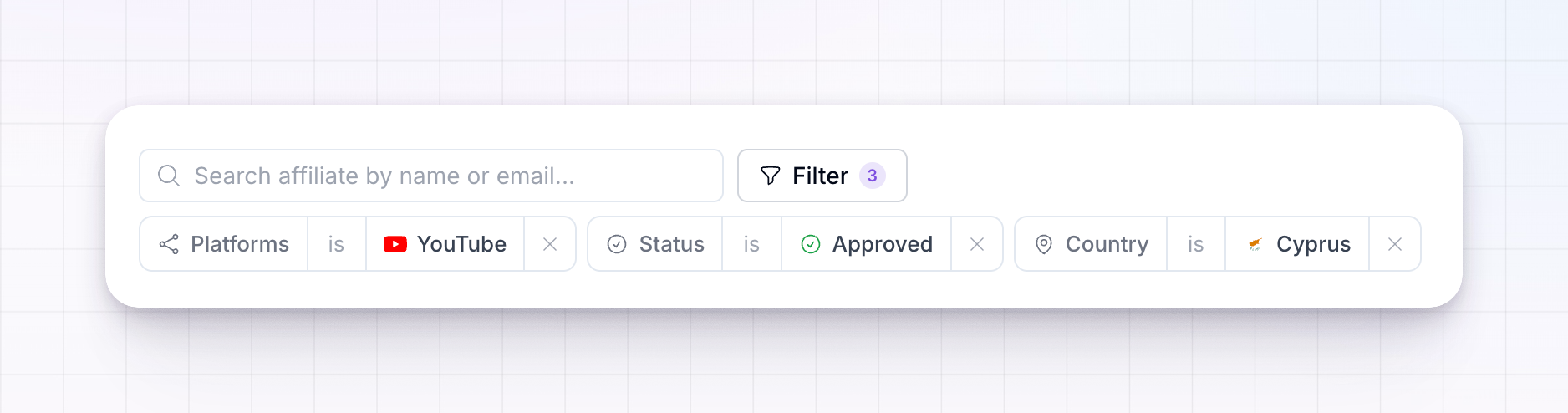
Your search and filters are remembered as you move around, and they’re written into the page address — so you can bookmark a filtered view, or copy the link to share the exact same list with a teammate.
Sort the list
Select any column header to sort the list by it. Select it again to flip between highest-first and lowest-first, and once more to clear the sort. Sorting by Rewards or Gross Revenue, for example, is a quick way to find your top performers.Choose which columns to show
You don’t have to live with the default columns. At the far right of the table’s header row is a small adjustments icon — select it to open the Toggle columns panel.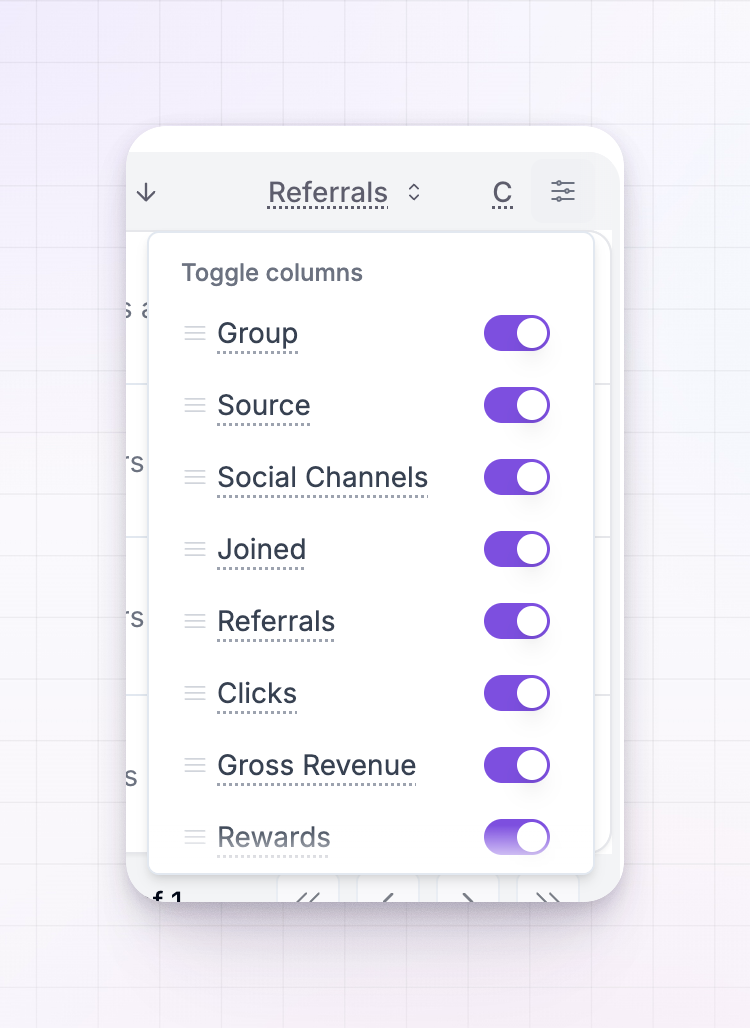 In this panel you can:
- Show or hide a column by ticking or unticking its checkbox. (The Affiliate column always stays, so you never lose track of who’s who.)
- Reorder columns by dragging them up or down into the order you prefer.
Columns you can add
Alongside the columns shown by default, you can switch on extra performance metrics to dig into how your affiliates are really doing:
Hover over any column’s name in the Toggle columns panel to see a short explanation of what it measures.
Export what you’re looking at
Once you’ve filtered the list down to the affiliates you want, you can export them to a spreadsheet to work with elsewhere. See Bulk actions for exporting.Related
Affiliates overview
Get to know the affiliates list and its columns.
Affiliate statuses
What each status means when you filter by it.
Bulk actions
Act on a filtered set of affiliates at once.
Affiliate groups
Organize affiliates into groups you can filter by.