

Open an affiliate’s detail page
From your affiliates list, select any affiliate to open their detail page. To return, use Back to all affiliates at the top. You don’t have to go back to the list to review the next person, though — the arrows at the top step you to the previous or next affiliate. They follow the exact same order and filters as the list you came from, so if you filtered down to pending applicants, the arrows walk you through just those.The profile panel
The panel at the top identifies the affiliate: their name, email, and profile picture, plus details captured when they signed up — their country, and the device, operating system, and browser they used. Below that you’ll see when they Joined and when they were Last active.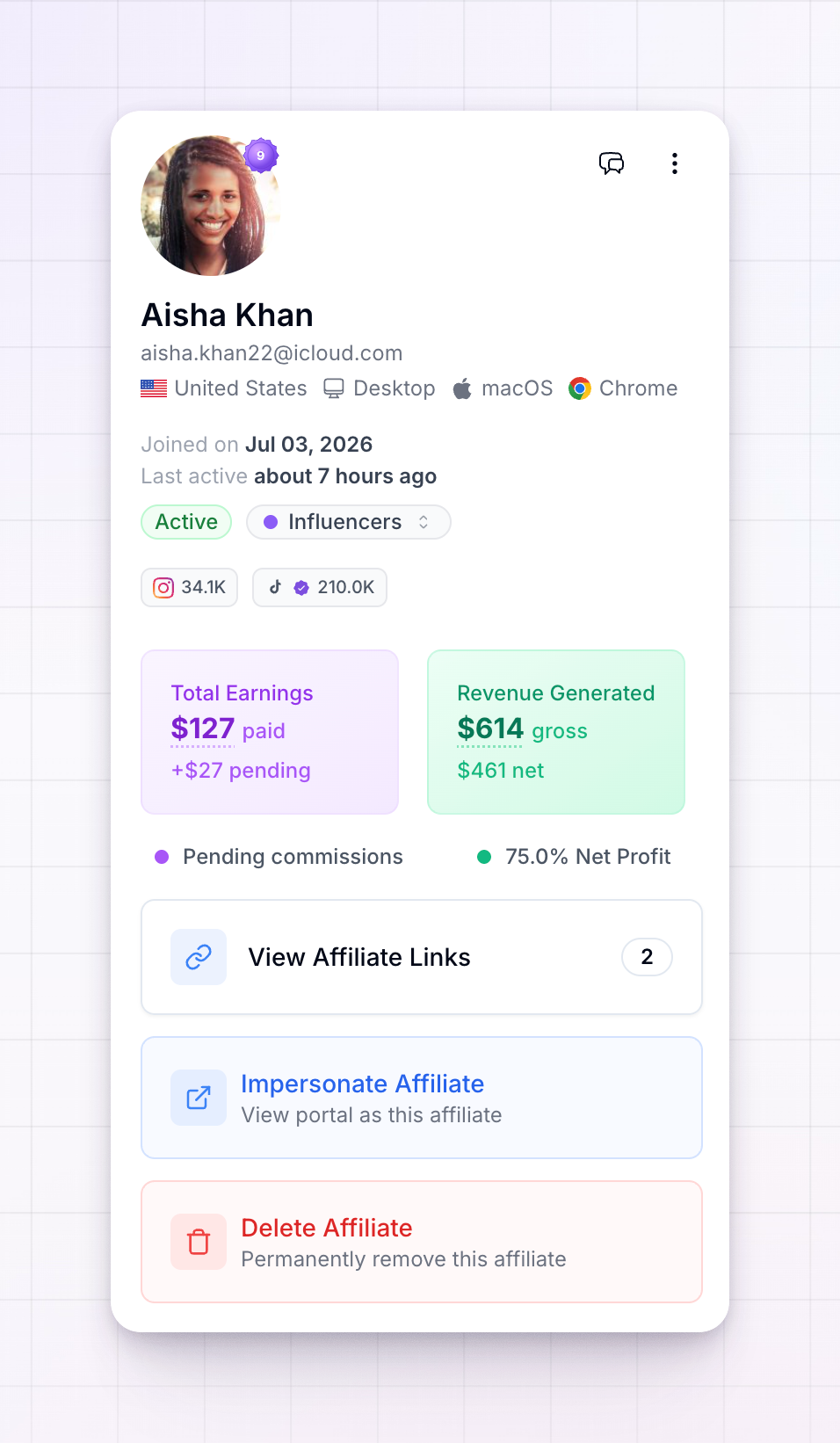 Two badges sit under the profile. The first is their status — active, pending, and so on. The second is their group; select it to move them into a different group on the spot.
Approve or reject a pending affiliate
If the affiliate is still pending your review, two buttons — Approve Affiliate and Reject Affiliate — appear at the top of the page. They only show while someone is waiting to be approved. See Approve or decline applications for how review works.Performance summary
A summary card shows this affiliate’s headline numbers — Revenue, Clicks, Referrals, and the rewards they’ve earned. Use the date-range selector to look at any period, from today to their whole history, so you can see how they’re trending rather than just their lifetime totals.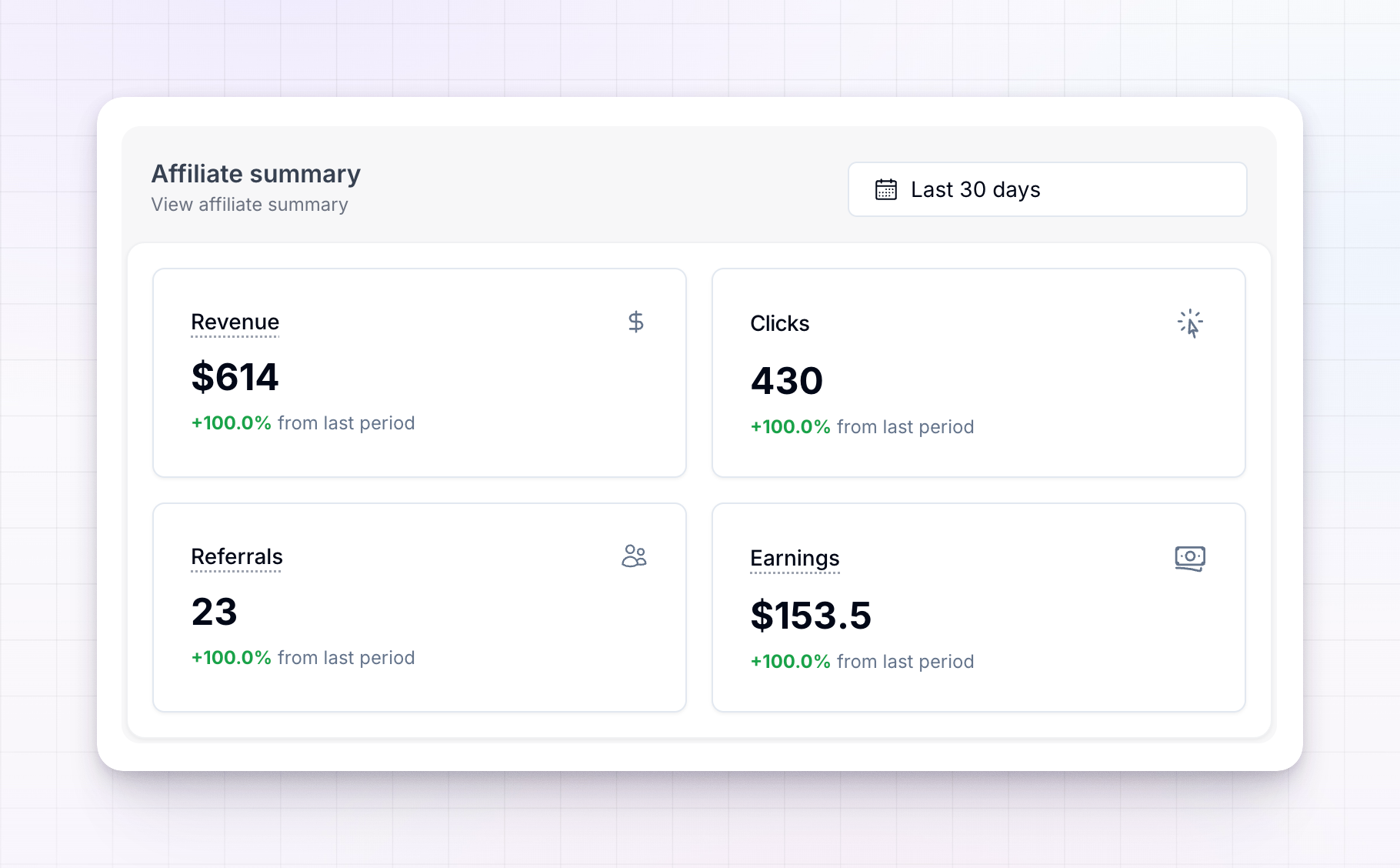
The tabs
Under the summary, tabs break down everything tied to this affiliate.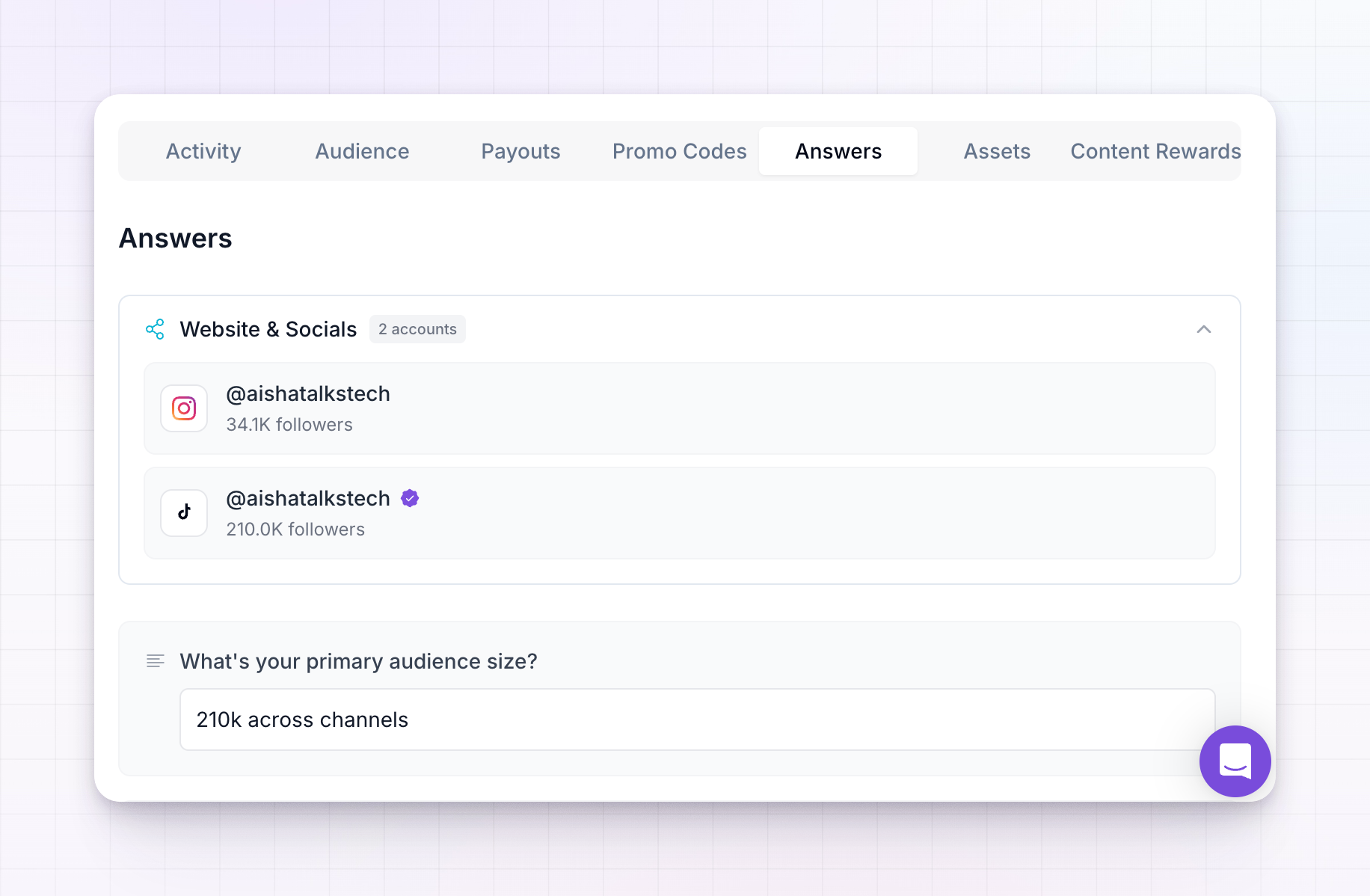
Activity
A calendar-style view of what the affiliate has been doing over time — their clicks, referrals, sales, and portal visits — so you can spot how engaged and consistent they are.Audience
The social accounts and channels the affiliate has connected, with follower counts, so you can gauge their reach and where they promote.Payouts
Every payout to this affiliate, with its amount and status — a full record of what you’ve paid them and what’s still owed.Promo Codes
The discount and promo codes assigned to this affiliate, so you can see the codes they share with their audience. See Coupons and promo codes.Answers
What the affiliate told you when they applied — their answers to your application questions, including any documents they uploaded. This is what you review before approving someone.Assets
The marketing assets this affiliate has access to.Content Rewards
Any content reward submissions from this affiliate, so you can review the content they’ve created and posted.Team
When you run a multi-level program, this tab shows the affiliate’s downline — the affiliates they recruited who earn them a share. It only appears when multi-level commissions are turned on.Actions you can take
Beyond approving or rejecting, the three-dots menu at the top of the profile panel holds the actions for this one affiliate:- Edit Profile — fix their name or email.
- Add Sale — record a sale for one of their referred customers so the right commission is credited.
- Add Customer — attach a referred customer to this affiliate by hand.
- Give Bonus — award them a one-off bonus. See Give a bonus.
- Use Commission Plan Rate / Use Affiliate Rate — switch between the plan’s standard rate and a custom rate just for this affiliate.
- Deactivate, Reactivate, or Ban — pause, restore, or remove them. Which options appear depends on their current status. See Ban or deactivate an affiliate.
- Commission Plan — this section shows the plan they’re on, with a Change Plan button. See Change an affiliate’s commission plan.
- View Affiliate Links — see the referral links this affiliate uses.
- Impersonate Affiliate — log in as the affiliate to see their portal exactly as they do. This is the fastest way to check what they’re seeing when they ask for help.
Related
Affiliate statuses
What the status badge on the profile means.
Change an affiliate's commission plan
Move this affiliate onto different earning terms.
Give a bonus
Reward standout work with a one-off bonus.
Ban or deactivate an affiliate
Pause or remove this affiliate from your program.