

Send an invitation
You can invite an affiliate from anywhere in your dashboard using the quick actions button.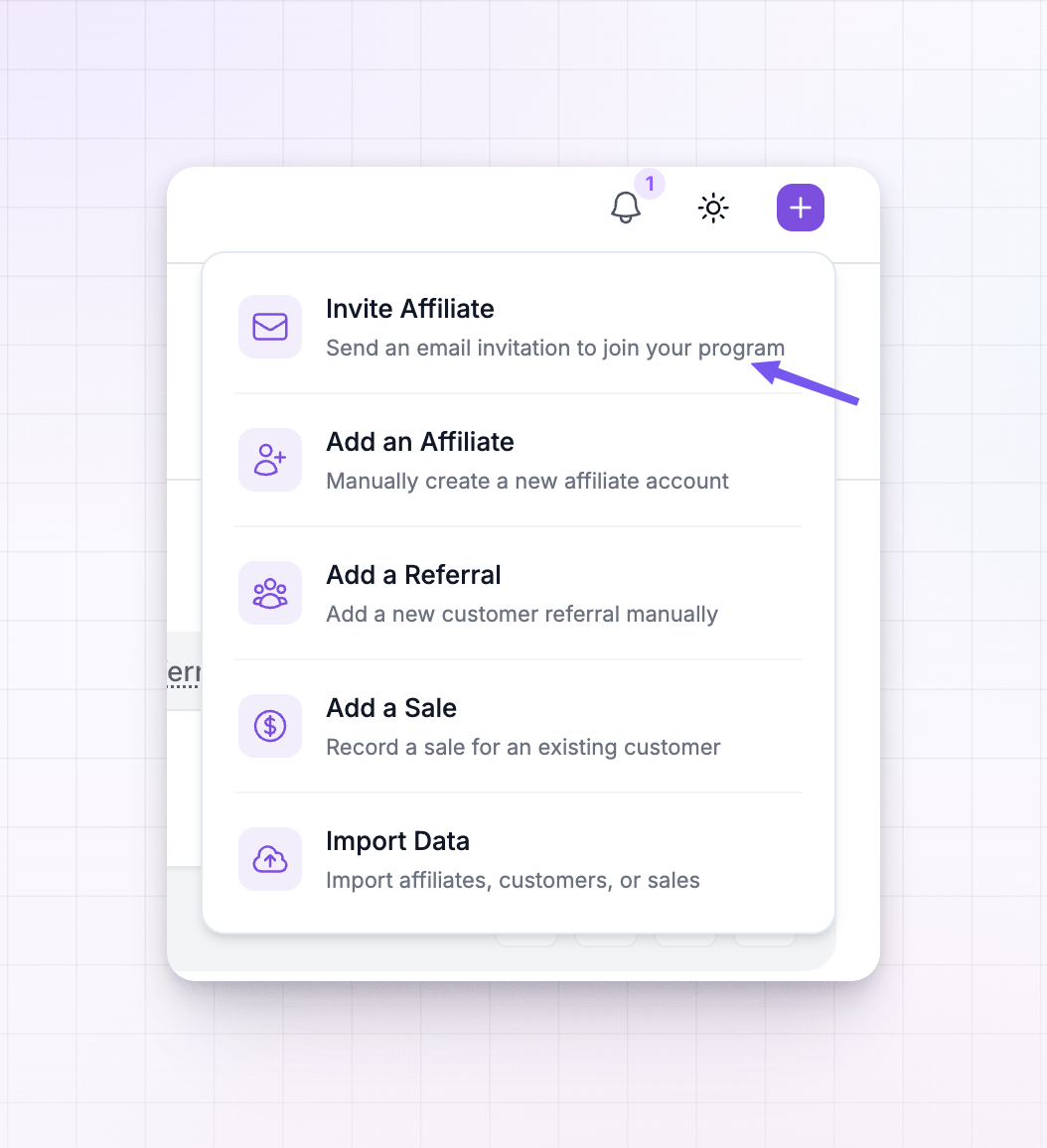
1
Open the invite form
Select the plus (+) button in the top bar, then choose Invite Affiliate.
2
Enter the affiliate's details
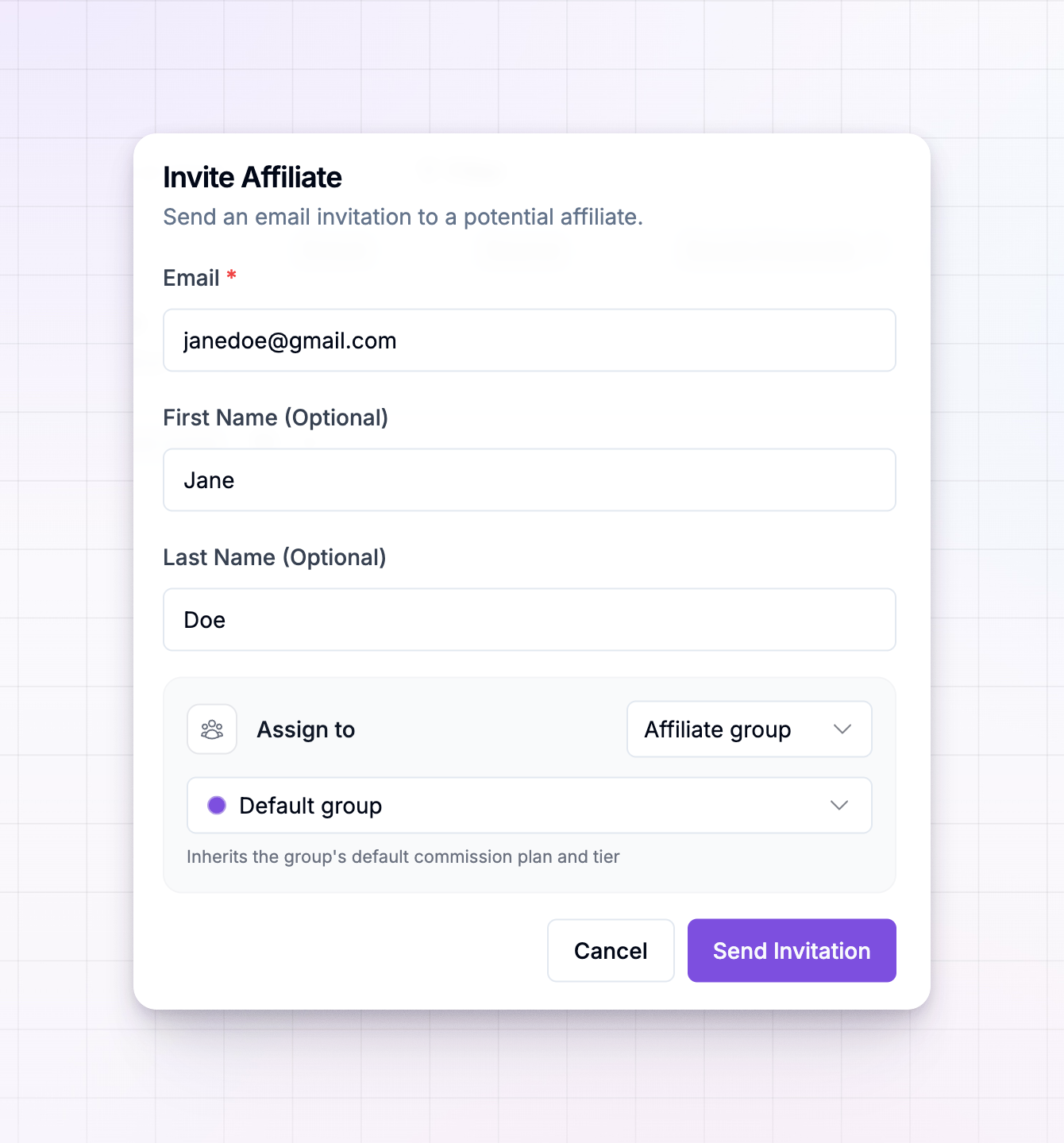
Fill in the affiliate’s Email. This is the only required field — it’s the address the invitation is sent to. First Name and Last Name are optional, but adding them personalizes the invitation email and makes the affiliate easier to recognize in your list later.
3
Choose what they join
In the Assign to box, pick whether the affiliate joins an affiliate group or a specific commission plan. This decides the terms they start on. See Choose what the affiliate joins below for the difference.
4
Send it
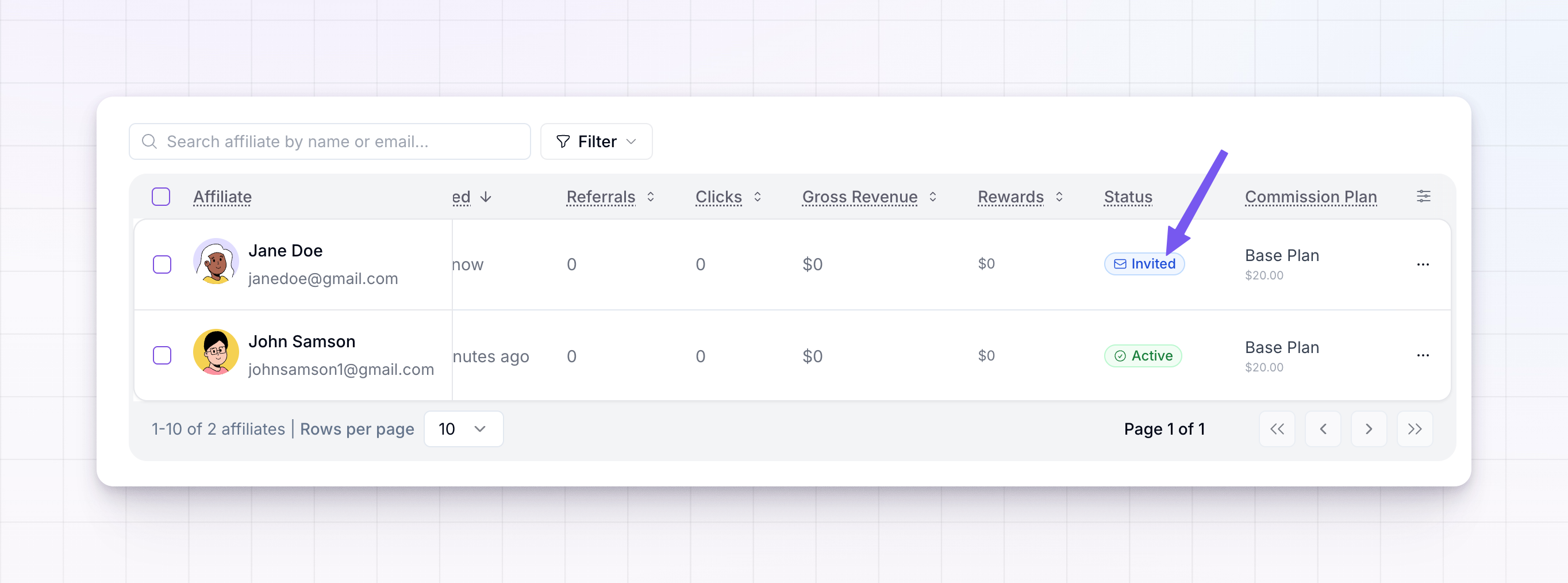
Select Send Invitation. The affiliate is added to your program with an Invited status, and the invitation email goes out right away.
Choose what the affiliate joins
Every affiliate needs a set of terms — how much they earn and under what rules. When you invite someone, the Assign to box decides those terms up front, so the affiliate lands on the right plan the moment they accept. You have two ways to set this, and they behave differently.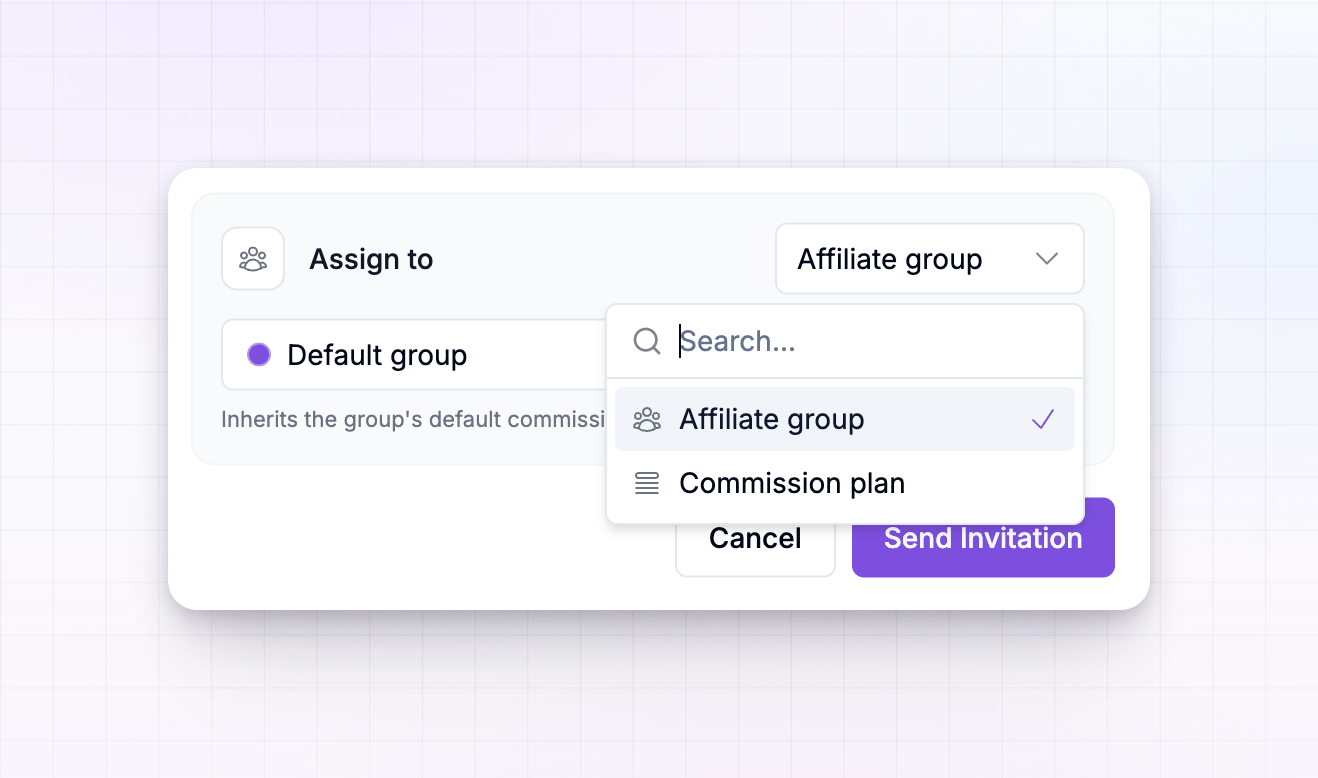
Invite to an affiliate group
This is the default. You pick one of your affiliate groups (or leave them in your Default group), and the affiliate inherits that group’s default commission plan and tier. Choose a group when you’re recruiting people who belong together — a batch of creators, a region, a partner type — and you want them to share whatever terms that group is on. Because they follow the group, if the group later moves up a tier or you change the group’s default plan, these affiliates move with it.Invite to a specific commission plan
Instead of a group, you can assign the affiliate straight to one commission plan. Search for the plan and select it. Choose a plan when this affiliate should be on exact terms you’ve decided for them, regardless of any group. An affiliate assigned this way is directly assigned — they stay on that plan and aren’t affected by milestone or tier changes that would otherwise move a group’s affiliates around. If the plan you pick already belongs to a group, the affiliate is placed in that group too, but the plan is what they’re locked to.The short version: invite to a group when you want the affiliate to follow shared, changeable terms, and invite to a commission plan when you want to pin them to a fixed set of terms that won’t shift underneath them.
The invitation email
When you send an invitation, Referly emails the affiliate on your behalf. The email invites them to join your program and includes the link they use to accept and set up their account. If you added a first name, the email greets them by it. You control how this email reads. You can rewrite its subject and wording, and match it to your brand, from your email settings — see Emails your affiliates receive for how to edit the invitation email before you start sending invites.What happens while the invitation is pending
Sending an invitation does not make someone an active affiliate. It reserves their record and holds it in the Invited state until they act. While they’re invited:- They aren’t active. Their status shows as Invited in your affiliates list, separate from your approved, active affiliates. You can read more in Affiliate statuses.
- No sales or commissions are tracked for them. An invited affiliate hasn’t started promoting, so nothing is attributed or earned on their behalf yet.
- No promo code is created. If your program hands out auto-generated promo codes, the affiliate’s code isn’t generated at invitation time. It’s created only once they accept.
When the affiliate accepts
The affiliate accepts by opening the link in the invitation email and completing their account setup. At that point Referly turns their reserved record into a full affiliate:- Their status moves out of Invited. They become active straight away, unless your program requires you to approve new affiliates first — in which case they wait for your approval before going active.
- Their promo code is generated, if your program uses auto-generated codes.
- They’re placed on the group or commission plan you chose when inviting them, so they start on the right terms.
- From here on, their referrals, sales, and commissions are tracked normally.
Related
Add affiliates manually
Create an active affiliate account yourself instead of sending an invitation.
Let affiliates sign up
Open your portal so affiliates can apply on their own.
Affiliate groups
Group affiliates and give each group its own terms.
Commission plans overview
See how plans decide what each affiliate earns.