

Add a sale to a customer
1
Open the customer's actions
In your Customers list, find the customer and open their actions menu on the right of their row. Choose Add Sale.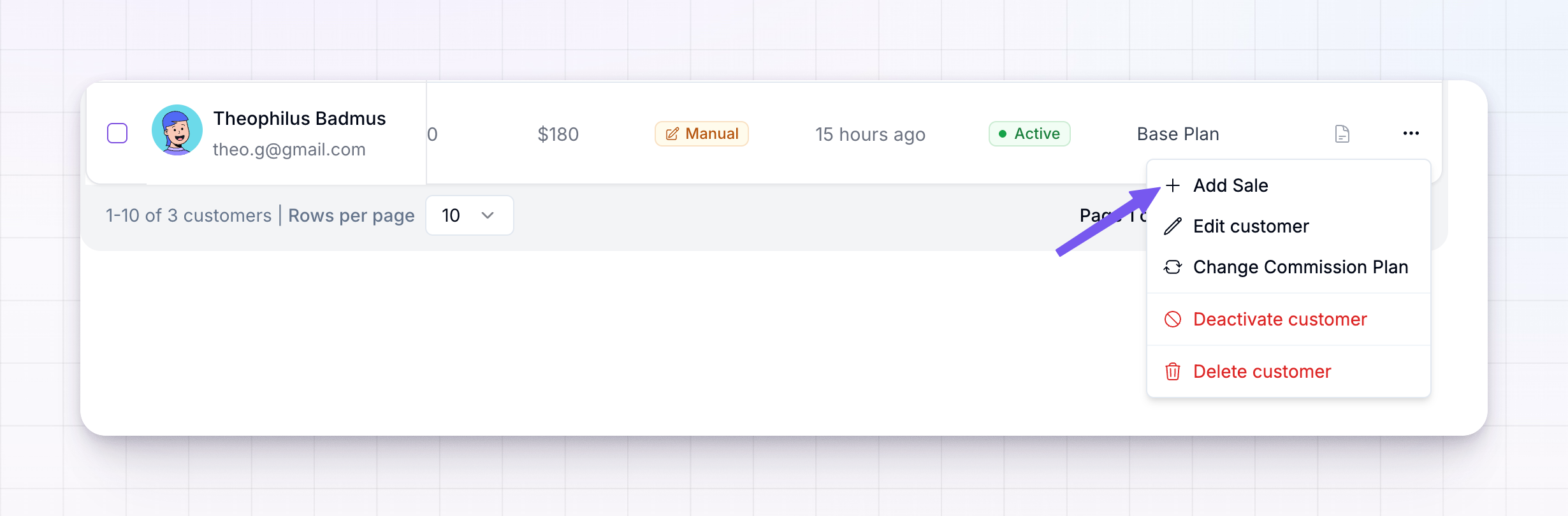
2
Enter the order amount
In the Order Amount field, type the value of the sale in the customer’s currency. This is the total the customer paid, and it’s what the affiliate’s commission is worked out from.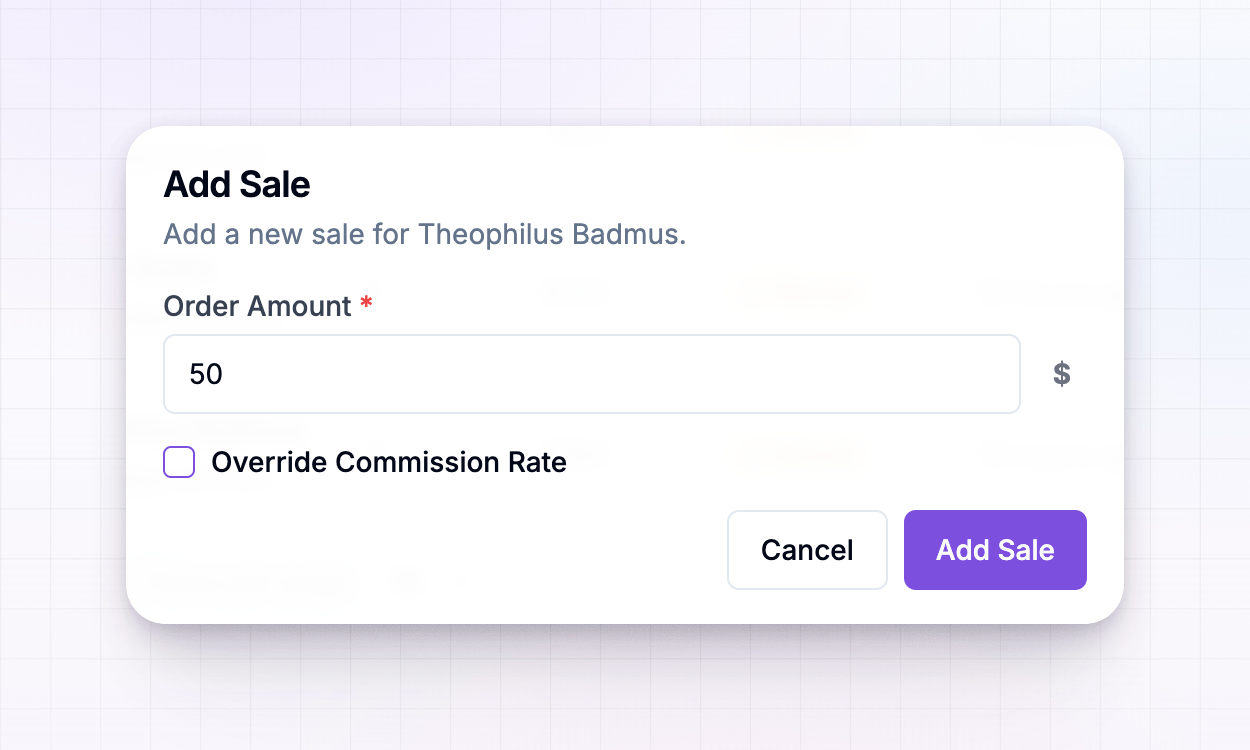
3
Add the sale
Select Add Sale. The sale is recorded against the customer, their revenue updates, and commission is credited to the referring affiliate based on that affiliate’s commission plan.
Override the commission rate
By default, the commission for the sale is worked out from the affiliate’s commission plan — you don’t have to think about the rate at all. If this one sale should pay a different rate, turn on Override Commission Rate before adding it. A Commission Rate field appears where you enter a percentage from 0 to 100. That rate applies to this sale only; it doesn’t change the customer’s plan or affect any other sale.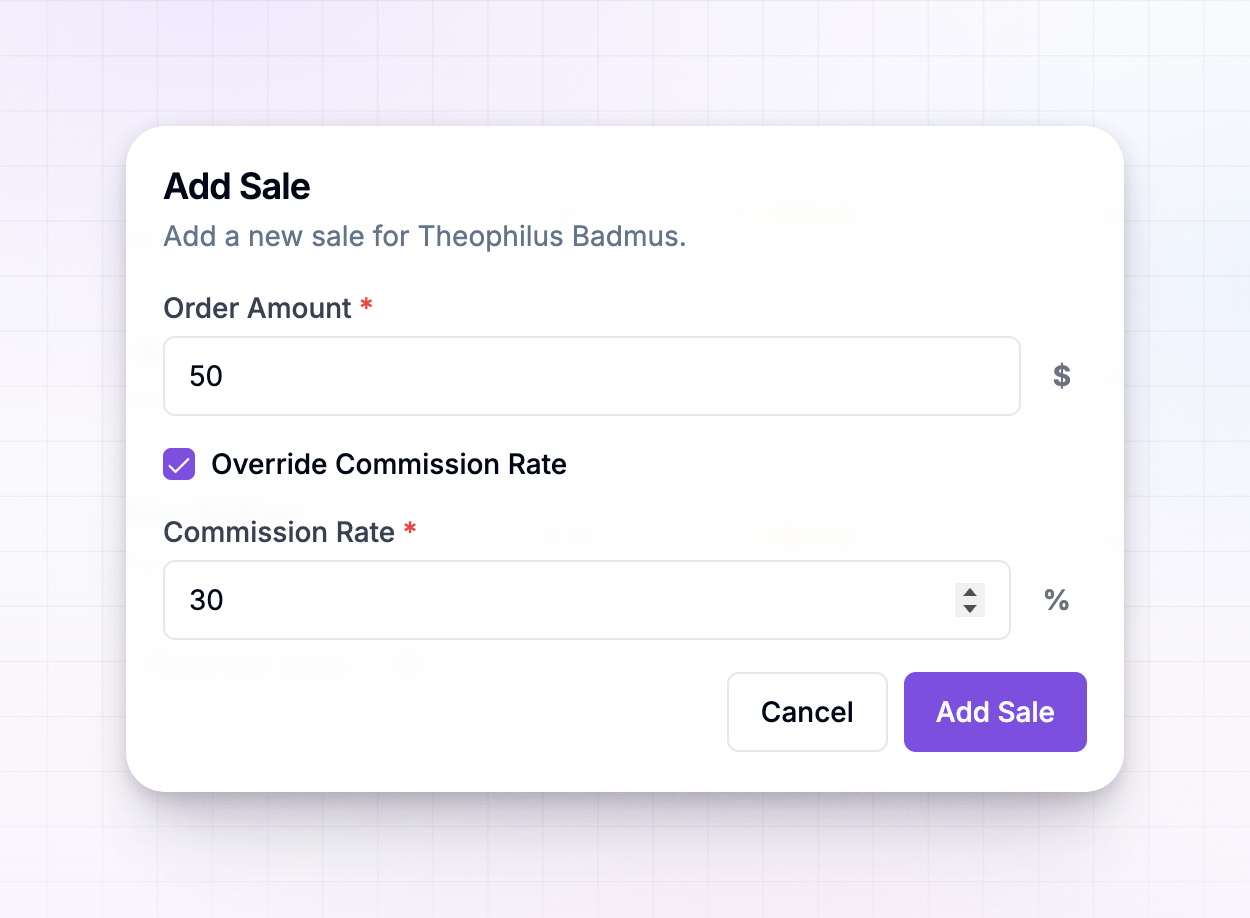 Use this when a single order has special terms — a one-off higher rate to reward a big deal, or a lower rate on a discounted purchase — without setting up a whole new plan.
What happens after
Once a sale is added:- The customer’s Revenue and Profit update to include it.
- Commission is credited to the referring affiliate, ready to be approved and paid out on your normal schedule.
- The sale is counted in your program’s totals and reports.
Related
Change a customer's commission plan
Set which plan decides what a customer’s sales pay.
Customer statuses
Only active customers credit commission — see how statuses work.
Customers overview
A tour of the Customers screen and everything it shows.
Notes
Keep a private note on a customer.