

How a sale gets refunded
A sale can be marked as refunded in a few ways:- Automatically from your payment platform. If you’ve connected an integration like Stripe, Shopify, Paddle, Chargebee, or Polar, refunding the order there tells Referly to mark the matching sale as refunded — you don’t have to do anything.
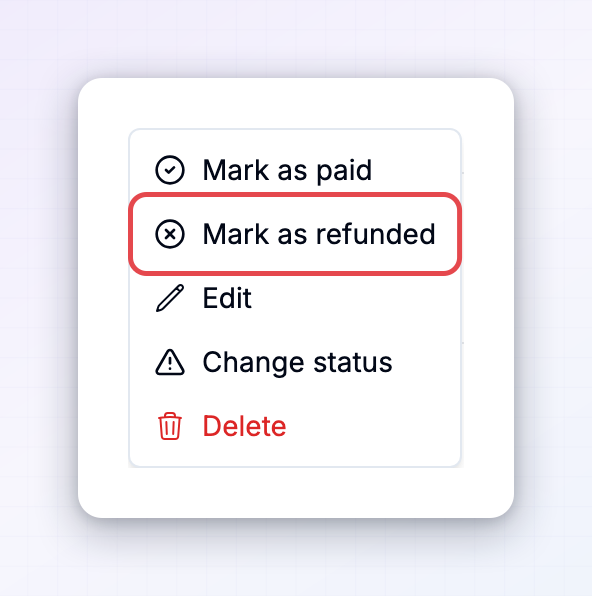
- By hand. Open a reward’s ⋯ menu and choose Mark as refunded to refund a single sale yourself. This is useful for sales that weren’t tracked through a connected platform.
- On import. When you import sales, the file can include a refund status, so historical refunds come in already marked.
What a refund does to the reward
Once a sale is refunded, Referly updates its reward straight away:- The reward’s Status changes to Refunded (red).
- The reward amount is set to nothing — the Reward column shows Not rewarded, because the reward isn’t given for a refunded sale.
- The reward is left out of your active totals and won’t be collected into any payout.
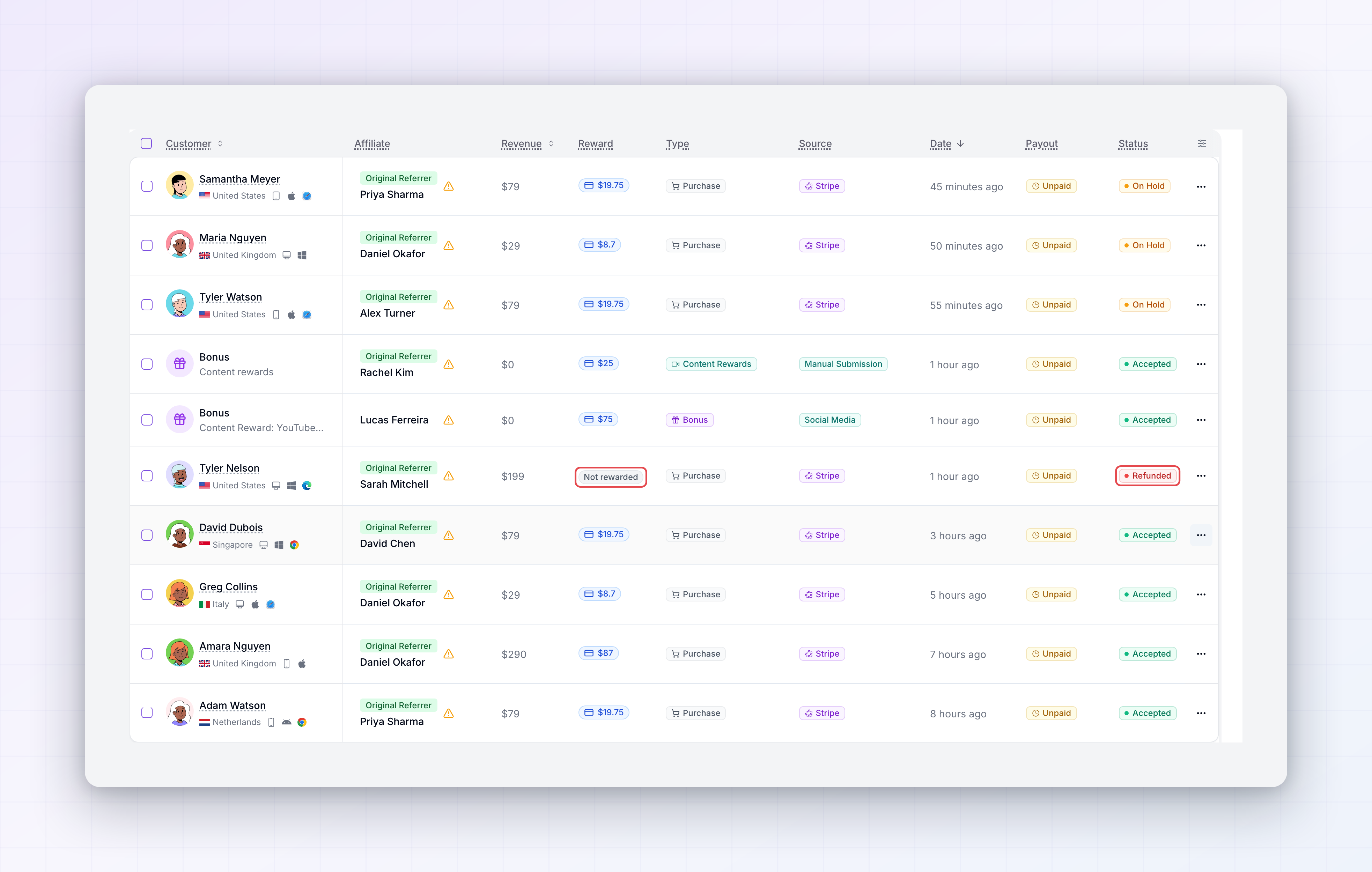 So a refund cleanly reverses the earning: the affiliate isn’t paid for a sale that didn’t stick, and your reports reflect the reversal.
The refund window
A refund can only be applied while the reward hasn’t been paid yet. If you try to mark a reward as refunded after that, Referly stops you and explains why:- If the reward has already been paid — or is already sitting in a payout batch that’s being processed — it can’t be refunded, because the money has effectively left.
- If the reward is past the refund window, you’ll see Cannot mark this reward as refunded because it has passed the refund window. The window matches your payout holding period — the same waiting time that protects you against refunds in the first place.
Restore a refunded reward
Refunds aren’t always final. If a sale was refunded by mistake, or the customer re-purchases, you can bring the reward back by approving it again. Accepting a refunded reward restores it to its original amount — and when you accept rewards in bulk, any that were previously refunded are restored along with the rest.Refund several sales at once
To refund a batch of sales together, select their rows on the Rewards page and choose Mark as refunded from the bulk action menu. A confirmation reminds you that the associated sales will be marked as refunded and their rewards declined, and that this can’t be easily undone. Confirm to apply it to all of them.Related
Holding period and frequency
Set how long earnings are held to catch refunds before payout.
Approve or decline a reward
Accept a reward to restore it after a refund.
Rewards overview
A tour of the Rewards page and every status.
Import sales
Bring historical sales — and their refund status — in from a file.