

Import in the right order
A sale connects a customer to an affiliate, so both of those need to exist in Referly before the sale can attach to them. That gives a recommended import order:1
Affiliates first
Import your affiliates so their accounts exist.
2
Customers next
Import your referred customers so sales have someone to belong to.
3
Sales last
Import your sales, which link to the affiliates and customers you’ve already brought in.
Start the import
Go to your Rewards page and select Import Sales. If you don’t have any rewards yet, the same button is on the empty state next to Add Sale.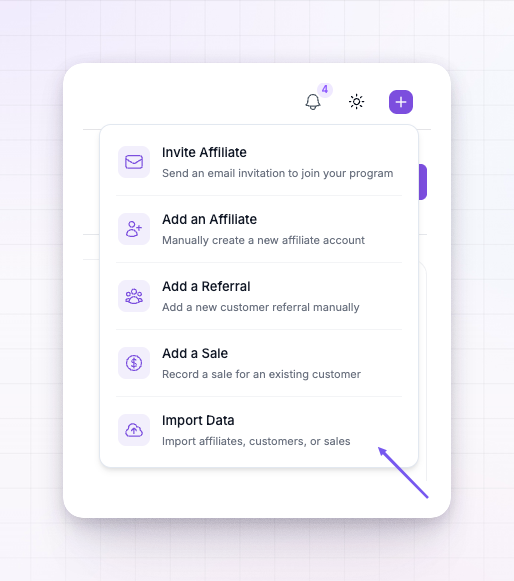 The import wizard opens and asks where your data is coming from:
- Import from CSV file — upload a spreadsheet of your sales.
- Import from another affiliate software — connect the platform you’re leaving and pull your sales across without a file.
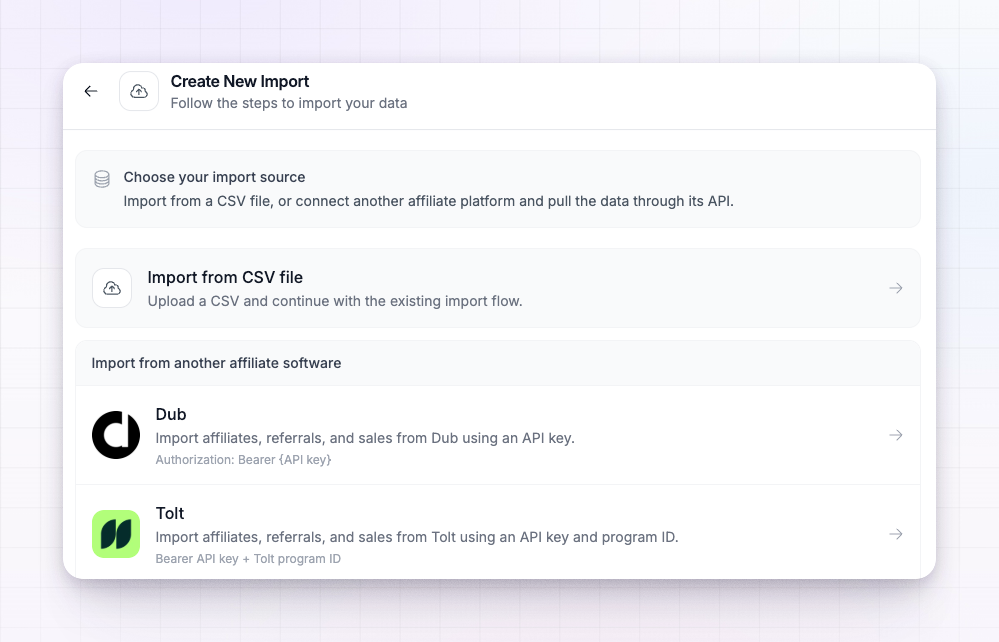 If you’re coming from a specific tool, we have step-by-step guides for each in Migrate to Referly. The rest of this page covers the CSV route. When asked to choose what you’re importing, select Sales.
Prepare your CSV
Your file should have one row per sale, with a column for each detail below. Three are required; the rest fill in more of the picture where you have it:- Customer Email (required) — who the sale belongs to.
- Transaction Amount (required) — the value of the sale.
- Commission (required) — the reward the affiliate earned on it.
- Customer Name — the customer’s name.
- Affiliate Email — the affiliate who should be credited.
- Transaction Date — when the sale happened, so your history lines up.
- Paid Status — whether the reward has already been paid.
- Refund Status — whether the sale was refunded.
- Promo Code — the coupon used, if any.
- Affiliate Link/Ref — the referral link or code behind the sale.
Because you provide the Commission for each row, imported rewards use the amount from your file rather than being recalculated from a commission plan. That’s why an imported reward won’t show a step-by-step calculation trace.
Map your columns
After you upload the file, Referly shows a Map fields step. Match each Referly column on the left to the matching column from your file on the right. Referly lines up the obvious ones for you; check the rest, and make sure the three required fields are matched before you continue. Then start the import.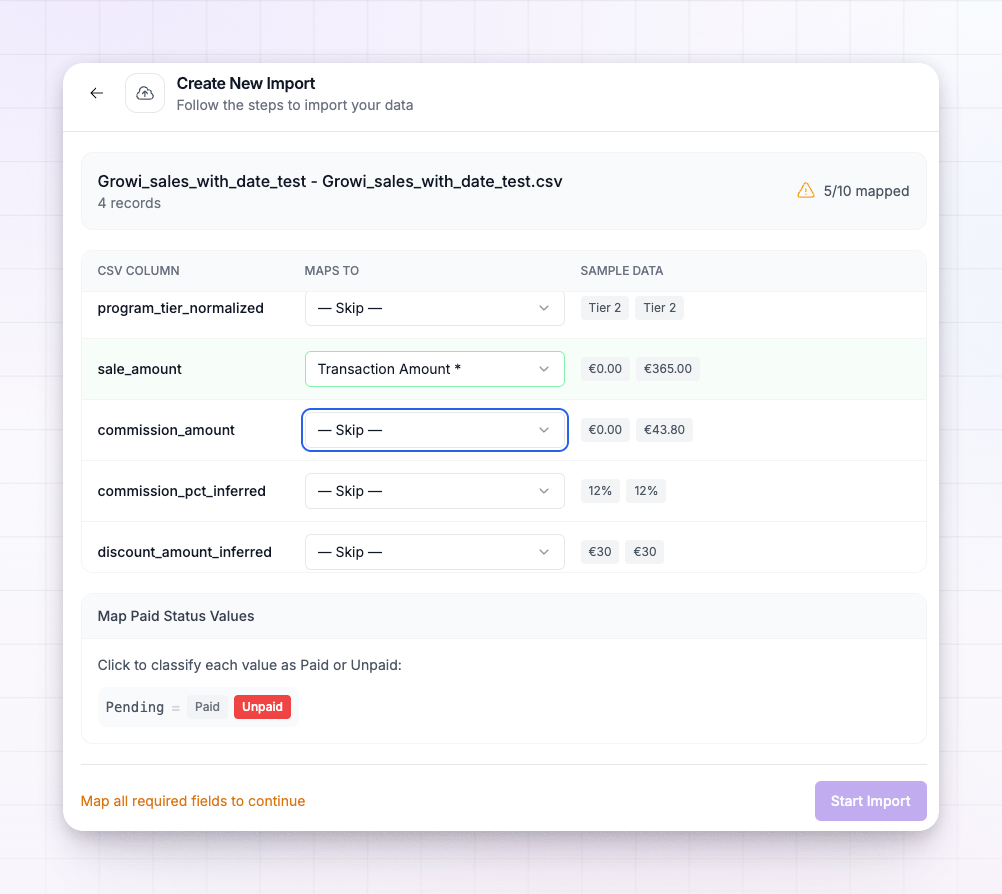
After the import
Your imported sales appear in the Rewards list with their rewards attached. Each one is marked with an Imported source badge — hover it and it reads This sale was imported from a CSV/spreadsheet upload — so you can always tell imported history from sales tracked live. From here they behave like any other reward: you can review them, and any you marked as paid or refunded in your file come in that way. It’s worth a quick scan of the imported rows to confirm the amounts and affiliates matched up as you expected.Related
Migrate to Referly
Step-by-step guides for moving from other platforms.
Import affiliates
Bring your affiliates in first.
Import customers
Bring your referred customers in before sales.
Rewards overview
See your imported sales alongside everything else.