

Before you start
You need the platform connected first. If you haven’t done that yet, see Connect a coupon source. Syncing is available for Stripe, Shopify, WooCommerce, and Polar.Open the sync window
Open your campaign, select Coupons in the left sidebar, then select Sync in the top right.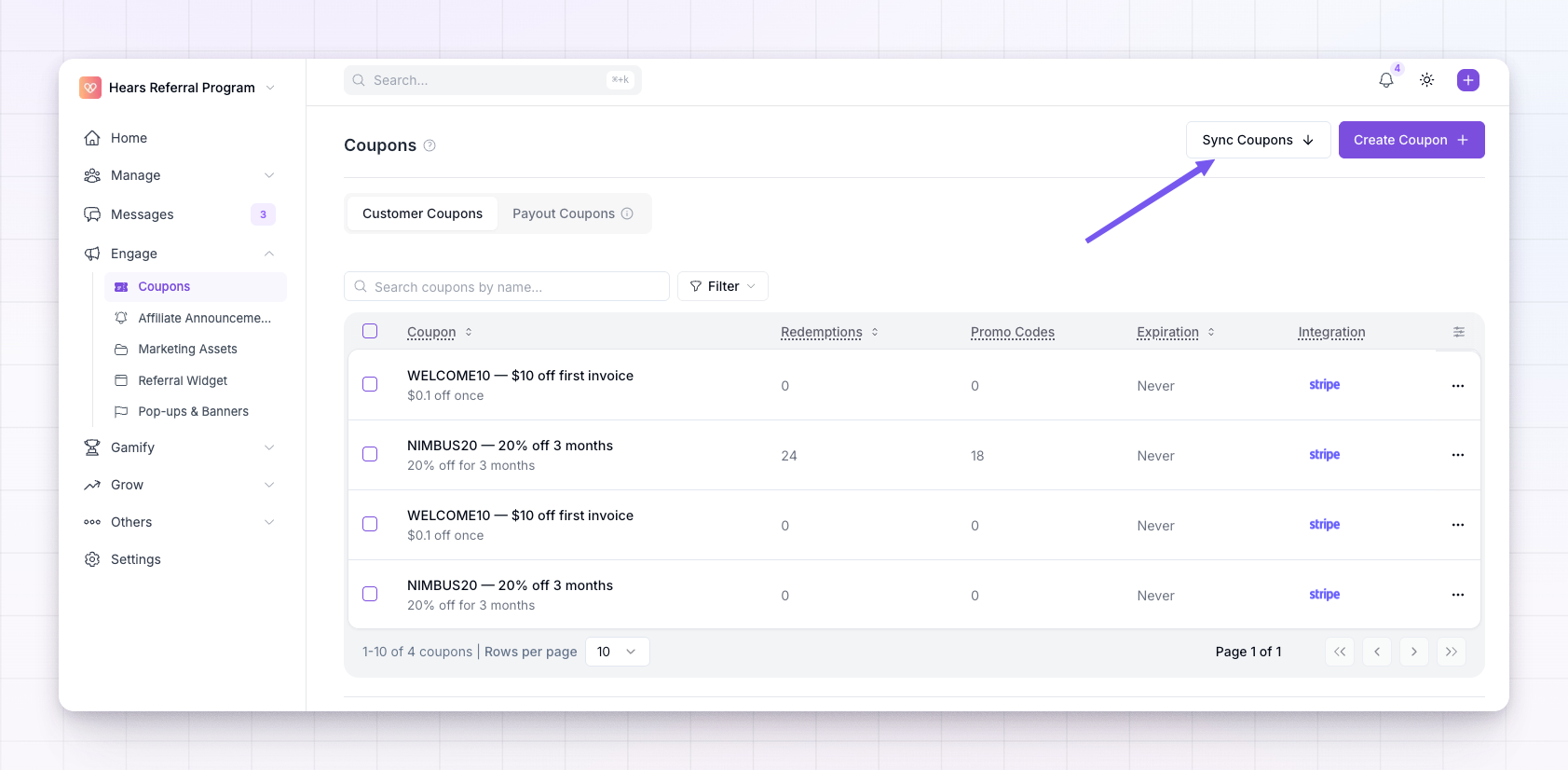
Choose where to sync from
If you have more than one platform connected, pick which one to pull coupons from. When only one platform is connected, Referly skips this step and goes straight to the sync options.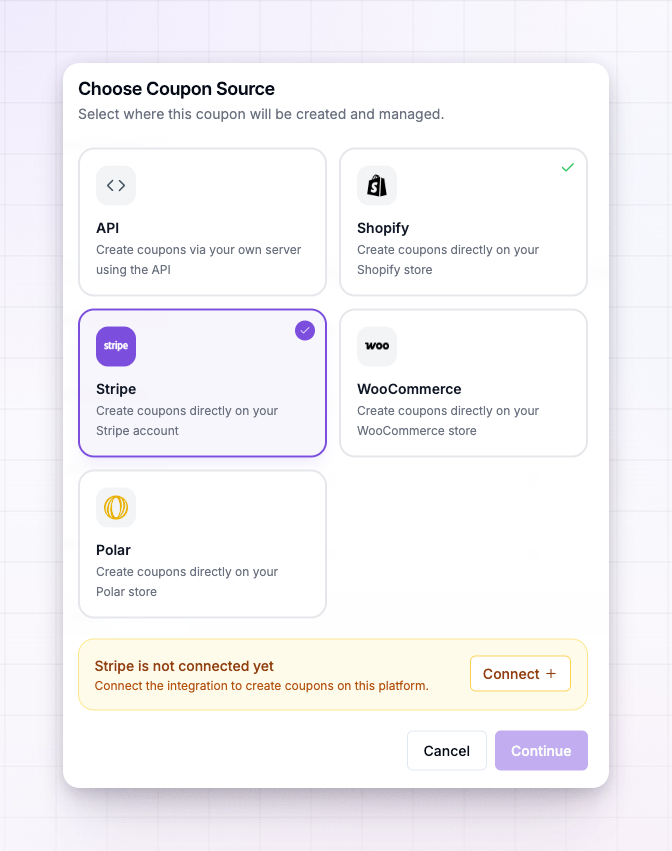
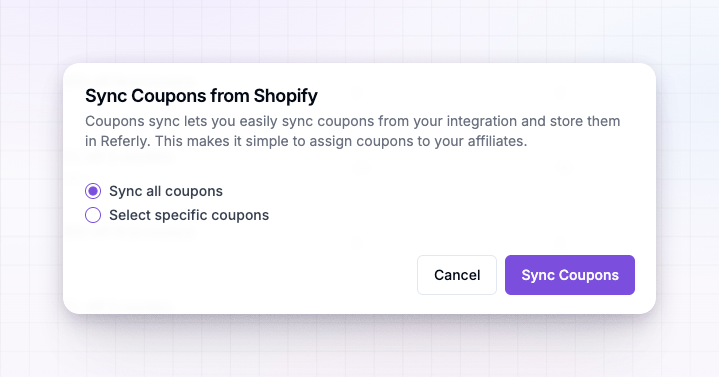
Sync all or pick specific coupons
Next, choose how much to bring in:- Sync all — import every coupon that exists on the connected platform. This is the fastest way to get set up if most of your codes belong in your program.
- Sync some — Referly lists the coupons on that platform so you can tick only the ones you want. Use this when you keep unrelated discounts on the same platform and only want your affiliate codes in Referly.
Run the sync
Select the sync button to finish. Referly confirms when the coupons are synced, and they appear in your coupon library right away. If a coupon you synced already existed in Referly, its details are refreshed rather than duplicated.After syncing
Synced coupons behave like any other coupon in Referly. From here you can:- Open a coupon to add or edit its promotional codes.
- Auto-generate a unique code per affiliate from a synced coupon.
- Add restrictions such as a minimum order or an expiry.
Syncing is a one-time import of what’s on your platform at that moment. Run it again whenever you add new codes on the platform and want them in Referly.
Related
Connect a coupon source
Link the platform you want to sync coupons from.
Create a coupon
Build a brand-new coupon instead of syncing one.
Promotional codes
Manage the codes customers type at checkout.
Coupons overview
See how coupons fit into your program.