

The custom email builder is available on the Business plan. On other plans you can still turn emails on or off and send test emails.
Which emails you can customize
You can build custom versions of your affiliate-facing emails: the welcome email, application approved and declined emails, the new referral and commission earned emails, the affiliate invitation, and more. The system emails you receive aren’t customizable.Open the builder
In the left sidebar, select Settings, open Affiliate Portal, then Email Settings. Select the email you want to change to open its details, then select Edit. The email opens in the builder.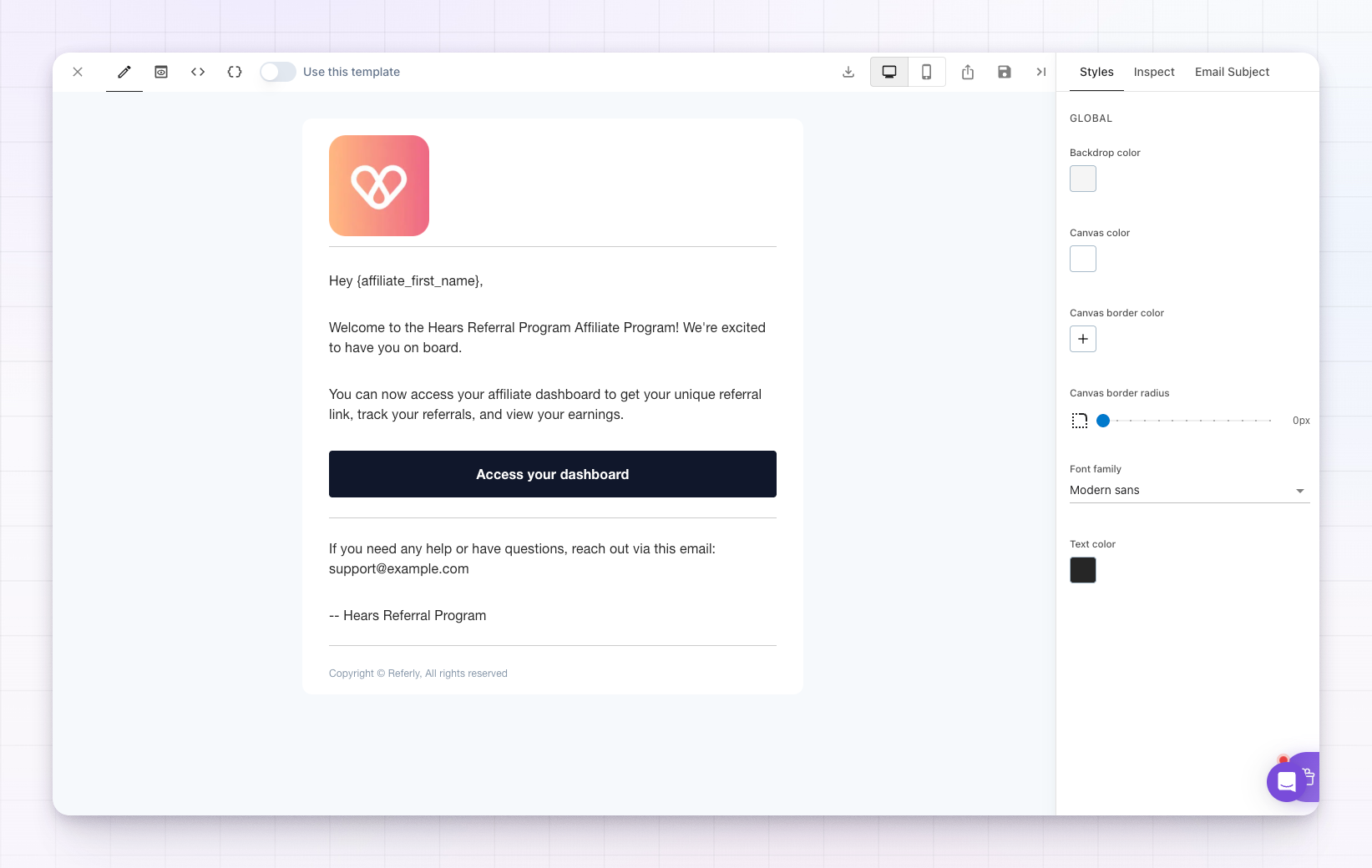 The builder has three areas: the email itself in the middle (the canvas), a toolbar across the top, and an inspector panel on the right that shows the settings for whatever you’ve selected.
Edit a block
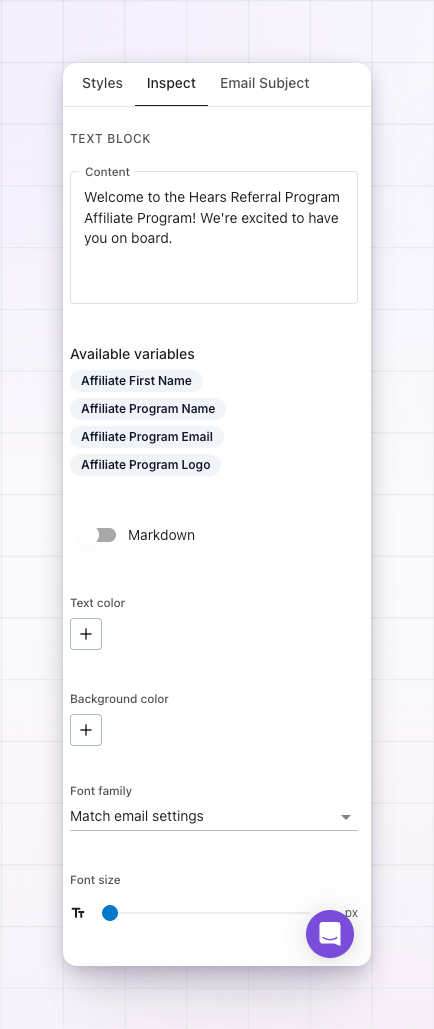
An email is made of blocks — headings, paragraphs of text, buttons, images, dividers, and spacers. Select any block in the canvas and its settings appear in the inspector on the right, where you can:- Text and headings — rewrite the words in the Content field and adjust the color, font, size, alignment, and spacing.
- Buttons — change the label and where the button points.
- Images — swap the image and set its size and alignment. This is where you’d add your own logo or a banner.
Add personalized details
To make an email feel personal, you can drop in details that Referly fills in for each recipient — the affiliate’s first name, your program’s name, and so on. When you’re editing a text or heading block, look for Available variables in the inspector and select one to insert it. Depending on the email, the options include:{affiliate_first_name}— the affiliate’s first name{affiliate_program_name}— your program’s name{affiliate_program_email}— your program’s contact email{affiliate_program_logo}— your program’s logo
{customer_name} and {customer_email} for the customer involved (shown only when your shared customer data settings allow it). For buttons, you can link to {affiliate_program_url}, which sends the affiliate straight to their portal.
When the email is sent, each of these is replaced with the real value — so Hey {affiliate_first_name}, arrives as Hey Jordan,.
Set the subject line
The subject line is what your affiliate sees in their inbox before they open the email. You can set your own subject in the editor, and it accepts the same personalization variables — for example a subject likeYou just earned a commission, {affiliate_first_name}!.
Switch on your custom version
Your edits don’t go live until you tell Referly to use them. Turn on the Use this template toggle to send your custom version instead of Referly’s default. Switch it off any time to go back to the standard email — your custom design is kept, so you can turn it on again later.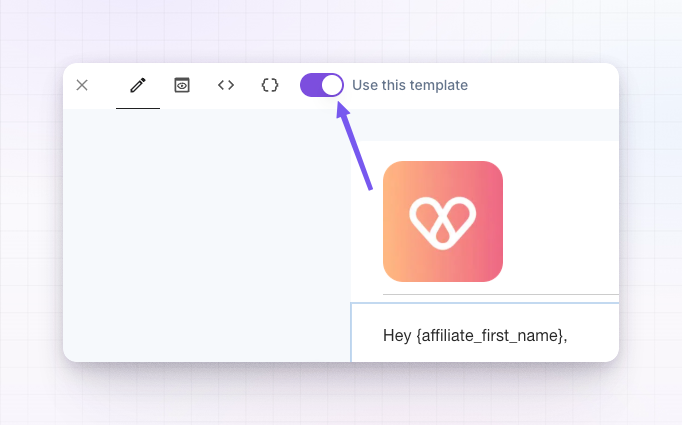
Preview on desktop and mobile
Use the desktop and mobile buttons in the toolbar to see how your email looks on each. Many of your affiliates read email on their phones, so it’s worth checking the mobile view before you finish.Save your work
Select Save to keep your changes. You can also save a design as a named template and load it into another email later, which is handy for keeping a consistent look across all your emails.Test it
Once you’ve saved, open the email’s details again and select Send Test to send yourself a copy. Check the wording, the personalized details, and that any links go where you expect before relying on it.Related
Emails your affiliates receive
The full list of emails you can customize here.
Send from your own domain
Pair a custom design with your own sending address.
Branding
Set the logo and colors that carry through your program.
Email settings overview
See how all of Referly’s email settings fit together.