

Before you start
A few things make an import go smoothly:- One type of data per file. A single CSV holds either affiliates, customers, or sales — not a mix. If you have all three, you will run three separate imports.
- Import in the right order: affiliates first, then customers, then sales. Customers link to the affiliate who referred them, and sales link to customers and affiliates, so the people and accounts they point to need to exist first. Referly enforces this — it will hold a customer or sales import until any affiliate import is finished.
- Save your file as a
.csv. The upload step only accepts CSV files. Most spreadsheet tools export one with File → Export or Save As → CSV. The first row of the file should be your column headers (likeEmail,Full Name,Amount). - You do not need to rename your columns to match Referly. The whole point of the mapping stage is that you keep your headers as they are and match them up inside Referly.
Open the import tool
You can start an import from a couple of places:- From anywhere in your dashboard, select the plus (+) button in the top bar and choose Import Data.
- From your Affiliates, Customers, or Sales page, use the Import button on that page.
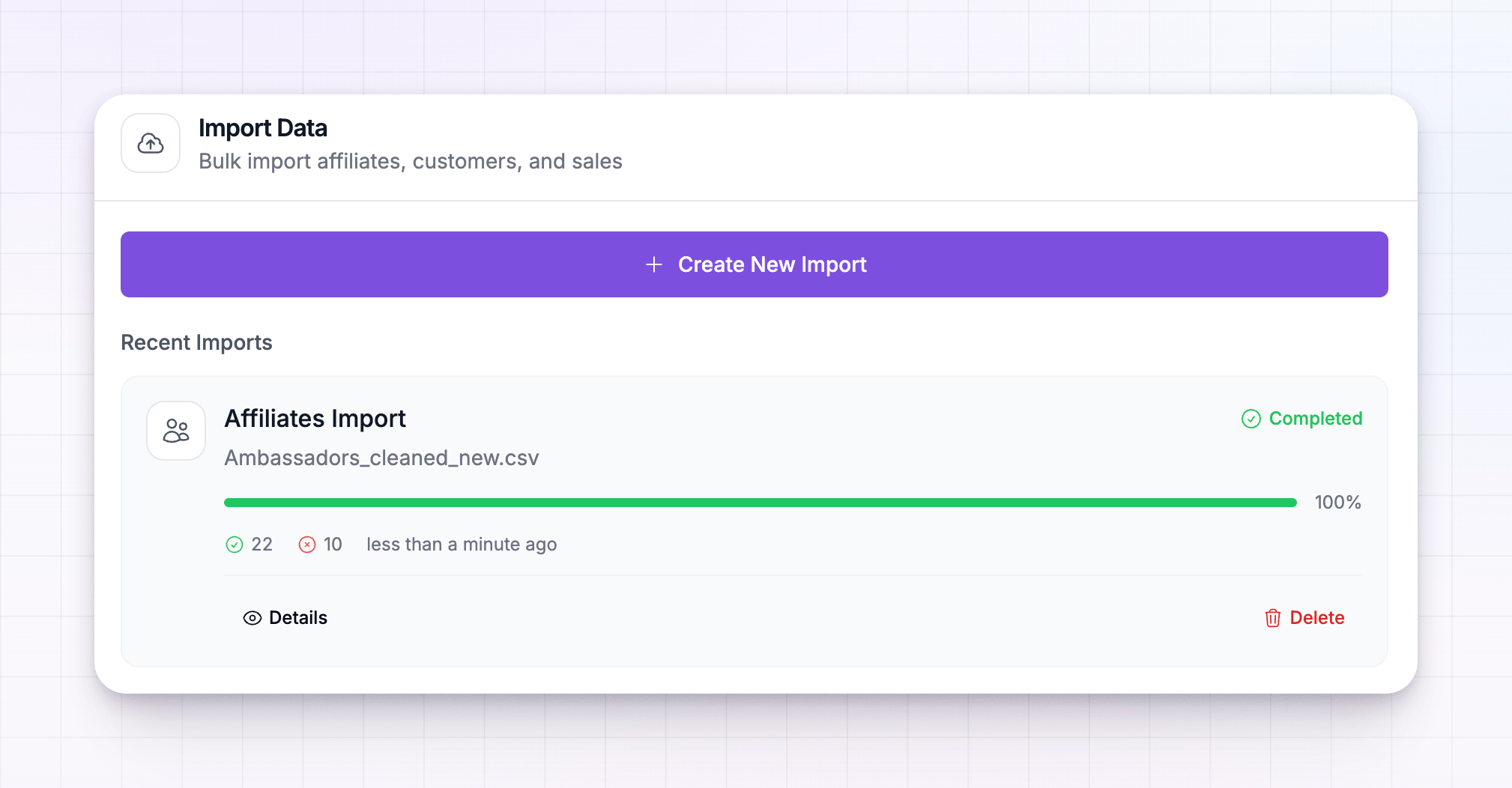
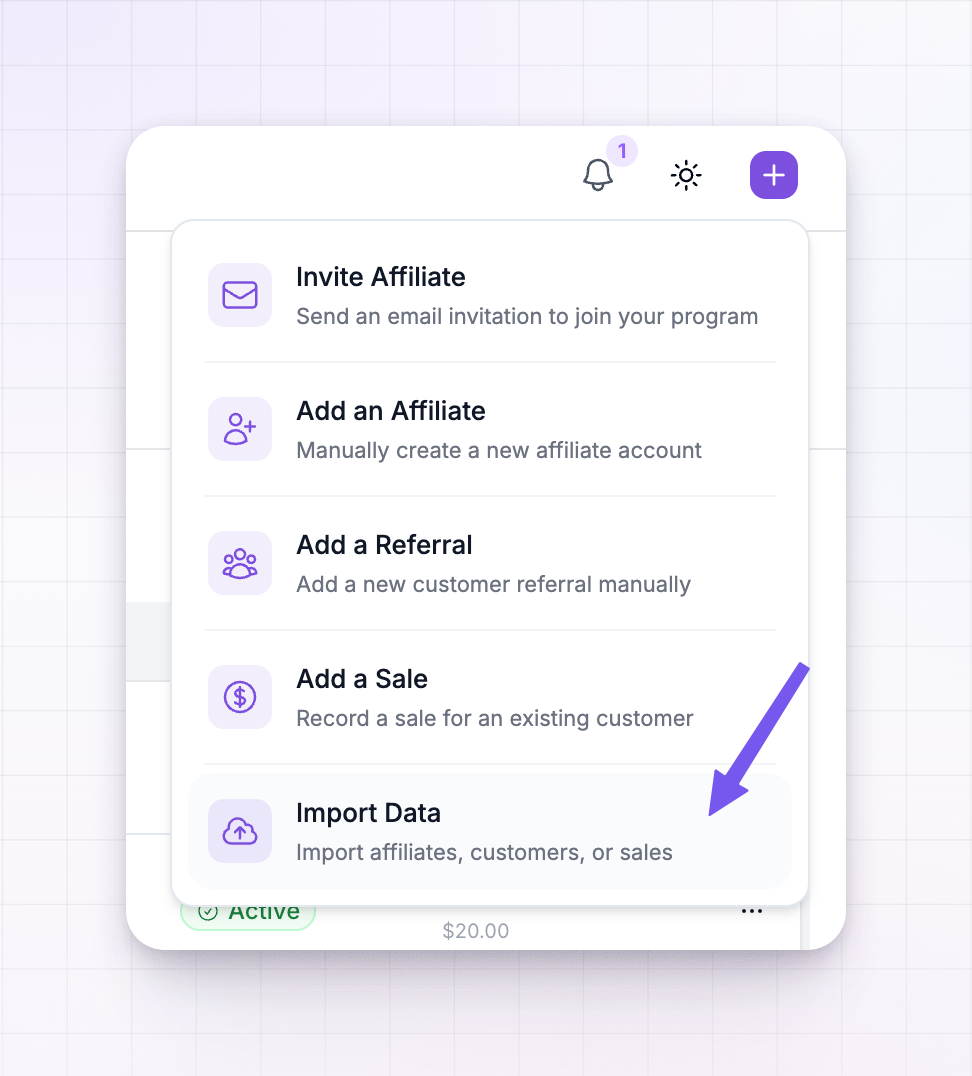 This opens the import window. Select Create New Import to begin. The same window also lists your recent imports, so you can come back here later to check on one or start another.
Choose what you’re importing
First, pick your source. Choose Import from CSV file to upload a spreadsheet. (The list below it is for connecting another affiliate platform directly by its API, which is covered in the migration overview.) Next, choose the type of data in your file:- Affiliates — your partners, with their details and referral codes.
- Customers — the people your affiliates referred, each linked to their referring affiliate.
- Sales — past transactions and commissions, linked to customers and affiliates.
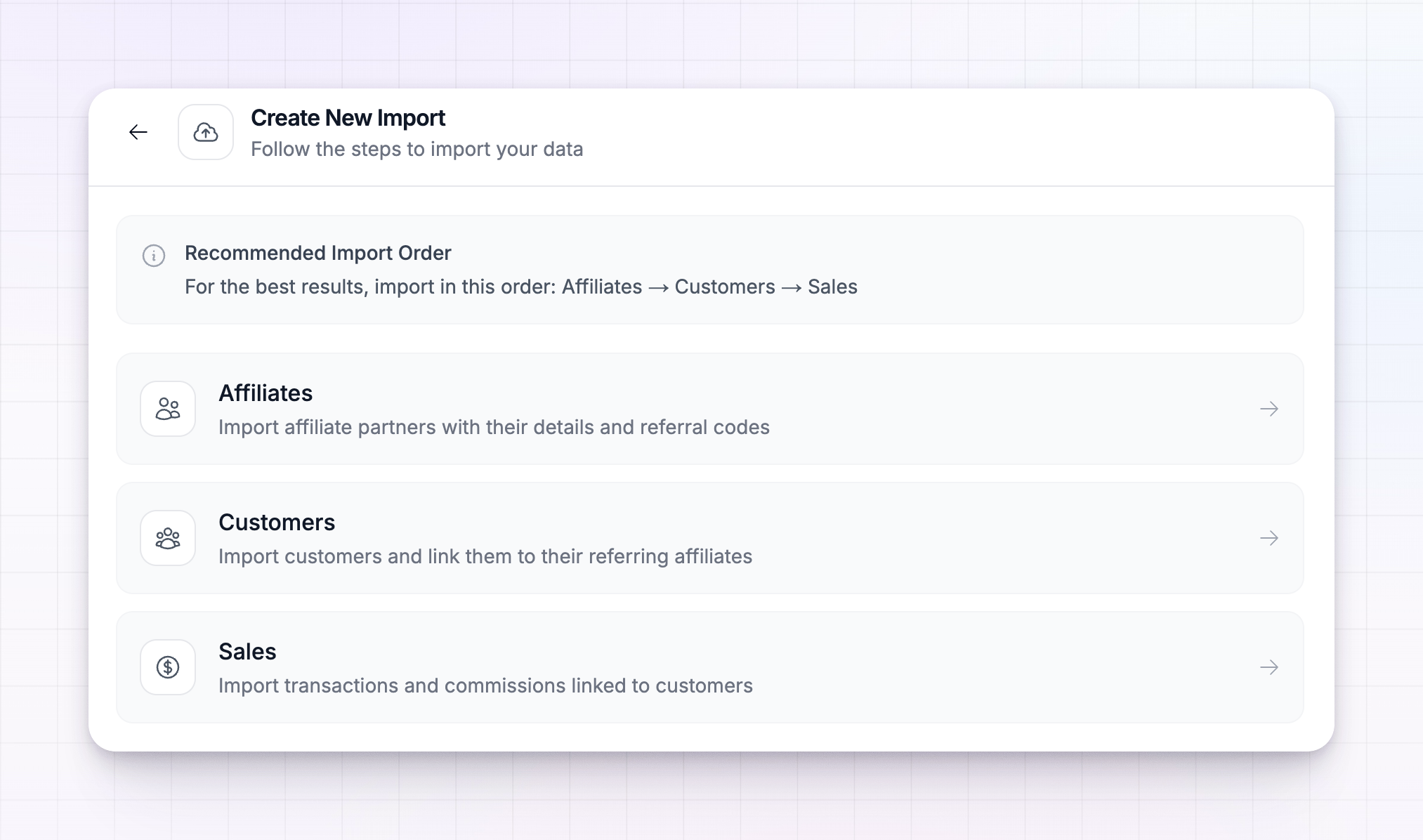 Referly shows a recommended order at the top — Affiliates → Customers → Sales — and will gray out a type if it needs another import to finish first. For example, you cannot import sales while an affiliate or customer import is still running. If a card is disabled, it tells you what to wait for.
Prepare and upload your file
On the upload step, Referly lists the expected fields for the type you chose, marked Required or Optional, so you can sanity-check your spreadsheet before uploading. Here is what each type needs at a minimum:
Drag your CSV onto the upload area, or select it from your computer.
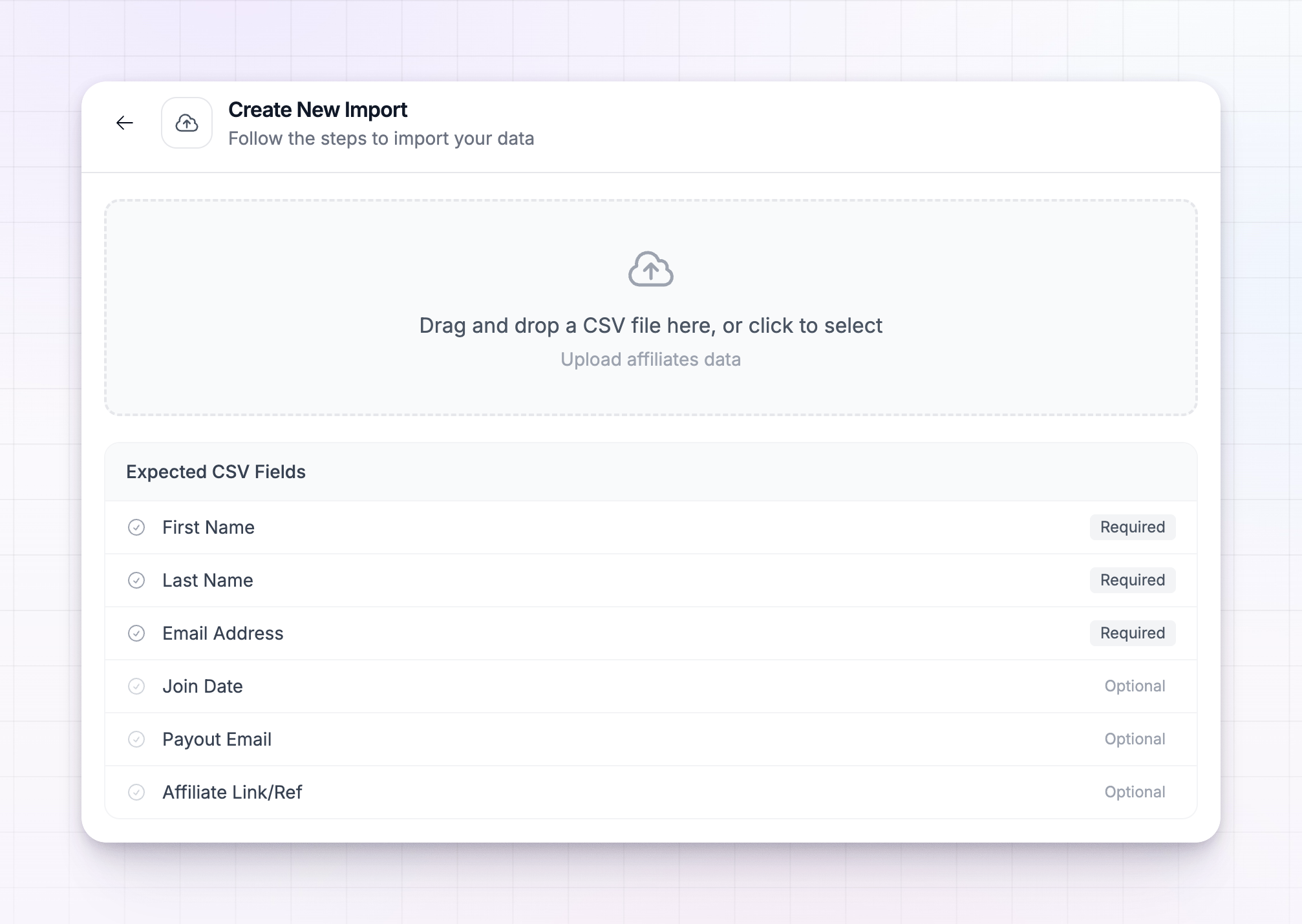 As soon as the file is read, Referly counts your rows and takes you straight to the mapping stage. Large files are fine — Referly reads a sample of your rows to build the preview and to suggest matches, then imports every row when you start the job.
Map your columns
This is the heart of the import. The mapping stage is a table with three columns:- CSV Column — the headers from your file.
- Maps To — the Referly field each column should become. This is a dropdown you control.
- Sample Data — a couple of real values from your file, so you can confirm you are matching the right column.
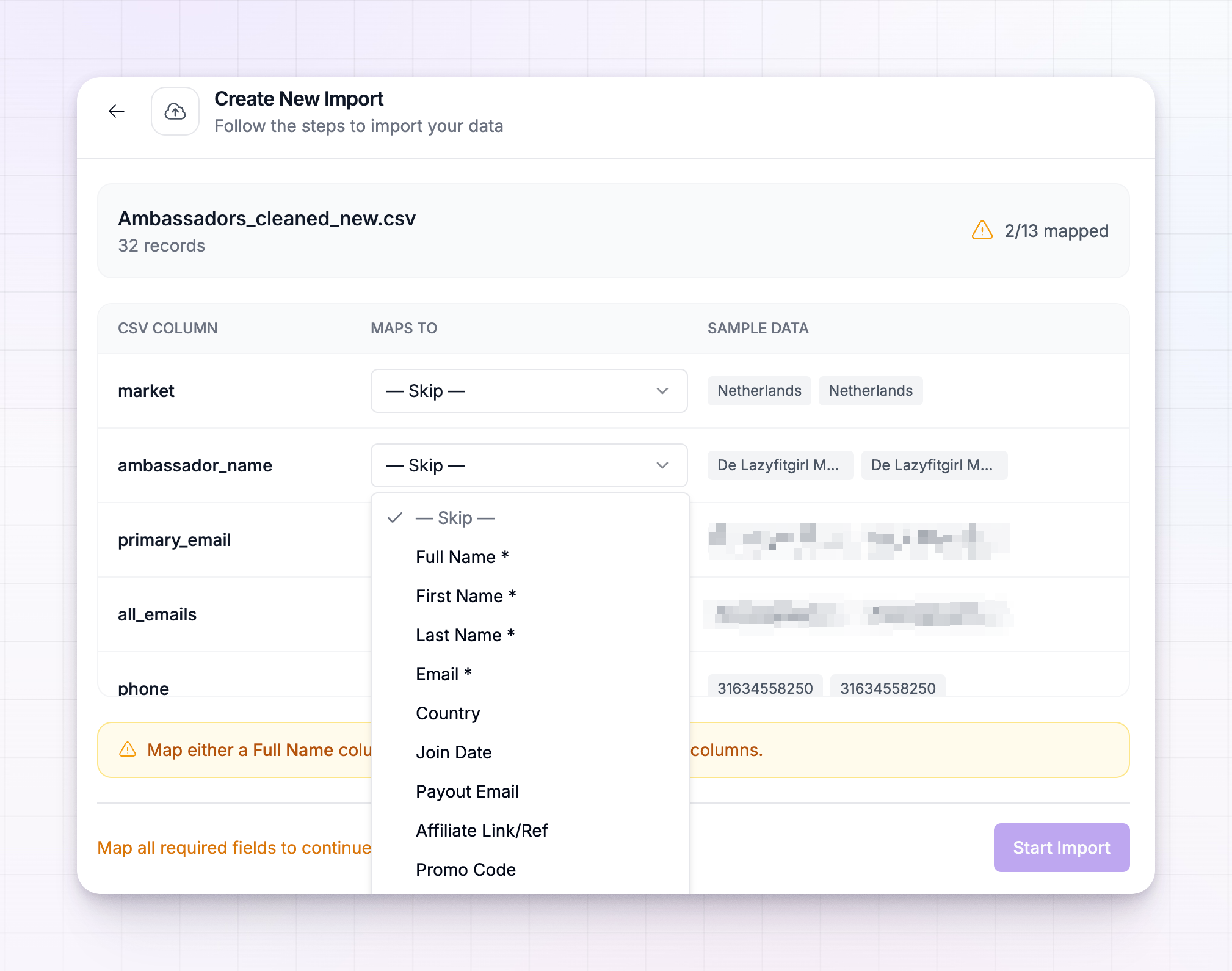 At the top, a summary bar shows your file name, how many records it contains, and a counter like 5/13 mapped. A green checkmark means every required field is matched; an amber triangle means something required is still missing. You cannot start the import until the checkmark is green.
How auto-mapping works
Referly reads your headers and matches the obvious ones for you. Common names line up automatically —Email, Email Address, and emailaddress all map to Email; Full Name maps to Full Name; Amount, Total, or Revenue map to Transaction Amount, and so on. Matched columns turn green.
Auto-mapping is a starting point, not the final word. Always look down the table and fix anything that landed wrong, and set any columns Referly did not recognize. To change a mapping, open the Maps To dropdown on that row and pick the correct field. A field can only be used once — if you assign it to a new column, Referly clears it from the column that had it, so you never map two columns to the same thing by accident. Required fields are marked with an asterisk in the dropdown.
Skip a column or keep it as extra
Not every column needs a home. Open a row’s dropdown and you have two ways to handle columns Referly does not have a field for:- Skip — ignore the column entirely. Nothing from it is imported.
- Extra — keep the column’s values attached to each record even though it is not one of Referly’s standard fields. Extra columns are marked with a blue Extra tag and stored alongside the record as additional info. Reach for this when a column is useful to keep but does not fit a built-in field.
Handling names
For affiliates and customers, Referly needs a name, and it accepts one of two shapes:- A single Full Name column, or
- Both a First Name and a Last Name column.
Turn old affiliate links into referral codes
(Affiliates and sales imports) If you map a column to Affiliate Link/Ref, Referly needs to know how to pull the affiliate’s reference out of it, because your old links rarely look like Referly links. It inspects your values and shows a URL Parameter Detection panel with the options it found:- A detected parameter (shown as a chip like
?ref=) — use the value of that query parameter as the reference. If your links look likeyoursite.com?ref=jane, pick this and Referly takesjane. - Use path after / — use the last part of the path. Choose this when your links look like
yoursite.com/janerather than using a query parameter. - Use full value — take the cell exactly as it is. Choose this when your column already holds bare reference codes (like
jane) rather than full URLs.
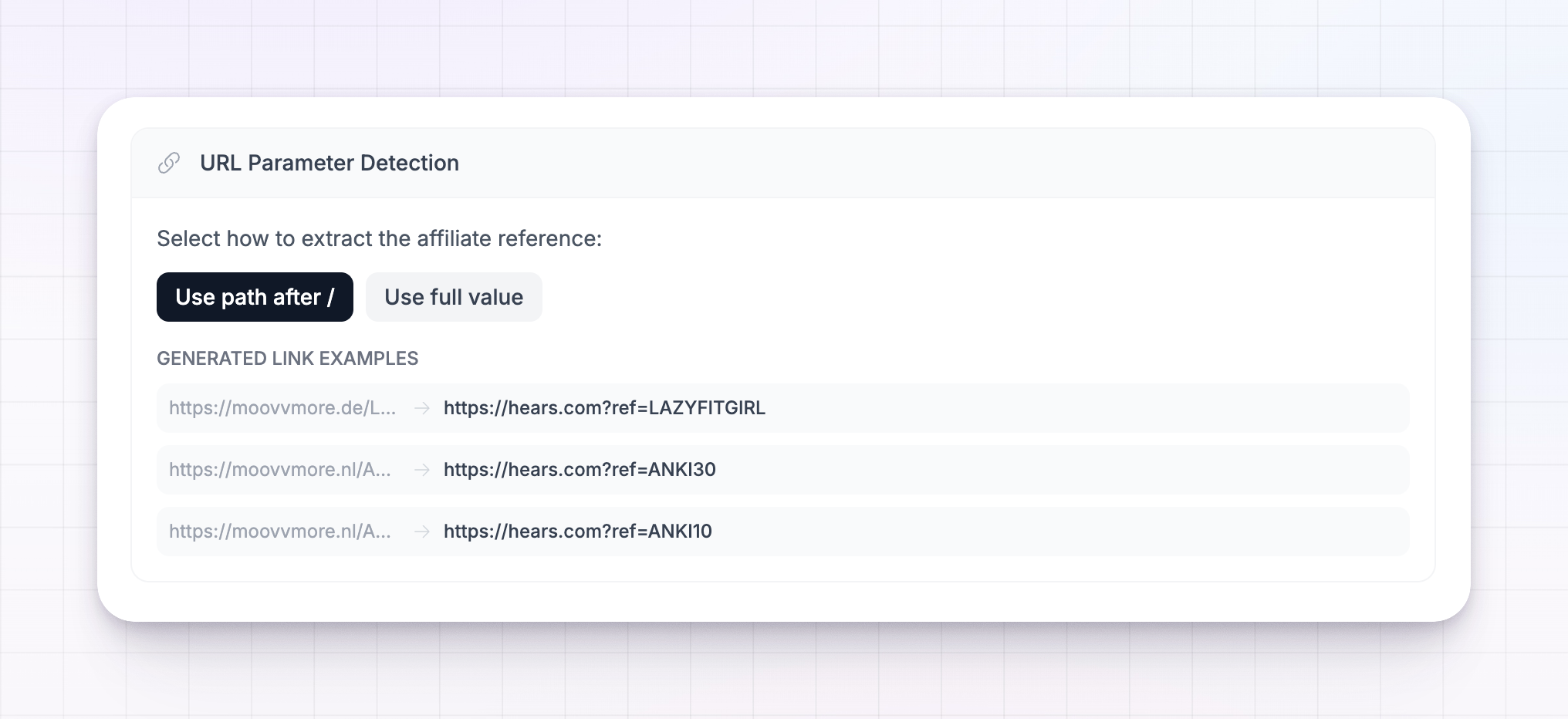 Referly guesses the most likely option and previews the result under Generated Link Examples, showing each original value turning into the referral link Referly will create (for example,
 https://yoursite.com?ref=jane). Check those examples before continuing — they are the quickest way to confirm your affiliates keep the same reference codes they had before, so their existing links and shares keep working.
If Referly finds no parameters or paths in your data, it falls back to using the full value, and tells you so.
Handle duplicate affiliates
(Affiliates imports) As you map the email column, Referly checks your file against itself and against affiliates already in your program. If it finds emails that repeat within the file or that already exist in Referly, a Duplicate Affiliates panel appears with a count and a choice for how to handle them:- Skip Duplicates — ignore the duplicate rows and only create genuinely new affiliates. This is the default and the safest option.
- Merge Duplicates — instead of creating a second account, add the row’s new referral link and/or promo code to the affiliate who already exists. Use this when the same partner appears more than once because they have multiple links or codes you want to keep.
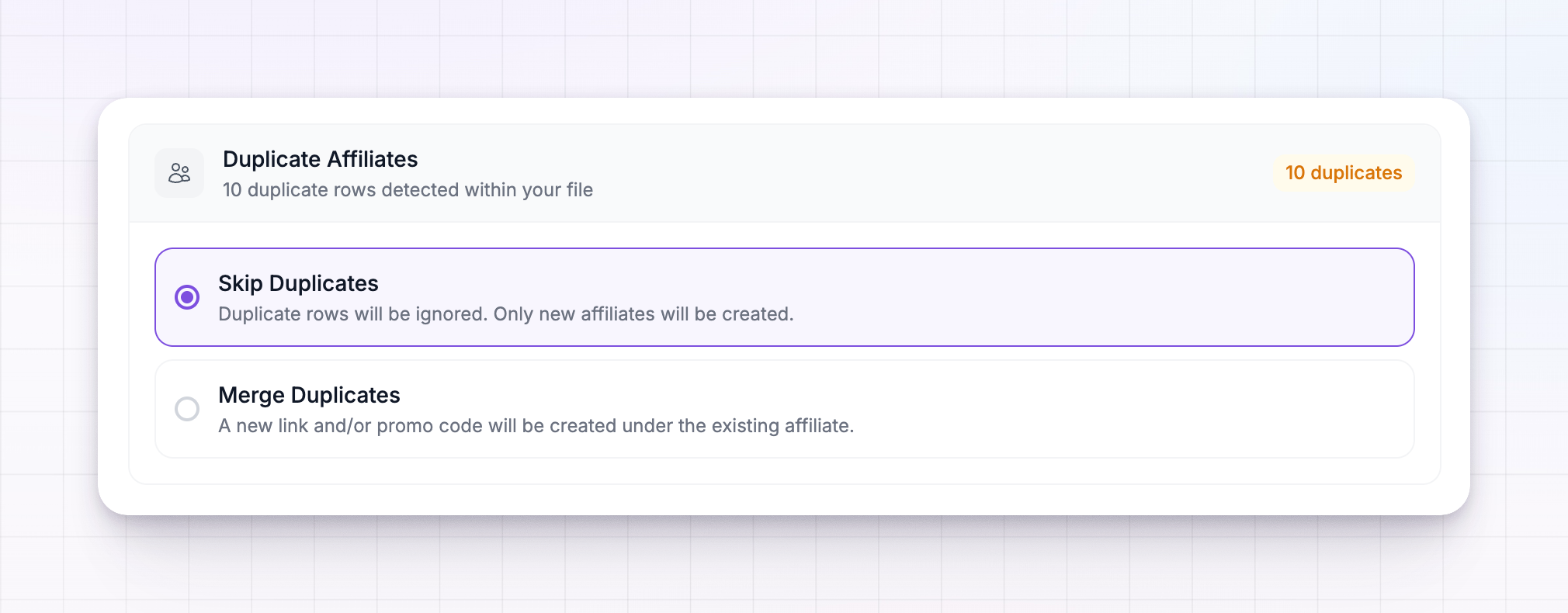 The panel tells you where the duplicates came from — how many emails already exist in your program versus how many are repeated inside your file — so you can pick with confidence.
Assign commission plans and groups from your file
(Affiliates imports) If your spreadsheet records which plan or group each affiliate belongs to, map those columns to Commission Plan and Affiliate Group. Referly then collects the distinct values it finds in each column and asks you to match them to the real thing in your account — because the words in your file (likegold or Tier 1) rarely match your Referly setup exactly.
For each value, pick the target from the dropdown:
- Commission plan values map to any of your commission plans, including your program’s base plan.
- Affiliate group values map to any of your affiliate groups, or to no group.
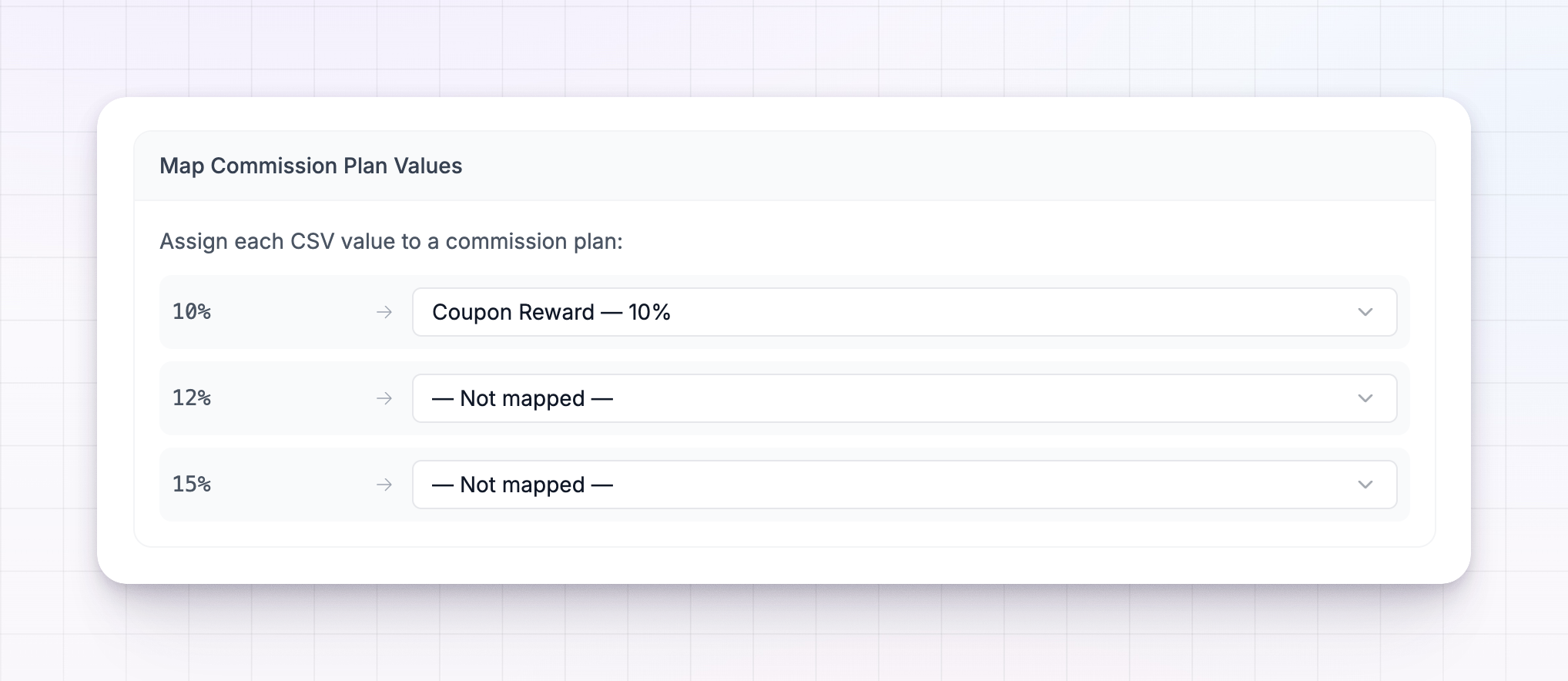 Any value you leave as Not mapped simply is not applied — those affiliates come in on your program defaults. This lets you translate someone else’s tiers into your own structure in one pass, rather than fixing every affiliate by hand afterward.
Bring over promo codes
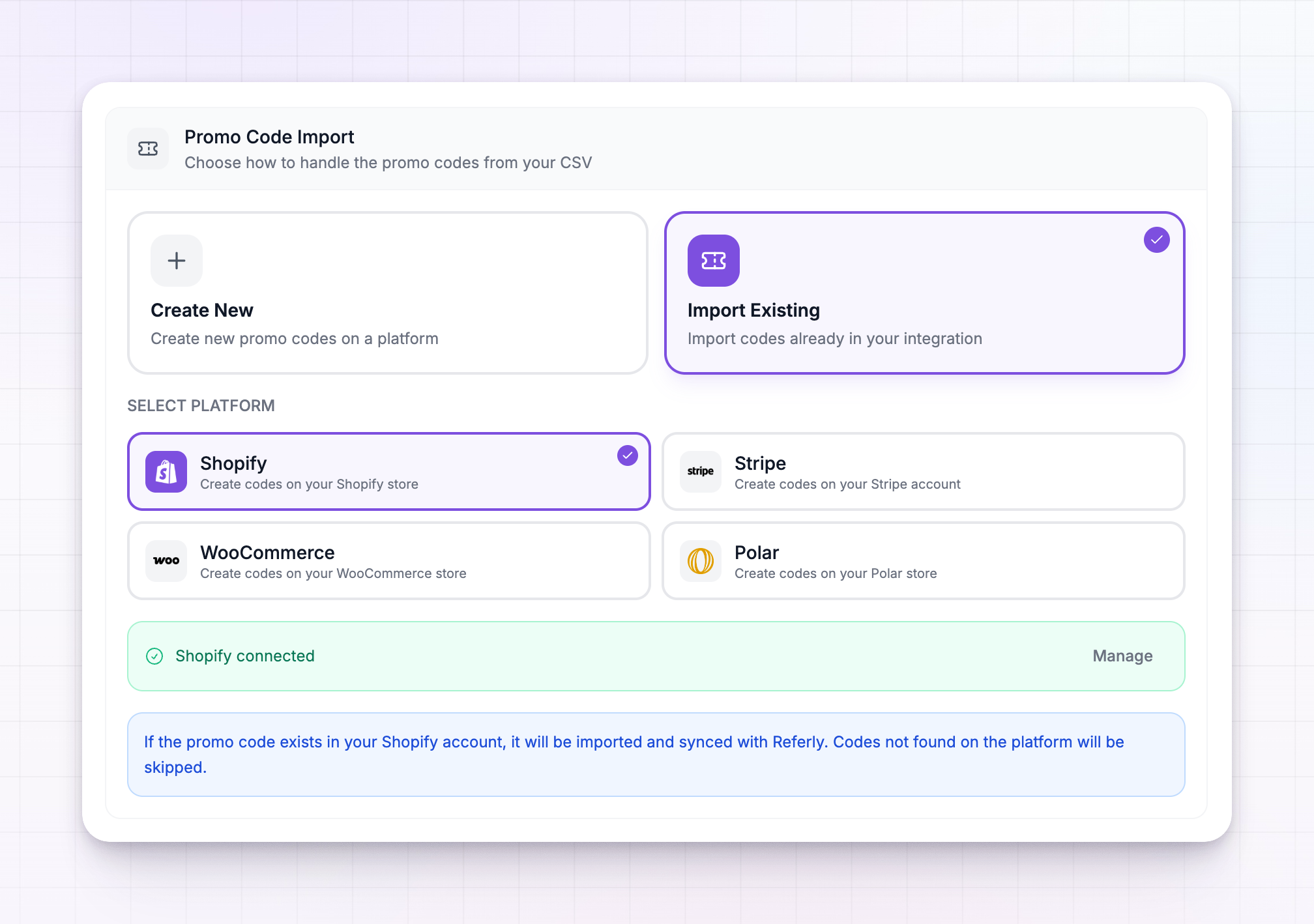
(Affiliates imports) Affiliates often promote with discount codes as well as links. Referly gives you a few ways to bring those across, and which panels you see depends on what you have set up. If you map a Promo Code column, a Promo Code Import panel appears. First choose a mode:- Create New — create the codes from your CSV on a connected platform.
- Import Existing — match codes that already live in one of your integrations and sync them into Referly. Codes that are not found on the platform are skipped.
 When you are creating new codes and your file also has Discount Name and Discount Amount columns mapped, you get an extra shortcut: Auto-create coupons from CSV. Turn it on and Referly builds the coupons for you from those two columns, and you tell it whether the discount is a percentage or a fixed amount. Codes that share the same discount name and amount reuse the same coupon, so you do not end up with duplicates. If you would rather attach every imported code to one coupon you already made, leave the toggle off and select that coupon instead.
If your program auto-generates a coupon for new affiliates, you will also see an Auto-Generate Promo Codes toggle. Switch it on to give every imported affiliate a fresh code built from your auto-coupon rules, which Referly lists so you can see exactly what each affiliate will get.
Finally, if you use Shopify auto-apply discounts, Referly asks which code to connect to each affiliate’s short link — the one from your CSV or the auto-generated one — so the right discount applies at checkout. If only one of those exists, Referly connects it for you without asking. You can read more in the coupons overview.
When you are creating new codes and your file also has Discount Name and Discount Amount columns mapped, you get an extra shortcut: Auto-create coupons from CSV. Turn it on and Referly builds the coupons for you from those two columns, and you tell it whether the discount is a percentage or a fixed amount. Codes that share the same discount name and amount reuse the same coupon, so you do not end up with duplicates. If you would rather attach every imported code to one coupon you already made, leave the toggle off and select that coupon instead.
If your program auto-generates a coupon for new affiliates, you will also see an Auto-Generate Promo Codes toggle. Switch it on to give every imported affiliate a fresh code built from your auto-coupon rules, which Referly lists so you can see exactly what each affiliate will get.
Finally, if you use Shopify auto-apply discounts, Referly asks which code to connect to each affiliate’s short link — the one from your CSV or the auto-generated one — so the right discount applies at checkout. If only one of those exists, Referly connects it for you without asking. You can read more in the coupons overview.
Set which sales are paid and refunded
(Sales imports) Spreadsheets describe payment and refund status in all kinds of ways —yes or no, paid or pending, 1 or 0, TRUE or FALSE. Rather than force your data into one format, Referly shows you the actual values from your file and lets you label them.
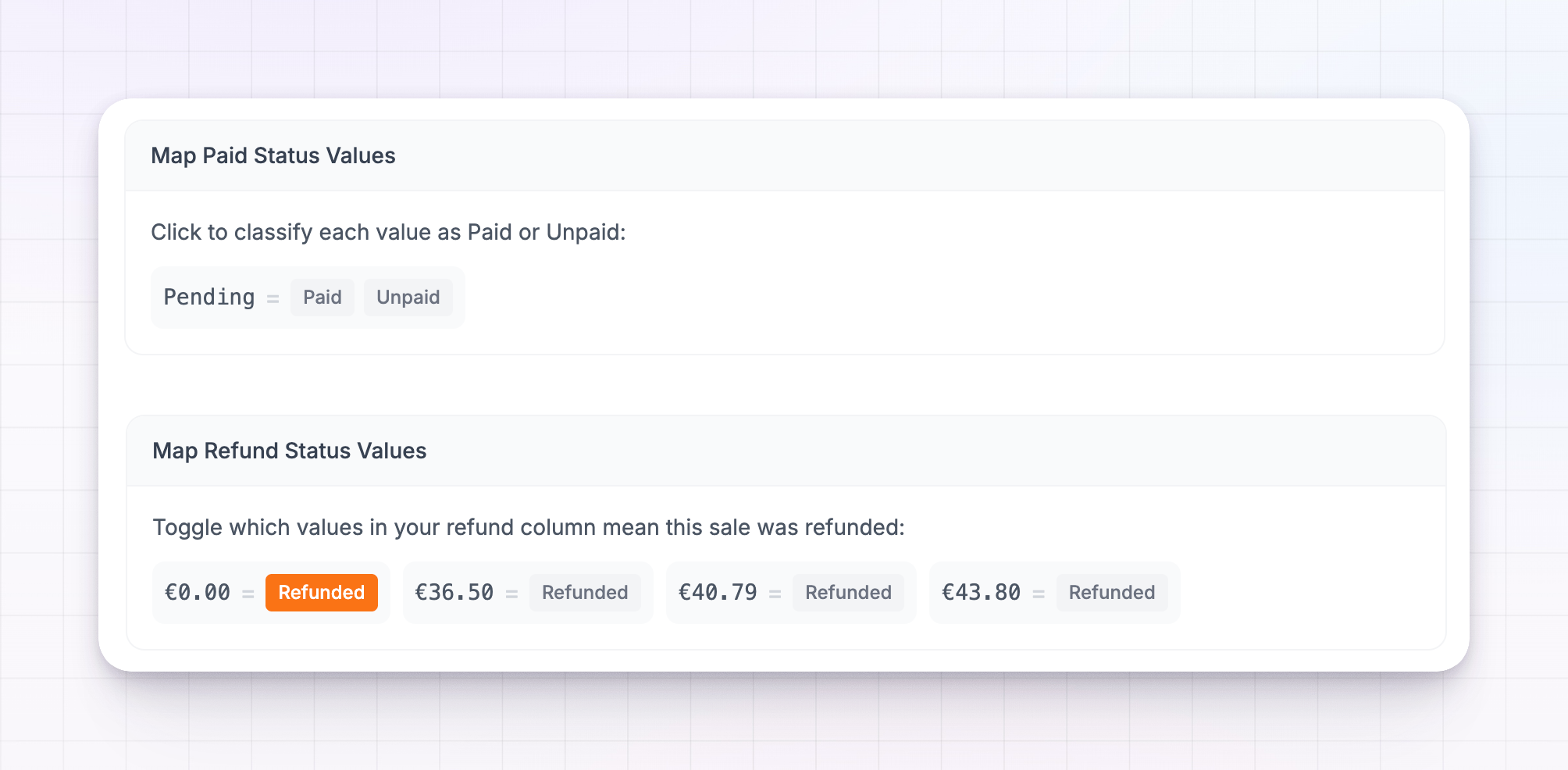
Map Paid Status Values appears when you map a Paid Status column. Every distinct value in that column becomes a chip with two buttons — mark it Paid or Unpaid. For example, set settled to Paid and awaiting to Unpaid. This decides which commissions come in already marked as paid so you do not pay them again.
Map Refund Status Values works the same way when you map a Refund Status column: toggle which of your values mean a sale was refunded. Refunds are tracked separately from payment, so a sale can be both paid and refunded.
 One more sales safeguard: if Referly spots rows with a negative transaction amount (often refund lines exported as negatives), it warns you and skips them during the import, so they do not distort your totals.
How a sale gets attributed to an affiliate depends on what you mapped. You can point sales at affiliates directly with an Affiliate Email column, or let Referly match them through the Promo Code or Affiliate Link/Ref used on the sale — whichever your export contains.
One more sales safeguard: if Referly spots rows with a negative transaction amount (often refund lines exported as negatives), it warns you and skips them during the import, so they do not distort your totals.
How a sale gets attributed to an affiliate depends on what you mapped. You can point sales at affiliates directly with an Affiliate Email column, or let Referly match them through the Promo Code or Affiliate Link/Ref used on the sale — whichever your export contains.
Start the import and check results
When the summary bar shows the green checkmark, select Start Import. Referly uploads your file and begins processing in the background, so you can close the window and keep working — the import keeps running. Open the import from the list at any time to watch it. The details view shows a progress bar and a live breakdown:- Success — rows that imported cleanly.
- Failed — rows Referly could not import, each with an error message explaining why.
- Pending — rows still waiting to be processed.
 Below the summary, every row from your file is listed with its status. Filter to Failed to focus on problems, and select a row to expand it and see its full data alongside the exact error — a missing email, an affiliate that could not be matched, and so on. Fix those rows in your spreadsheet and run a smaller follow-up import just for them.
If you ever need to start over, Delete Import removes the job and the records it created, so you can re-import with different mapping choices.
Below the summary, every row from your file is listed with its status. Filter to Failed to focus on problems, and select a row to expand it and see its full data alongside the exact error — a missing email, an affiliate that could not be matched, and so on. Fix those rows in your spreadsheet and run a smaller follow-up import just for them.
If you ever need to start over, Delete Import removes the job and the records it created, so you can re-import with different mapping choices.
Because customers and sales attach to the affiliates and customers before them, an import can only find a match if that record already exists. If a batch of sales fails to match an affiliate, check that your affiliate import finished first and that the emails, codes, or links line up between the two files.
Related
Migration overview
See every way to move your program to Referly, including direct platform connections.
Add affiliates manually
Adding one or two partners instead of a whole file? Create them by hand.
Commission plans
Understand the plans you can map your imported affiliates onto.
Affiliate groups
Organize affiliates and set default commissions by group.