

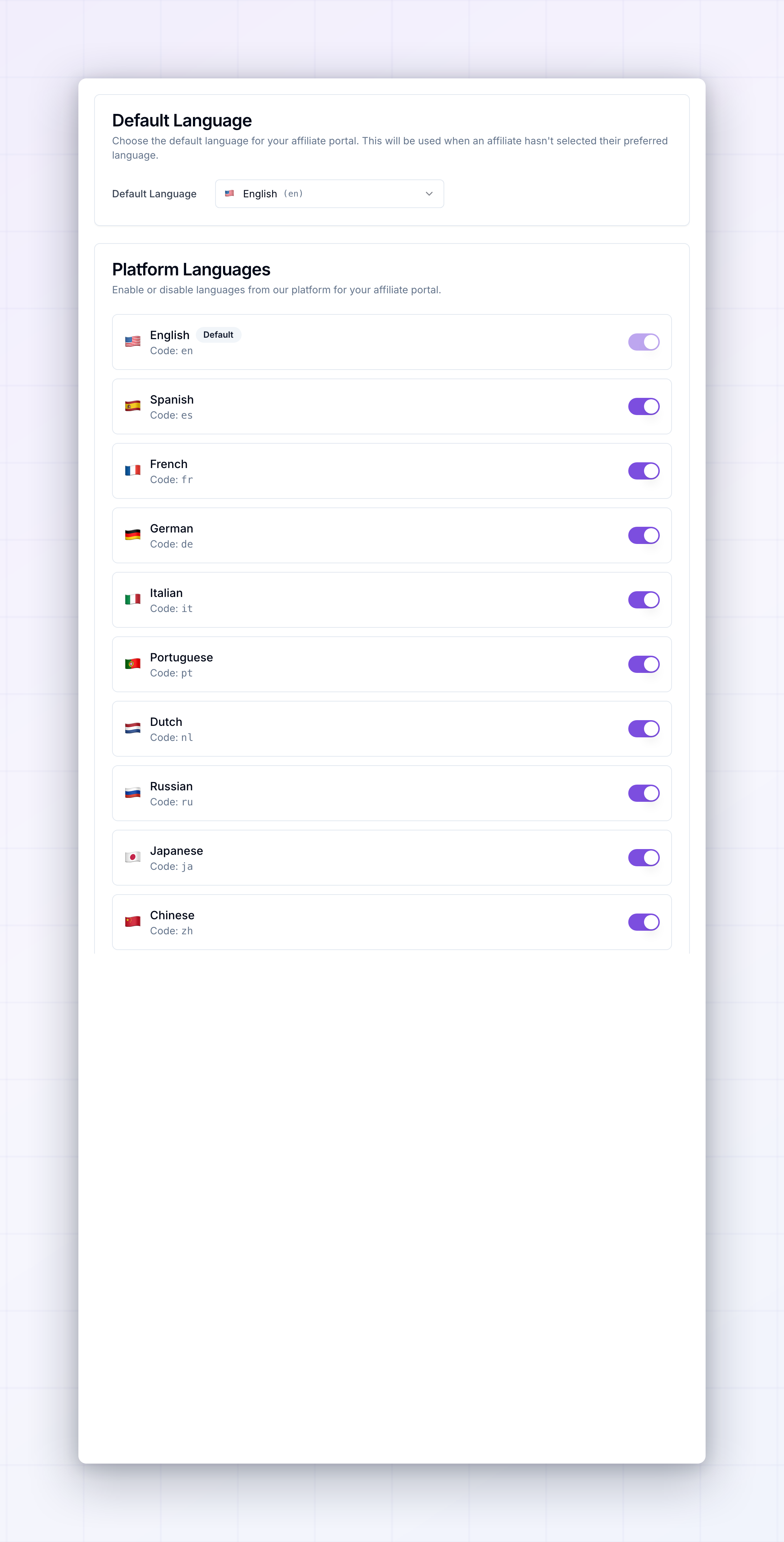
 The page has three sections: Default Language, Platform Languages, and Custom Languages. Changes here save as you make them, so there’s no separate save button.
Set your default language
The Default Language dropdown sets the language an affiliate sees when they haven’t chosen one themselves — a first-time visitor, for example.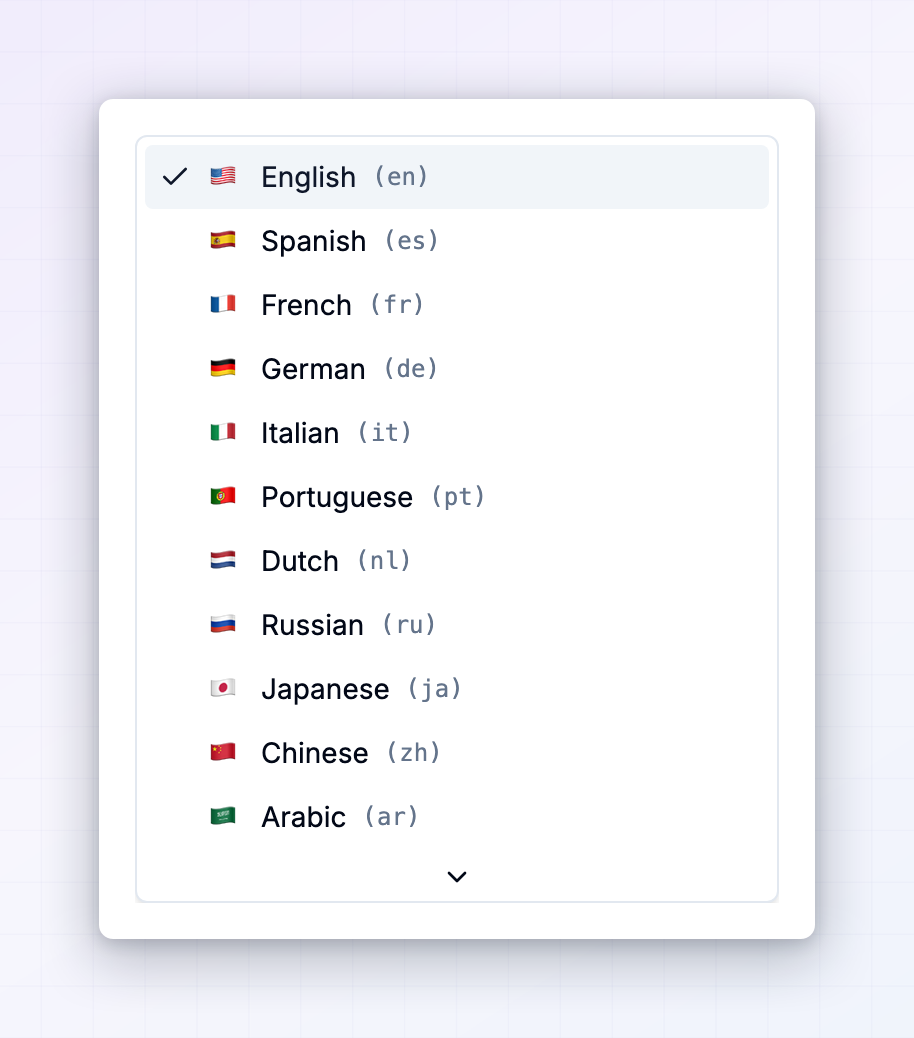 Only languages you’ve turned on appear in this dropdown, so turn a language on first if you want it as your default.
When the “Default language updated” message appears, your change is live.
Turn languages on and off
The Platform Languages section lists the languages Referly maintains for you, each with an on/off switch. These are already fully translated, so turning one on is all you need to do.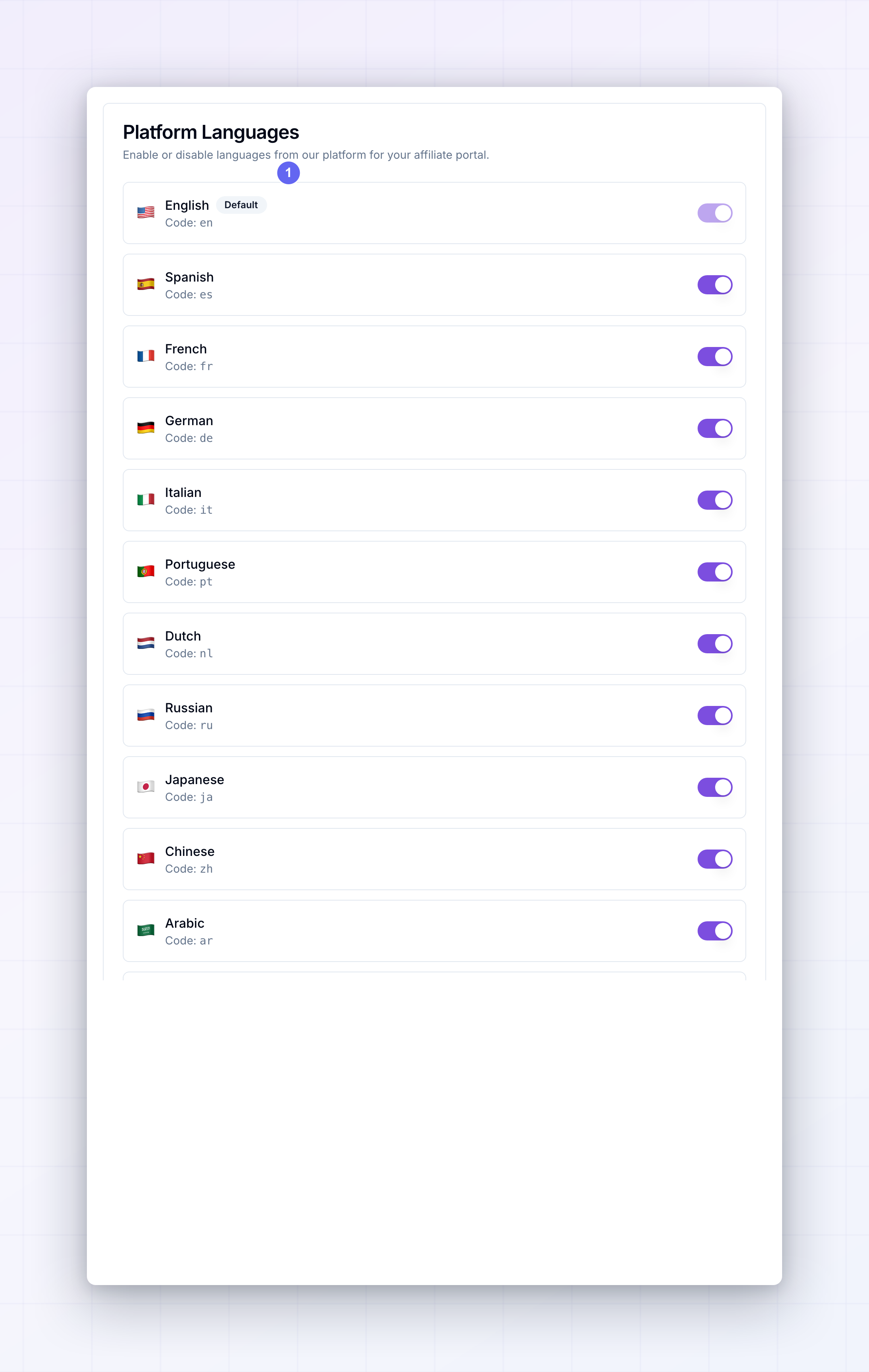 The built-in list covers English, Spanish, French, German, Italian, Portuguese, Dutch, Swedish, Turkish, Serbian, Russian, Arabic, Hindi, Japanese, and Chinese. Referly adds to this list over time, so you may see more than this.
Turn on every language your affiliates actually speak. Each one you turn on becomes a choice in the language picker on your portal, and becomes selectable as your default.
The built-in list covers English, Spanish, French, German, Italian, Portuguese, Dutch, Swedish, Turkish, Serbian, Russian, Arabic, Hindi, Japanese, and Chinese. Referly adds to this list over time, so you may see more than this.
Turn on every language your affiliates actually speak. Each one you turn on becomes a choice in the language picker on your portal, and becomes selectable as your default.
Your default language can’t be switched off — its toggle is greyed out and it shows a Default badge. To turn it off, pick a different default first.
Add a custom language
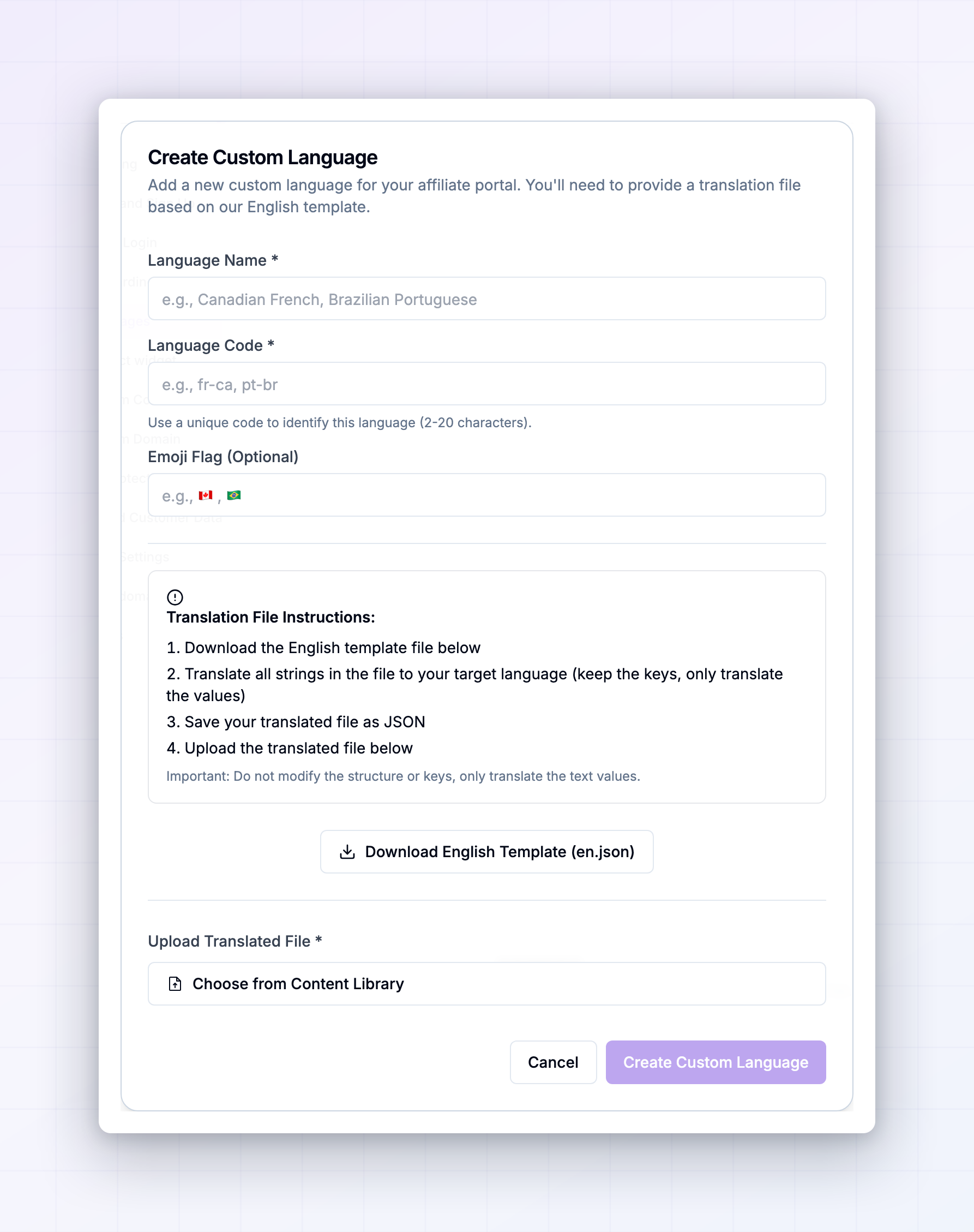
If you need a language that isn’t in the built-in list, or a regional variant like Canadian French or Brazilian Portuguese, you can supply your own translation. Select Add Custom Language in the Custom Languages section.Custom languages are part of the custom affiliate portal features and need a plan that includes them. If yours doesn’t, the Add Custom Language button appears locked. See plans and features.
1
Name the language
Fill in Language Name as your affiliates should see it, for example “Canadian French”. Then set a Language Code to identify it, between 2 and 20 characters, such as
fr-ca or pt-br. Optionally add an Emoji Flag so it’s easy to spot in the picker.2
Download the English template
Select Download English Template. This gives you a file containing every piece of text in the affiliate portal.
3
Translate the text
Open the file and translate the text values into your language. Keep the file’s structure and its labels exactly as they are and change only the text on the right-hand side of each line. Changing the structure stops the language from working.
4
Upload your file
Select Choose from Content Library and pick your translated file. You’ll see “File loaded successfully” once it’s read correctly. If the file has an error, you’ll be told it’s invalid, so fix it and upload again.
5
Create it
Select Create Custom Language. It appears in the Custom Languages list, ready to use.
Check a custom language for gaps
When Referly adds new text to the portal, a custom language you uploaded earlier won’t have a translation for it, and those parts fall back to English. The Check Translations button on each custom language finds them for you.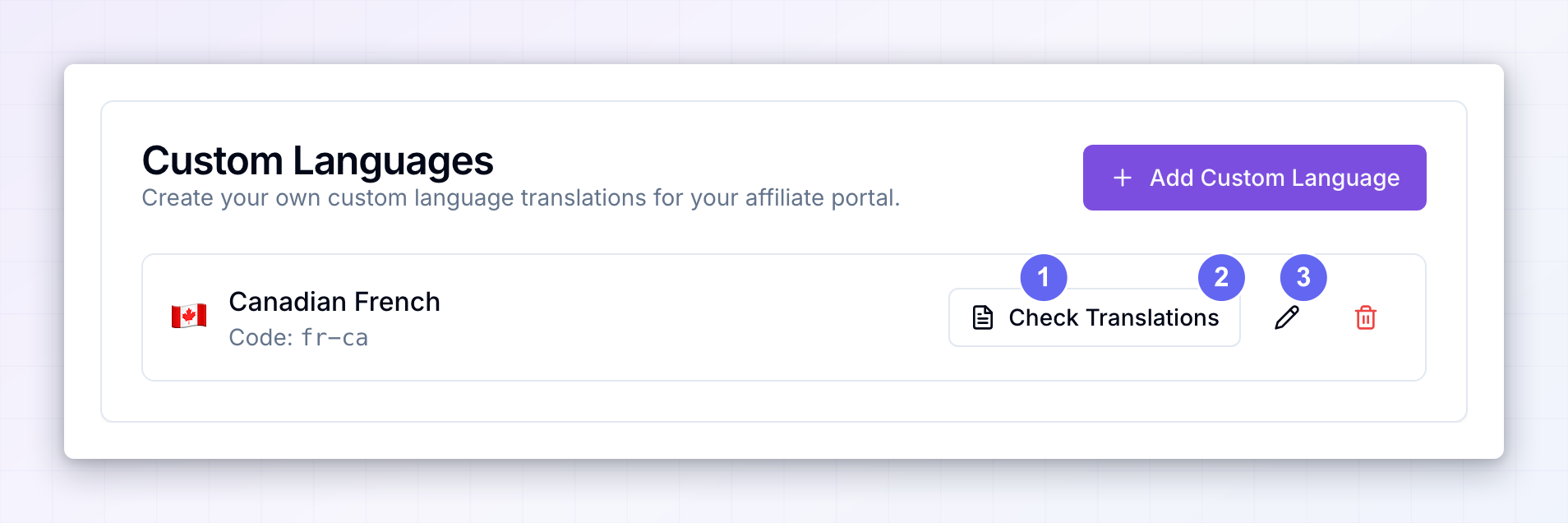 Select Check Translations. If everything is covered, you get a “No missing translations found!” message. If anything is missing, the Fix Missing Translations window opens and lists each gap with the original English text and a box to type your translation into.
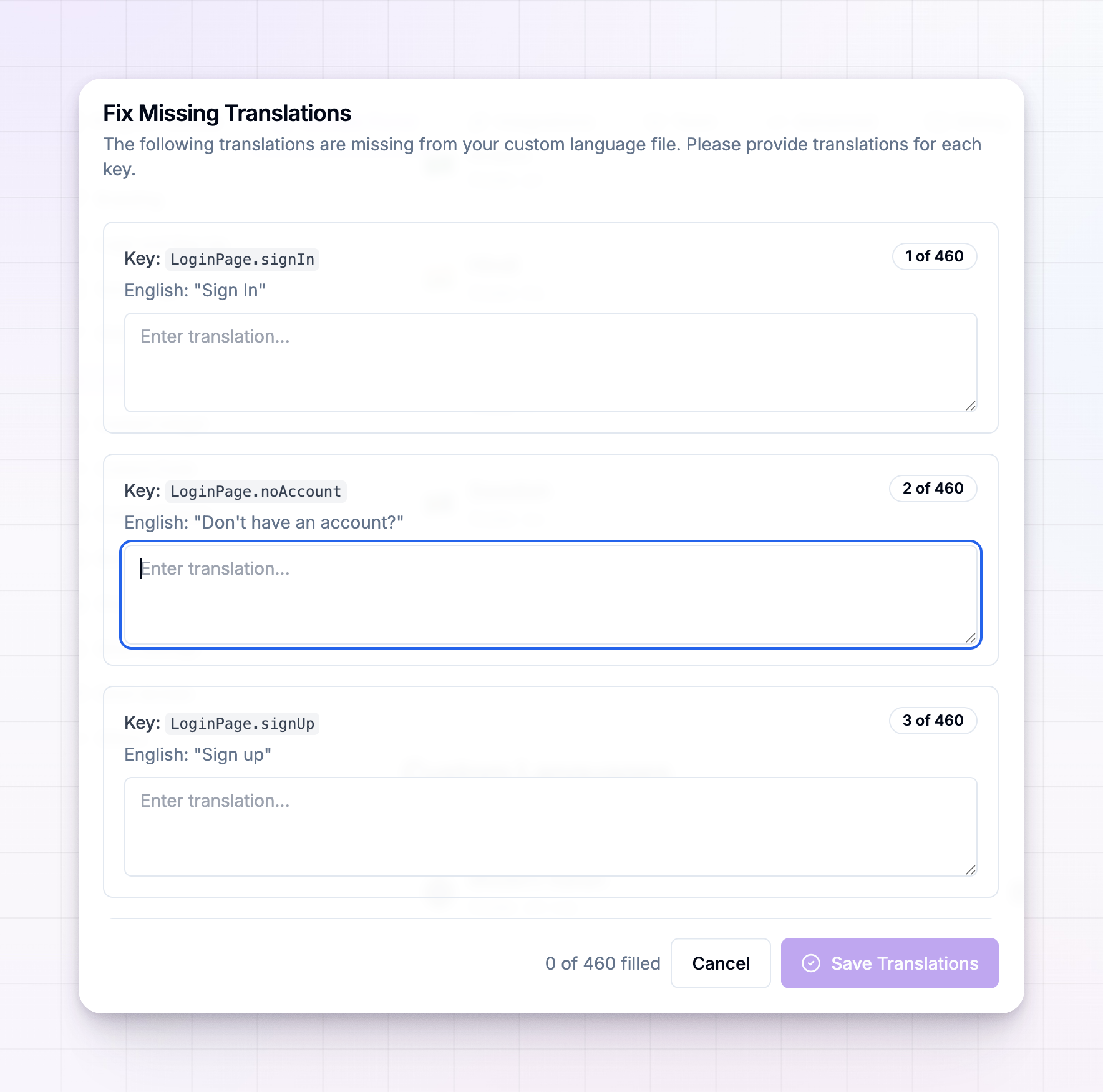 Fill in as many as you want and select Save Translations. You don’t have to do them all at once — a counter shows how many you’ve filled, and anything you leave blank stays on the list for next time.
It’s worth running this check every few months so nothing quietly reverts to English.
Fill in as many as you want and select Save Translations. You don’t have to do them all at once — a counter shows how many you’ve filled, and anything you leave blank stays on the list for next time.
It’s worth running this check every few months so nothing quietly reverts to English.
Edit or remove a custom language
Each custom language row has two more buttons:- The pencil opens Edit Custom Language, where you can change the Language Name, the Emoji Flag, and use the Enabled switch to hide the language from your portal without deleting your translation work.
- The trash deletes the language for good. This can’t be undone, and it’s unavailable while that language is your default.
How affiliates choose their language
Affiliates pick their own language from the globe icon on your portal’s login and sign-up pages. It lists only the languages you’ve turned on, both built-in and custom.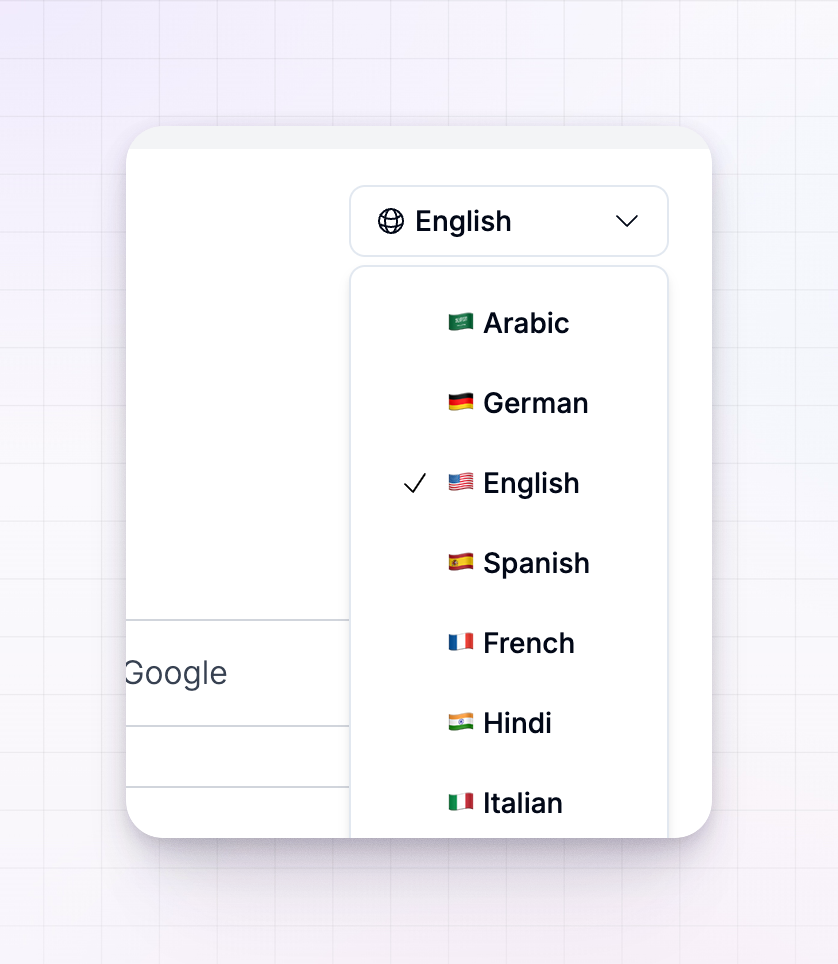 Once someone chooses, their choice is remembered on their device, so they land in their language next time. Anyone who hasn’t chosen sees your default.
Text that you wrote yourself stays exactly as you typed it. Your program name, the title and subtitle on your login page, your announcements, your emails, and the questions in your onboarding steps aren’t translated, since Referly can’t know how you’d word them. Translation covers the portal’s own buttons, labels, and messages.
Related
Login and sign up
Customize the pages where the language picker appears.
Custom domain
Serve your portal from your own web address.
Set up your branding
Match the portal to your brand’s logo and colors.
Plans and features
See which plan includes custom languages.