

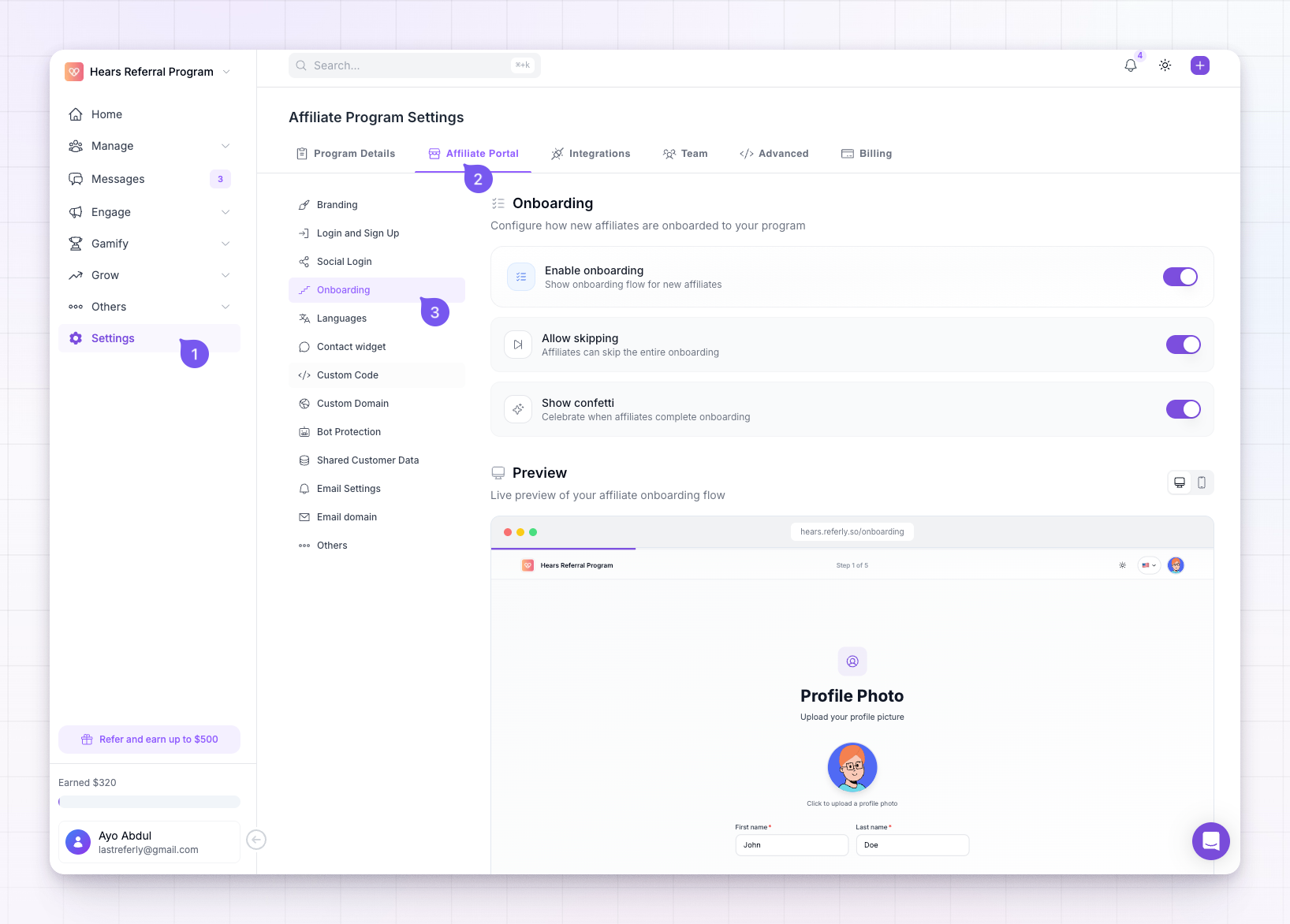
Custom questions used to have their own settings page. They’re now part of Onboarding, so everything is in one place. If you land on the old page, it points you here.
Adding a custom step and its questions needs the Business plan or higher. You can rearrange and edit the built-in steps on any plan. See plans and features.
Turn onboarding on
At the top left of the page, Enable onboarding controls whether new affiliates see the flow at all. Your questions only get asked when this is on. Two options sit next to it:- Allow skipping lets affiliates skip the whole onboarding and go straight into their portal. Leave it off if your questions matter to you.
- Show confetti plays a small celebration when an affiliate finishes.
Add a custom step
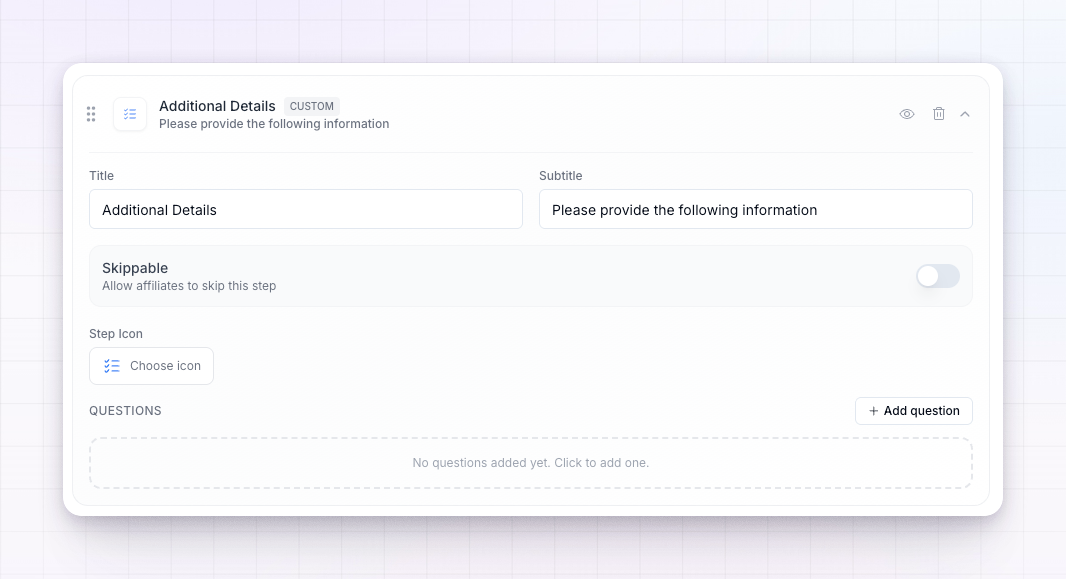
A custom step is the screen that holds your questions. In the Steps section, select Add custom step, and a new step appears in the list ready to set up.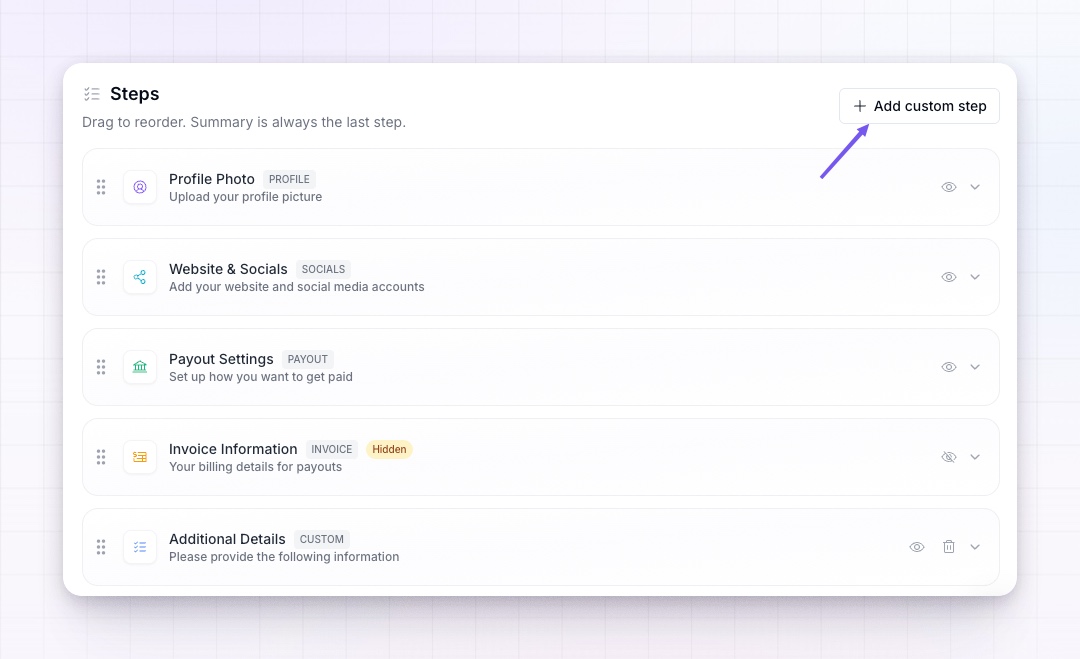 Expand the new step and fill in these fields:
1
Name the step
Title is the heading the affiliate reads, and Subtitle is the line of helper text under it. For example, a title of “Tell us about your audience” with a subtitle of “This helps us support you better.”
2
Pick an icon
Choose a Step Icon to represent the step in the flow.
3
Decide if it can be skipped
Turn on Skippable to let affiliates move past the step without answering. Leave it off to make the whole step mandatory.
 You can add more than one custom step — for example, one for audience details and another for verification documents.
Choose a question type
Inside your custom step, find the Questions area and select Add question. The Choose question type window opens with five options, and your choice decides what the affiliate sees and what kind of answer you get back.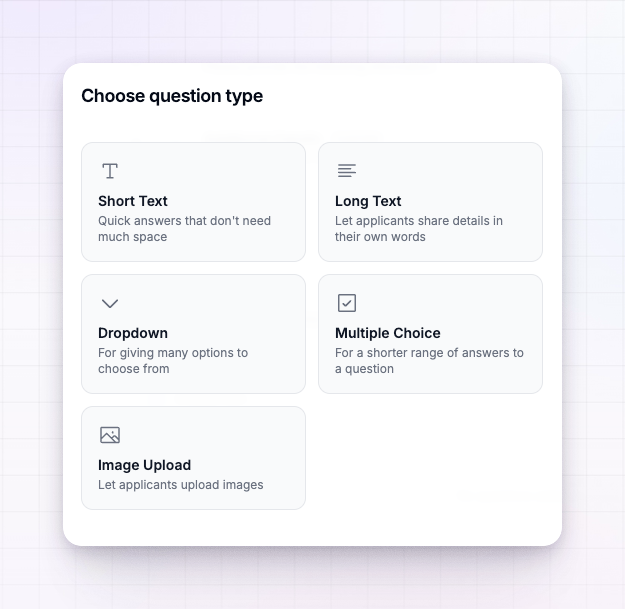
Set up each question
Select a question to expand it. Every question has a Label — the question the affiliate actually reads, such as “Which platforms do you post on?”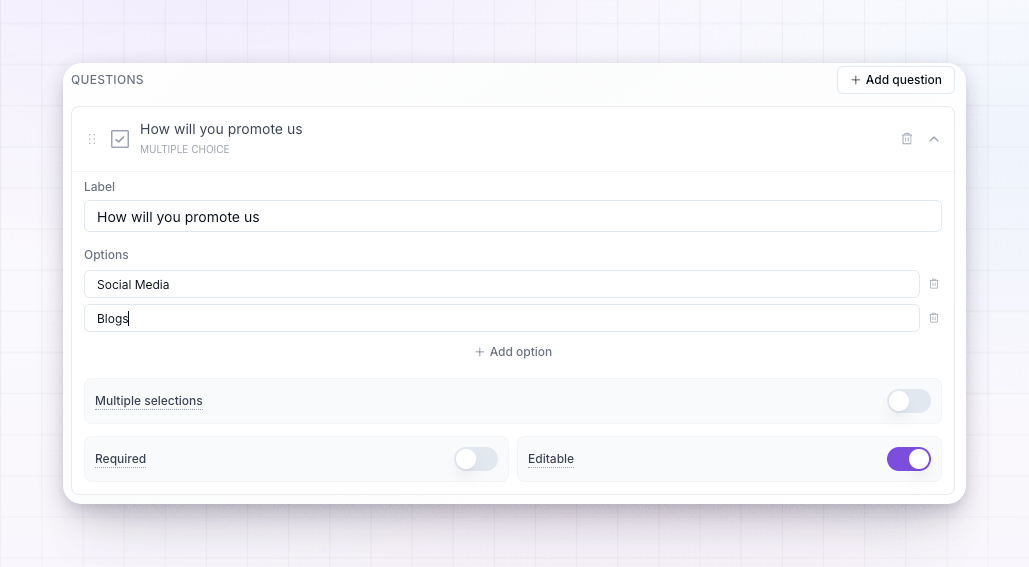 The rest of the settings depend on the type you picked:
- Placeholder (Short Text and Long Text) — faint example text inside the empty box to hint at what to type.
- Options (Dropdown and Multiple Choice) — the choices you offer. Select Add option for each one. For Multiple Choice, turn on Multiple selections to let affiliates pick more than one.
- Multiple files (Image Upload) — allow more than one file, up to four.
- Required — the affiliate has to answer before they can continue. Leave it off to make it optional.
- Editable — the affiliate can change their answer later from their portal. Turn it off to lock the answer once it’s given, which is useful for anything you’ve reviewed, like an uploaded ID.
Reorder, hide, or remove steps
The Steps list is drag-and-drop. Drag a step by its grip handle to change where it falls in the flow, so your questions come exactly where you want them.- The Summary step is always pinned last.
- Use the eye icon to hide a step. It keeps its settings but stops showing to affiliates, which is handy for pausing a question set without losing it. Built-in steps can only be hidden, not deleted.
- Use the trash icon to delete a custom step. Only custom steps can be deleted.
- Drag questions inside a step to reorder them the same way.
Preview and save
The Preview panel shows your onboarding exactly as an affiliate would see it, and you can switch between a desktop and a mobile view to check both. When you’re happy, select Save Changes.When the “Onboarding settings saved” message appears, your questions are live for new affiliates.
Where to read the answers
Every answer is saved to the affiliate’s record. Open the affiliate from your affiliates list and go to the Answers tab on their detail page.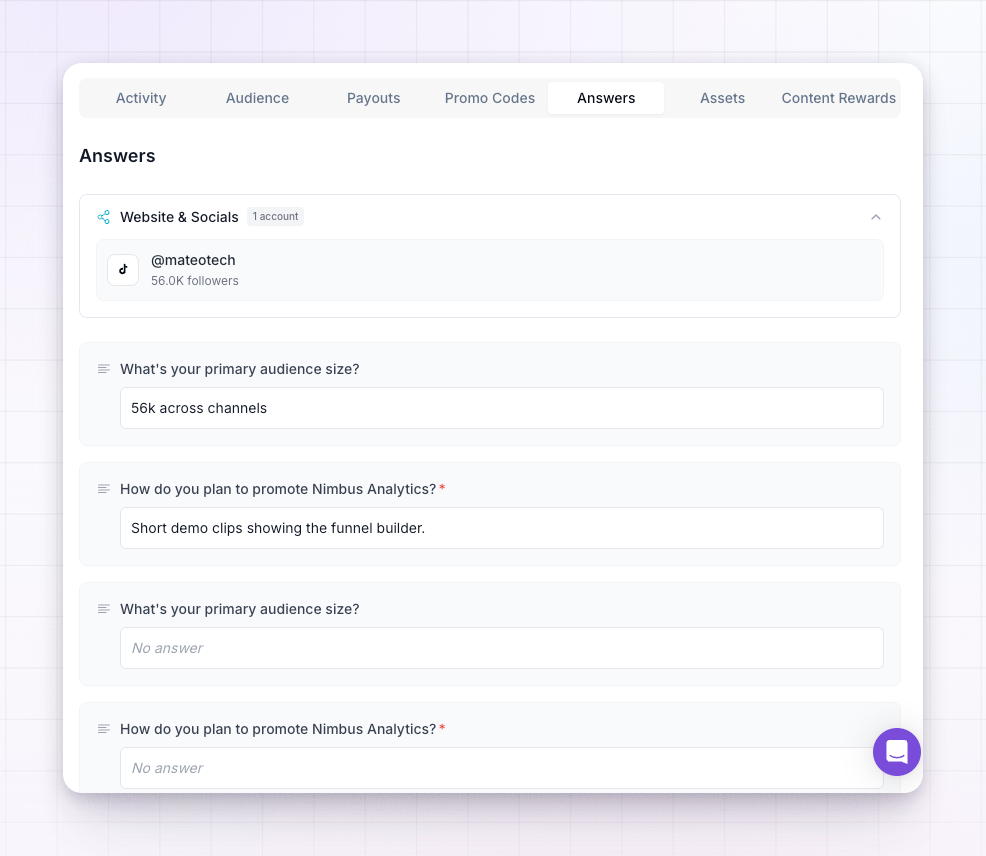 Answers are grouped by the step they came from, so a step named “Tell us about your audience” appears as its own section. Text answers show as written, dropdown and multiple-choice answers show what was selected, and uploaded files appear as thumbnails you can open full size.
This is what you read before approving or declining an application.
Affiliates can revisit their answers from Settings in their own portal, where each custom step appears under Personal info. They can change an answer only if you marked that question Editable.
Answers are grouped by the step they came from, so a step named “Tell us about your audience” appears as its own section. Text answers show as written, dropdown and multiple-choice answers show what was selected, and uploaded files appear as thumbnails you can open full size.
This is what you read before approving or declining an application.
Affiliates can revisit their answers from Settings in their own portal, where each custom step appears under Personal info. They can change an answer only if you marked that question Editable.
Related
Ask application questions
The recruiting view of custom questions, from sign-up to approval.
Connect social media
Ask affiliates to connect their social accounts during onboarding.
Approve or decline affiliates
Review what applicants told you and decide who joins.
The affiliate onboarding flow
See onboarding from the affiliate’s side.