

What this integration does
Referly’s Klaviyo integration is a one-way contact sync. It keeps your affiliates’ contact details flowing into one Klaviyo list. It is deliberately narrow, so it’s worth being clear about the edges before you set it up. What Referly sends to Klaviyo:
What Referly does not send to Klaviyo:
Two consequences follow from that list, and they’re the ones people are most often surprised by:
The sync runs in one direction only: Referly to Klaviyo. Changes you make in Klaviyo — editing a name, unsubscribing someone, deleting a profile — are never written back to Referly, and removing an affiliate from your program does not remove them from the Klaviyo list.
Before you start
- A Klaviyo account you can sign in to with permission to create API keys. In Klaviyo, that means an Owner, Admin, or Manager role.
- Admin access to your Referly program.
- A decision about where affiliates should land in Klaviyo: an existing list, or a new one Referly creates for you. A dedicated list is usually cleaner, because it keeps affiliates separate from customers.
Create a private API key in Klaviyo
Everything in this section happens inside Klaviyo, not Referly. A private API key is a secret credential that lets Referly add contacts to your Klaviyo account on your behalf.1
Open your Klaviyo account settings
Sign in to Klaviyo. Select your organization name in the bottom left corner, then choose Settings.
2
Go to the API keys tab
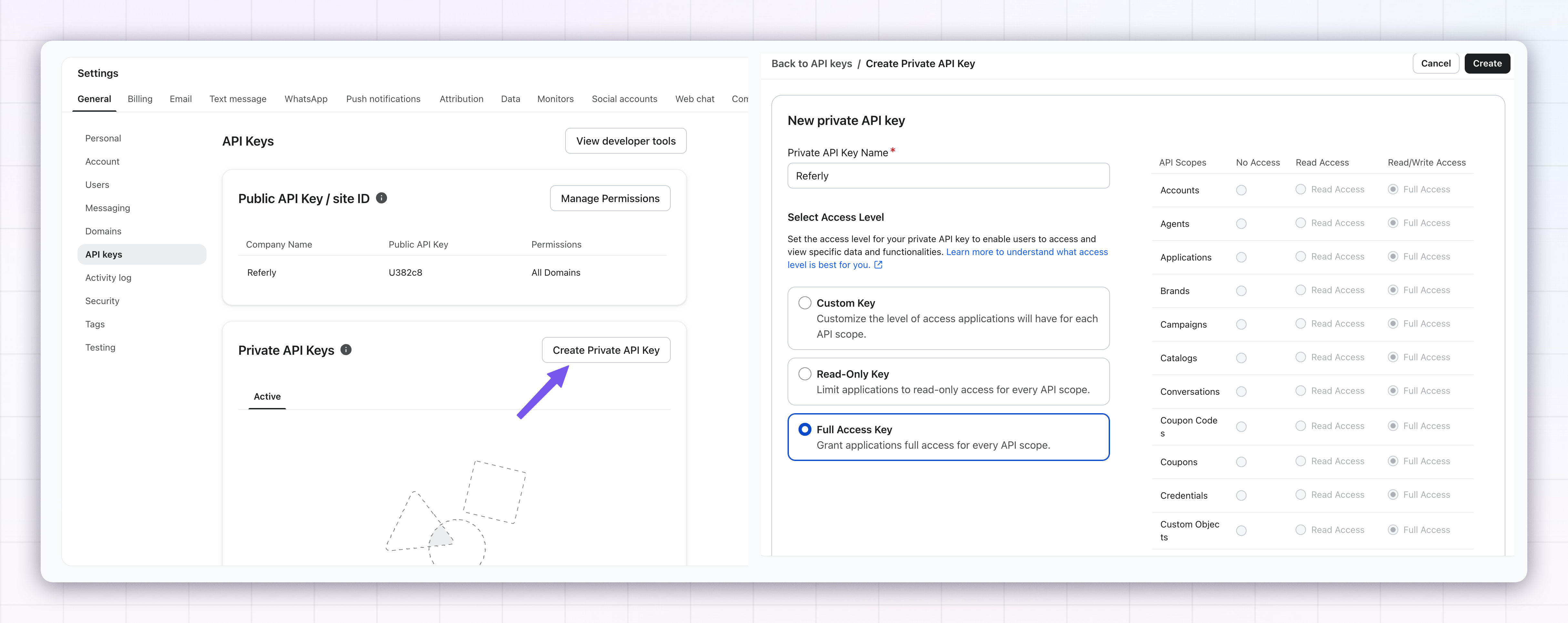
In Settings, open the API keys tab. You’ll see any keys that already exist, along with your public API key (also called your site ID). The public key is not the one you need.
3
Create the key
Select Create Private API Key. Give it a name you’ll recognise later —
Referly works well — so you can tell which tool a key belongs to if you ever need to revoke it.4
Choose Full access
Klaviyo offers three access levels: Read-only, Full, and Custom. Choose Full access. Referly needs to read your lists, create a list if you ask it to, and add profiles, and Full access covers all of that.If your security policy rules out a full-access key, choose Custom instead and grant Full access on both Lists and Profiles. Anything narrower will fail at some point in the flow.
5
Create and copy the key
Select Create. Klaviyo shows the key once and never again. Copy it straight away and paste it somewhere safe, such as a password manager.You also can’t edit a key’s access level after it’s created. If you pick the wrong one, delete the key and create a new one.
Open the Klaviyo integration in Referly
Back in Referly, there are two places that open the same window. Use whichever you’re closest to. From the Integrations page: in the left sidebar, select Integrations, find the Klaviyo card, and select it. Then select Connect Klaviyo. From your email settings: in the left sidebar, select Settings, open Affiliate Portal, then Email Settings. Select Connect Email Integration, and pick Klaviyo from the Choose Email Integration window. Either route opens the Connect to Klaviyo window.
Paste and validate your API key
Paste the private API key you copied from Klaviyo into the Klaviyo API key field. Select the eye icon on the right of the field if you want to check what you pasted. Now select Validate API Key. Referly calls Klaviyo, confirms the key works, and pulls in the lists that already exist in your account. You should see a confirmation that the key was validated. Validation is not optional — the Connect button stays greyed out until it succeeds. It also protects you from connecting with a key that has the wrong access level, which would otherwise fail silently later.If you edit the API key field after validating, Referly clears the validation and the loaded lists. Validate again before continuing.
Name the connection
In Account Nickname, type anything that helps you recognise this Klaviyo account later — your business name is a good default. This is a label for your own benefit and is never shown to affiliates.Choose or create the list
Once your key is validated, Referly shows you two ways to pick a destination. Use one or the other, not both — filling in one clears the other.1
Use an existing list
Open the list dropdown and pick any list from your Klaviyo account. Referly will add every affiliate to it.
2
Or create a new one
Leave the dropdown empty and type a name under Or create a new list — for example
Referly Affiliates. Referly creates that list in Klaviyo for you as part of connecting.Connect
Select Connect. Referly does three things at once:- Creates the new list in Klaviyo, if you asked for one.
- Imports every affiliate currently in your program into that list, in a single batch.
- Saves the connection so future affiliates are added automatically.
How ongoing syncing works
After the initial import, Referly adds an affiliate to your Klaviyo list at the moment they become active in your program. That covers every way an affiliate can arrive:- They sign up through your affiliate portal or signup widget.
- You approve someone who was waiting for approval. If approval is manual, nothing is sent to Klaviyo while they’re pending — they’re added the moment you approve them.
- You add an affiliate by hand, or import a batch of them.
- An affiliate is created through your automation tools or the API.
The very first import is different from the ongoing sync: it includes everyone currently in your program, including affiliates still waiting for approval. Only the ongoing sync is limited to active affiliates.
Verify it worked
Run through this checklist after connecting:1
Check the badge in Referly
Reopen the Klaviyo window. It should show Connected with your list name, and the API key field should be locked.
2
Find the list in Klaviyo
In Klaviyo, open Audience, then Lists & Segments, and open the list you chose or created. Your affiliates should be there.Klaviyo processes the import as a background job, so give it a few minutes on a large program before you worry. If a lot of affiliates are still missing after that, check the troubleshooting section below.
3
Spot-check a profile
Open one affiliate’s profile in Klaviyo and confirm the email, first name, and last name match what Referly shows on their affiliate detail page.
4
Test a new signup
Sign up a test affiliate through your affiliate portal, approve them if your program needs approval, then refresh the list in Klaviyo. They should appear.
Check consent before you send
This is the single most important thing to understand about the integration. Referly adds affiliates to your Klaviyo list as list members. It does not set their email marketing consent. In Klaviyo, being on a list and being subscribed to marketing are two different things, and Klaviyo will not deliver marketing email to a profile that hasn’t consented. So a brand-new affiliate synced from Referly typically lands in your list with a consent status of “Never subscribed”, and will be skipped when you send a campaign. What to do about it:- Open your list in Klaviyo and look at the email consent column to see where each affiliate stands.
- Collect consent the way you normally would — a Klaviyo signup form, a preference page, or a subscribe link in the transactional emails Referly already sends.
- Affiliates who were already subscribed customers in Klaviyo keep their existing consent, so they’re unaffected.
- Referly’s own affiliate emails are transactional and continue to send regardless. This only affects marketing campaigns you send from Klaviyo.
What you can build in Klaviyo
Within the limits above, an always-current affiliate list is genuinely useful:- A welcome sequence for new affiliates. Trigger a Klaviyo flow on someone joining the list to introduce your program, share your best-performing creative, and set expectations.
- A program newsletter. Send campaigns to the list when you launch a product, change commission rates, or run a seasonal push.
- Recruitment and re-engagement. Combine list membership with the engagement data Klaviyo collects on its own — opens, clicks, site activity — to find affiliates who’ve gone quiet.
- Exclusions. Suppress your affiliate list from customer campaigns so affiliates don’t receive offers meant for buyers.
Change the list or the API key
Both the API key and the list are locked once you’re connected. To change either one, disconnect and connect again with the new details. Reconnecting to a different list re-imports every affiliate into the new list. The old list keeps the affiliates it already has.Disconnect Klaviyo
Open the Klaviyo window and select Disconnect. Referly stops syncing immediately and forgets your API key. Nothing is deleted on the Klaviyo side — your list stays exactly as it is, with all its profiles, so you don’t lose anything by disconnecting. Revoke the API key in Klaviyo afterwards if you don’t plan to reconnect.Troubleshooting
Validation fails with an invalid or missing API key
Validation fails with an invalid or missing API key
Almost always one of these:
- You pasted the public API key (your site ID) instead of a private one. Go back to the API keys tab in Klaviyo and create a private key.
- A stray space or line break was copied along with the key. Clear the field and paste again.
- The key was created with Read-only access. Klaviyo can’t change a key’s access level after creation — delete it and create a new one with Full access.
- The key has been revoked or deleted in Klaviyo. Create a fresh one.
The key validates, but the list dropdown is empty
The key validates, but the list dropdown is empty
Your Klaviyo account has no lists yet, or the key was created with Custom access that doesn’t include Lists. Either type a name to have Referly create a list, or recreate the key with Full access.
Connect fails and says the account is already connected to another program
Connect fails and says the account is already connected to another program
Each Klaviyo API key can only be attached to one Referly program. If you’re setting up a second program, create a second private API key in Klaviyo and use that one.
An error appears when you select Connect
An error appears when you select Connect
The most common cause is an access level that’s too narrow — reading lists succeeds, but creating a list or importing profiles fails. Recreate the key with Full access and try again. If you were creating a new list, check Klaviyo first: the list may already have been created, in which case pick it from the dropdown instead of creating another.
Affiliates aren't appearing in the list
Affiliates aren't appearing in the list
Work through these in order:
- Give it a few minutes. Klaviyo runs imports as a background job.
- Confirm you’re looking at the same list shown on the Connected badge in Referly.
- Check the affiliate’s status in Referly. Only active affiliates are synced after the initial import, so anyone still pending won’t be there until you approve them.
- Search Klaviyo for the affiliate’s email address directly. If the profile exists but isn’t on the list, they were likely added to a different list by an earlier connection.
- Check the email address on the affiliate’s record in Referly for typos.
Affiliates are in the list but campaigns don't reach them
Affiliates are in the list but campaigns don't reach them
They’re on the list without marketing consent. See Check consent before you send above.
An affiliate left the program but is still getting emails
An affiliate left the program but is still getting emails
Referly never removes profiles from Klaviyo. Remove or suppress them in Klaviyo directly.
Related
Email marketing integrations
How Referly connects to email tools, and what the other providers offer.
Mailchimp
Sync affiliates into a Mailchimp audience instead.
Emails your affiliates receive
The transactional emails Referly sends on its own.
Affiliate statuses
What active, pending, and deactivated mean for syncing.