

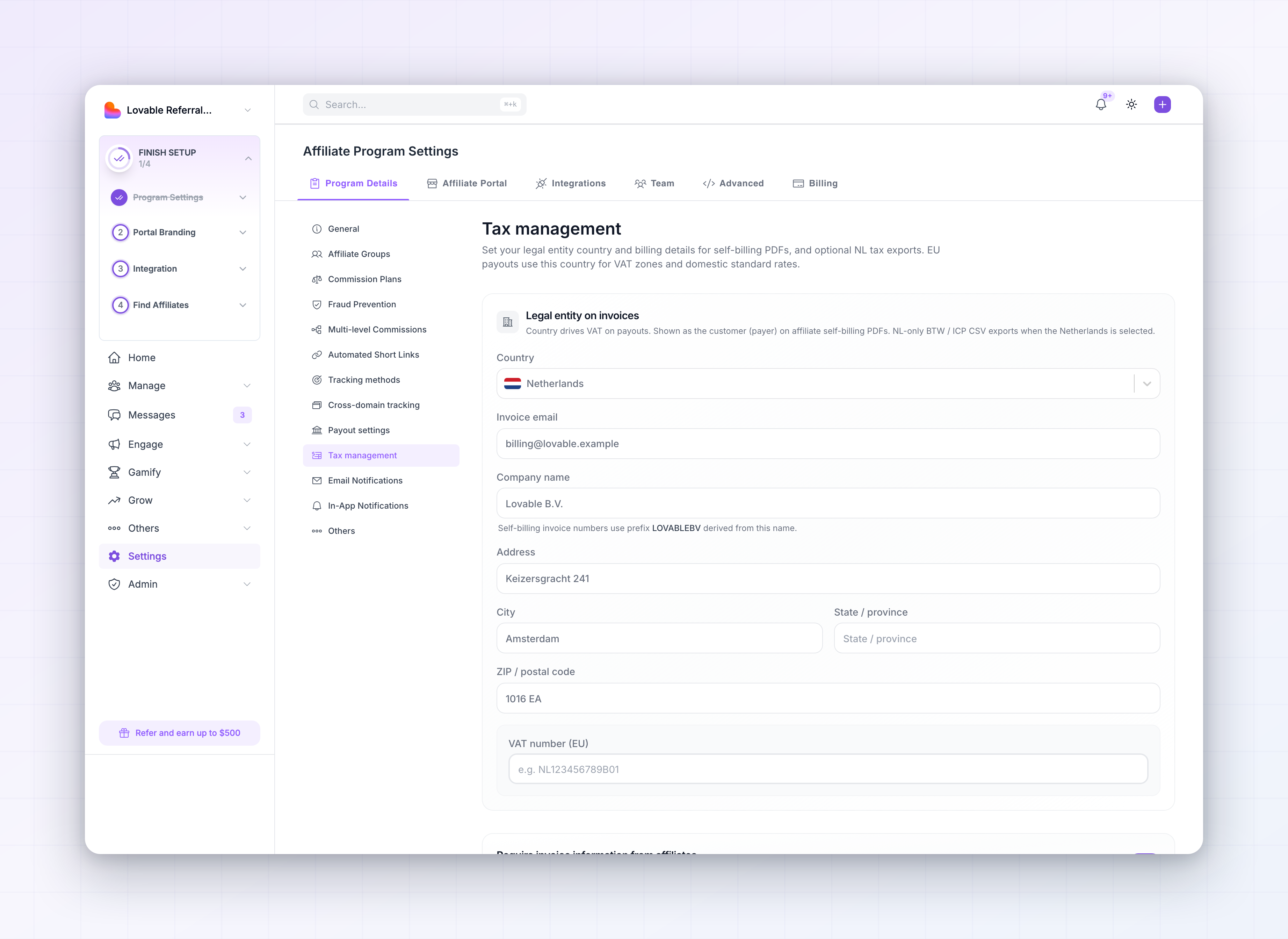
Invoice generation is a paid feature. If the section is locked, you’ll see an upgrade prompt.
Set your legal entity details
The first section, Legal entity on invoices, is your business’s details. These appear as the payer on every self-billing invoice, and your Country decides how VAT is applied to payouts. Fill in:- Country — your business’s country. This drives the VAT treatment, so make sure it’s right.
- Invoice email — where billing correspondence goes.
- Company name — your legal business name. Referly builds your invoice number prefix from this name, and shows you the prefix it will use.
- Address, City, State / province, and ZIP / postal code.
Add your VAT number (EU)
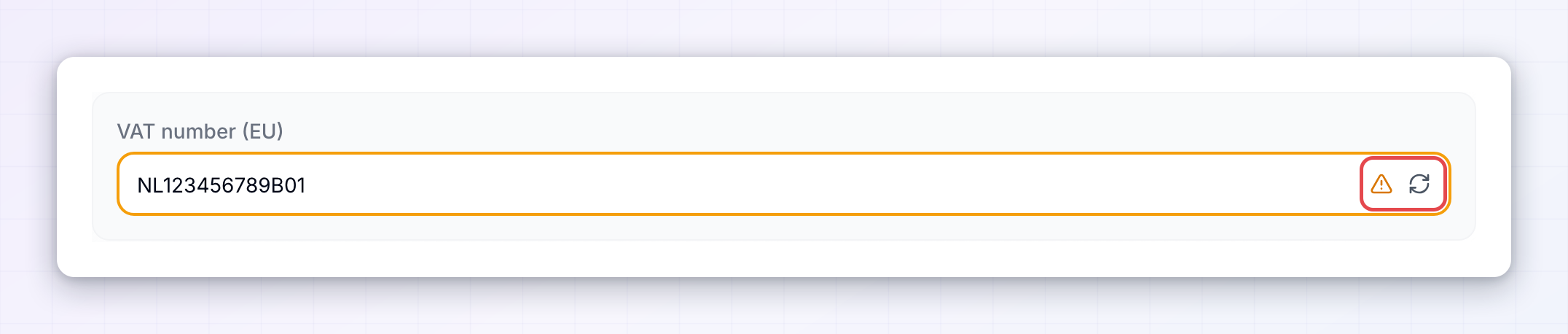
If your country is in the EU, a VAT number field appears. Enter your VAT number using the two-letter country code followed by your national number, for exampleNL123456789B01.
Referly checks the number against the EU VIES registry as you type. A green check means it’s verified; an amber warning means the number’s format is off, it isn’t registered, or the registry couldn’t be reached. If you get the warning, double-check the digits and country prefix, then use the retry option.
How VAT is applied to payouts
Referly works out the VAT treatment for each payout automatically, based on your country, the affiliate’s country, and whether the affiliate is a business or an individual. The invoice note reflects the result. In short:- Same country (EU business) — your country’s standard VAT rate is added.
- Another EU country (business) — the VAT is reverse charged (0% here), noted under Article 196 of the VAT Directive.
- Outside the EU — the payout is outside the scope of EU VAT.
- Individuals — no VAT applies.
This is here to make invoicing easier, not to replace tax advice. Check with your accountant that the treatment matches your obligations.
Require invoice details from affiliates
Turn on Require invoice information from affiliates if you need affiliates to supply their own invoice and tax details before they can be paid. With it on, an affiliate must complete those details before they can receive payouts — useful when your compliance rules need a proper invoice from each affiliate.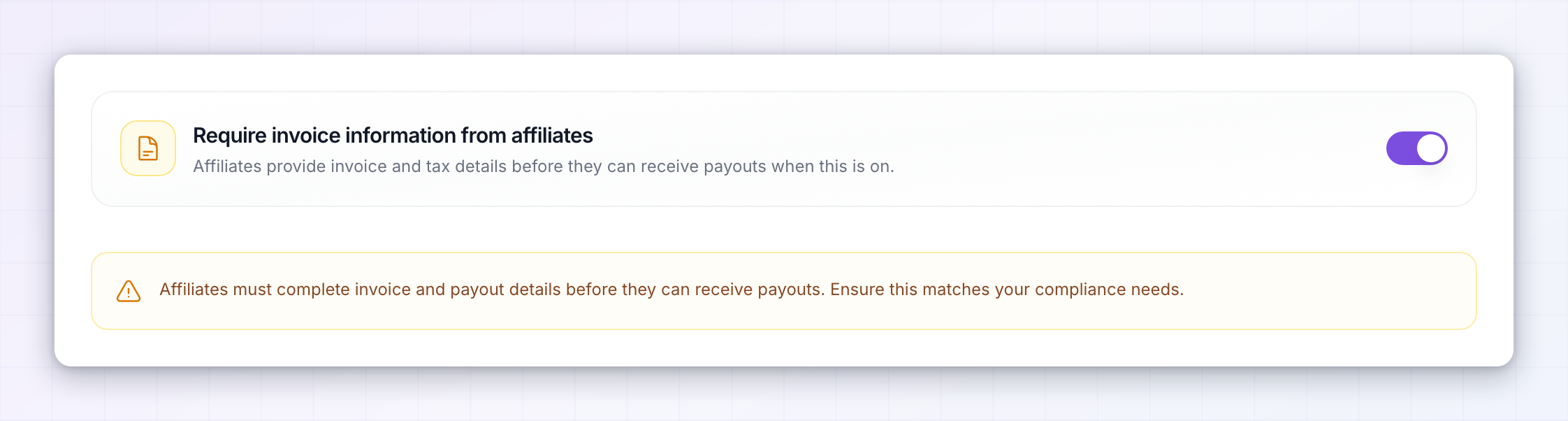
Download an invoice
For Referly Payouts batches, you can save the invoice for your records: open the batch and choose Download Invoice to get a PDF. Self-billing invoices for your affiliates are generated from the legal entity and VAT details you set above.Netherlands tax exports
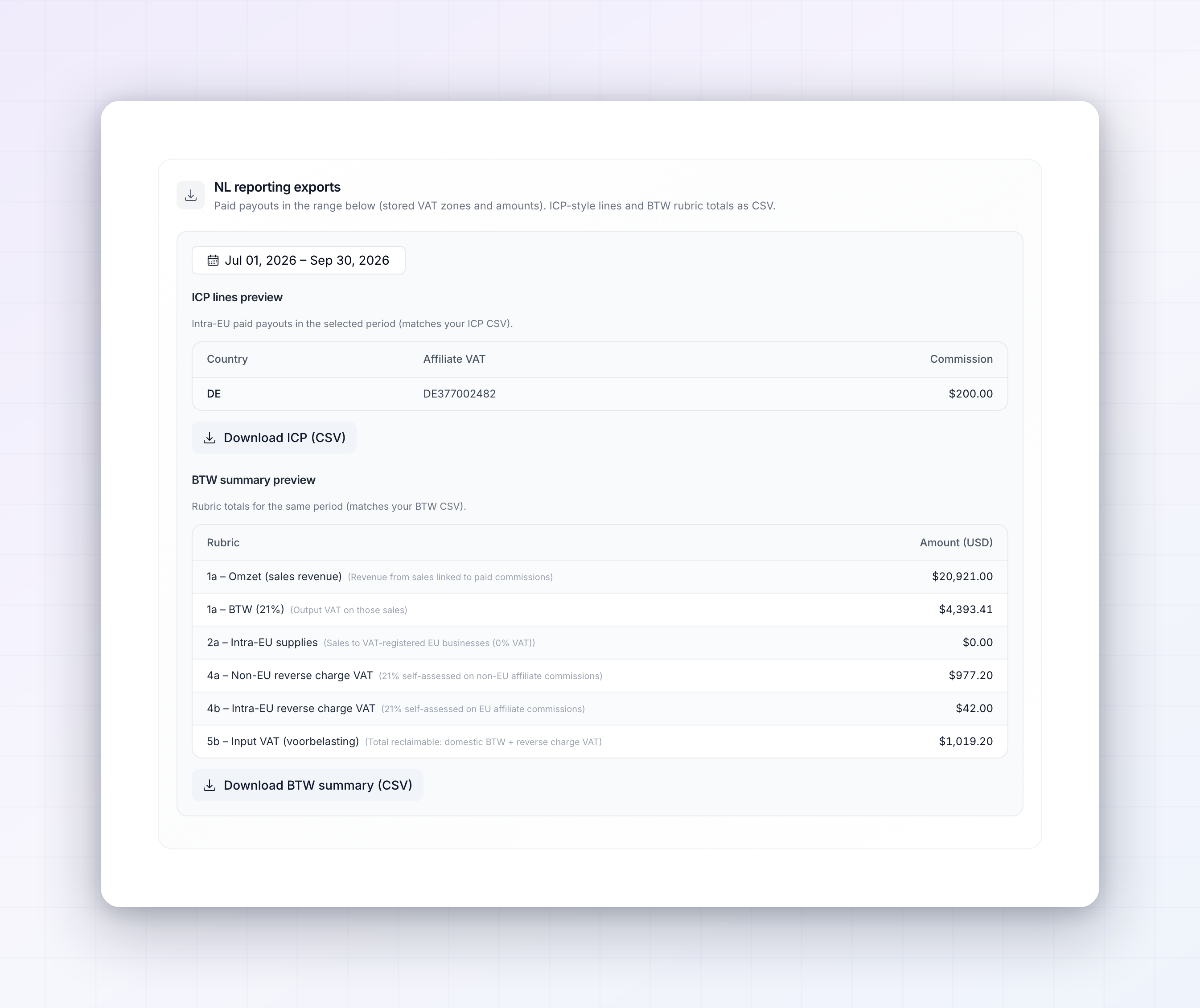
If your country is the Netherlands, an extra NL reporting exports section appears. It lets you pick a date range and download two CSVs built from your paid payouts in that period:- ICP — intra-EU supply lines.
- BTW summary — rubric totals for your VAT return.
Related
Self-managed vs Referly Payouts
See which option generates invoices for you.
Export payouts
Download batches as CSVs for your payout provider.
Payout batches
Open a batch to download its invoice.
Payouts overview
How the whole payout process fits together.