

What manual bank transfer can and can’t do
What it does:- Works anywhere. You choose the rails — a domestic transfer, a SEPA payment, a SWIFT wire, whatever your bank offers.
- Costs you nothing on top. No integration fee, no service fee, no percentage. Just whatever your bank charges.
- Collects exactly the details you need, because you decide which fields affiliates fill in.
- Keeps the record straight: who’s owed what, what they submitted, and what’s been paid.
- Needs no setup with anyone else — no account to open, no keys, no verification.
- It can’t send money. Every transfer is one you make by hand.
- It can’t check the details are right. Referly stores what the affiliate typed. There’s no validation of an IBAN, no confirmation the account exists.
- It can’t know when a transfer clears. Referly has no view of your bank, so a payout stays open until you say otherwise.
- It can’t run automatically. No schedule will pay these for you.
- It can’t run alongside Wise. More on that below.
Wise has to be off first
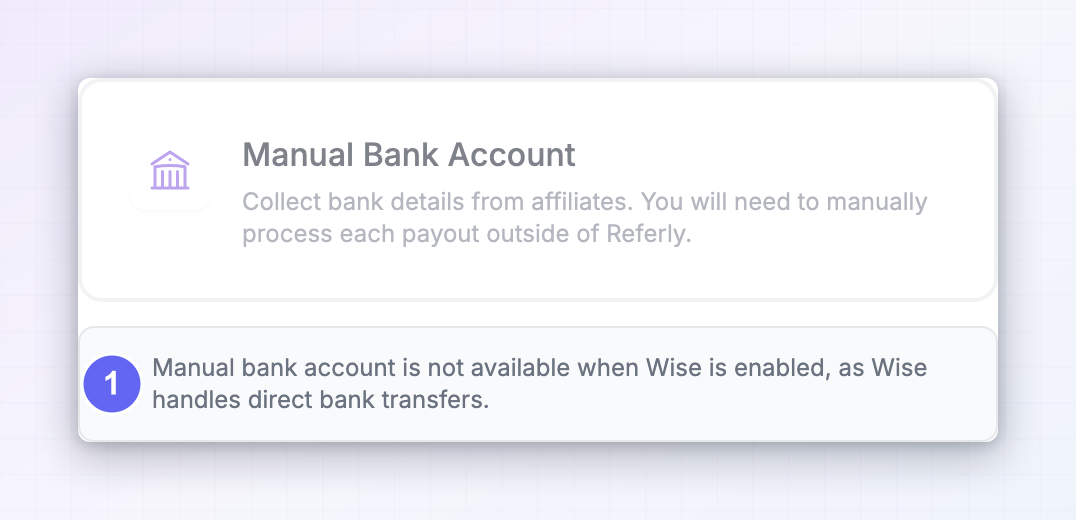
The Manual Bank Account card is greyed out whenever Wise is enabled, with a note explaining that manual bank account isn’t available when Wise is on, because Wise already handles direct bank transfers. If you want to collect bank details and pay by hand, turn Wise off first. If you’d rather have bank transfers sent for you, use Local bank account payouts instead — same destination, no manual work.When to use this instead of the other methods
Before you start
Wise is turned off on your program
Admin access to your program
Access to your business banking
A plan for handling bank details
Step 1: Turn on Manual Bank Account
Open your payout settings
Turn Wise off if it's on
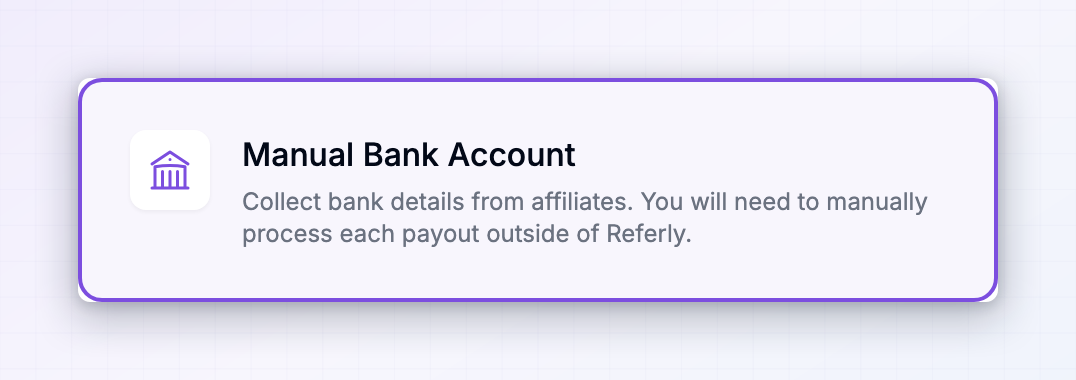
Toggle the Manual Bank Account card on
Save
Step 2: Decide what details you need
This is the part worth thinking about before your affiliates start filling forms in. Getting it wrong means chasing people for a missing SWIFT code the week you’re trying to pay them.The standard fields
Once an affiliate picks a country, Referly shows the fields that country’s banking system uses — an IBAN for most of Europe, a sort code and account number in the UK, an ACH routing number and account number in the US, a BSB number in Australia, institution and transit numbers in Canada, and bank code or branch code fields elsewhere.Add your own fields
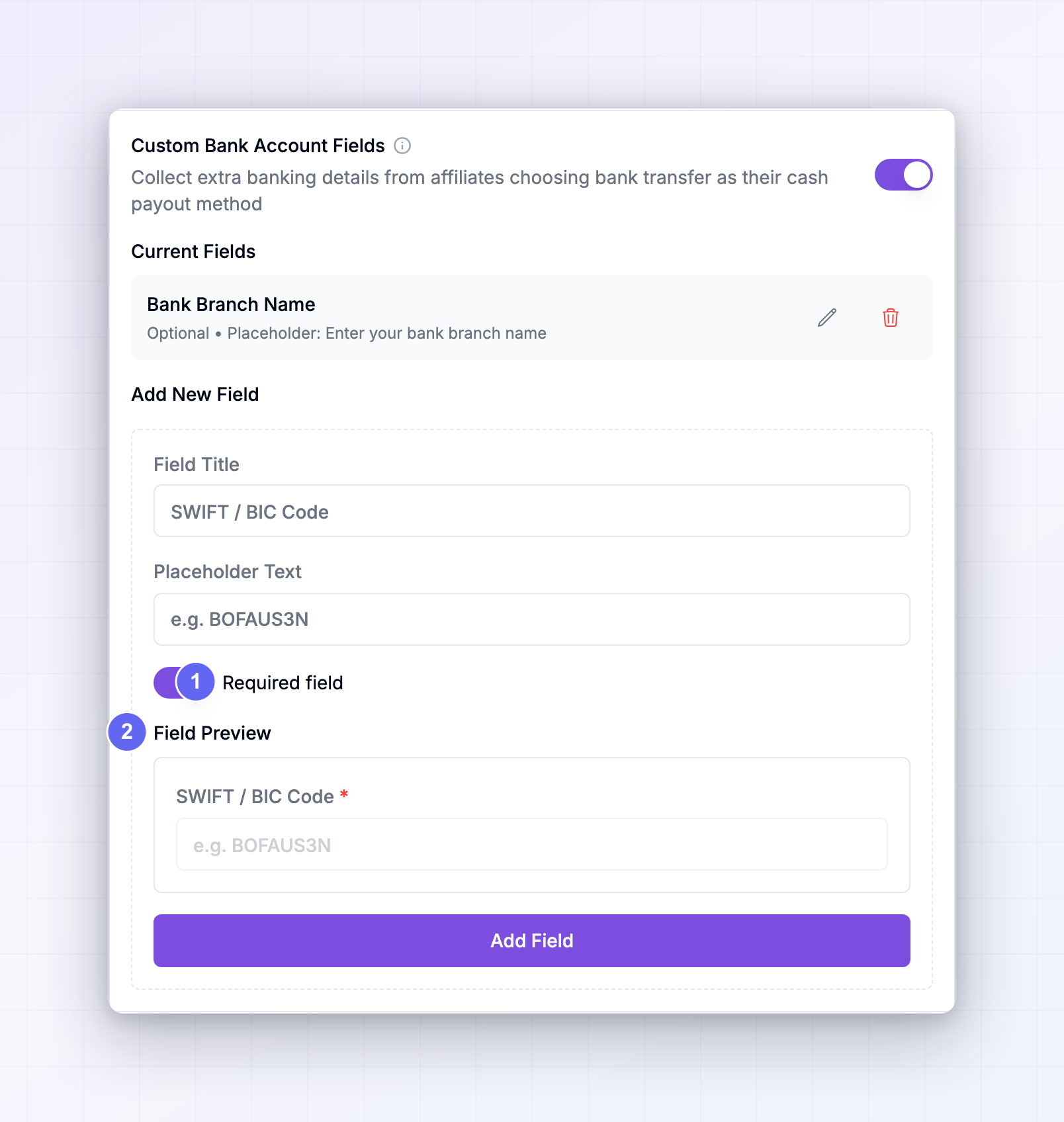
If you need something the standard set doesn’t cover, turn on Custom Bank Account Fields in your payout settings and add it. For each field you set:- Field Title — the label affiliates see, like
SWIFT / BICorBank Branch Address. - Placeholder Text — the hint inside the empty box.
- Required field — whether an affiliate can save without it.
What to collect for common destinations
Step 3: Get your affiliates to submit their details
Ask them to go to Settings → Payouts → Cash payouts in the affiliate portal and pick Manual Bank Account, described as “Submit bank details for manual transfer outside of Referly”. They choose their Country, then fill in the bank fields for it, plus any custom fields you added. Required fields have to be completed before they can save.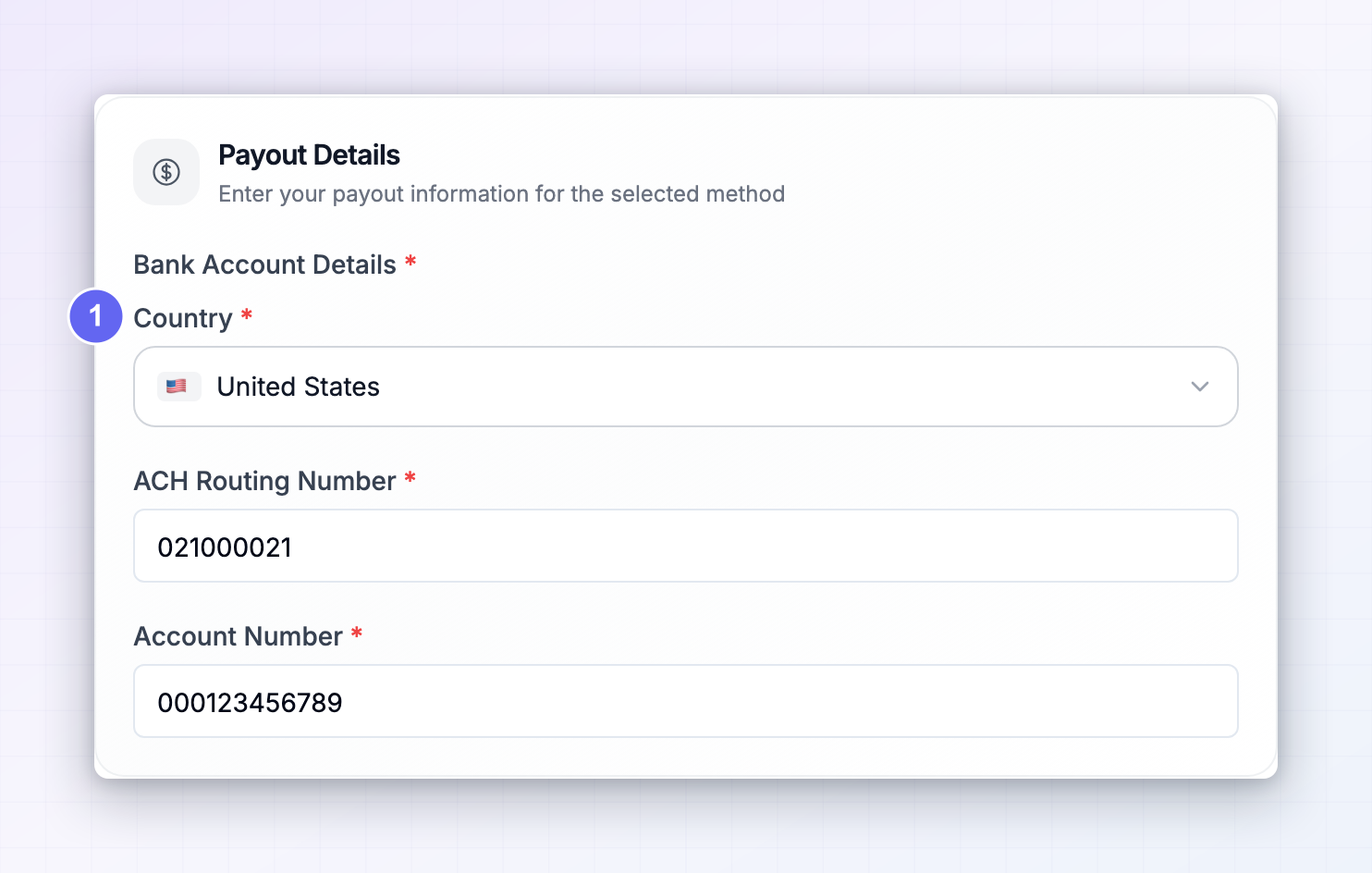
Pay a batch
Check who’s missing details
Open the batch. Referly flags affiliates who chose manual bank transfer but haven’t submitted an account number or IBAN. They can’t be paid — chase them or leave them for the next batch. See Payout batches.Look at one affiliate’s details
Open any payout to see what that affiliate submitted, under a Bank Account section. Depending on what they gave you, you’ll see rows like Holder, Bank, Account #, Routing #, SWIFT/BIC, IBAN, Sort Code, Branch Code, Institution #, Transit #, BSB, Type, Country, and Address. This is the quickest way to answer one affiliate’s question without downloading anything.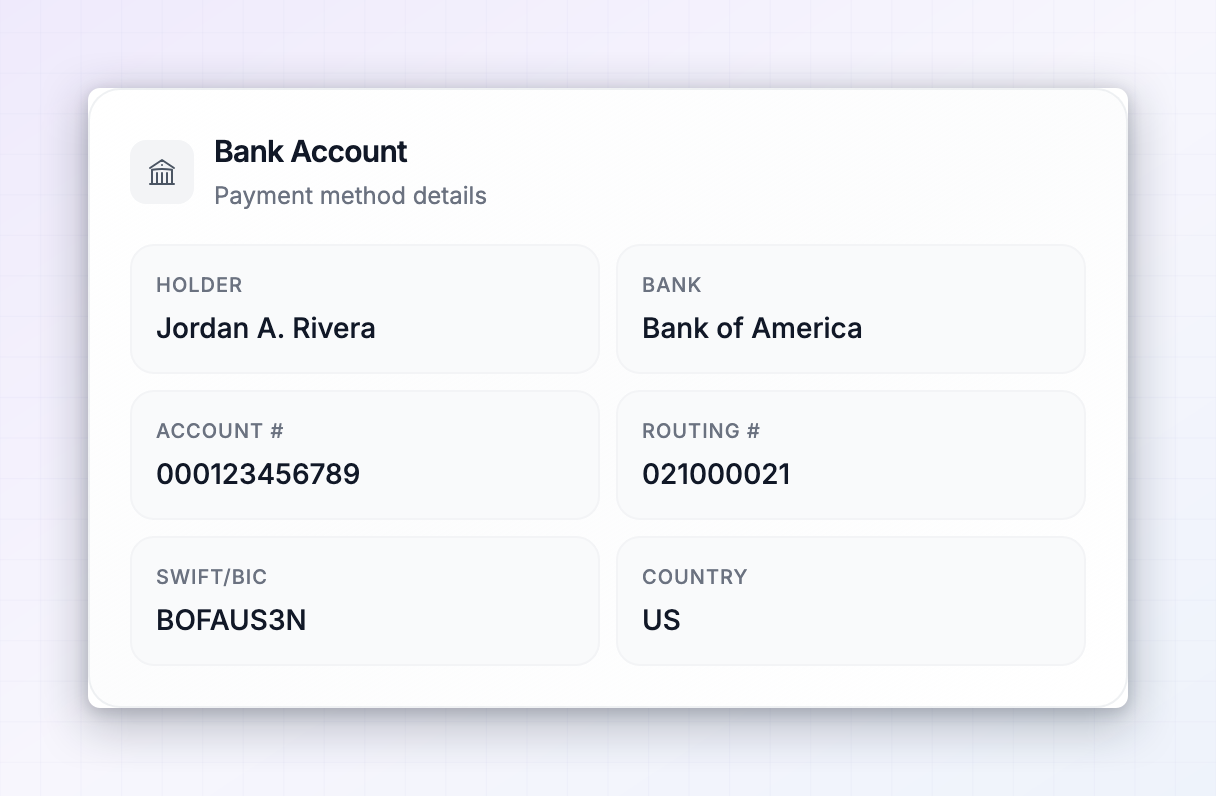
Export the whole batch
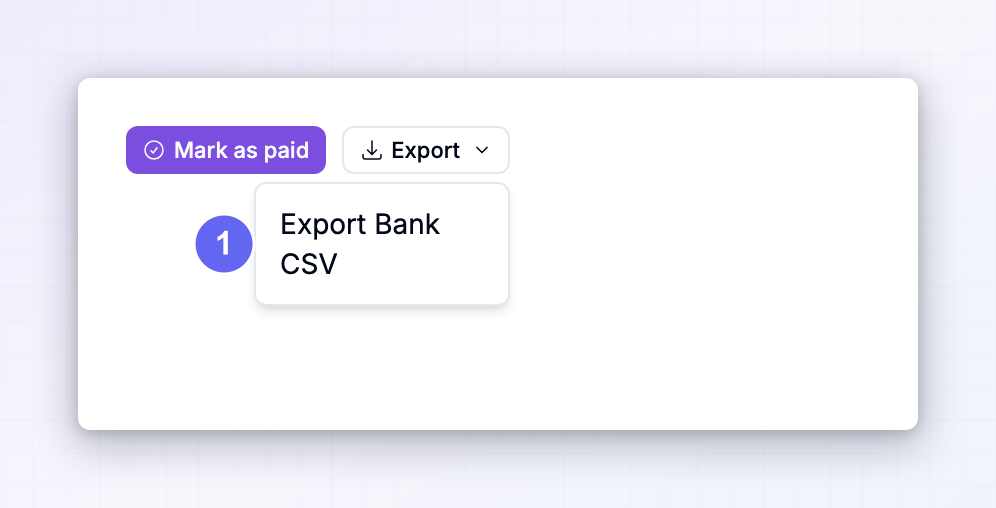
For an actual payment run, open the batch’s Actions menu and choose Export Bank CSV. Select specific payouts first to export only those, or export the lot. The file contains, for each affiliate: their name, email, payout email, the amount and currency, and every bank detail they submitted — account holder, bank name, IBAN, account number, routing number, SWIFT/BIC, sort code, branch code, country, and account type — plus a reference in the formPayout followed by the payout’s ID.
That reference is the single most useful column in the file. Use it.
Make the transfers in your bank
Upload the file or key in the payments
Put the reference on every payment
Check the currency
Submit and get approval
Mark the batch as paid
Referly has no way of knowing you’ve done any of this. Closing the batch is a manual step.Wait until the money has actually left
Open the Actions menu and choose Mark Batch as Paid
Confirm with Mark as paid
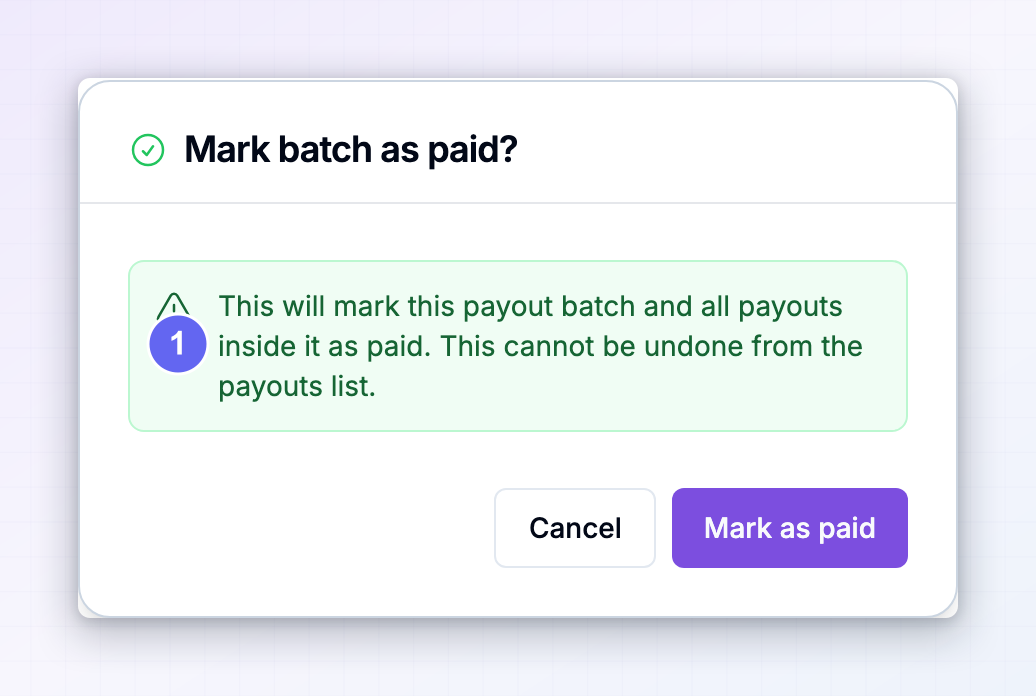 To close out only some of them, select those rows first and use Mark as Paid on the selection instead. You’ll be warned it will mark all the payouts you selected as paid.
Reconciliation and record-keeping
This method lives or dies on the reference field. A simple routine that works:Export the CSV and keep it as your payment run record
Pay everything with the Referly reference attached
Match your statement against the file
Mark only what actually cleared
Keep the record with your accounts
Partial payments and bounced transfers
Some transfers went, some didn’t. Don’t mark the whole batch. Select just the rows that cleared and mark those as paid. The rest stay open, so it’s obvious what’s outstanding. A transfer bounced back. Banks reject payments for a wrong account number, a name that doesn’t match the account, a missing SWIFT code on an international wire, or an account that’s been closed. The money comes back to you, usually minus a fee. When that happens:Leave that payout unpaid
Tell the affiliate what your bank said
Have them correct their details
Pay them again in the next run
What it costs
There’s no Referly fee and no integration fee on this method. What you do pay:- Your bank’s transfer fee. Often free domestically, and a flat charge per international wire.
- Currency conversion. If you pay in a currency other than your account’s, your bank’s exchange rate applies — usually worse than Wise’s.
- Intermediary bank charges. International wires can pass through correspondent banks that each take a cut, which is why an affiliate sometimes receives less than you sent.
- Rejection fees. Some banks charge for a returned payment.
Looking after affiliates’ bank details
You’re now holding banking information for everyone in your program. Some practical rules:- Limit who can see it. Anyone with access to your payouts area can view full bank details. Review who that is.
- Don’t circulate the CSV. Don’t email it, don’t put it in a shared chat, don’t leave it in cloud storage that’s open to the whole company.
- Delete exports when you’re done. Re-export next time rather than keeping old copies around.
- Only collect what you’ll use. Every custom field is more data to look after. Skip anything you don’t need to make the payment.
- Handle changes carefully. If an affiliate emails asking you to change their bank details, verify it’s really them before paying to a new account. This is a common fraud.