

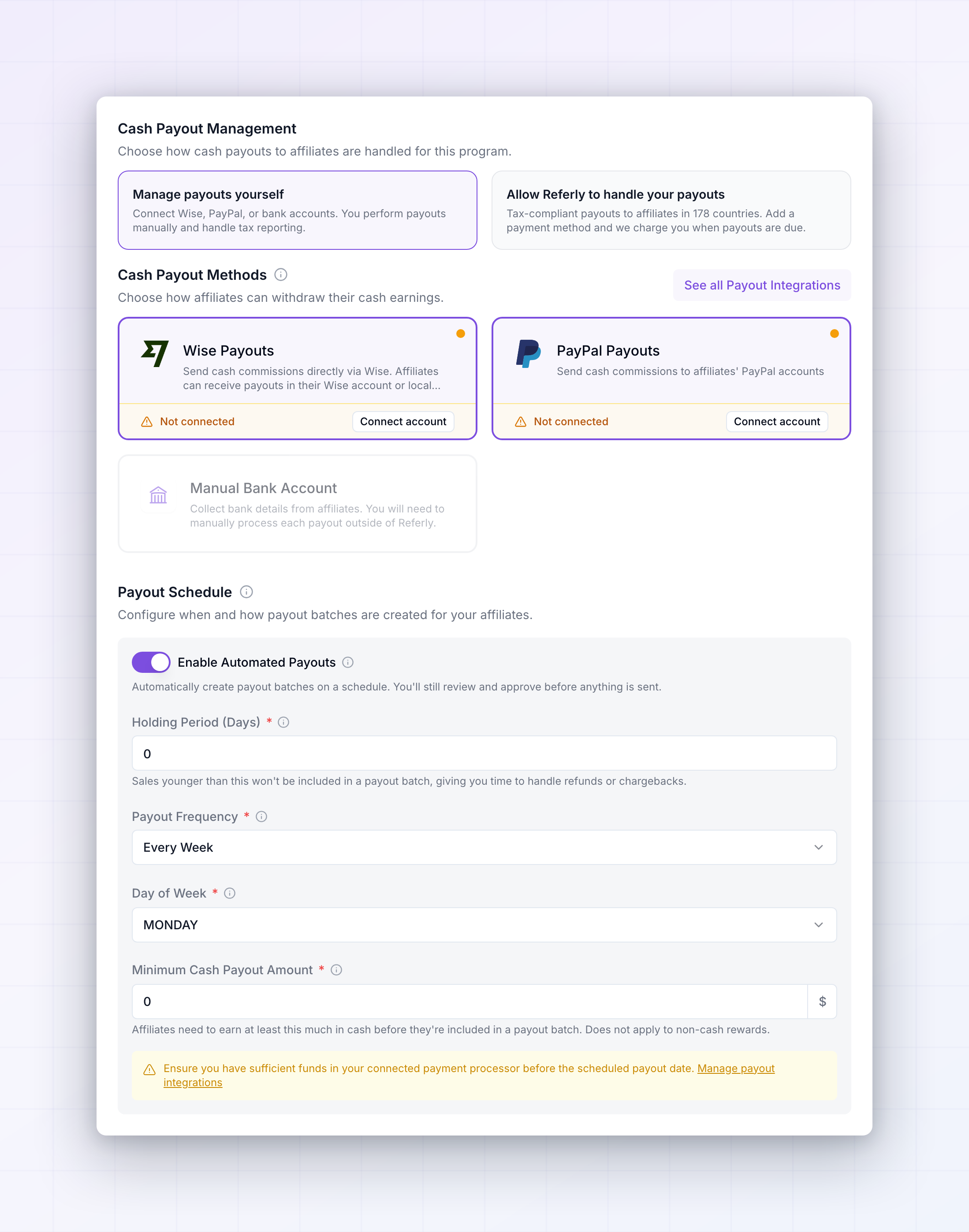
 Most of this page waits for the Save Changes button at the bottom right. A few things save the instant you change them, and they’re called out where they come up.
Decide who runs your payouts
Cash Payout Management is the first and most consequential choice on the page. Everything below it changes depending on which card you pick.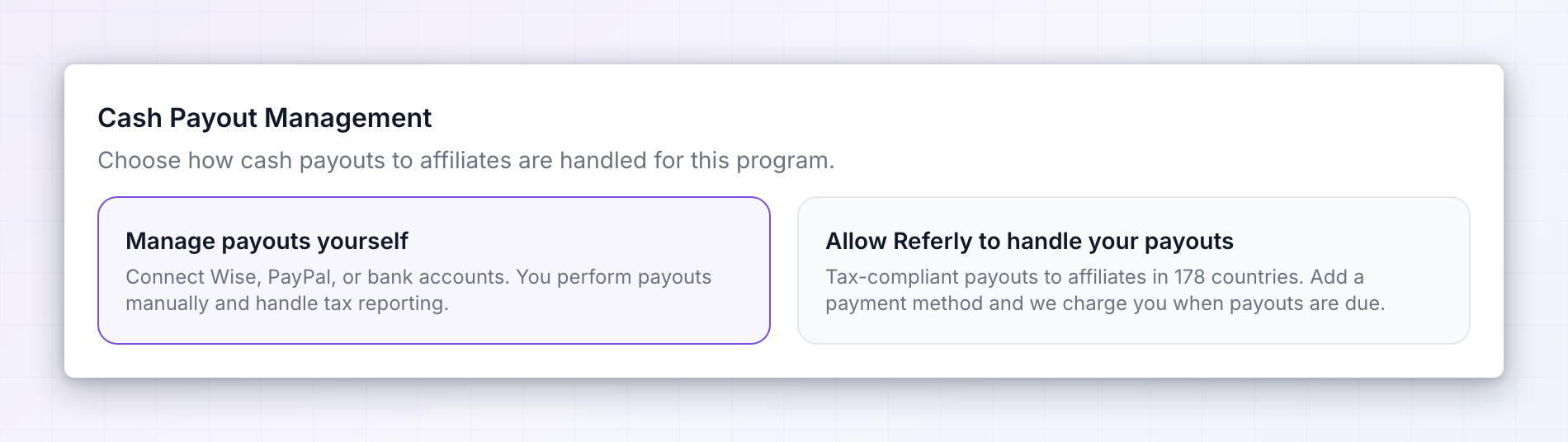
Manage payouts yourself
“Connect Wise, PayPal, or bank accounts. You perform payouts manually and handle tax reporting.” You stay in control and you pay the processor’s fees rather than Referly’s. Referly works out who is owed what and hands you the batch; sending the money and handling tax reporting is yours. This is the default and it suits programs with a manageable number of affiliates, or teams who already run payouts through an existing account.Allow Referly to handle your payouts
“Tax-compliant payouts to affiliates in 178 countries. Add a payment method and we charge you when payouts are due.” You add a card or bank account, and Referly pays your affiliates and charges you. It costs a percentage per payout, but it takes both the payment runs and the tax compliance off your desk — which is usually the better trade once you’re paying affiliates in many countries.If your program is managed by an agency that hasn’t enabled Referly Payouts, this option won’t appear and your program runs self-managed.
Set up affiliate payout methods
With Manage payouts yourself selected, Cash Payout Methods decides how affiliates can withdraw. Select a card to switch a method on or off; you can offer more than one, and at least one must stay on — removing your last leaves you with At least one payout method is required.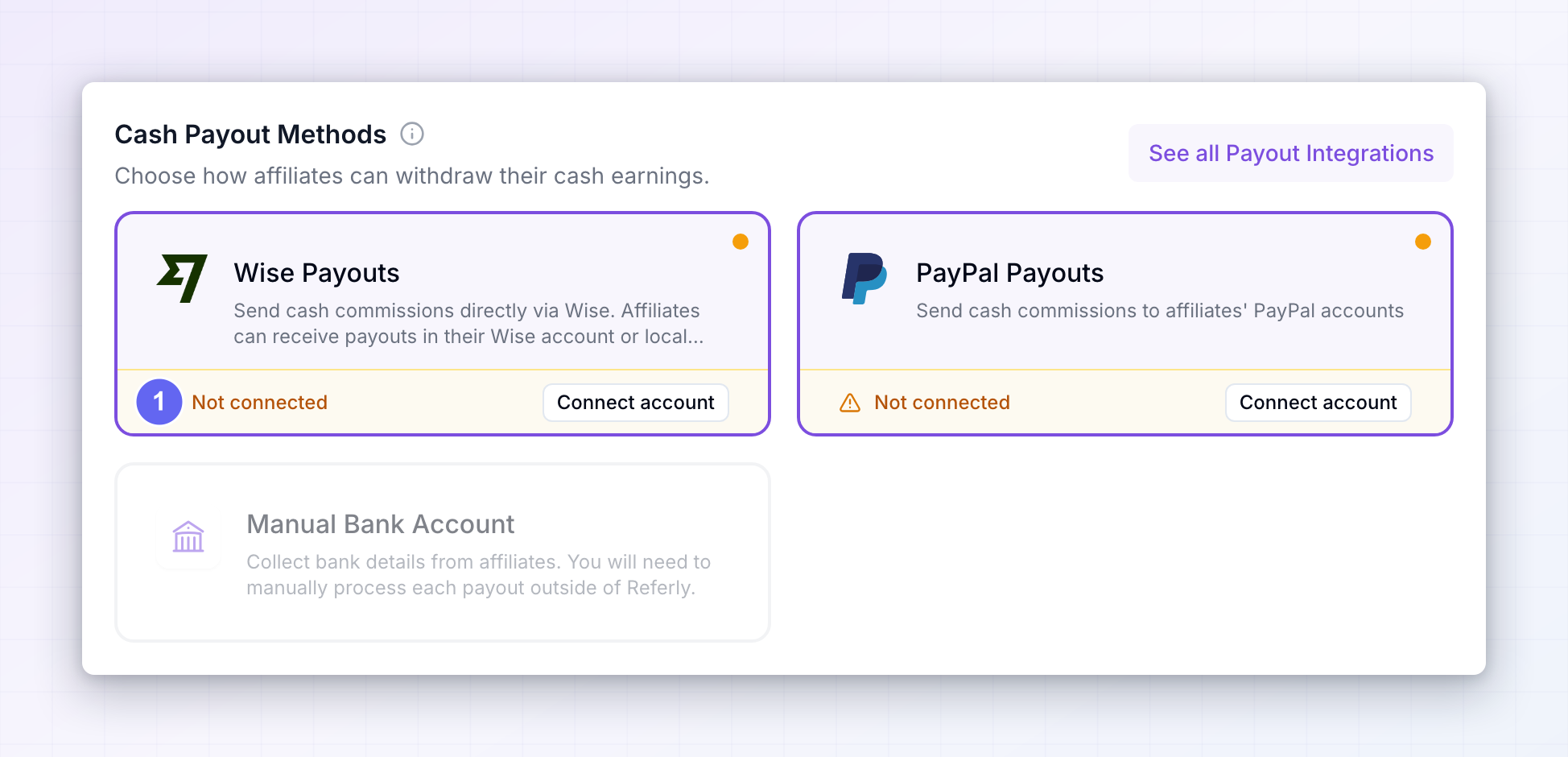
- Wise Payouts — “Send cash commissions directly via Wise. Affiliates can receive payouts in their Wise account or local bank account.” The strongest option for paying internationally, with good rates on currency conversion.
- PayPal Payouts — “Send cash commissions to affiliates’ PayPal accounts”. Familiar to almost every affiliate and quick to set up.
- Manual Bank Account — collects bank details from affiliates, which you then pay outside Referly yourself.
Collect extra bank details
Turning on Manual Bank Account reveals Custom Bank Account Fields, for the details banks in some countries need that a standard form doesn’t ask for — a branch name, a SWIFT code, an intermediary bank. Switch it on and add each field with a Field Title (what the affiliate sees), Placeholder Text (an example to guide them), and a Required field toggle. A live Field Preview shows how it will look before you add it, and Add Field stays disabled until you’ve filled in both the title and the placeholder. Existing fields can be edited or deleted from the Current Fields list. These fields save on their own, without the Save Changes button. Only ask for what your bank genuinely needs — every extra required field is another chance for an affiliate to abandon their payout details half-filled.Add a payment method for Referly Payouts
If you chose Allow Referly to handle your payouts, Payment methods is where you add the card or account Referly charges when payouts are due.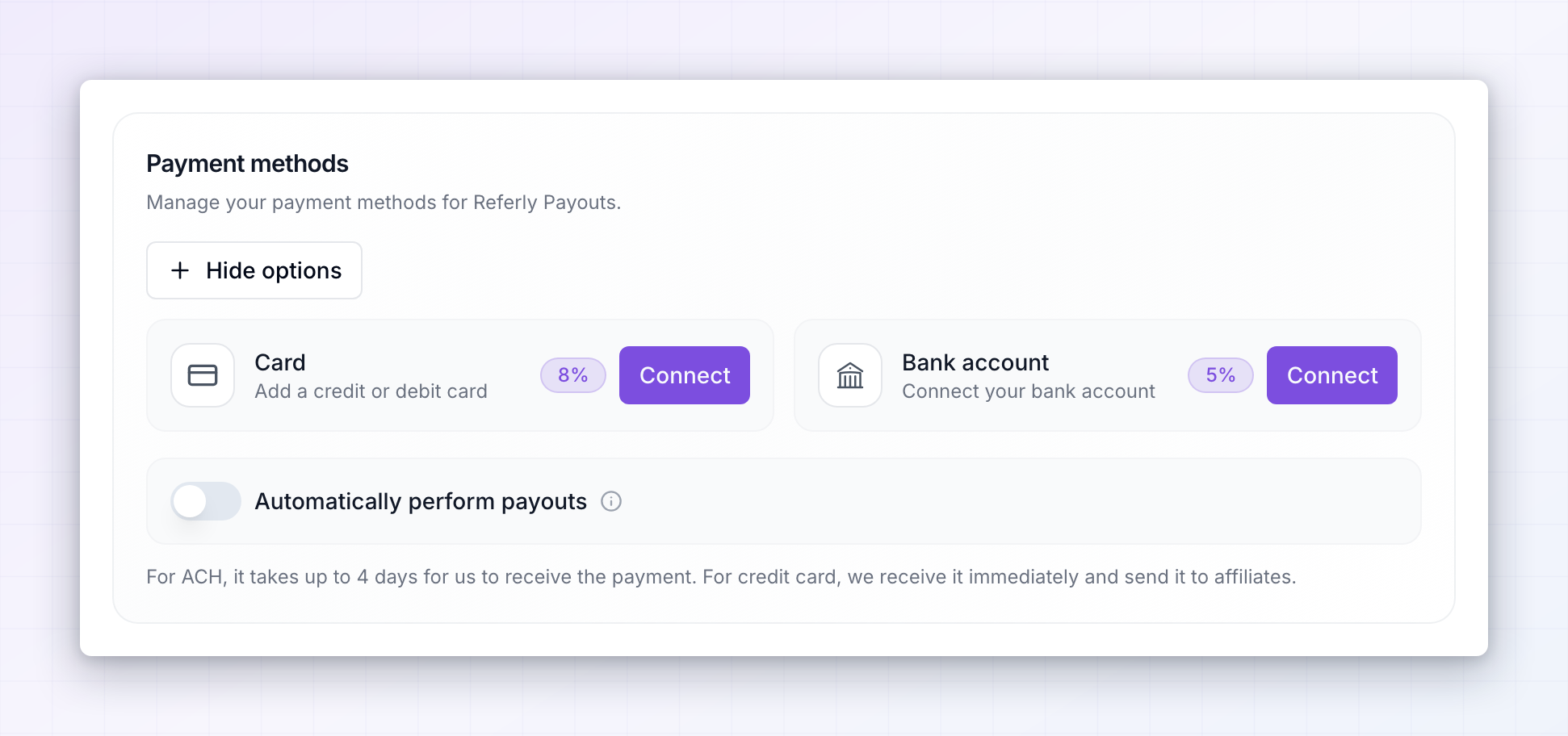 Select Add payment method and pick:
- Card — a credit or debit card. Higher fee, but Referly receives the money immediately and pays affiliates straight away.
- Bank account — connected by region (US, EU, or UK). Lower fee, but funds take up to four days to reach Referly before affiliates are paid.
Set your payout schedule
Payout Schedule applies whichever management type you chose, and covers both cash and non-cash rewards.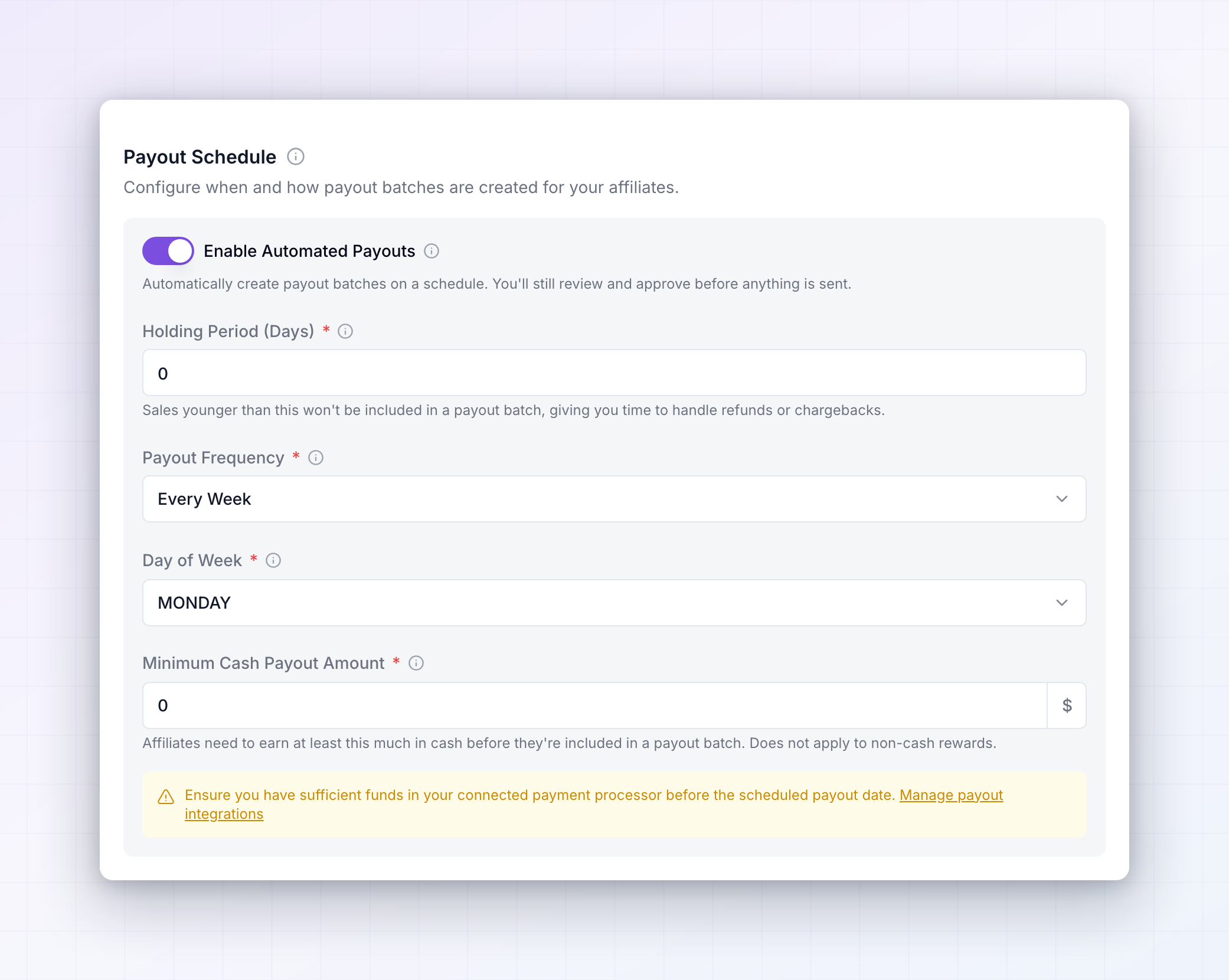 Enable Automated Payouts turns on scheduled batches: “Automatically create payout batches on a schedule. You’ll still review and approve before anything is sent.” Creating a batch isn’t the same as sending money — unless you’ve also turned on automatic payouts under Referly Payouts, a batch waits for your approval.
Leaving this off means creating every batch by hand. Turning it on is the setting that makes payouts predictable for affiliates, which is worth more to them than being paid slightly sooner.
Enable Automated Payouts turns on scheduled batches: “Automatically create payout batches on a schedule. You’ll still review and approve before anything is sent.” Creating a batch isn’t the same as sending money — unless you’ve also turned on automatic payouts under Referly Payouts, a batch waits for your approval.
Leaving this off means creating every batch by hand. Turning it on is the setting that makes payouts predictable for affiliates, which is worth more to them than being paid slightly sooner.
Holding Period (Days)
How long a commission waits before it can be paid, set to 30 days by default. A commission earned today isn’t included in a batch until the holding period has passed. This is your protection against paying out on sales that don’t stick. Refunds, chargebacks, and cancellations mostly happen soon after purchase, and a holding period lets them surface before the money leaves. Match it to your refund window — if you offer 30-day refunds, a 30-day hold means you rarely pay commission on a sale that later reverses. Set it far below your refund window and you’ll be clawing money back; set it far above and affiliates will notice the wait.Payout Frequency
How often a batch is created:- Every Month — then choose a Day of Month.
- Every Week — then choose a Day of Week. This is the default.
- Every Day — then choose Active Payout Days, switching off any days you want skipped, such as weekends.
Minimum Cash Payout Amount
How much an affiliate must accumulate before they’re included in a batch, set to 50 by default in your program’s currency. This exists because sending very small amounts costs more in fees than it’s worth. An affiliate below the threshold isn’t losing anything — their earnings roll forward until they cross it. Set it too high, though, and your long tail of small affiliates never gets paid at all, which is a quiet way to lose them. It applies only to cash; non-cash rewards like coupons and credits are delivered regardless. A yellow reminder near these settings notes to keep sufficient funds in your connected payment processor before the scheduled payout date — worth heeding, since a batch that fails for lack of funds costs you the goodwill the schedule was meant to build.Save
Select Save Changes at the bottom right and you’ll see Payout settings saved successfully. If the button isn’t there, nothing is pending — remember that custom bank fields and Referly Payouts payment methods have already saved themselves.Related
Tax management
Set your tax details and invoicing for affiliate payouts.
General program settings
Set your program currency and whether rewards are auto-approved.
Fraud prevention
Hold suspicious rewards before they reach a payout batch.
Commission plans
Decide what affiliates earn in the first place.