

yourstore.com/jane, which redirects to the product page you chose with their tracking preserved. To a customer it looks like an ordinary link to your shop, because it is one.
Referly builds these as URL redirects inside your Shopify store, and creates them for every affiliate automatically.
To set them up, go to Settings, open Program details, select Automated short links, and choose Shopify Short Links under Short Link Type.
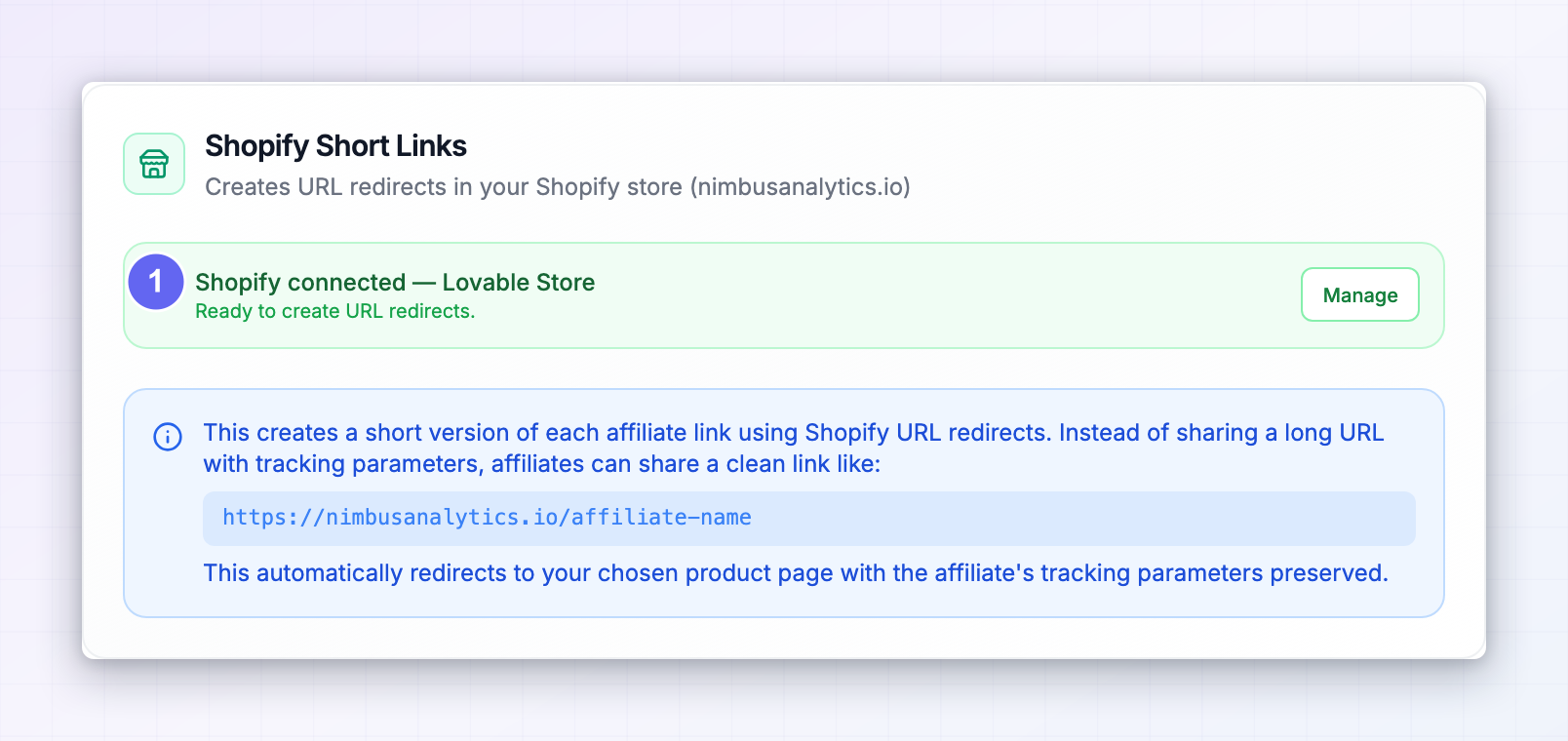
Connect your Shopify store first
The settings stay greyed out until Referly can talk to your store. If you see Shopify integration not connected with the line “Connect your Shopify store to use Shopify Short Links.”, select Connect Shopify and complete the connection. Once connected, the strip turns green and reads Shopify connected with your store name and “Ready to create URL redirects.” — Referly can now create redirects on your behalf. Trying to save without a connection gives you Please connect your Shopify store first. Short links are a Business-plan feature, so the option prompts you to upgrade on lower plans.Choose the landing pages to shorten
Select Landing Pages for Short Links lists the landing pages configured for your program. Select one or more — these are the destinations your short links will point at.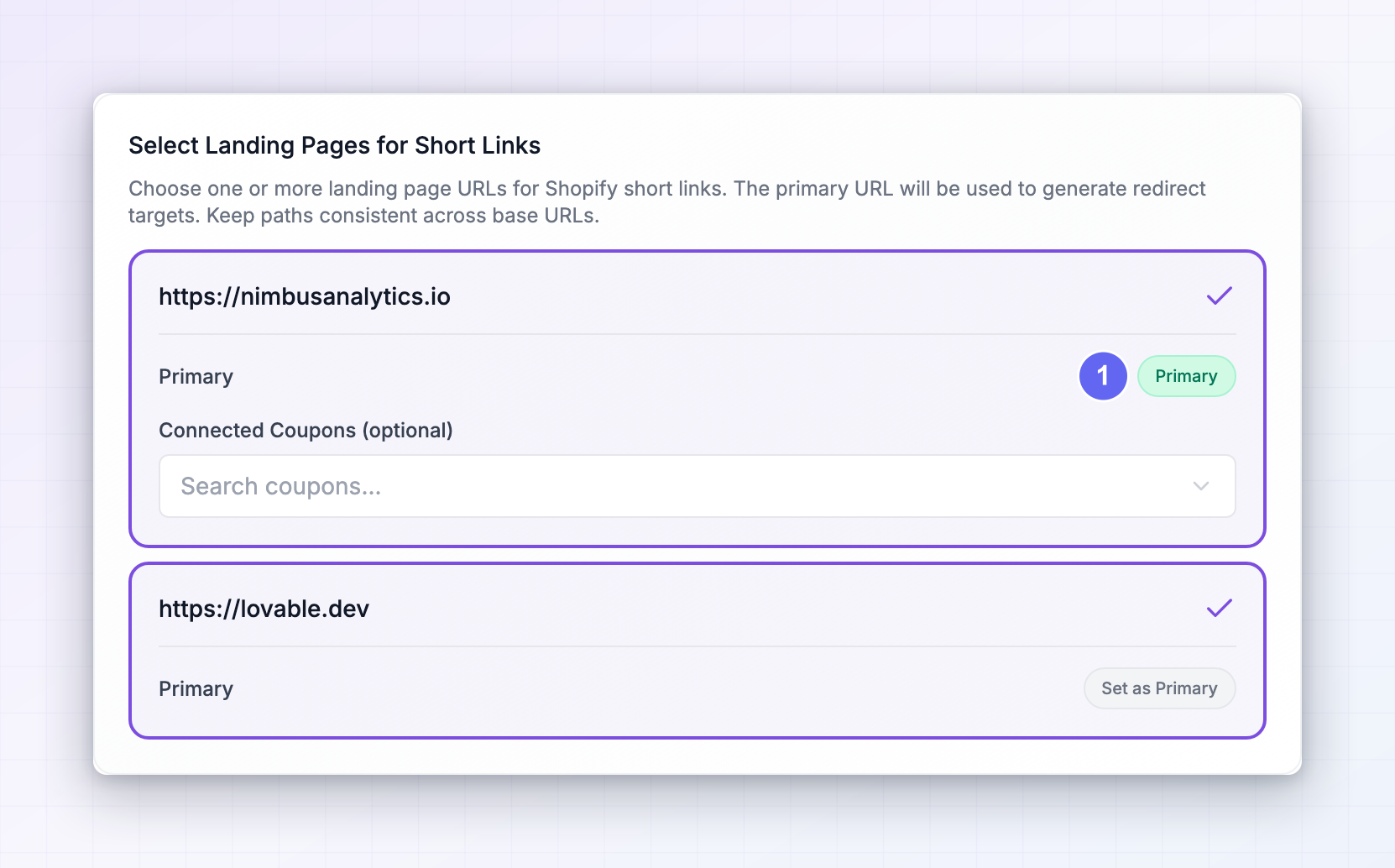 If the list is empty, you’ll see a note that no landing page URLs are configured and to add at least one in your program details. Set those up in General program settings first, then come back.
Pick a primary page
Every selected page shows a Set as Primary button; the chosen one is badged Primary. The primary page’s path is what Referly uses to build the redirects in Shopify. That matters if you select several pages. Because the redirect is generated from the primary page’s path, Referly recommends keeping the path portion the same across your landing pages so the short links behave consistently. If your pages point at genuinely different paths, keep it simple and select just one.Connect coupons to a page (optional)
Under each selected page is Connected Coupons (optional), where you can search your Shopify coupons and attach one or more to that landing page. This links a discount to a destination — the coupon attached here is what gets applied when the auto-apply setting below is on. A coupon can only be connected to one landing page at a time. If it’s already attached elsewhere, it appears in the list marked with the page that claimed it and can’t be selected twice.Auto-apply a discount code
Auto-Apply Discount Code sends the visitor through Shopify’s discount route so a code is applied for them, with no typing at checkout. It’s the single biggest reason to choose Shopify short links over the alternatives — a discount that applies itself converts better than one the customer has to remember.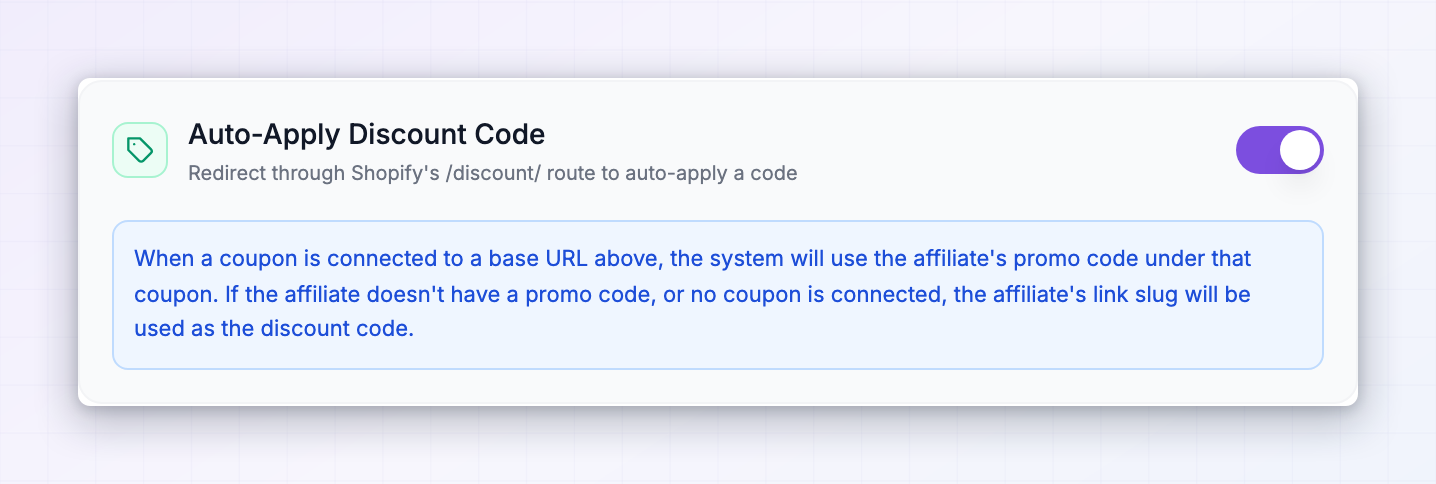 When it’s on, Referly works out which code to apply in this order:
- If a coupon is connected to the landing page, it uses the affiliate’s own promo code under that coupon.
- If the affiliate doesn’t have a promo code, or no coupon is connected to that page, it uses the affiliate’s link slug as the discount code.
Show only the matching short link
Show Only Matched Short URL narrows what each affiliate sees. With it on, an affiliate link shows only the short link for the landing page whose coupon matches that link’s promo code; if nothing matches, all the short links are shown as usual. Turn this on when you run several landing pages with different coupons and don’t want affiliates guessing which short link goes with which code. Leave it off if you’d rather affiliates always see every short link available to them.Check the preview
Once a primary page is chosen, a Preview panel shows the round trip: what the Affiliate shares, and where the Customer lands on.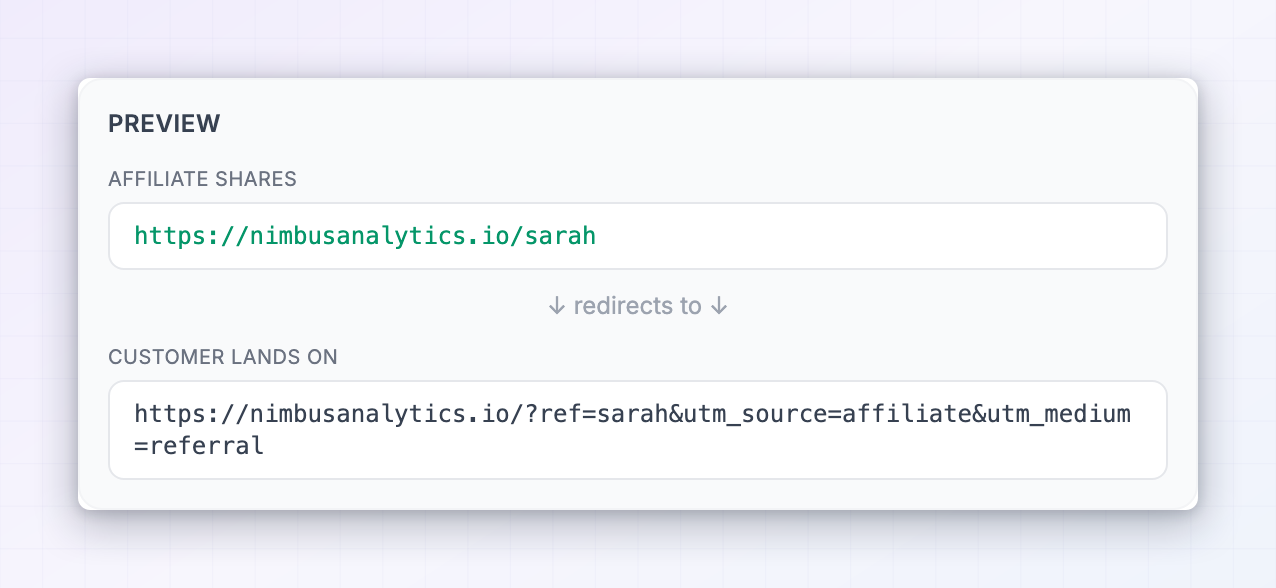 Read it before saving. It’s the quickest way to confirm the redirect lands on the page you intended and carries the tracking parameters — and to catch a landing page path that isn’t what you assumed.
Save
Select Save Changes. You’ll see a confirmation explaining that the redirects are syncing in the background, which can take up to ten minutes.Saving doesn’t create the redirects instantly. Referly writes one redirect per affiliate into your Shopify store in the background, so on a program with many affiliates the links won’t all resolve the moment you save. Give it up to ten minutes before testing.
Re-sync your redirects
Once Shopify short links are live, a Re-sync Redirects panel appears with the description “Force-update all Shopify redirects for this program”.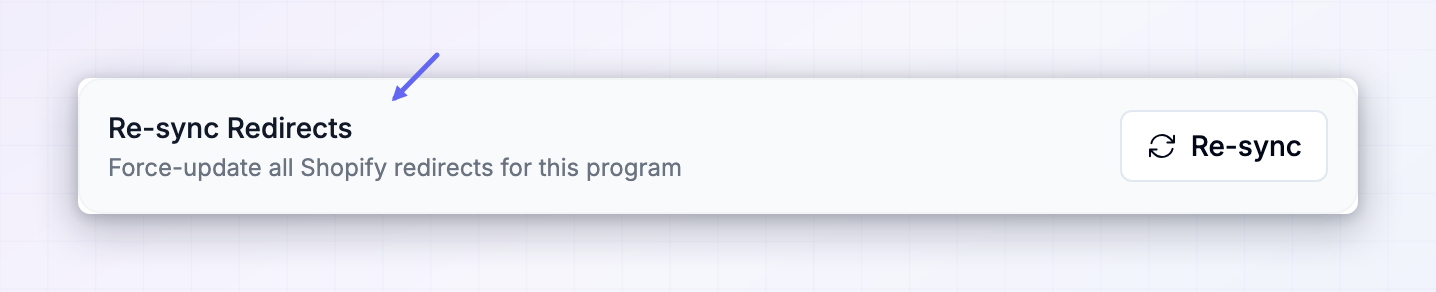 Select Re-sync to rebuild every redirect. A progress bar tracks the run and reports how many were created and updated, plus any errors, finishing at Sync complete.
Reach for this when the redirects and your settings have drifted apart — for example if someone edited or deleted redirects inside Shopify directly, if a batch failed earlier, or if links aren’t resolving after a change to your landing pages. It’s safe to run whenever you’re unsure; it updates what exists rather than duplicating it.
Select Re-sync to rebuild every redirect. A progress bar tracks the run and reports how many were created and updated, plus any errors, finishing at Sync complete.
Reach for this when the redirects and your settings have drifted apart — for example if someone edited or deleted redirects inside Shopify directly, if a batch failed earlier, or if links aren’t resolving after a change to your landing pages. It’s safe to run whenever you’re unsure; it updates what exists rather than duplicating it.
Turning it off
Switching Short Link Type back to Disabled removes the redirects from your Shopify store in the background, again taking up to ten minutes. Affiliates keep their normal full-length links, but any short link already published stops working — so warn your affiliates before turning it off on a live program.Related
Automated short links
Compare the short link types and choose the right one.
Referly short links
The alternative if you’re not on Shopify or want your own domain.
General program settings
Set the landing pages your short links redirect to.
Tracking methods
Turn on coupon tracking so discount codes credit the right affiliate.