PayPal is the simplest cash payout method to set up in Referly, and for a lot of programs it’s the one affiliates ask for by name. Connect it once and Referly sends commissions straight to your affiliates’ PayPal accounts — no approval step, no manual transfers. The setup has one catch that trips people up: PayPal doesn’t let you send bulk payouts by default. You have to apply for it. This guide covers that, along with everything else — the PayPal-side steps, the Referly-side steps, what your affiliates do, and what happens when things go wrong.

What the PayPal integration can and can’t do

What it does:
  • Pays every affiliate in a batch at once, straight from your PayPal balance.
  • Sends immediately. Unlike Wise, there’s no second approval step — when you press send, the money goes. This is the fastest method Referly offers.
  • Pays to an email address, so affiliates don’t have to hand over bank details.
  • Keeps payout statuses in step with PayPal, so payouts flip to Paid or Failed on their own.
  • Can run entirely on its own, if you turn on automatic payouts.
  • Emails you when a payout fails, with the reason PayPal gave.
What it can’t do:
  • It can’t work on a Personal PayPal account. You need a PayPal Business account, and PayPal has to have verified it.
  • It can’t work until PayPal approves you for Payouts. This isn’t a switch you flip — PayPal reviews your business and your reason for wanting it. See Step 3.
  • It can’t be undone once sent. Because there’s no approval step, a mistake goes out immediately. Check the batch before you press send.
  • It can’t pay someone whose email doesn’t match a PayPal account. PayPal will email them an invitation instead, and if they don’t claim it within 30 days the money comes back to you.
  • It can’t reach everywhere. PayPal supports Payouts in over 156 countries and more than 23 currencies, but not all of them, and Argentina, Brazil, and Malaysia have extra currency restrictions.
  • It can’t send unlimited amounts in one payment. PayPal caps individual payments at 20,000 USD (or the local equivalent) unless you arrange otherwise with them.

How PayPal compares to Wise

Plenty of programs run both and let affiliates choose. See Payout methods.

Before you start

1

A PayPal Business account

Personal accounts can’t send payouts. If you have one, you can upgrade it.
2

A verified account with a confirmed email

PayPal won’t approve Payouts on an unverified account.
3

Payouts approved on your account

Covered in Step 3. Allow time — this isn’t instant.
4

Money available to send

Either a funded PayPal balance or a linked bank account PayPal can draw from.
5

Admin access to your Referly program

You need to be able to open Program Settings.

Step 1: Get a PayPal Business account

This happens on PayPal’s site.
1

Sign up or upgrade

Go to paypal.com and create a Business account. If you already have a Personal account, sign in and look for the option to upgrade to Business — you keep the same login and balance.
2

Enter your business details

PayPal asks for your legal business name, address, type of business, and what you sell. Use details that match your registration documents.
3

Complete verification

PayPal may ask for documents proving your business and identity. Do this now — Payouts approval depends on it.
PayPal needs to know money can actually leave the account.
1

Confirm your email address

PayPal sends a confirmation link when you sign up. If you skipped it, request a new one from your account settings.
2

Link and confirm a bank account

PayPal usually confirms it with small test deposits, which take a few days to arrive. Confirming a bank account also removes sending limits that would otherwise block larger batches.
3

Decide how payouts get funded

You can keep a balance topped up, or let PayPal pull from your linked bank. A balance is more predictable; a bank draw means you can’t be caught short mid-batch.

Step 3: Get Payouts enabled on your PayPal account

This is the step people miss, and nothing works without it. PayPal’s Payouts feature — the one that sends money to many people at once, previously called Mass Pay — has to be switched on for your account, and PayPal decides whether to allow it.
1

Go to the PayPal Developer site

Open developer.paypal.com and select Log in to Dashboard in the top right. Sign in with the same credentials as your PayPal Business account — it’s the same login, not a separate one.
2

Open My Account

Select My Account in the left-hand menu.
3

Find Payouts and request it

Scroll down to Payouts and select Enable. PayPal asks what you’ll use it for.
4

Explain what you're doing

Say you’re paying affiliate or referral commissions to partners, roughly how many people and how much per month, and that payments go to partners rather than customers. A clear, honest answer gets approved faster than a vague one.
5

Wait for approval

PayPal reviews it. This can take a few business days, sometimes longer, and they may come back with questions. You can do everything else in this guide while you wait — but payouts will fail until it’s approved.
PayPal requires a Business account, a completed verification, and an acceptable business justification before it approves Payouts. If you’re declined, PayPal support can tell you why — usually it’s incomplete verification or an unclear description of what you’re paying for.

Step 4: Create an app and copy your Client ID and Secret

These two values are what you paste into Referly.
1

Open the Developer Dashboard

Still on developer.paypal.com, signed in with your business account.
2

Switch to Live

There’s a Sandbox and Live toggle. Make sure you’re on Live — Sandbox credentials only move fake money, and pasting them into Referly means real payouts silently go nowhere.
3

Open Apps and Credentials

Select Apps & Credentials. You may already have a Default Application listed.
4

Create an app

Select Create App, name it something you’ll recognise (for example Referly affiliate payouts), and create it.
5

Check Payouts is ticked in the app's features

Open the app and look at its list of features. Payouts should be enabled. If the option isn’t there at all, your account hasn’t been approved yet — go back to Step 3.
6

Copy the Client ID and Secret

The Client ID is shown on the page. For the Secret, select Show. Copy both. Treat the Secret like a password — it can move money out of your account.

Step 5: Test in Sandbox first

Worth doing if you want to see the whole flow before real money is involved, though you can skip straight to connecting if you’d rather.
1

Switch the Developer Dashboard to Sandbox

Use the same toggle from Step 4.
2

Look at your test accounts

Under Testing Tools → Sandbox Accounts, PayPal gives you a fake business account and a fake personal account, each with a balance. These are the sender and the recipient.
3

Create a Sandbox app and copy its credentials

Same as Step 4, but in Sandbox.
4

Remember to switch back

Sandbox credentials never move real money. When you’re ready to go live, disconnect and reconnect with Live credentials.

Step 6: Connect PayPal to Referly

Now you’re back in Referly.
1

Open your payout settings

Go to Program Settings → Program details → Payout settings. More detail in Payout settings.
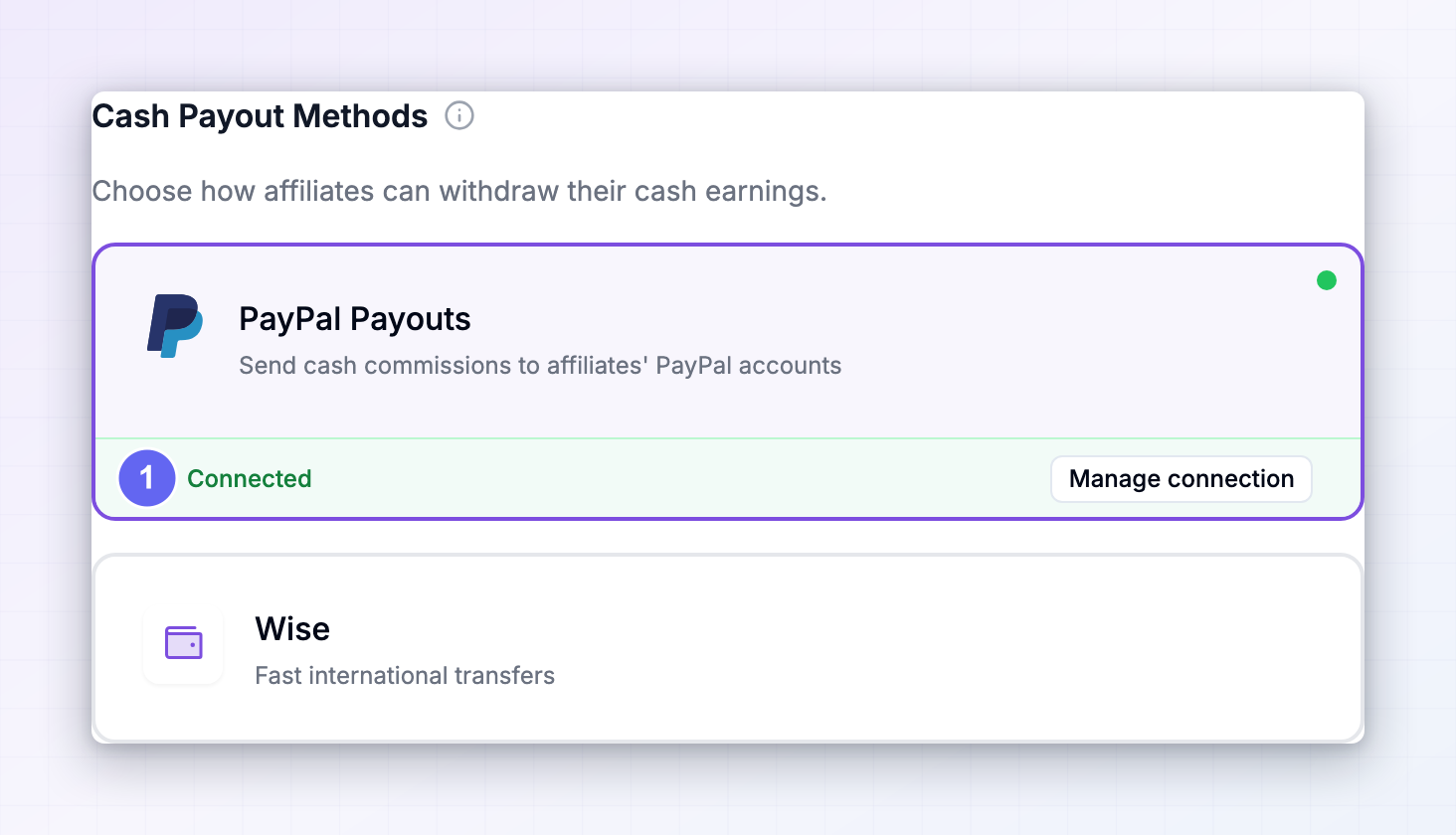
2

Select Connect account on the PayPal card

It’s in the Cash Payout Methods section.
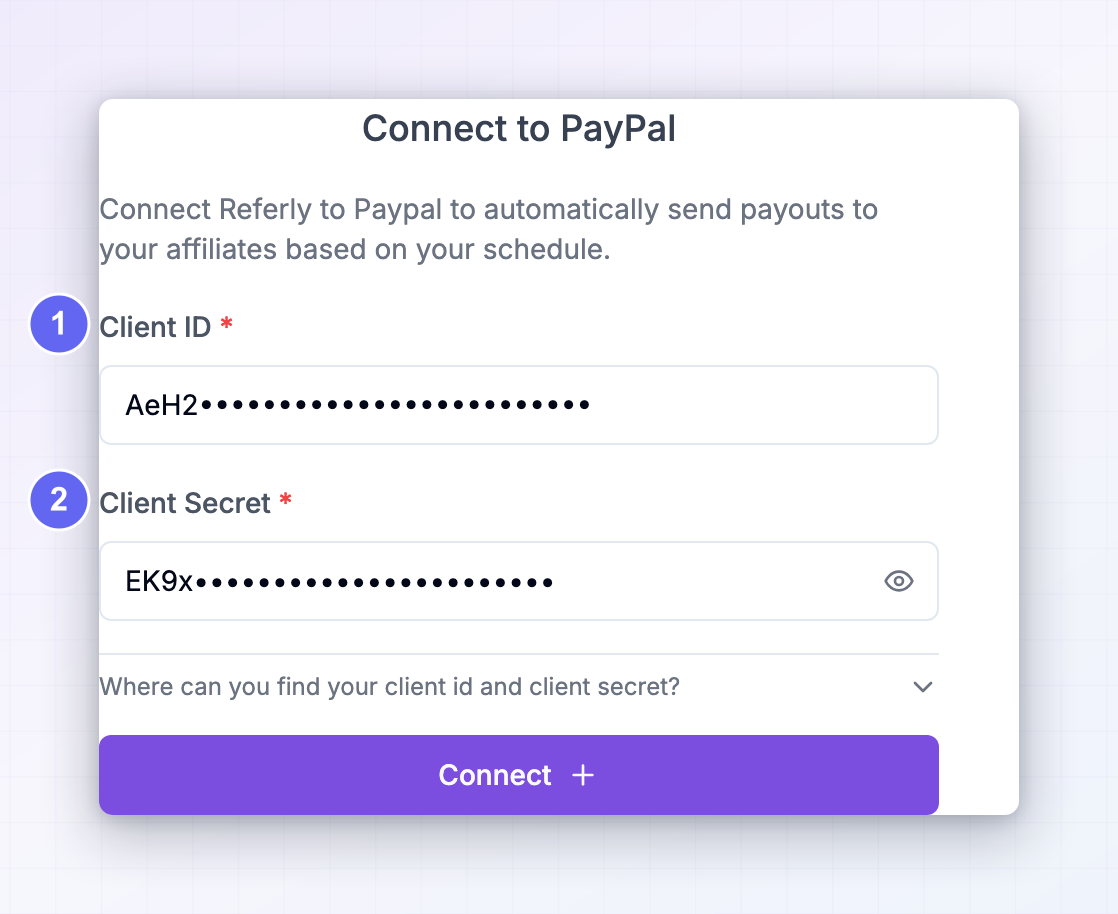
3

Paste your Client ID

Into the Client ID field.
4

Paste your Client Secret

Into the Client Secret field. Use the eye icon to check for a stray space — that’s the usual reason this fails.
5

Select Connect

Referly checks the credentials against PayPal. If they’re wrong you’ll see “Invalid PayPal credentials”.
When it works you’ll see a “Paypal account connected successfully” message and a green Connected badge at the top of the panel. The panel also has a Where can you find your client id and client secret? section that repeats the short version of Steps 3 and 4 if you need it later.

Step 7: Turn PayPal on as a payout method

Connecting the account and offering it to affiliates are two separate things.
1

Toggle the PayPal card on

On the Payout settings page, switch the PayPal card on.
2

Save

Affiliates will see PayPal as an option next time they open their payout settings.

Turn on automatic PayPal payouts

Because PayPal sends immediately, Referly can run the whole thing without you. In the PayPal panel, switch on Automatically send PayPal payouts. With this on, new PayPal batches are submitted to PayPal as soon as they become payable — you never press Pay. Combined with a payout schedule, affiliates get paid on time without anyone remembering to do it.
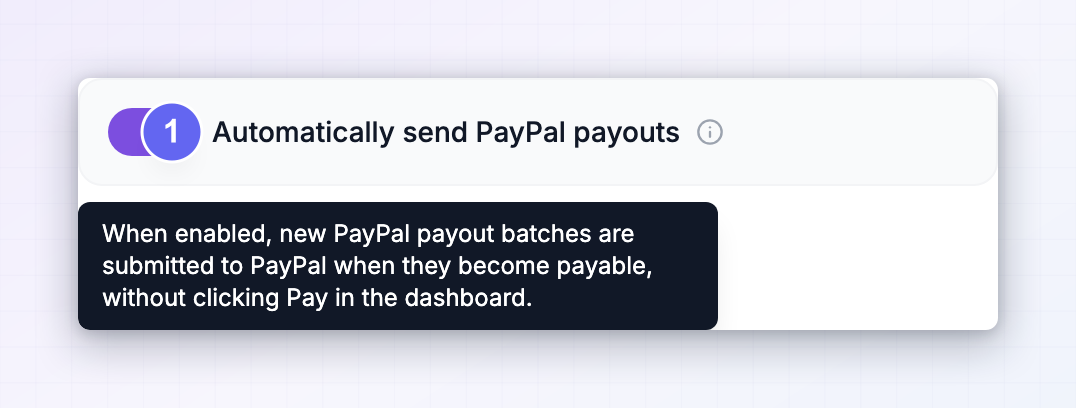
There’s no approval step and no undo. Before turning this on, be confident in your commission approval process and your minimum payout amount — anything that reaches a payable batch will be sent.

How your affiliates set up PayPal

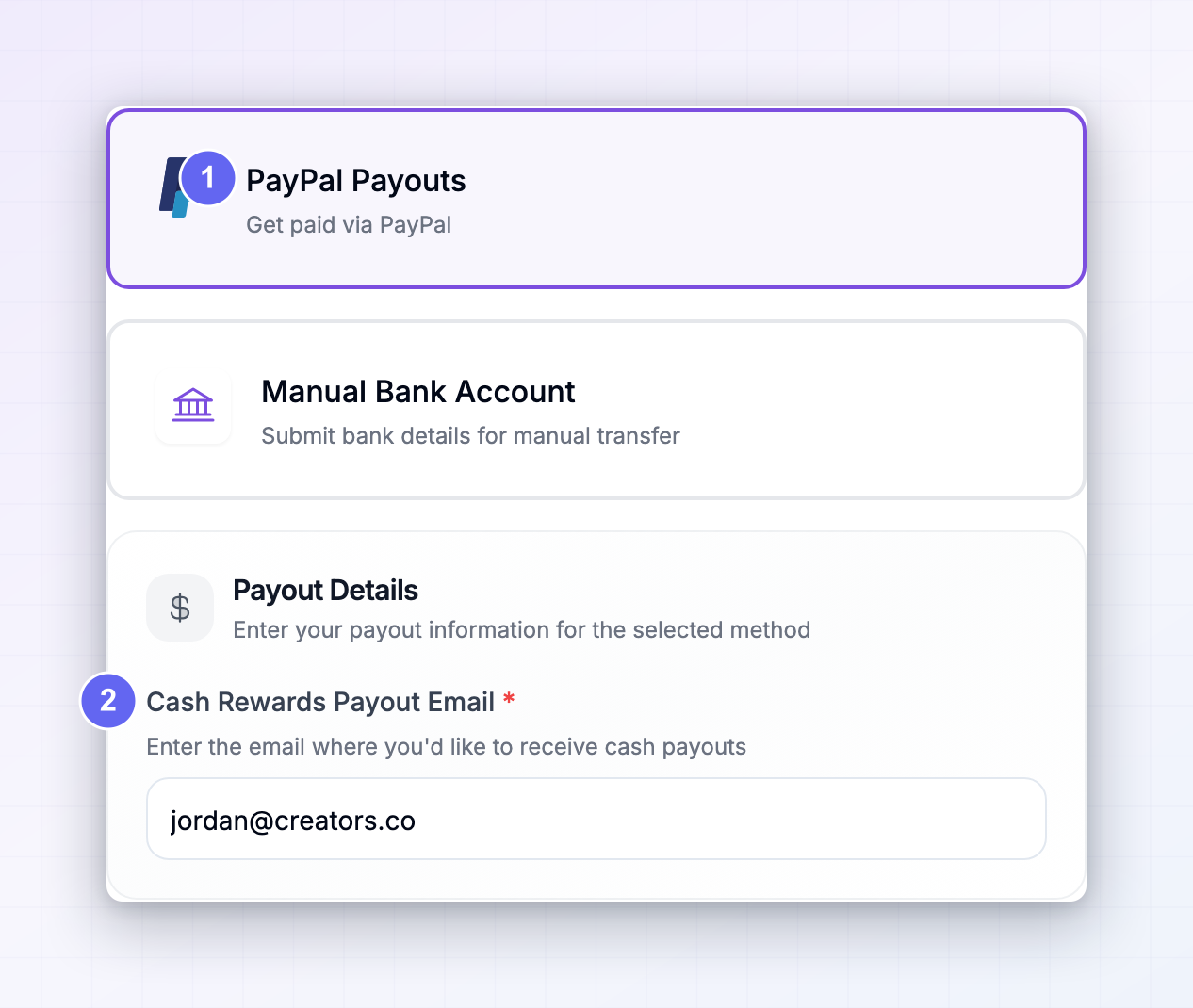
1

They open their payout settings

In the affiliate portal, under Settings → Payouts → Cash payouts.
2

They pick PayPal Payouts

The card is labelled PayPal Payouts, described as “Get paid via PayPal”.
3

They enter a payout email address

In the Payout Email Address field. This is the only detail PayPal needs.
The email has to match a PayPal account they control, exactly. A typo doesn’t produce an error — PayPal treats it as a new person, emails an invitation to that address, and holds the money as unclaimed. After 30 days it comes back to you. Tell affiliates to copy the address from their PayPal account rather than typing it.
Affiliates who don’t have a PayPal account can still be paid. PayPal emails them a link to sign up and claim it. They have 30 days.

Pay a batch through PayPal

Review before you send

Open the batch and select the pay action. The Pay with PayPal dialog shows the total and reminds you that “PayPal sends money immediately — no additional approval needed.” Referly also flags affiliates with no payout email, since they’ll be skipped. See Payout batches. This is your last checkpoint. Read the total.
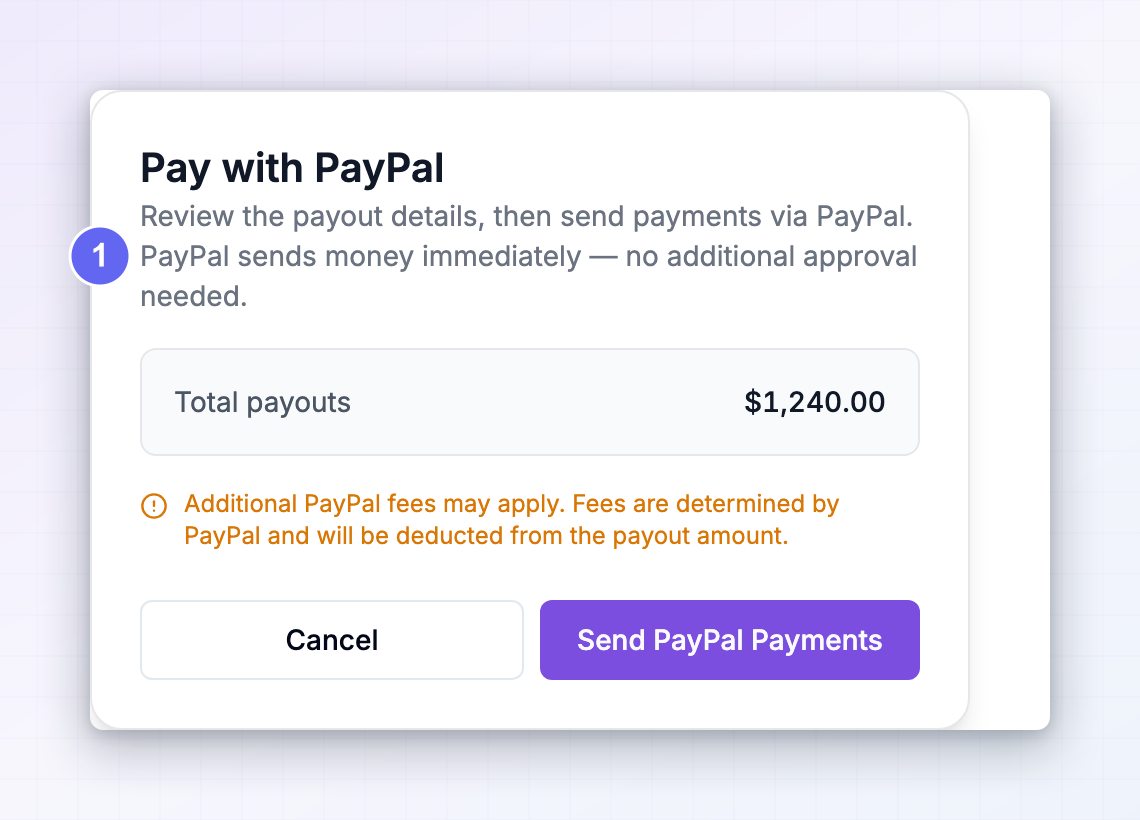
PayPal decides the fee at the moment it sends, so Referly can’t show you an exact figure beforehand. The dialog notes that PayPal fees are deducted from the payout amount.

Send the payments

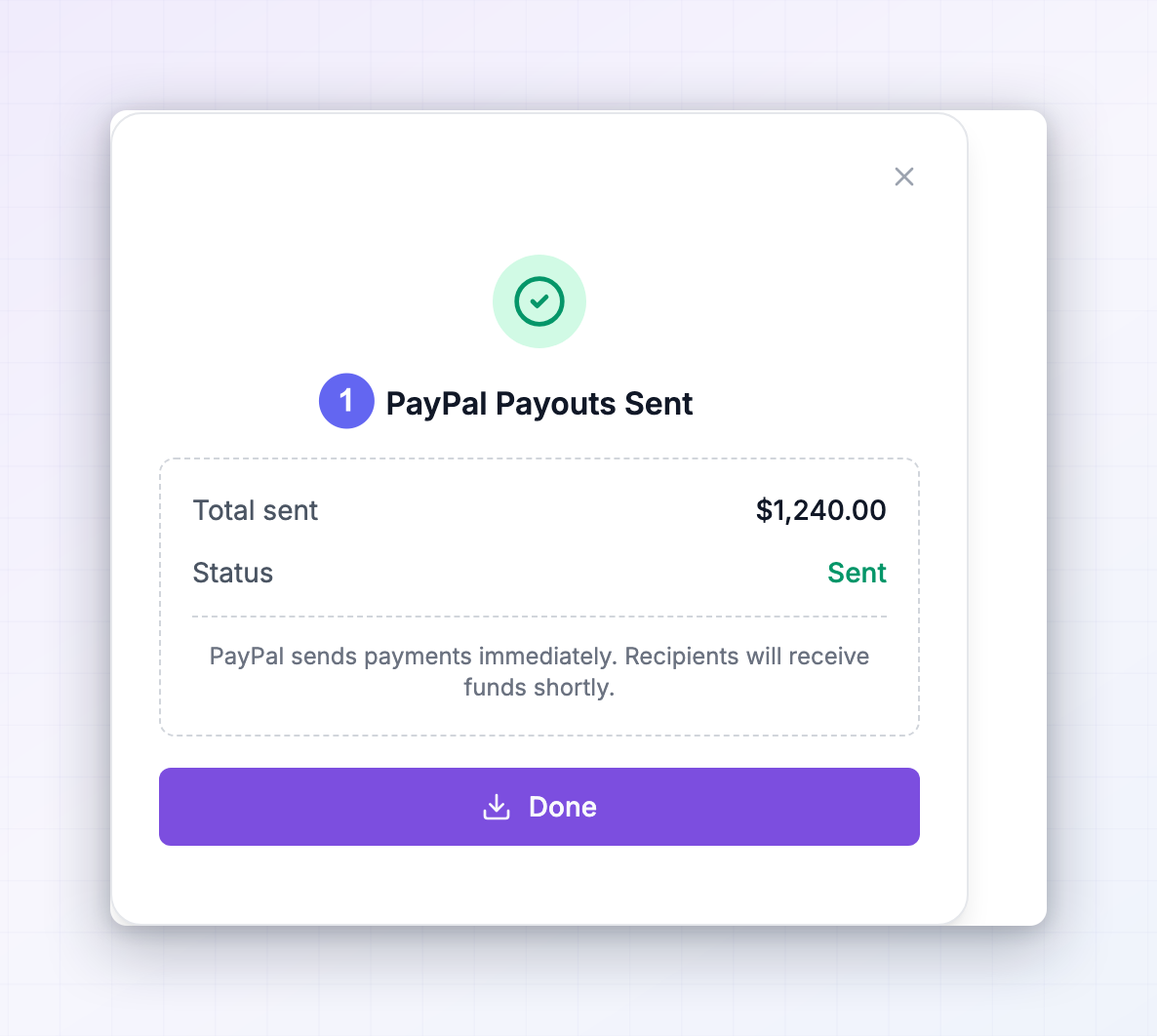
Select Send PayPal Payments. Referly submits the whole batch to PayPal at once. The confirmation reads PayPal Payouts Sent, status Sent. The money is gone from your account at this point.
Watch the statuses settle

PayPal processes each payment separately and reports back to Referly, so statuses update on their own: When every payout reaches Paid, the batch is marked paid and you get a confirmation email. If PayPal rejects the whole batch, it’s marked failed and Referly emails you. Individual failures are recorded on the payout with PayPal’s reason. See Batch statuses and Failed payouts.
An unclaimed payout isn’t a failure yet. It sits with PayPal for up to 30 days while the affiliate is nudged to claim it, then either lands or comes back to you.

Common reasons a PayPal payout doesn’t land

PayPal gives a reason for each one, which Referly records on the payout.

Fees, currencies, and limits

  • Fees. PayPal charges you a percentage of each payment, capped at a set amount in your currency. Cross-border payments cost more than domestic ones. Your affiliates pay nothing to receive. Rates vary by country — PayPal’s merchant fees page is the source of truth.
  • Currency conversion. If you pay in a currency the affiliate’s account doesn’t hold, PayPal converts it and applies its own conversion spread.
  • Coverage. PayPal supports Payouts in more than 156 countries and over 23 currencies. Argentina, Brazil, and Malaysia have extra currency restrictions.
  • Limits. Individual payments are capped at 20,000 USD or local equivalent by default, and there’s no cap on the batch total. Contact PayPal if you need a higher per-payment limit.

Pay inside PayPal instead

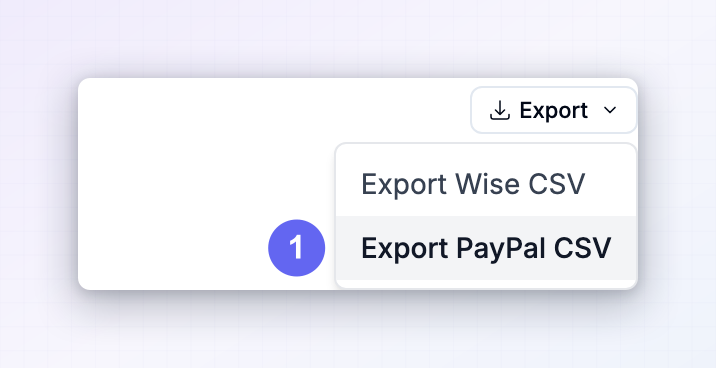
You don’t have to use the connected flow. From a batch, open the actions menu and choose Export PayPal CSV. The file contains each affiliate’s email, amount, currency, name, and a reference, formatted for PayPal’s own bulk upload. If you pay this way, Referly can’t track it — you’ll need to mark the batch as paid yourself. See Export payouts.
Disconnect PayPal

Open the PayPal card in Payout settings and select Disconnect. This removes your credentials from Referly and stops payouts updating themselves. Payments already sent still complete — PayPal doesn’t care that Referly disconnected — but you’ll have to check on them in PayPal and update Referly by hand. If you’re disconnecting because the Secret leaked, also delete the app in the PayPal Developer Dashboard. Removing it from Referly doesn’t invalidate it on PayPal’s side.

Troubleshooting

Payout methods

Compare every way you can pay affiliates.

Wise

Pay in more currencies, with an approval step.

Local bank account payouts

Send money straight to affiliates’ bank accounts.

Referly Payouts

Let Referly pay your affiliates and handle the paperwork.

Payout batches

How batches are built, reviewed, and paid.

Failed payouts

What to do when a payout doesn’t reach an affiliate.
Last modified on July 21, 2026