

What the Chargebee integration can and can’t do
Before you start
You’ll need:- Admin access to your Chargebee site, so you can add a custom field, a webhook, and an API key.
- The ability to add code to your website, or someone who can.
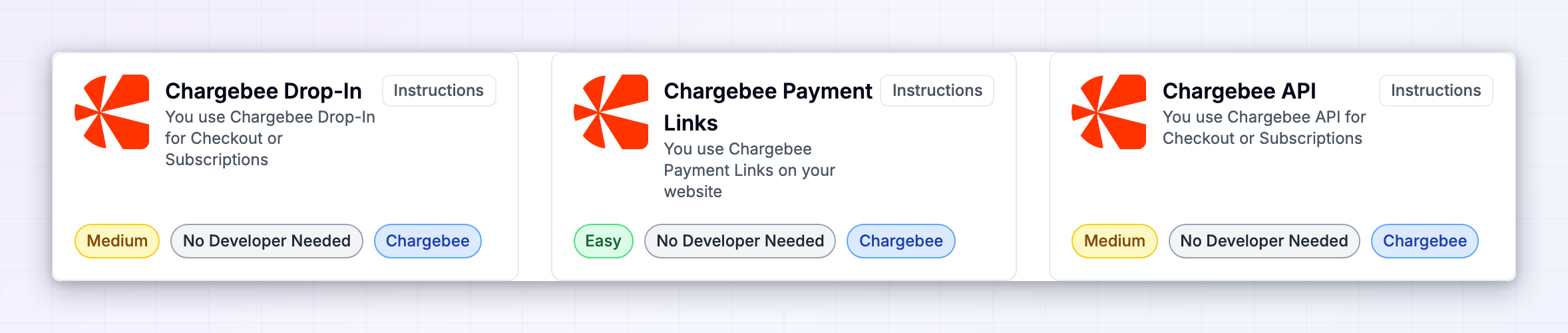
- Your Referly integration guide open. In Referly, open your program, go to Settings, then Integrations, and pick the card that matches how you take payments: Chargebee Drop-In, Chargebee Payment Links, or Chargebee API. Your webhook address is shown there, already filled in with your program’s details.
Step 1: Install the tracking script on your site
The tracking script recognises visitors who arrived from an affiliate link, records the click, and remembers who referred them until they subscribe. Copy the snippet from Step 1 of your Chargebee guide in Referly — it comes pre-filled with your program ID — and paste it inside thehead section of your website, on every page.
Step 2: Create the custom field in Chargebee
This is the field that holds the referral against each customer. Get the API name exactly right — Referly looks for that specific name and nothing else.Open custom fields
Add a customer field
Name it
pushlap_affiliate_id and the API Name to cf_pushlap_affiliate_id. Chargebee usually adds the cf_ prefix for you — check that the final API name matches exactly.Save
Step 3: Send the referral into Chargebee
Pick the tab that matches how your customers subscribe. In every case the snippet goes near the bottom of the page, just before the closingbody tag, on the pages where checkout happens — and the tracking script from Step 1 has to be on the same page.
- Drop-in checkout
- Payment links
- Chargebee API
Step 4: Add the Referly webhook in Chargebee
This is how Chargebee tells Referly that a subscription started or an invoice was paid. Without it, nothing reaches Referly at all.Open webhook settings
Name it
Referly Integration, or anything else you’ll recognise later.Paste the webhook address
Set the API version
Choose the events
- Subscription Created
- Subscription Started
- Subscription Activated
- Subscription Cancelled
- Subscription Deleted
- Payment Succeeded
- Payment Refunded
Exclude card information
Save
Step 5: Connect your API key for plan-level detail
This step is optional but strongly recommended. It lets Referly look up the plans on each invoice, which is what puts plan names on your sales and makes different commission rates per plan possible.Create the key in Chargebee
Open API keys
Choose the key type
Copy the key
Note your site name
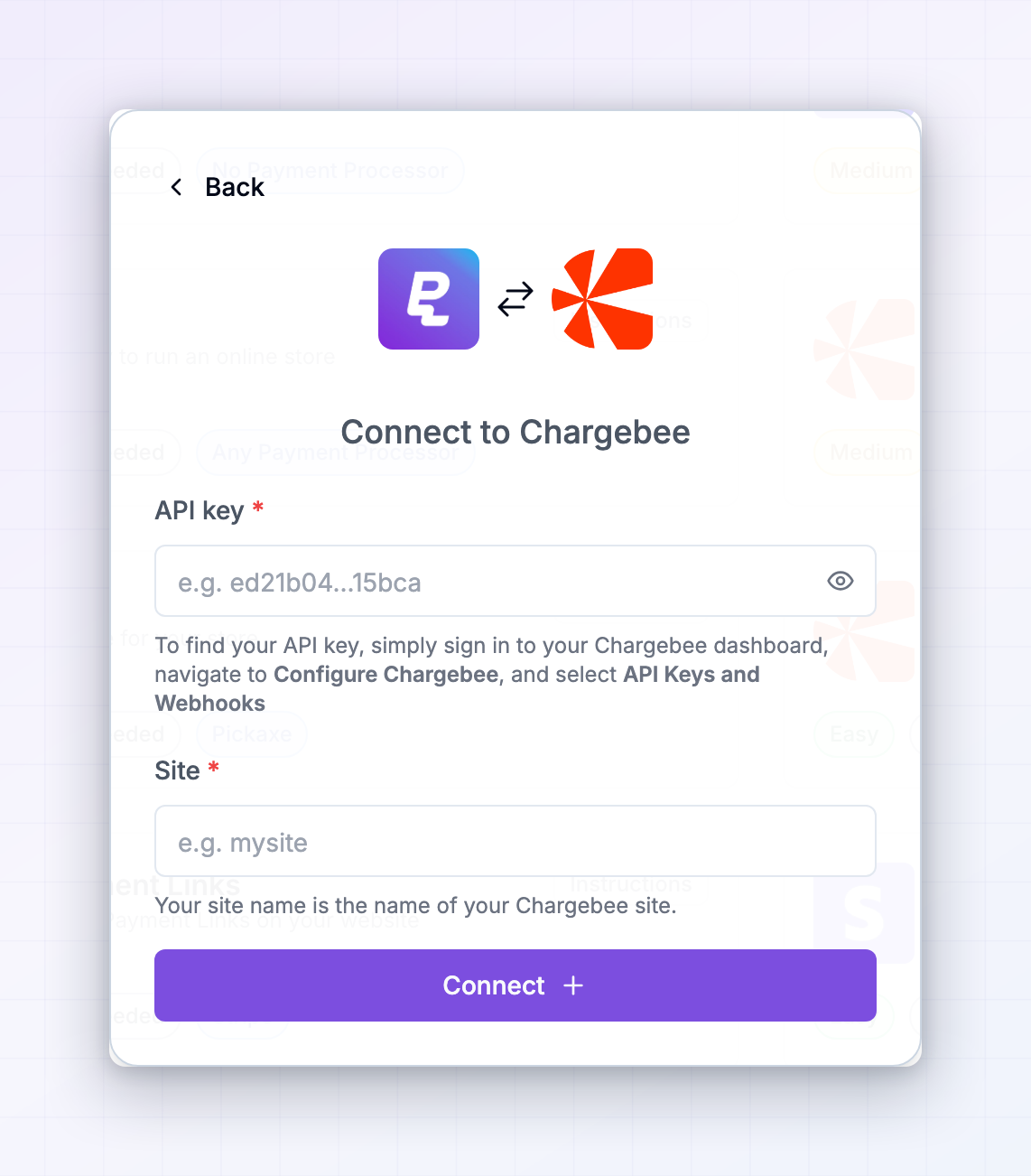
mysite.chargebee.com, your site name is mysite — that part only, with no .chargebee.com on the end.Enter them in Referly
Open the integrations dialog
Fill in both fields
Connect
Step 6: Test the whole flow
Use your Chargebee test site
Visit your site through an affiliate link
Check the click landed
Subscribe
Check the customer in Chargebee
pushlap_affiliate_id field. If it’s empty, the Step 3 snippet didn’t run — that’s the single most common failure, and everything downstream depends on it.Check the result in Referly
Switch to live
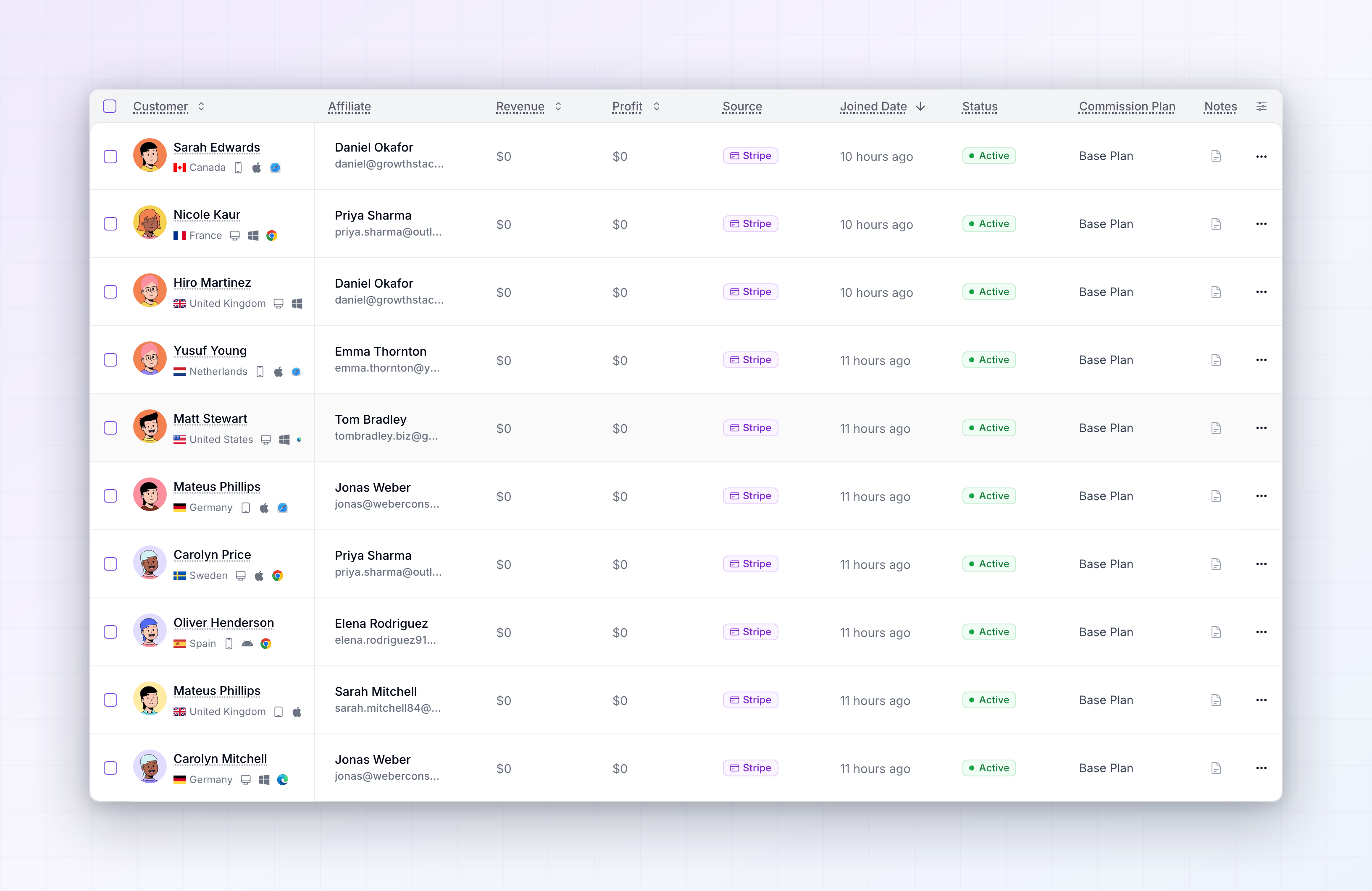
What happens automatically once you’re set up
A subscription is created, started, or activated
A subscription is created, started, or activated
An invoice is paid
An invoice is paid
A subscription renews
A subscription renews
A payment is refunded
A payment is refunded
Refunds
When a payment is refunded in Chargebee, Referly finds the matching sale and marks it as refunded, so no commission is owed on money you gave back. This only applies while the commission is still on hold. Once the affiliate has been cleared for payout on that sale, it’s left alone — adjust it by hand if you want it reversed. See Refunds and Reward holds.Disconnecting
There are two parts, and they’re independent:- To stop tracking, delete the Referly webhook in your Chargebee dashboard under Settings, then Configure Chargebee, then API Keys and Webhooks. Nothing reaches Referly after that.
- To remove your API key, open Connect Integration in Referly, select Chargebee, and choose Disconnect. You can also revoke the key on Chargebee’s side.
Troubleshooting
Nothing is appearing in Referly
Nothing is appearing in Referly
pushlap_affiliate_id field has a value. If it’s empty, the problem is the Step 3 snippet. If it has a value, check the webhook in Chargebee — that it exists, uses Version 2, and has the seven events selected.The custom field is always empty
The custom field is always empty
cf_pushlap_affiliate_id, the tracking script from Step 1 is on the same page as the checkout snippet, and the visitor actually arrived through an affiliate link. Test in a private window with a referral link.Customers appear but sales don't
Customers appear but sales don't
Sales appear with no plan name or line items
Sales appear with no plan name or line items
mysite, not mysite.chargebee.com — and that the key belongs to the same site the sales are coming from.It worked on my test site but not live
It worked on my test site but not live
Renewals aren't creating commissions
Renewals aren't creating commissions