

- The plugin. This does the actual tracking. Everyone needs it.
- Your WooCommerce API keys. These let Referly read your product list, which is what makes product-based commissions possible. Skip it if every product pays the same rate.
This guide covers WooCommerce stores. If you run WordPress with Stripe rather than WooCommerce, follow the WordPress guide instead.

What the WooCommerce integration can and can’t do
Before you start
You’ll need:- Administrator access to your WordPress site, so you can upload and activate a plugin.
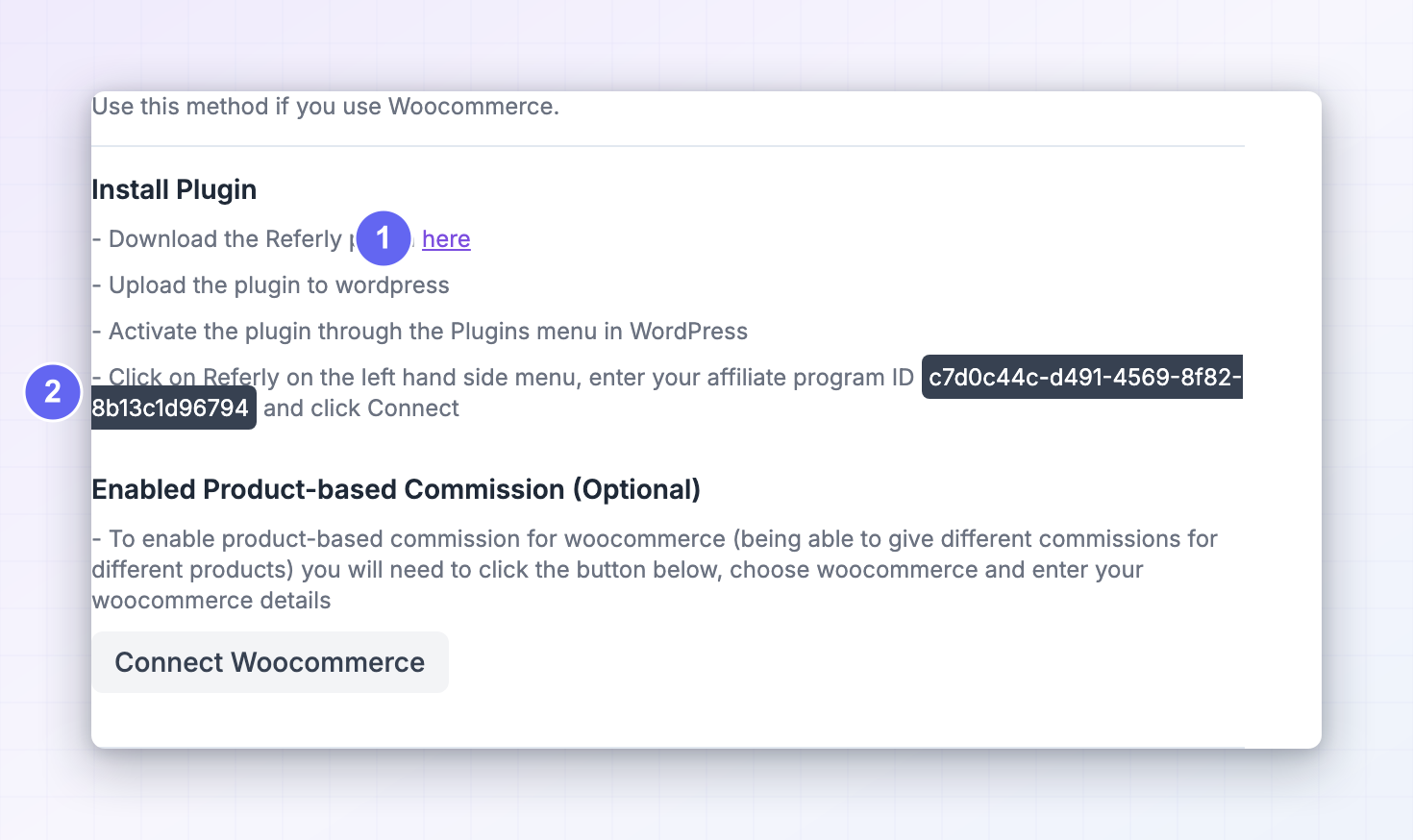
- Your Referly program ID. You’ll find it on the WooCommerce guide inside Referly — open your program, go to Settings, then Integrations, and select the Woocommerce card. Your program ID is shown there, ready to copy.
- A recent backup of your site. Standard practice before adding any plugin.
Step 1: Install the Referly plugin on your site
1
Download the plugin
On the Woocommerce guide in Referly, select the download link to get the plugin file. It downloads as a
.zip — leave it zipped.2
Upload it to WordPress
In your WordPress admin, go to Plugins, then Add New, and select Upload Plugin at the top of the screen. Choose the
.zip file you downloaded and select Install Now.3
Activate it
When WordPress says the plugin installed successfully, select Activate Plugin. WordPress’s plugin documentation covers uploading plugins in more detail if you get stuck.
Step 2: Point the plugin at your program
1
Open the plugin settings
A Referly item appears in the left-hand menu of your WordPress admin. Select it.
2
Enter your program ID
Paste the affiliate program ID you copied from Referly into the field, and select Connect.
Step 3: Connect your API keys for product-based commission
Do this step only if you want to pay different commission rates on different products. It lets Referly read your product catalogue so you can pick products when building a commission plan. Orders are tracked with or without it.Generate the keys in WooCommerce
1
Check your permalinks first
In your WordPress admin, go to Settings, then Permalinks, and make sure anything other than Plain is selected. WooCommerce’s API doesn’t work with plain permalinks.
2
Open the REST API settings
Go to WooCommerce, then Settings, then the Advanced tab, then REST API. Select Add key.
3
Fill in the key details
Give it a Description you’ll recognise later, such as “Referly”. Choose a User with administrator access — the key acts as that user. Set Permissions to Read/Write.
4
Generate and copy both values
Select Generate API key. WooCommerce shows you a Consumer key and a Consumer secret. Copy both now and keep them somewhere safe.
Enter the keys in Referly
1
Open the integrations dialog
In Referly, open your program, go to Settings, then Integrations, and select Connect Integration in the top right. Choose WooCommerce from the Choose Integration grid.
2
Paste your keys
Fill in Woocommerce Consumer Key, Woocommerce Consumer Secret, and Woocommerce Website URL. The website URL is the address of your store, including
https:// — for example https://www.example.com.3
Connect
Select Connect. Referly checks the keys against your store straight away. If they work, a green Connected badge appears at the top with your store address. If they don’t, the most common causes are plain permalinks, a key set to Read only, or a typo in the website URL.
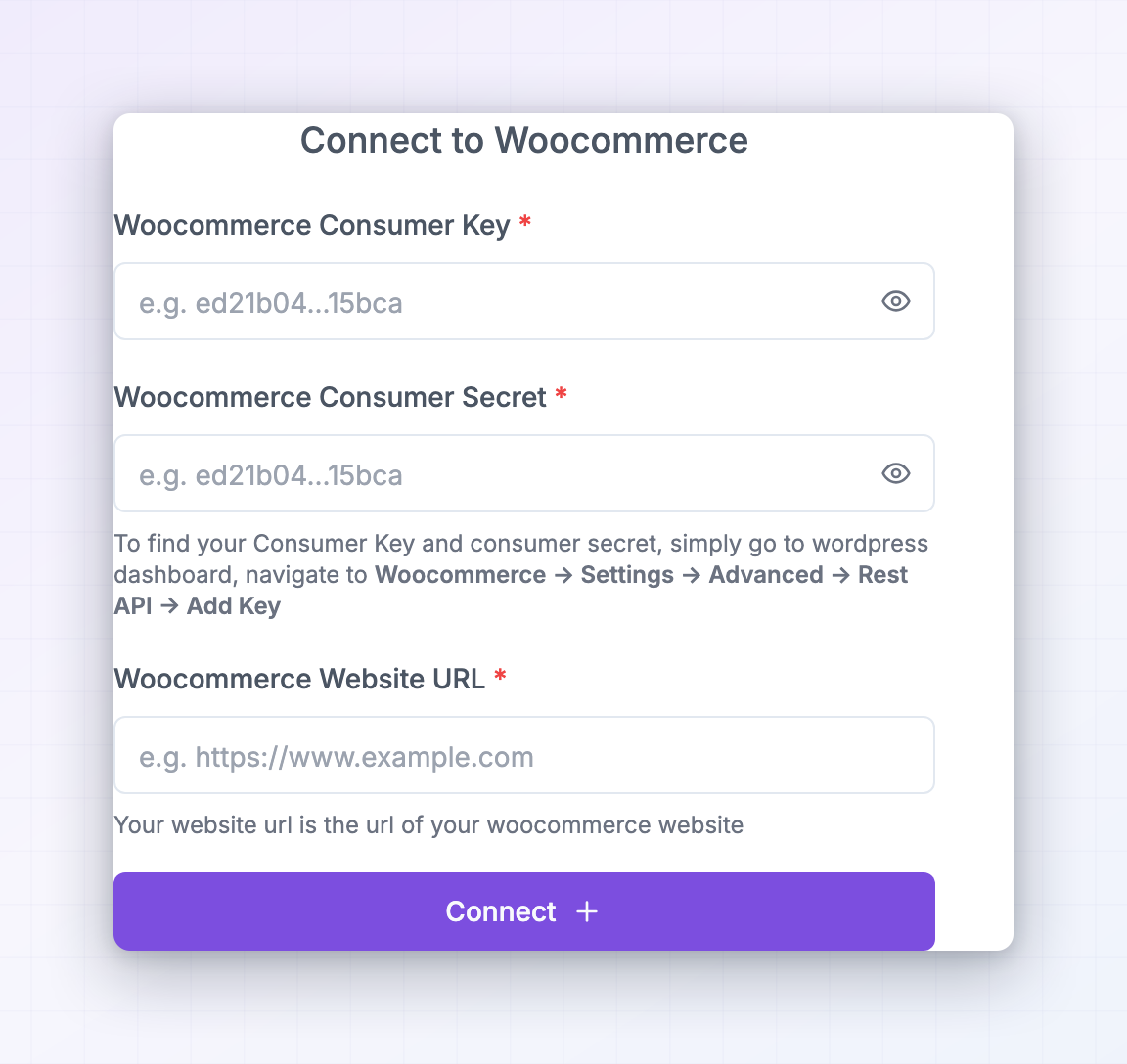
These fields are locked once saved, so nobody can quietly change them. To use a different key, select Disconnect and connect again.
How Referly decides who gets credit for an order
When an order goes through, Referly works through the following, and stops at the first match:- The click behind the visit. The plugin remembers who referred the shopper from the moment they land on your site, and sends that with the order.
- An external click ID. If the affiliate’s traffic carried an ad-network tracking ID, Referly can match on that instead.
- The affiliate’s link. If the reference is an affiliate’s link rather than a click, Referly matches the link.
- The coupon on the order. If the order used a coupon belonging to one of your affiliates, that affiliate is credited — no click needed at all.
Coupons
Referly can manage your WooCommerce coupons for you: create a coupon in Referly, assign codes to affiliates, and let them promote a code instead of a link. Redemption counts flow back so you can see which codes are working, and codes you edit or delete in WordPress stay in step. Set this up on the Coupons page — see Connect a coupon source and Create coupons.Step 4: Place a test order
1
Get a real affiliate's link
Open your Affiliates page in Referly and copy a link from a test affiliate.
2
Visit your store through it
Open the link in a private or incognito window so nothing is remembered from earlier visits.
3
Confirm the click landed
In Referly, open that affiliate’s record and check the click count went up. If it didn’t, the plugin isn’t running on the page — clear your cache and try again.
4
Place an order
Buy something small, making sure checkout collects an email address. The plugin reports the order as soon as it’s completed.
5
Check Referly
Open Customers to find the buyer attached to the affiliate, then Sales to check the order total and its products, then Rewards to see the commission.
6
Refund it
Refund the test order in WooCommerce and confirm the sale disappears from Referly. Then delete the leftover test customer from your Customers page.

Refunds
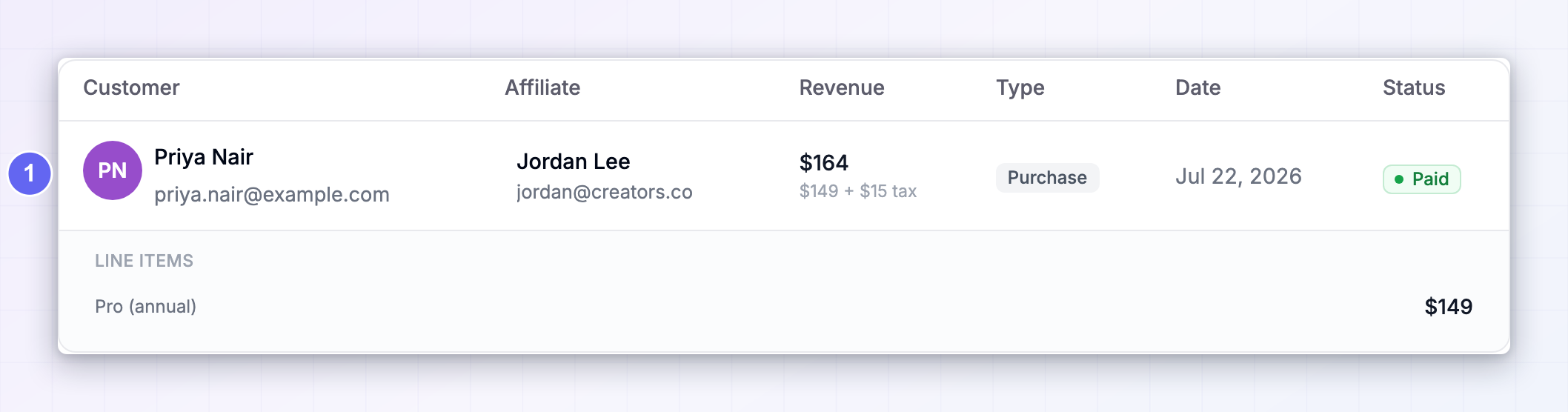
When you refund an order in WooCommerce, Referly finds the matching sale and removes it, so no commission is owed on money you gave back. The affiliate’s totals are recalculated straight away. This only happens while the commission is still within your payout window. Once that window has passed and the affiliate has been cleared for payout, the sale stays as it is — adjust it by hand if you want to claw it back. See Refunds and Payout schedule. Cancelling an order without refunding it doesn’t change anything in Referly.Disconnecting
There are two things to undo, depending on how far you went:- To stop tracking, deactivate the Referly plugin in your WordPress admin under Plugins.
- To remove your API keys, open Connect Integration in Referly, select WooCommerce, and choose Disconnect. You can also revoke the key on the WooCommerce side under WooCommerce, then Settings, then Advanced, then REST API.
Troubleshooting
Clicks aren't being counted
Clicks aren't being counted
The plugin isn’t running on the pages people land on. Check it’s activated under Plugins in WordPress, then clear any caching plugin or CDN cache. Test with a private window so you’re not reusing an old visit.
Orders appear in Referly with no affiliate attached
Orders appear in Referly with no affiliate attached
Nothing on the order identified an affiliate. If the buyer arrived through a link, the referral was lost somewhere between landing and checkout — most often a cache serving a page from before the plugin was active, or the buyer clearing cookies. If they used a coupon, check that coupon is one Referly knows about and is assigned to an affiliate.
No orders are appearing at all
No orders are appearing at all
Confirm the plugin is active and shows your program ID, and that your Referly plan is active. If you changed program or reinstalled WordPress, re-enter the program ID in the plugin settings.
Connecting the API keys fails
Connecting the API keys fails
Three usual causes: permalinks are set to Plain under Settings, then Permalinks; the key was created with Read permissions instead of Read/Write; or the website URL is wrong — it needs to include
https:// and match your store’s real address, with no trailing path.I can't pick products when building a commission plan
I can't pick products when building a commission plan
That needs the API key connection from Step 3. Once the keys are saved, your products become selectable in your commission plans.
A refund didn't remove the commission
A refund didn't remove the commission
The sale had already passed your payout window, so it’s left alone on purpose — the affiliate was already cleared to be paid. Adjust the sale or the reward by hand if you want it reversed.
Related
Product-based commissions
Pay different rates on different products.
Coupons and promo codes
Let affiliates promote a code instead of a link.
WordPress
Running WordPress with Stripe rather than WooCommerce.
Tracking methods
Choose whether links, codes, or both credit your affiliates.