

Referly connects to one payment processor at a time. Connecting Polar means Stripe, Shopify, Paddle, Chargebee, WooCommerce, and Zylvie stay disconnected for this program.
What the Polar integration can and can’t do
Before you start
You’ll need:- Admin access to your Polar organization, so you can create an access token and a webhook.
- The ability to add code to your website, or someone who can.
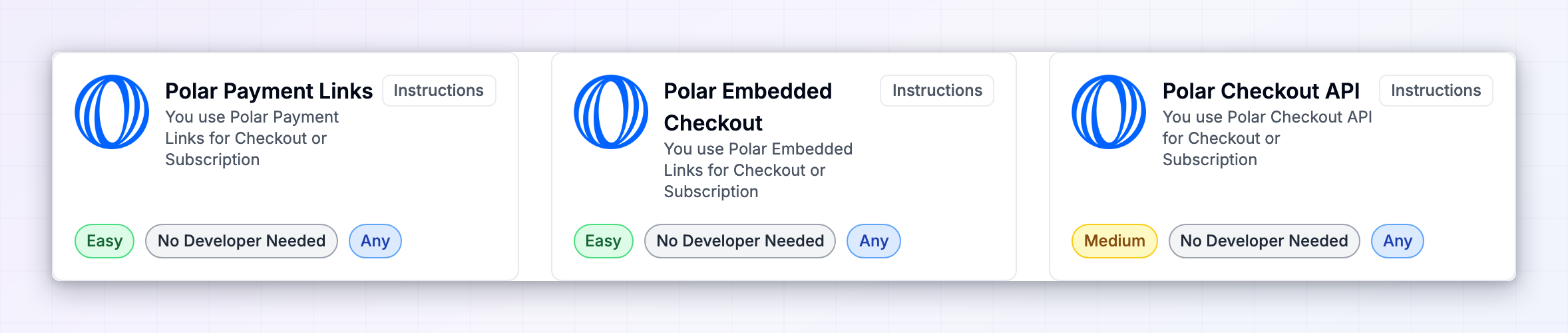
- Your Referly guide open. In Referly, open your program, go to Settings, then Integrations, and pick the card matching how you sell: Polar Payment Links, Polar Embedded Checkout, or Polar Checkout API. Your webhook address is shown there, filled in with your program’s details.
Step 1: Install the tracking script on your site
The tracking script recognises visitors who arrived from an affiliate link, records the click, and remembers who referred them until they buy. Copy the snippet from Step 1 of your Polar guide in Referly — it comes pre-filled with your program ID — and paste it inside thehead section of your website, on every page.
Tracking script
Step 2: Create an access token in Polar
1
Open your token settings
In your Polar dashboard, go to Settings and find the Developers section, then create a new organization access token.
2
Name it and set no expiration
Give it a name you’ll recognise, such as “Referly”. Set the expiration to No Expiration — if the token expires, your tracking stops without warning.
3
Select the scopes
Referly needs these permissions:
discounts:readdiscounts:writeevents:readsubscriptions:readcustomers:readcustomers:writeorders:readrefunds:readwebhooks:readwebhooks:write
4
Copy the token
Copy it as soon as it’s created — it starts with
polar_pat_. Keep it somewhere safe; anyone with it can act on your Polar organization.Step 3: Connect Polar in Referly
1
Find your organization ID
In your Polar dashboard, open your organization settings. Your organization ID is listed there — copy it.
2
Open the integrations dialog
In Referly, open your program, go to Settings, then Integrations, select Connect Integration in the top right, and choose Polar.
3
Fill in both fields
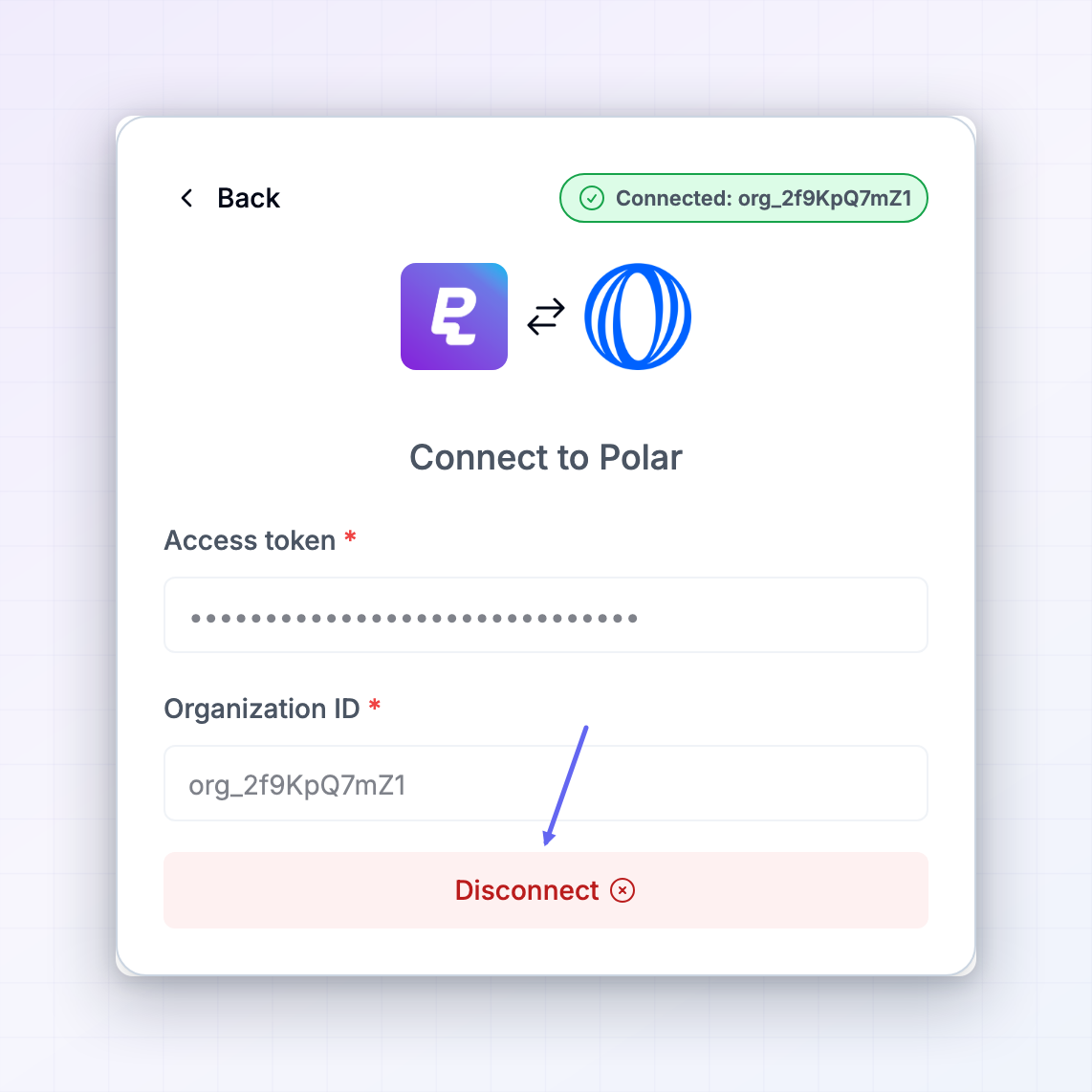
Paste your token into Access token and your organization ID into Organization ID.
4
Connect
Select Connect. A green Connected badge appears with your organization ID when it’s saved.
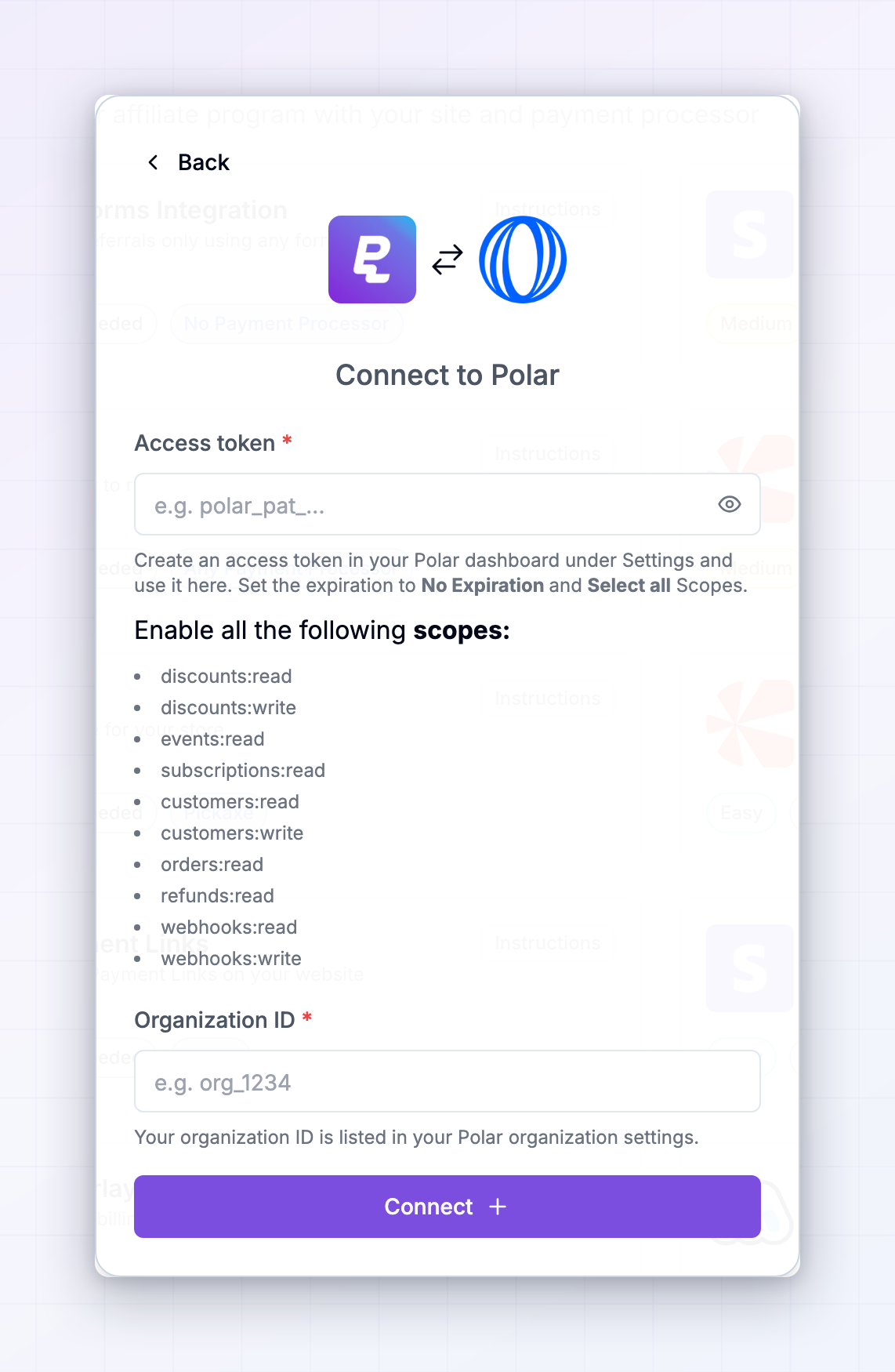
These fields lock once saved. To use a different token or organization, select Disconnect and connect again. If Referly tells you the organization is already connected to another program, disconnect it there first.
Step 4: Send the referral into Polar
Pick the tab that matches how your customers buy. In each case the snippet goes near the bottom of the page, just before the closingbody tag, on the pages where checkout starts — and the tracking script from Step 1 has to be on the same page.
- Payment links
- Embedded checkout
- Checkout API
Use this if you link people to Polar checkout pages. The snippet adds a reference to every Polar link on the page. Polar treats that reference as a first-class parameter and attaches it to the checkout automatically, so there’s nothing to configure on Polar’s side.
Polar payment links
Step 5: Add the Referly webhook in Polar
This is how Polar tells Referly that an order was placed, paid, or refunded. Without it, nothing reaches Referly at all.1
Open webhook settings
In your Polar dashboard, go to Settings, then Webhooks, and select Add Endpoint.
2
Paste the webhook address
Copy the webhook address from your Polar guide in Referly and paste it in. It already includes your program’s details, so copy it rather than typing it out. Name it
Referly Integration, or anything you’ll recognise later.3
Set the format to Raw
Choose Raw as the format. Referly reads Polar’s raw event format.
4
Choose the events
Select these three:
order.createdorder.paidorder.refunded
5
Create it
Select Create. The webhook is live straight away.
How Referly decides who gets credit
When an order arrives, Referly checks two things, in this order:1
The discount code on the order
If the order used a discount code belonging to one of your affiliates, that affiliate gets the credit, and the code’s redemption count goes up. This check only runs if discount-code tracking is switched on for your program under Tracking methods.
2
The referral in the order's details
Otherwise Referly looks for the reference added by the snippet in Step 4, whether that’s the link parameter or the metadata key.
Letting affiliates use discount codes
Referly can create and manage Polar discount codes for you, so affiliates can promote a code instead of a link. Set this up on the Coupons page — see Connect a coupon source and Create coupons.Step 6: Test it end to end
1
Visit your site through an affiliate link
Use a real affiliate’s referral link from your Affiliates page, in a private window.
2
Check the click landed
In Referly, open that affiliate’s record and confirm the click count went up. If it didn’t, the tracking script isn’t running.
3
Start checkout and check the link
Before completing checkout, look at the Polar link your page produced. It should have the reference on the end of it. If it doesn’t, the Step 4 snippet isn’t running on that page.
4
Complete the order
Use your 100% discount code, or a Polar test payment if you’re in sandbox.
5
Check the order in Polar
Open the order in your Polar dashboard and look at its metadata. The reference should be there.
6
Check the result in Referly
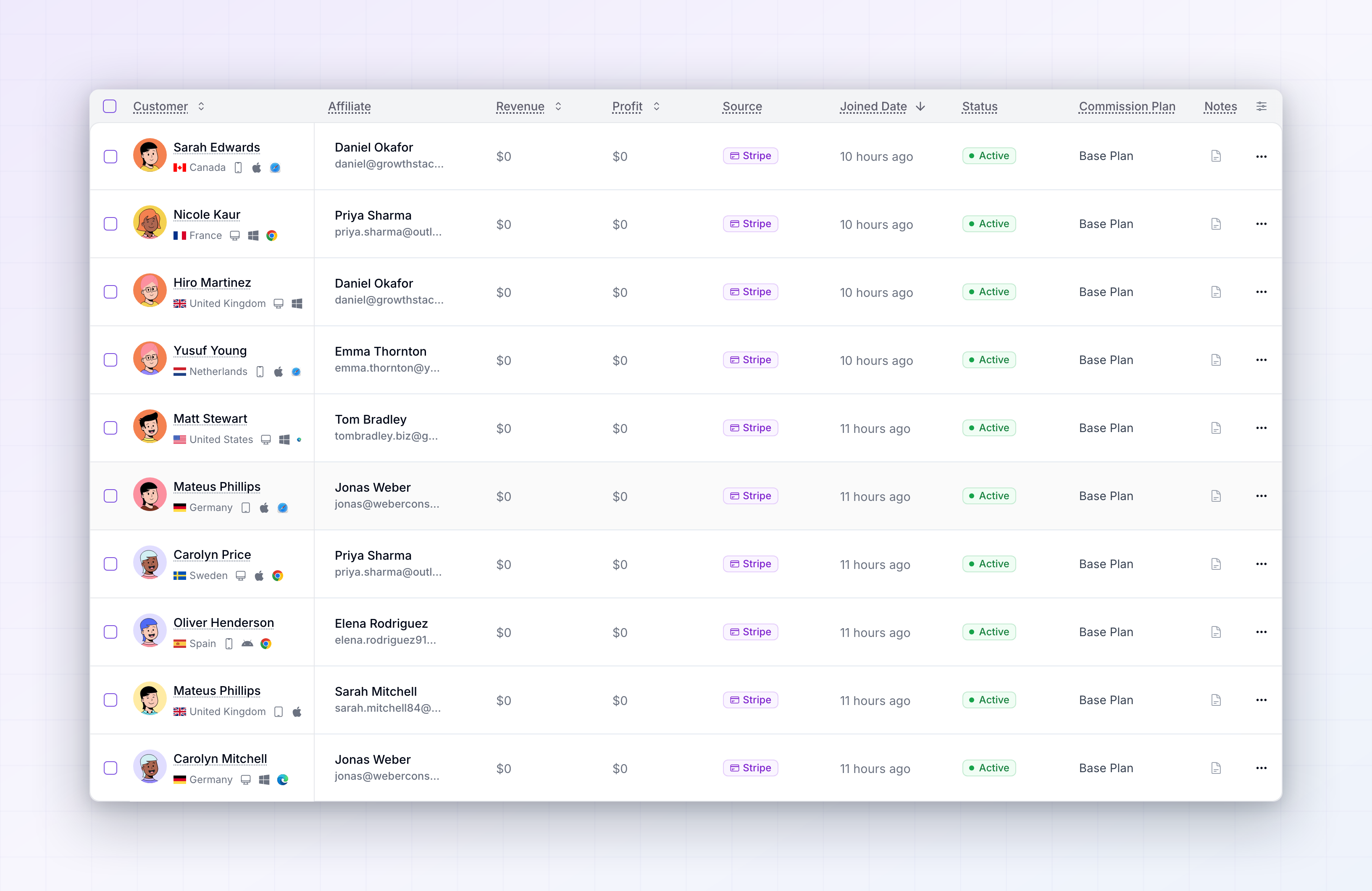
Open Customers to find the buyer attached to the affiliate, Sales to confirm the amount and products, and Rewards to see the commission.
7
Clean up
Delete the test customer and sale from your Customers and Sales pages so they don’t skew your reporting.
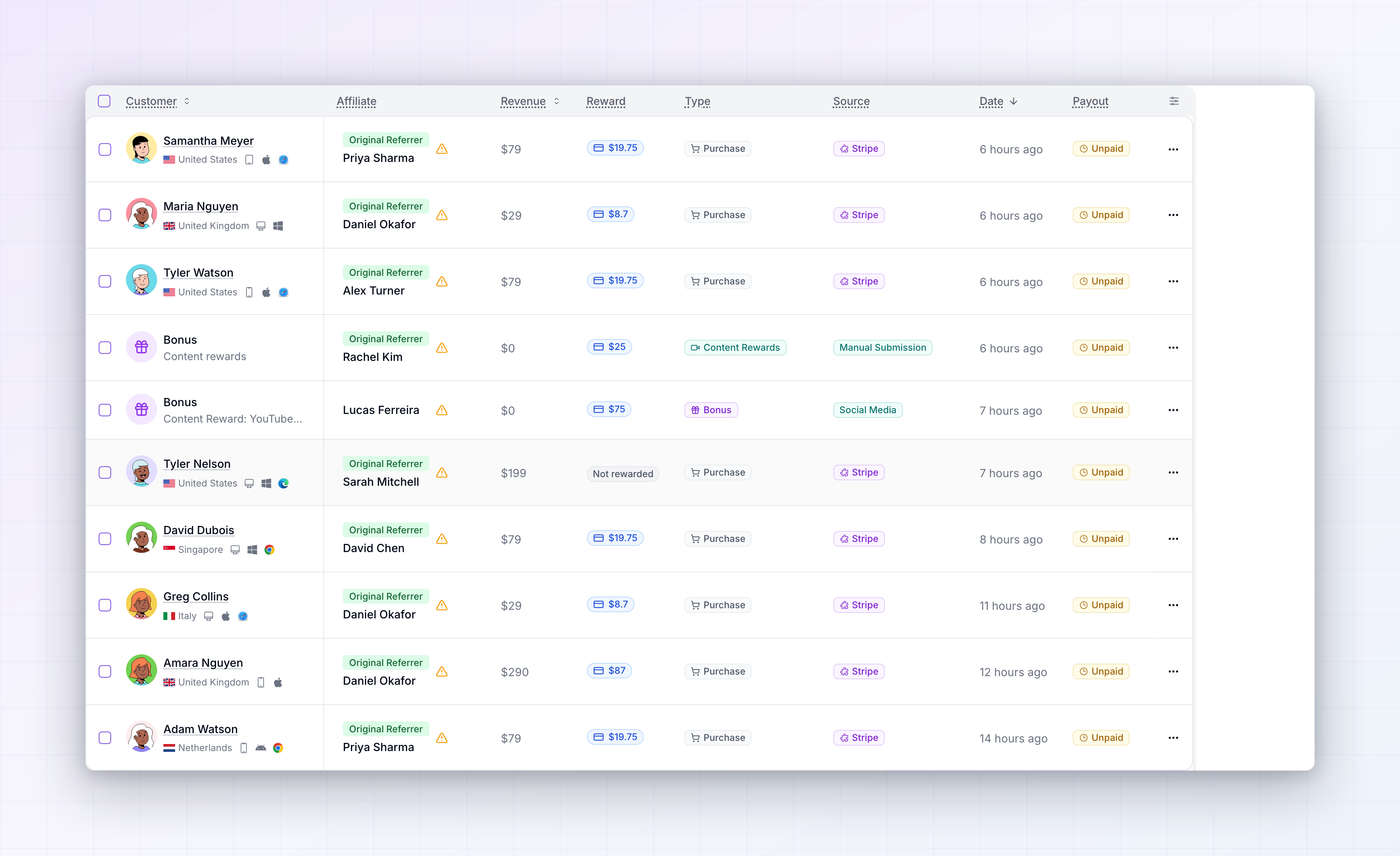
Checking that renewals are credited
Polar copies the referral onto the subscription as well as the first order, so renewals normally arrive carrying it. It’s worth confirming once: after your first subscriber’s first renewal, open that renewal order in Polar and check the metadata is still there, then check the renewal produced a second sale in Referly. If it didn’t, you can set the metadata on the subscription in Polar so future renewals carry it.Refunds
When an order is refunded in Polar, Referly finds the matching sale and marks it as refunded, so no commission is owed on money you gave back. This only applies while the commission is still within your payout hold period. Once that has passed and the affiliate has been cleared for payout, the sale is left alone — adjust it by hand if you want it reversed. See Refunds and Reward holds.Disconnecting
There are two parts:- To stop tracking, delete the Referly endpoint in your Polar dashboard under Settings, then Webhooks. Nothing reaches Referly after that.
- To remove your token, open Connect Integration in Referly, select Polar, and choose Disconnect. You can also revoke the token in Polar.
Troubleshooting
Nothing is appearing in Referly
Nothing is appearing in Referly
Work backwards. Open a recent order in Polar and check its metadata for the reference. If it’s missing, the problem is the Step 4 snippet. If it’s there, check the webhook in Polar — that it exists, uses the Raw format, and has all three order events selected.
The reference isn't on my checkout links
The reference isn't on my checkout links
The snippet runs a moment after the page loads, so check the link’s address after the page has settled rather than in your page source. Make sure both the tracking script and the checkout snippet are on the same page, and that you arrived through an affiliate link — the snippet does nothing for a visitor with no referral.
Orders are tracked but discount code sales aren't
Orders are tracked but discount code sales aren't
Two things to check: that discount-code tracking is switched on for your program, and that the code is one Referly knows about and has assigned to an affiliate. Codes created directly in Polar aren’t linked to anyone until you connect them in Referly.
Connecting fails or the token is rejected
Connecting fails or the token is rejected
Usually a scope is missing, the token was created in the wrong environment, or the organization ID doesn’t belong to the same organization as the token. Recreate the token with all the scopes listed in Step 2.
Everything stopped working after a while
Everything stopped working after a while
Check whether your Polar access token expired. Set the expiration to No Expiration when you create it, and if it did expire, create a new one, disconnect in Referly, and connect again.
A sale is showing as zero
A sale is showing as zero
The order reached Referly before it was paid. Once Polar confirms the payment, the real amount comes through. If it’s still zero well after the payment cleared, check that
order.paid is one of the selected events on your webhook.Related
Coupons and promo codes
Let affiliates promote a Polar discount code instead of a link.
Product-based commissions
Pay different rates on different Polar products.
Tracking methods
Choose whether links, codes, or both credit your affiliates.
Add a sale
Record a sale by hand when an order wasn’t attributed.