

Referly connects to one payment processor at a time. Connecting Shopify disconnects Stripe, Paddle, Chargebee, WooCommerce, Polar, or Zylvie if you had one of those connected to this program. Shopify warns you about this before it goes ahead.
What the Shopify integration can and can’t do
Before you start
You’ll need:- Owner or staff access to your Shopify admin with permission to install apps and edit your theme.
- A Referly account. You can install the app first and create your program during the connect flow, or set your program up first — either order works.
- A decision on how affiliates will promote you — referral links, discount codes, or both. See Tracking methods.
Step 1: Install the Referly app on your store
1
Open the app listing
In Referly, open your program, go to Settings, then Integrations, select Connect Integration in the top right, choose Shopify, and select Connect Shopify Store. That opens the Referly Affiliate Marketing listing on the Shopify App Store. You can also go straight to the listing and install from there.
2
Install the app in Shopify
Select Install. Shopify shows you exactly what the app will be able to access before anything happens — read it, then approve.
3
Choose which program to connect
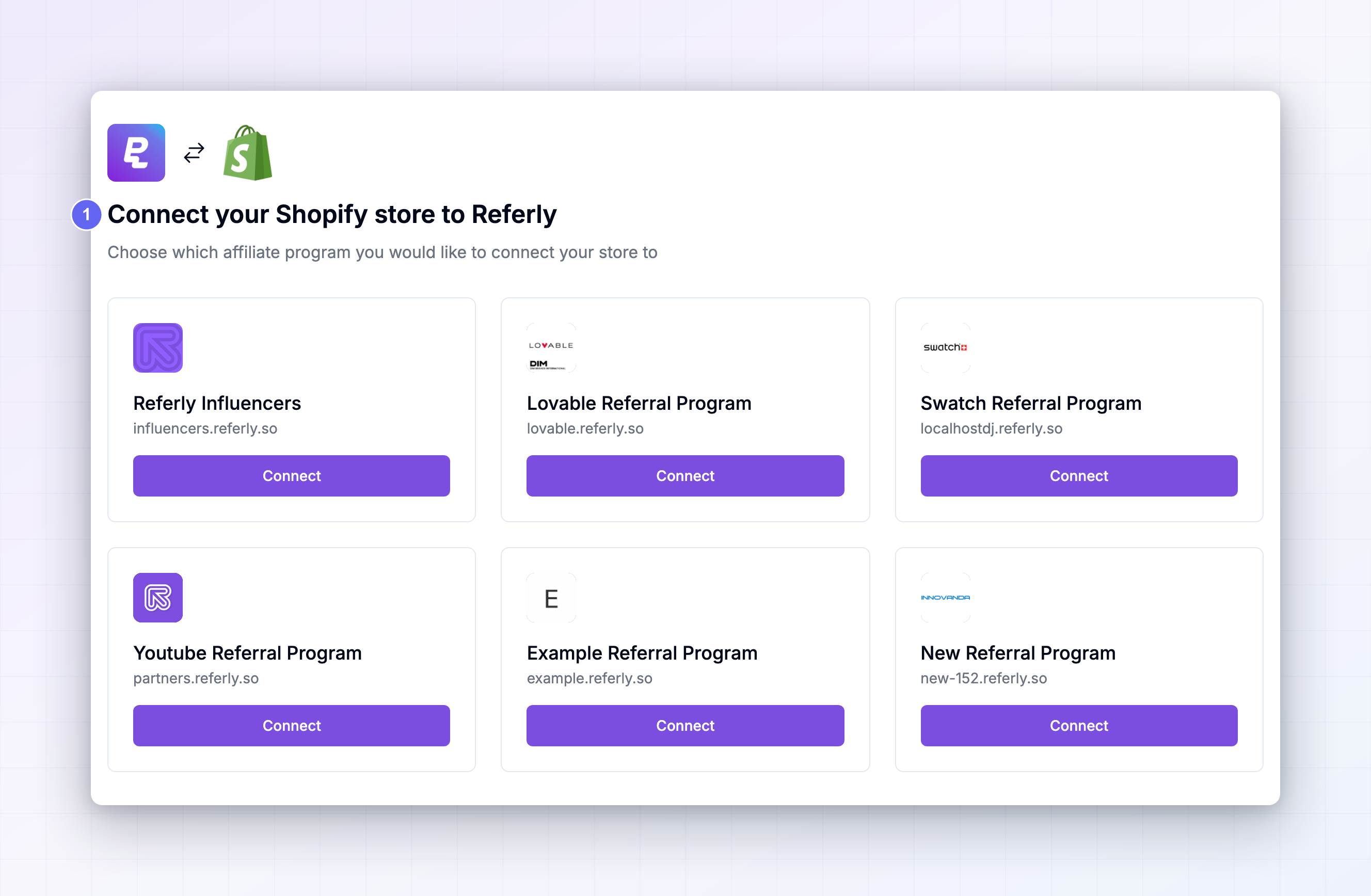
Shopify sends you back to Referly, onto a page headed Connect your Shopify store to Referly. Every affiliate program on your account is listed. Select Connect on the one this store belongs to. If you don’t have a program yet, select Create default program and one is made for you.
4
Confirm
A Connect Shopify Store dialog warns you that any other payment processor connected to this program will be disconnected. Select Continue.
5
Check the confirmation
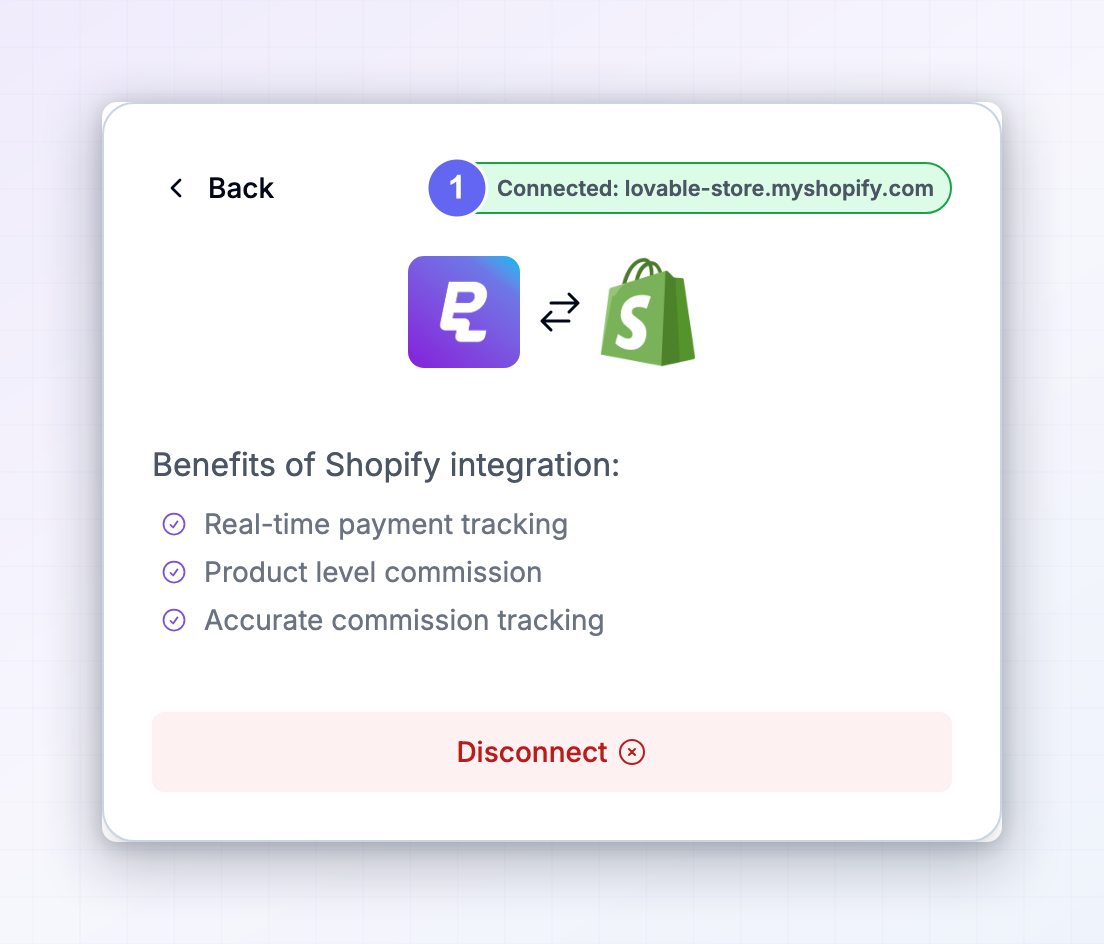
You’ll land on a page confirming your store is connected. Select Proceed to dashboard.
What the app sets up for you
You don’t have to create API keys, paste an access token, or add anything in Shopify’s notification settings. During install, the app:- Starts listening for paid orders and refunds in your store.
- Installs the tracking piece Shopify uses on its own checkout, so orders are reported even though the checkout page isn’t yours to edit.
- Records which Referly program the store belongs to, so orders land in the right place.
- Adds your store’s address as a link destination for your affiliates, so their referral links point at your storefront out of the box.
Step 2: Add the tracking script to your theme
The app handles orders. The script handles everything before the order: it recognises a visitor who arrived from an affiliate link, records the click, remembers who referred them, and attaches that referral to their cart so it survives into checkout.1
Open your theme code
In your Shopify admin, go to Online Store, then Themes. On the theme you’re using, select the … menu and choose Edit code.
2
Open theme.liquid
In the file list on the left, under Layout, select
theme.liquid. This is the file every page of your store loads, which is why the script goes here rather than on one page.3
Paste the script
Find the closing
head tag near the top of the file and paste the script on the line just above it.4
Save
Select Save. The change is live straight away.
Tracking script for Shopify
Step 3: Decide how affiliates will promote you
Referral links
Each affiliate gets a link that points at your storefront with their reference on the end. When someone follows it, the script records the click and attaches the referral to their cart. Nothing else is needed. If you want shorter, tidier links —your-store.com/sarah rather than a long parameter — turn on automated short links. Referly creates the redirect inside Shopify for you, and can optionally apply the affiliate’s discount automatically when the link is used.
Discount codes
Discount codes work with no script and no click at all — the code the customer types is what identifies the affiliate. This is the most reliable option for stores with heavy ad blocking or lots of traffic from apps. Referly can create the codes directly in your Shopify store, so you don’t create them by hand in Shopify’s Discounts section. Set this up on the Coupons page: create a coupon, choose Shopify as the source, and assign codes to affiliates. See Connect a coupon source and Create coupons.How Referly decides who gets credit for an order
When an order is paid, Referly works through three checks, in this order, and stops at the first one that finds an affiliate.1
The discount code on the order
If the order used a discount code that belongs to one of your affiliates, that affiliate gets the credit. Referly also adds one to that code’s redemption count. This check only runs if discount-code tracking is switched on for your program.
2
The referral attached to the cart
Next, Referly looks at the referral the tracking script attached to the shopper’s cart. This is the link path, and it only runs if link tracking is switched on for your program.
3
The tag on the customer
Finally, Referly looks at the customer’s tags in Shopify. The first time a customer is credited to an affiliate, Referly tags them — so when they come back and order again months later, with no link and no code, the affiliate still gets paid.
What Referly writes back into Shopify
Once an order is credited, Referly labels it in your Shopify admin so you can see attribution without leaving Shopify:- The customer is tagged, which is what makes repeat orders keep earning.
- The order is tagged with the affiliate behind it, and with the link or discount code that was used.
Step 4: Place a test order
1
Get a real affiliate's link
Open your Affiliates page in Referly and copy a link from an affiliate — your own test affiliate account is ideal.
2
Visit your store through it
Open the link in a private or incognito window so you start with a clean slate. You should land on your storefront.
3
Check the click was recorded
In Referly, open that affiliate’s record and confirm the click count went up. If it didn’t, the script isn’t running — recheck Step 2.
4
Place an order
Add something to the cart and check out. Use Shopify’s test payment method, or place a small real order and refund it afterwards. Make sure the checkout collects an email address, so the order has a customer on it.
5
Check Shopify
In your Shopify admin, open the order and look at its tags — you should see the affiliate’s details there. Open the customer and confirm they’re tagged too.
6
Check Referly
In Referly, open Customers to find the buyer attached to the affiliate, then Sales to confirm the order total, and the Rewards page to see the commission.


Refunds and cancellations
When you refund an order in Shopify, Referly finds the matching sale and marks it as refunded. The affiliate’s totals are recalculated so a refunded order isn’t paid out on. A refund is only applied while the commission is still on hold. If the affiliate has already been cleared for payout on that sale, the sale stays as it is — adjust it by hand if you want to claw it back. See Refunds and Reward holds. Cancelling an order in Shopify without refunding it doesn’t change anything in Referly. Issue the refund if you want the commission reversed.Billing when you install through Shopify
If you found Referly through the Shopify App Store and installed it there, your Referly subscription is billed through Shopify and appears on your Shopify invoice alongside your other apps. Changing or cancelling it is handled the same way as any other Shopify app charge. Everything else — your plan’s features, limits, and add-ons — works exactly as described in Plans and features.Disconnecting your store
In Referly, open Connect Integration, select Shopify, and choose Disconnect. Referly stops receiving orders from that store immediately. Nothing you’ve already tracked is deleted — your affiliates, referred customers, sales, and rewards all stay. Orders placed while you’re disconnected are not recorded and won’t be picked up if you reconnect later. If you’d rather remove the app from Shopify’s side as well, uninstall it from your Shopify admin. Remember to take the tracking script out of your theme if you’re leaving for good.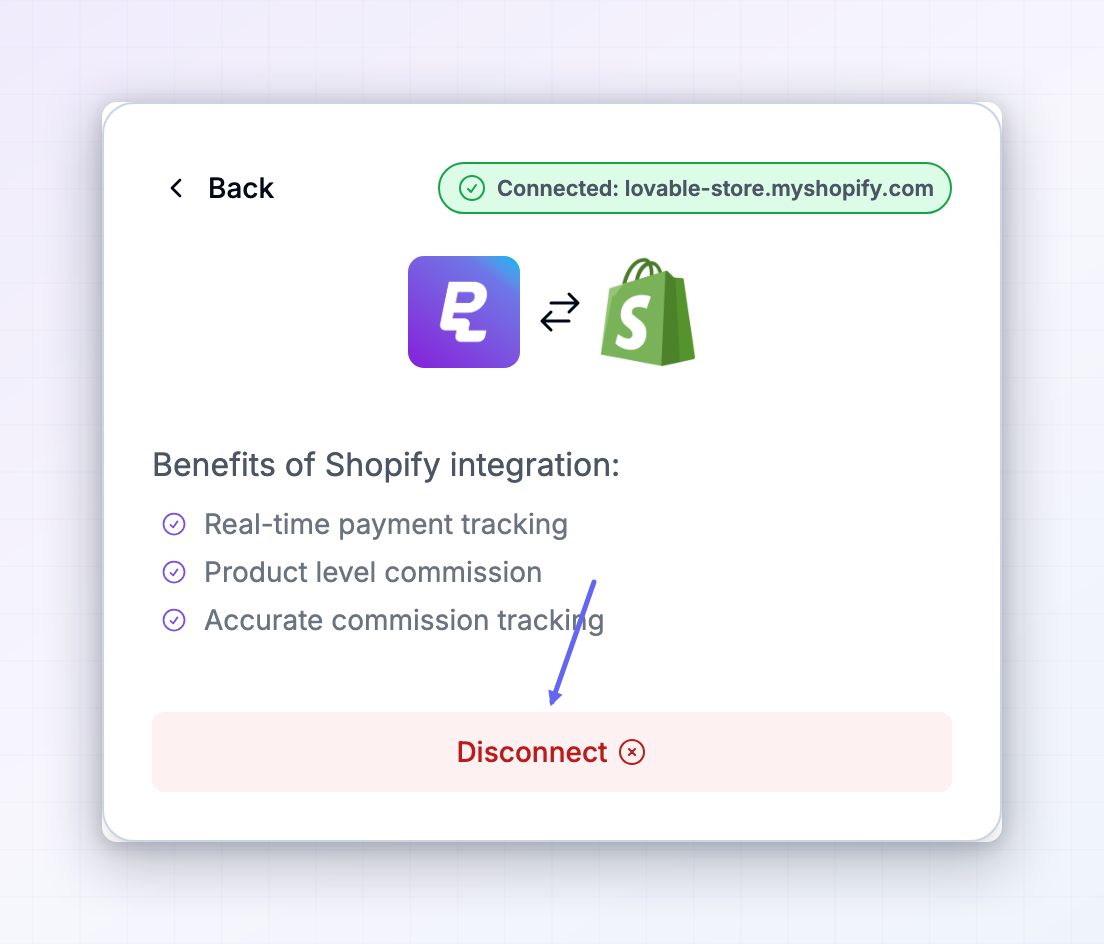
Troubleshooting
Orders are appearing in Referly with no affiliate attached
Orders are appearing in Referly with no affiliate attached
The order reached Referly, but none of the three checks found an affiliate. Open the order in Shopify and see whether it has a discount code on it, and whether the customer carries a Referly tag. If neither is there and the customer arrived through a link, the referral never made it into the cart — recheck that the Shopify version of the script is in your live theme.
No orders are appearing at all
No orders are appearing at all
Confirm the Connected badge in Referly shows your store, and that your Referly plan is active. If you’ve uninstalled and reinstalled the app, run through the connect flow again so the store is linked to the right program.
Clicks aren't being counted
Clicks aren't being counted
The script isn’t running. It has to be in the theme your store is actually using — if you edited a duplicated or unpublished theme, the change isn’t live. Check that you edited the published theme, then load your storefront through an affiliate link in a private window.
Discount code orders aren't being credited
Discount code orders aren't being credited
Two things to check: that discount-code tracking is switched on for your program, and that the code is one Referly knows about and has assigned to an affiliate. Codes created by hand in Shopify’s Discounts section aren’t linked to anyone until you connect them in Referly — see Connect a coupon source.
An order was skipped entirely
An order was skipped entirely
Orders without a customer attached aren’t recorded. This most often happens with orders created by hand or by another app that doesn’t attach a customer. Make sure your checkout collects an email address.
A returning customer's order went to the wrong affiliate
A returning customer's order went to the wrong affiliate
Once a customer is tagged for an affiliate, later orders keep going to that affiliate unless a different affiliate’s discount code is used. If you need to move the sale, change it on the customer’s record in Referly.
Related
Automated short links
Give affiliates clean store links, with their discount applied automatically.
Coupons and promo codes
Create Shopify discount codes for your affiliates from Referly.
Tracking methods
Choose whether links, codes, or both credit your affiliates.
Commission plans overview
Decide what your affiliates earn on each order.