

There’s nothing to connect under Connect Integration in Referly for Ecwid. The two snippets below are the whole setup.
What the Ecwid integration can and can’t do
Before you start
You’ll need:- Admin access to your Ecwid control panel, so you can add tracking code.
- Access to your website’s code, if your store is an Ecwid widget embedded in your own site. If you use Ecwid’s own Instant Site, you’ll add the storefront script through Ecwid’s custom code settings instead.
- Your Referly guide open. In Referly, open your program, go to Settings, then Integrations, and select the Ecwid Order Confirmation Page card. Both snippets are shown there, pre-filled with your program ID.
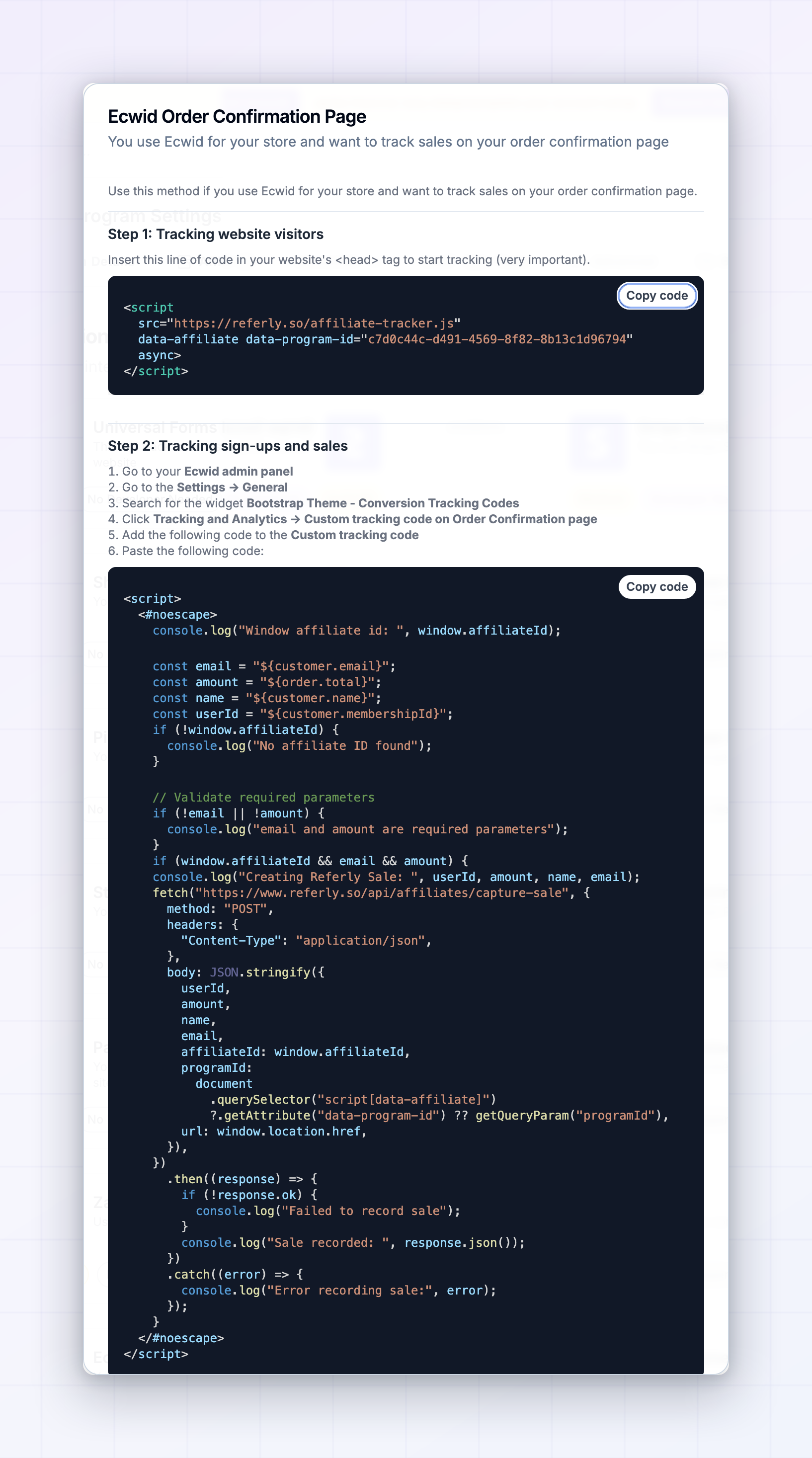
Step 1: Add the tracking script to your storefront
This is what recognises a visitor who arrived from an affiliate link, records the click, and remembers who referred them until they check out. Copy the snippet from Step 1 of the Ecwid guide in Referly and add it inside thehead section of every page of your store — not only your product pages, and not only your checkout.
Tracking script
Step 2: Add the code to your order confirmation page
This is the piece that tells Referly a sale happened.1
Open your tracking settings
In your Ecwid control panel, go to Settings, then General, then Tracking & Analytics.
2
Find the confirmation page section
Scroll to Custom tracking code on Order Confirmation page.
3
Paste the code
Paste the snippet below into that box, replacing
YOUR_PROGRAM_ID with your own program’s ID — or copy the version from your Referly guide, which already has it filled in.4
Save
Save your settings. It takes effect on the next order.
Order confirmation code
What the code is doing
You don’t need to understand it to use it, but it helps when something goes wrong:- The
${...}pieces are Ecwid’s own placeholders. Ecwid swaps them for the real buyer’s email, name, and order total when the page loads. - The
<#noescape>wrapper tells Ecwid this is JavaScript rather than plain HTML, so the values come through in a usable form. Ecwid’s order confirmation tracking documentation explains this. - The
?js_stringon the text values protects against buyer names containing apostrophes or quotes, which would otherwise break the code silently. - Nothing is sent when the buyer didn’t come from an affiliate link, so your ordinary orders are unaffected.
Step 3: Place a test order
1
Visit your store through an affiliate link
Use a real affiliate’s referral link from your Affiliates page, in a private or incognito window.
2
Check the click landed
In Referly, open that affiliate’s record and confirm the click count went up. If it didn’t, the Step 1 script isn’t running.
3
Buy something
Complete a small order and let the confirmation page load fully. Don’t close the tab early — that page is what reports the sale.
4
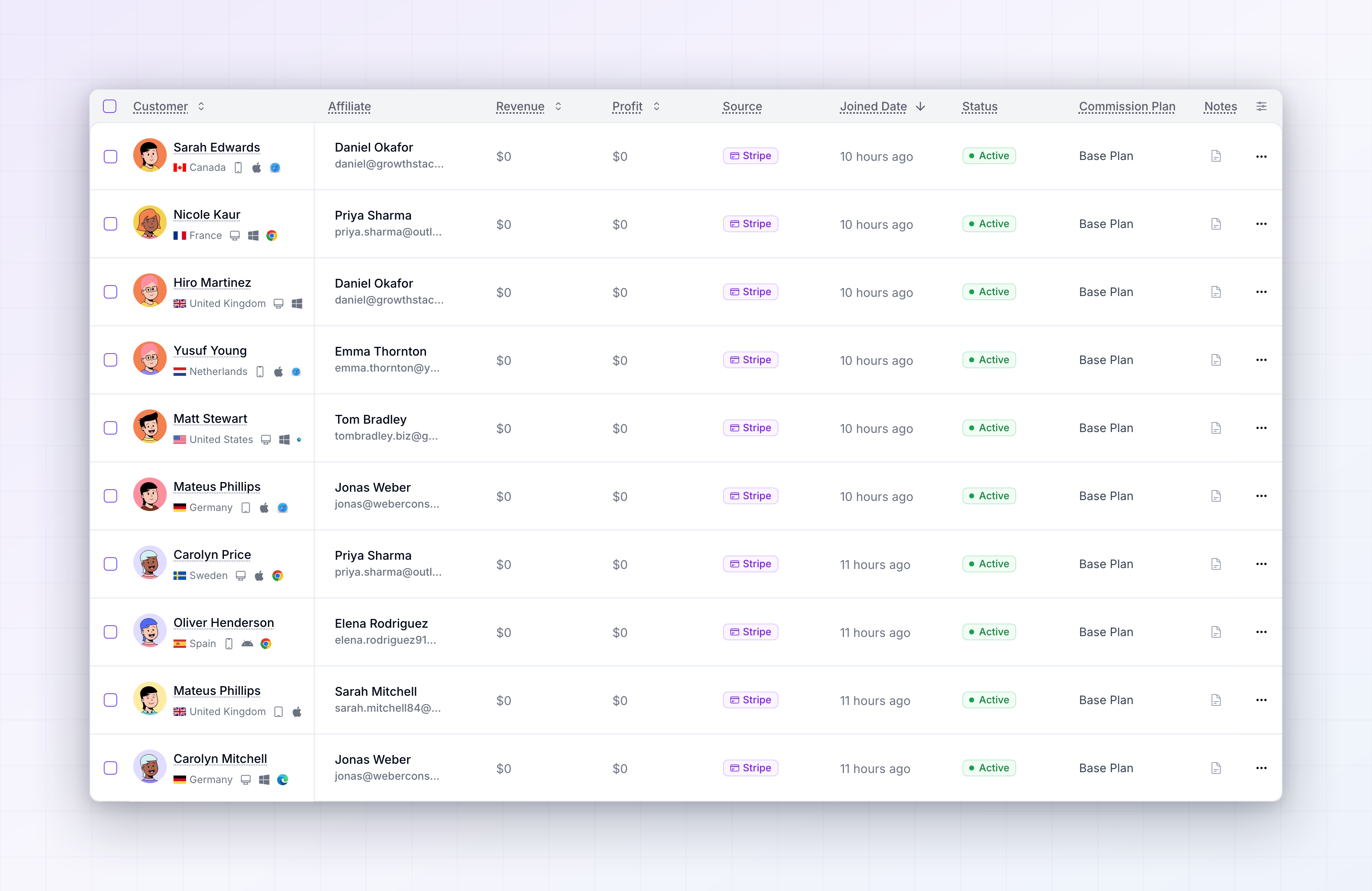
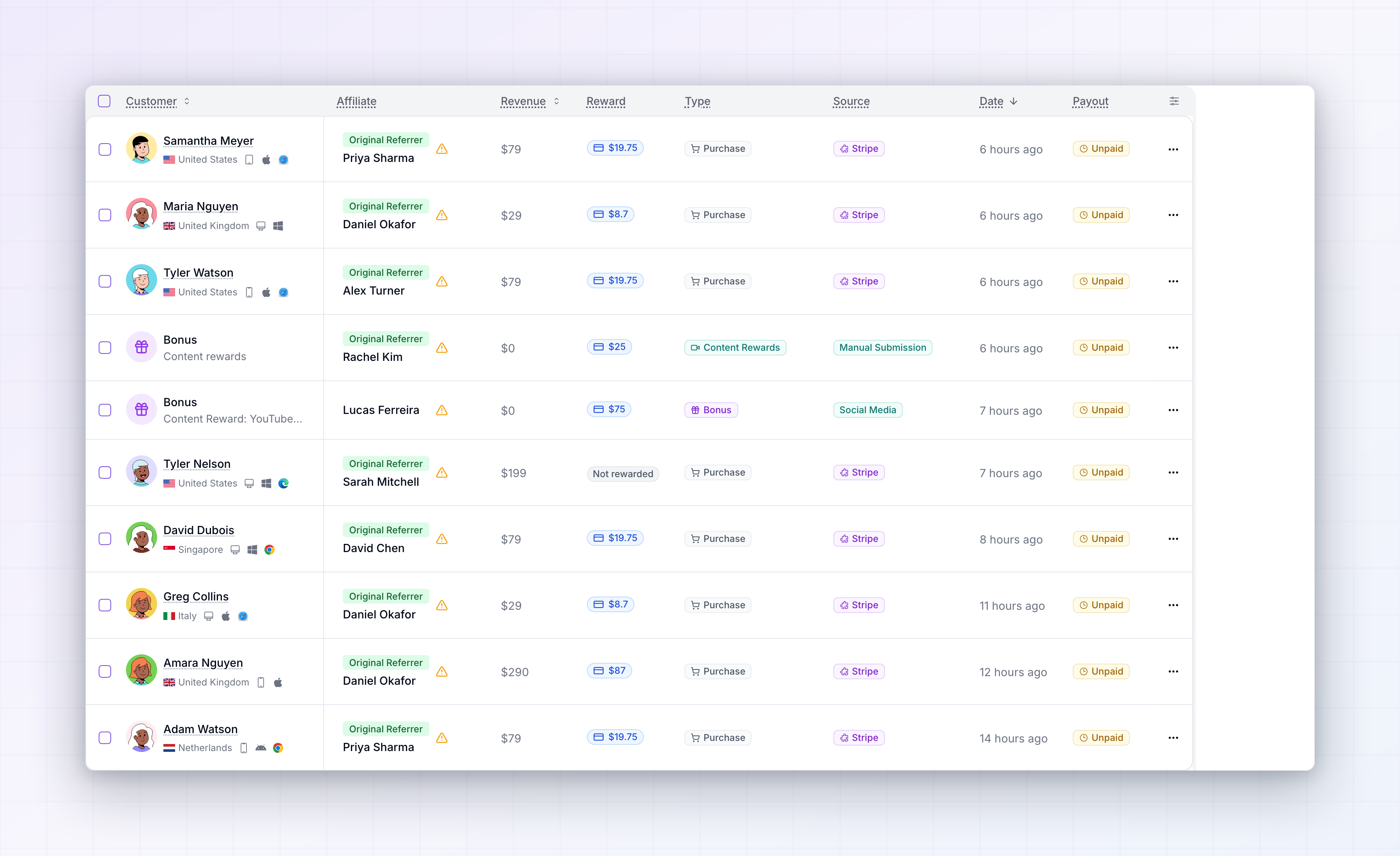
Check the result in Referly
Open Customers to find the buyer attached to the affiliate, Sales to confirm the amount, and Rewards to see the commission.
5
Clean up
Refund the test order in Ecwid, then delete the test customer and sale from your Customers and Sales pages — Referly won’t remove them for you.
Handling refunds
Ecwid refunds don’t reach Referly, so this one is manual. When you refund an order, open the matching sale on your Sales page in Referly and delete or adjust it, so the affiliate isn’t paid on money you gave back. If you approve rewards on a schedule rather than automatically, catching refunds before the hold period ends means nothing gets paid out in error. See Reward holds and Approve or decline rewards.Watching for duplicate sales
The order number isn’t sent along with the sale, so a shopper who reloads the confirmation page — or reaches it twice — can produce a second sale for the same order. It isn’t common, but it’s worth a look when you review rewards: two sales for the same customer, for the same amount, moments apart, are almost certainly one order counted twice. Delete the extra one from your Sales page before approving the reward.Removing the integration
Remove the confirmation page code from Settings, then General, then Tracking & Analytics in your Ecwid control panel, and take the tracking script out of your storefront. Nothing else needs undoing, because there’s no connection saved on Referly’s side. Nothing already tracked is deleted — your affiliates, referred customers, sales, and rewards all stay.Troubleshooting
Clicks aren't being counted
Clicks aren't being counted
The Step 1 script isn’t running on the page visitors land on. It has to be on every page of your store. If your store is embedded in your own website, add it to your site’s pages; if you use Ecwid’s Instant Site, add it through Ecwid’s custom code settings.
Clicks are tracked but sales aren't
Clicks are tracked but sales aren't
Two usual causes. Either the Step 1 script isn’t present on the confirmation page — it needs to be there as well as on your storefront — or the Step 2 code didn’t save correctly. Place another test order and watch the confirmation page load fully.
Sales appear with no affiliate attached
Sales appear with no affiliate attached
The shopper didn’t arrive through an affiliate link in that browser, or they cleared their cookies between arriving and buying. Test with a fresh private window and a real affiliate’s link.
Some orders come through and others don't
Some orders come through and others don't
Shoppers who close the tab before the confirmation page loads aren’t reported, and neither are orders you create by hand in your Ecwid admin. That’s inherent to tracking from the confirmation page — add anything missing with Add a sale.
Sale amounts look wrong
Sale amounts look wrong
The order total is sent as text and converted into your program’s currency. If amounts look off by an exchange rate, check the currency set on your program under Program details.
I can't build a per-product commission plan
I can't build a per-product commission plan
Ecwid doesn’t send the individual items on an order, so there’s nothing for a product rule to match on. Use a percentage or flat rate across the whole order instead — see Commission plans overview.
Related
Commission plans overview
Set a percentage or flat rate for your Ecwid orders.
Add a sale
Record an order by hand when it wasn’t reported.
Universal integration
Track sign-ups and form submissions as well as orders.
Integrations overview
See every tool Referly connects to.